KS0138 keyestudio EASY plug I2C 2004 LCD
1. Introduction
An LCD, or liquid crystal display, is a simple screen that can display commands, bits of information, or readings from your sensor - all depending on how you program your board.
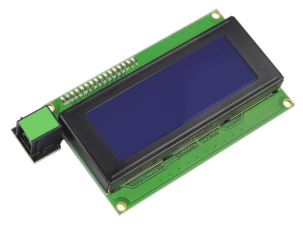
This module is a 20 character by 4 line LCD display with Blue background and White backlight.
The original 2004 LCD needs 7 IO ports to be up and running, ours is built with Arduino IIC/I2C interface, saving you 5 IO ports.
This LCD is ready-to-use because it is compatible with the Arduino Liquid Crystal Library. It comes with EASY Plug connector, you can use one line for simple connection.
This module should be used together with EASY plug control board.
Special Note:
The sensor/module is equipped with the RJ11 6P6C interface, compatible with our keyestudio EASY plug Control Board with RJ11 6P6C interface.
If you have the control board of other brands, it is also equipped with the RJ11 6P6C interface but has different internal line sequence, can’t be used compatibly with our sensor/module.
2. Specifications
Interface: I2C
I2C address: 0x27
White text on blue background
20 characters wide, 4 rows
Operating voltage: +5V
Contrast control: through potentiometer
Compatible with Arduino LiquidCrystal Library
3. Technical Details
Dimensions: 114mm * 60mm * 22mm
Weight: 77.7g
4. Connect It Up
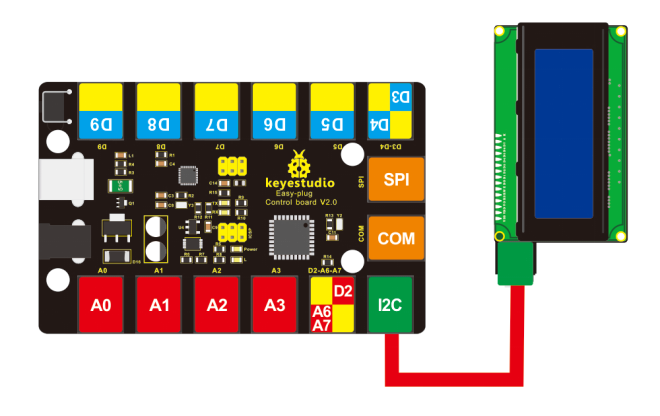
Connect the EASY Plug 2004 LCD module to control board using an RJ11 cable. Then connect the control board to your PC with a USB cable.
5. Upload the Code
Download Resource: Resource
Note: before uploading the code, you need to import the library files; otherwise, the code upload will fail.
//Compatible with the Arduino IDE 1.0
//Library version:1.1
#include <Wire.h>
#include <LiquidCrystal_I2C.h>

LiquidCrystal_I2C lcd(0x27,20,4);  // set the LCD address to 0x27 for a 16 chars and 2 line display

void setup()
{
  lcd.init();                      // initialize the lcd
  lcd.init();
  // Print a message to the LCD.
  lcd.backlight();
  lcd.setCursor(3,0);
  lcd.print("Hello, world!");
  lcd.setCursor(2,1);
  lcd.print("Hello,keyestudio!");
   lcd.setCursor(0,2);
  lcd.print("Arduino LCD IIC 2004");
   lcd.setCursor(2,3);
  lcd.print("Power By Ec-yuan!");
}

void loop()
{
}
6. Result
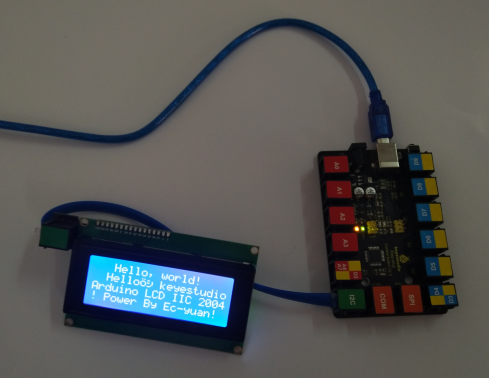
Initially, you should see the words “hello, word!” and “keyestudio!” pop up on your LCD. Remember you can adjust the contrast using the potentiometer on the module back if you can’t make out the words clearly.