KS0210 keyestudio RPI TTP229L 16-key Capacitive Touch Keypad
1. Introduction
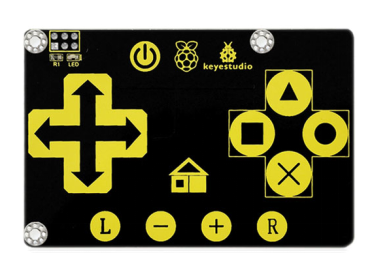
This keypad is designed for Raspberry Pi and supplies your Pi with 16 keys. It has an I2C communication mode and uses 3.3 V supply voltage with a power indicator.
We provide you with installation package, source codes and a document to help you complete your programs.
2. Specification
Chip: TTP229-LSF
Supply Voltage: 3.3V
Interface: I2C
3. Shipping List
keyestudio RPI TTP229L 16-key Capacitive Touch Keypad x1
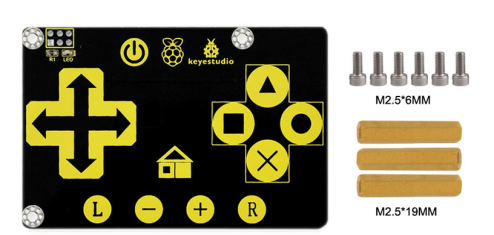
M2.5*6MM screw x 6
M2.5*19MM copper pillar x 3
4. Connection Diagram
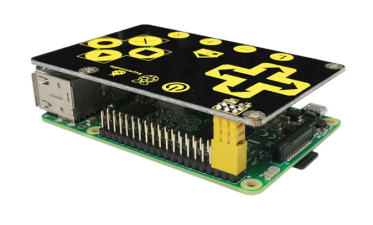
Plug it directly into Raspberry Pi to start your works as shown in below figure.
After power-on have about 0.5sec stable-time. During the time do not touch the key pad, and all functions are disabled.
5. Sample Code
Download Resources : Resources
#include <bcm2835.h>
#include <stdio.h>
#include <unistd.h>
unsigned char WriteBuf;
unsigned char WriteBuf1;
unsigned int ReadBuf0;

int main(int argc, char **argv)
{
    if (!bcm2835_init())
    return 1;
    bcm2835_i2c_begin();
    bcm2835_i2c_setSlaveAddress(0x57);
    bcm2835_i2c_set_baudrate(10000);
    printf("start..........\n");

    while(1)
    {
		WriteBuf = 0x00;
		bcm2835_i2c_write_read_rs(&WriteBuf,2,&WriteBuf1,2);
		bcm2835_i2c_read (&ReadBuf0,2);
		printf("TTP229:%d\n",ReadBuf0);
		printf ("\r");
		fflush (stdout);
		bcm2835_delay(100);
    }
    bcm2835_i2c_end();
    bcm2835_close();
    return 0;
}
6. Program Writing
1.Installing bcm-2835 Library
Here is the tutorial for installing bcm-2835 library in Raspberry Pi. To install bcm-2835, first we need to download bcm2835 library.
Step1: Now after downloading library, copy it in any folder of your raspberry pi by winSCP(we provide its installation package, but please refer to usage by yourselves).
Step2: Now it’s time to extract the library, so open terminal of raspberry pi and go to the folder where you have copied your library and type this command: tar zxvf bcm2835-1.39.tar.gz
Step3: Now to into library folder, type this command: cd bcm2835-1.39
Step4: Now, we are ready to install bcm2835 library, so to start installation type this command: ./configure
Step5: then type this command: make
Step6: then this: sudo make check
**Step7:**and finally this: sudo make install
Congrats your library is installed. Now use “#include <bcm2835.h>” in your program to use bcm2835 library.
2.Programming
Now it’s time to write a program. If you need to create a new directory within raspberry pi, you can use the ‘mkdir’ command. So type at your terminal: mkdir rpi_shield.
Then copy the file rpi_TTP229L provided by us and put it into the directory rpi_shield through winSCP. Next, type this command: cd rpi_TTP229L to go inside the rpi_TTP229L folder.
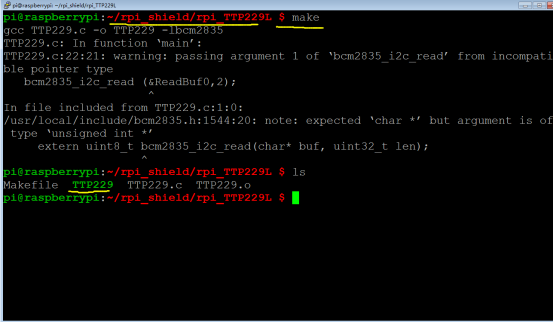
Then type this command: make to make an executable file; This means this is the file we run to launch the program as shown in below figure.
To make a new directory, you just need to add the name of the directory after the command, such as ‘mkdir new_directory’.
Finally type this: sudo ./TTP229 to launch the program.
7. Result
Touch the keys, and corresponding value is printed on the terminal as shown in below figure. Use Ctrl+C to exit the processing program.

sudo ./TTP229 to running program
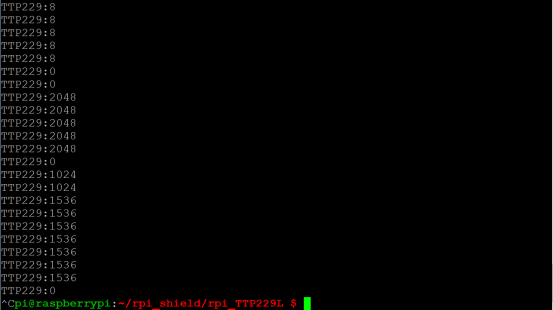
Touching different keys to print various value.