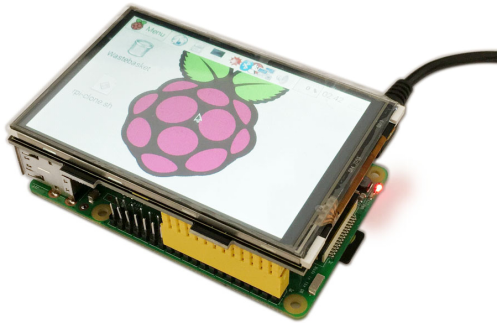
KS0214 keyestudio RPI TFT 3.5 LCD Touchscreen Shield
RASPBIAN JESSIE: https://www.raspberrypi.org/downloads/raspbian/
Download Resources : Resources
1. Introduction
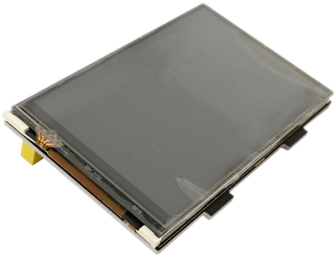
It is the cutest, little display for the Raspberry Pi. It features a 3.5” display with 480x320 16-bit color pixels and a resistive touch overlay.
It supports any revision of Raspberry Pi (directly-pluggable).
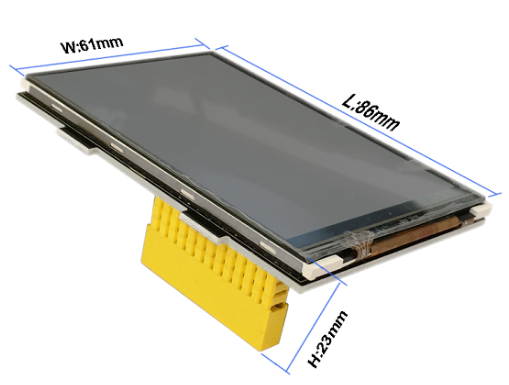
2. Dimensions
3. Description
Contents |
Role |
|---|---|
Modules Structure |
3.5 inch TFT LCD+IC+FPC+BL |
MCU Interface |
16 BITS 80 parallel interface |
LCD Type |
TFT Negative Transmission |
Driver Type |
a-Si TFT Active matrix |
Pixel Arrangement |
RGB Stripes Arrangement |
Active Area |
48.96 *73.44 mm |
Glass Area |
52.96 *81.44 mm |
Resolution |
480 *320 (Pixel) Dots |
Viewing Direction |
9 o’clock |
Control IC |
ILI9481 |
Backlight |
6-chip white LEDS Parallel |
4. Connection Diagram
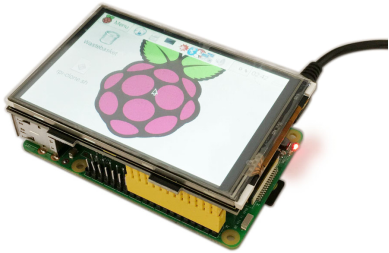
This will have to be the easiest step, since you just need to take the LCD module and plug it on to your raspberry pi GPIO pins as shown in the below picture.
5. Program Writing
5.1 Writing an image to the SD card
In our supporting files, you will find the image file “2016-05-27-raspbian-jessie” which is an operation system come with a Desktop Environment.
You need to use an image writing tool like Win32DiskImager to install it on your SD card. Then write the image into your SD card.
5.2 Log in the Pi
Insert the SD Card and finally attach the power supply.
The Raspberry Pi will boot immediately. This will take a little bit more than a minute. Once the Pi is booted it will ask you for the username and the password.
By default the following log-in credentials can be used:
Username: pi
Password: raspberry
5.3 Programming
How to connect Raspberry Pi 3B
Burn the image file “2016-05-27-raspbian-jessie” in the storage card of Raspberry Pi.
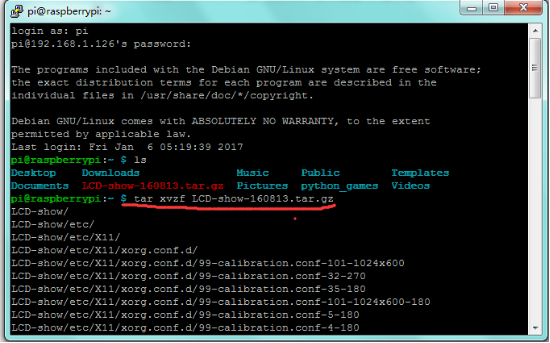
Log in Raspberry Pi with desktop display system, place LCD-show-160813.tar file in the Pi folder on Raspberry Pi system through WinSCP.
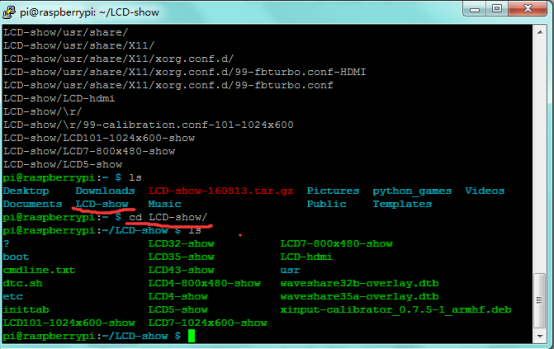
Execute tar xzvf LCD-show-160813.tar in the terminal. unzip LCD-show-160813.tar to get LCD-show folder.
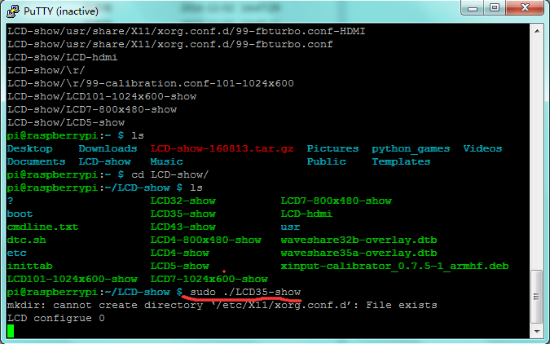
Input cd LCD-show in the terminal to enter folder and type sudo ./LCD-show to run program.
Once this is done, your Raspberry Pi will reboot automatically:
sudo reboot
How to Connect to Raspberry Pi 4B
Burn the system image file“RPi-35inch-LCD-(A)-Raspbian-190722”in the storage card of Raspberry Pi.
Copy ssh file to the root directory of system
Find out IP address via external screen and mouse
External screen displays the corresponding pictures after connecting, click LCD and set
Type cd LCD-show in the terminal and enter the folder. We could change the rotation direction of screen through the below commands, rotate 0°
cd LCD-show/
./LCD35-show 0
Rotate 90°:
cd LCD-show/
./LCD35-show 90
Rotate 180°:
cd LCD-show/
./LCD35-show 180
Rotate 270°:
cd LCD-show/
./LCD35-show 270
System will reboot automatically, after setting rotation angle
6. Result
Touch the touchscreen to look at the information on your Pi as shown in below figure.