KS0247 keyestudio Pro Mini
1. Introduction
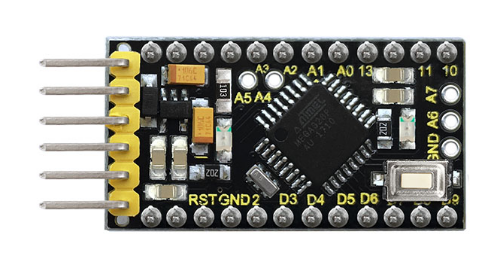
keyestudio Pro Mini is a small microcontroller board based on the ATmega328. (datasheet), intended for use on breadboards and when space is at a premium.
It has 14 digital input/output pins (of which 6 can be used as PWM outputs), 8 analog inputs, a 16 MHz crystal oscillator, and a reset button.
Note that the board is without an on-board USB to Serial connection. To program the Pro Mini, you will need an external USB to Serial module.
The keyestudio pro mini can be powered via the pins 5V GND (DC 5V), or female headers Vin GND (DC 7-9V).
2. Features
Using ATmega328P-AU from Atmel
14 digital input/output pins
8 analog input pins labeled A0 ~ A7
TTL level serial pins RX/TX;
6 PWM pins (D3, D5, D6, D9, D10, D11)
Support external DC 7-9V power supply
3. TECH SPECS
Microcontroller |
ATmega328P-AU |
|---|---|
Operating Voltage |
5V |
Input Voltage (recommended) |
DC7-9V |
Digital I/O Pins |
14 (D0-D13) (of which 6 provide PWM output) |
PWM Digital I/O Pins |
6 (D3, D5, D6, D9, D10, D11) |
Analog Input Pins |
8 (A0-A7) |
DC Current per I/O Pin |
40 mA |
Flash Memory |
32 KB of which 2 KB used by bootloader |
SRAM |
2 KB |
EEPROM |
1 KB |
Clock Speed |
16 MHz |
LED_BUILTIN |
D13 |
4. Technical Details
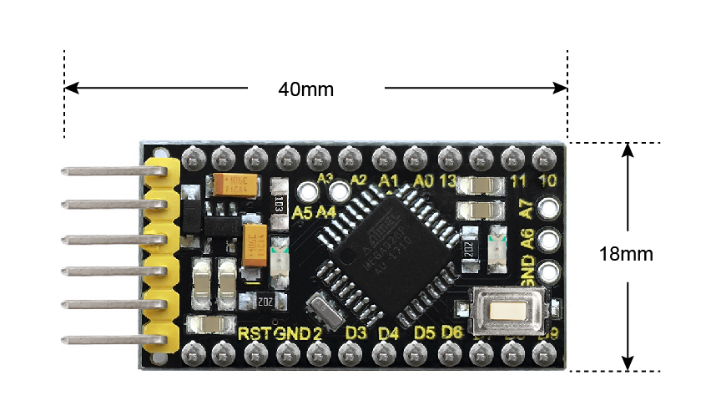
Dimensions: 40mm x 18mm x 14mm
Weight: 4.1g
5. Element and Interfaces
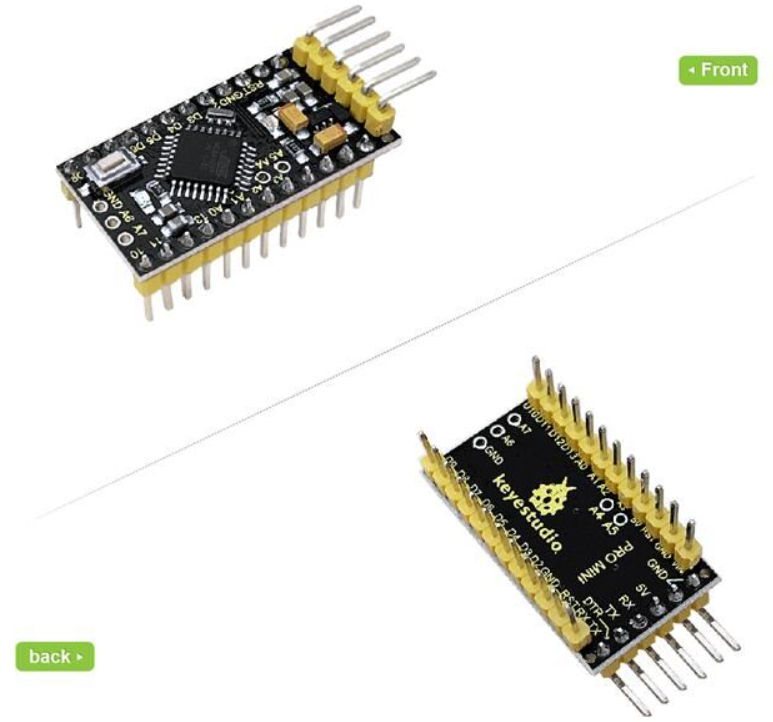
Here is an explanation of what every element and interface of the board does:
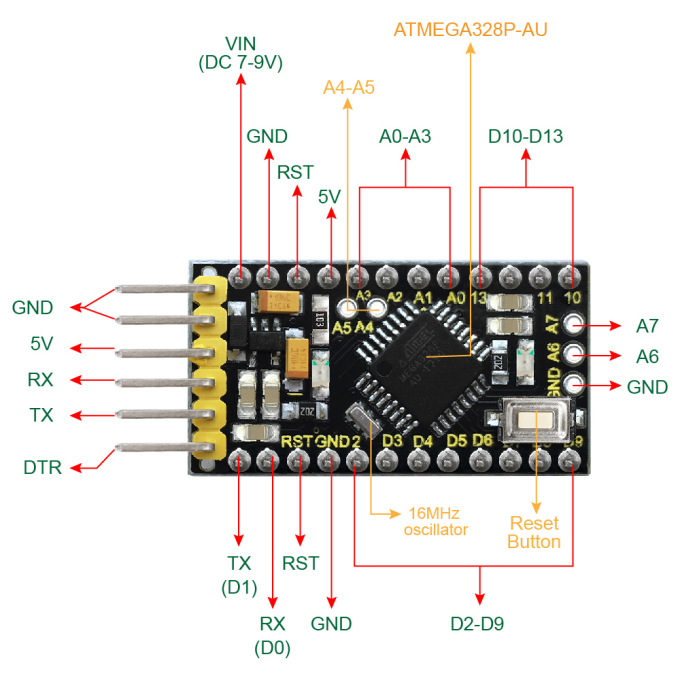
6. Specialized Functions of Some Pins
Serial communication: 0 (RX) and 1 (TX). Used to receive (RX) and transmit (TX) TTL serial data.
PWM (Pulse-Width Modulation): D3, D5, D6, D9, D10, D11
External Interrupts: D2 (interrupt 0) and D3 (interrupt 1).
SPI communication: D10 (SS), D11 (MOSI), D12 (MISO), D13 (SCK).
IIC communication: A4 (SDA); A5(SCL)
7. Software Download
Open the browser and search: https://www.arduino.cc/en/software, we will take WINDOWS system as an example to show you how to download and install.
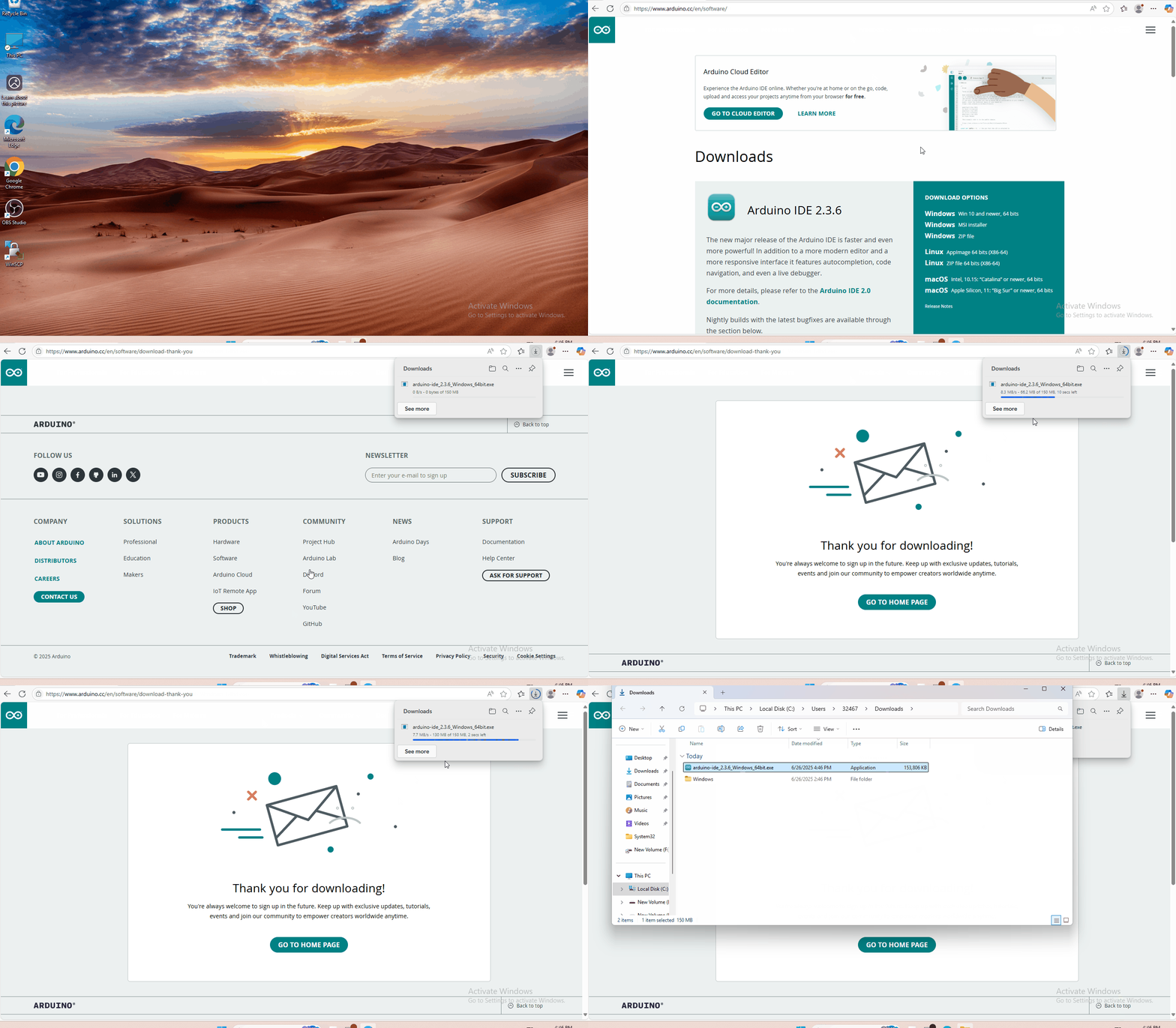
You just need to click JUSTDOWNLOAD,then click the downloaded file to install it. And when the ZIP file is downloaded,you can directly unzip and start it.
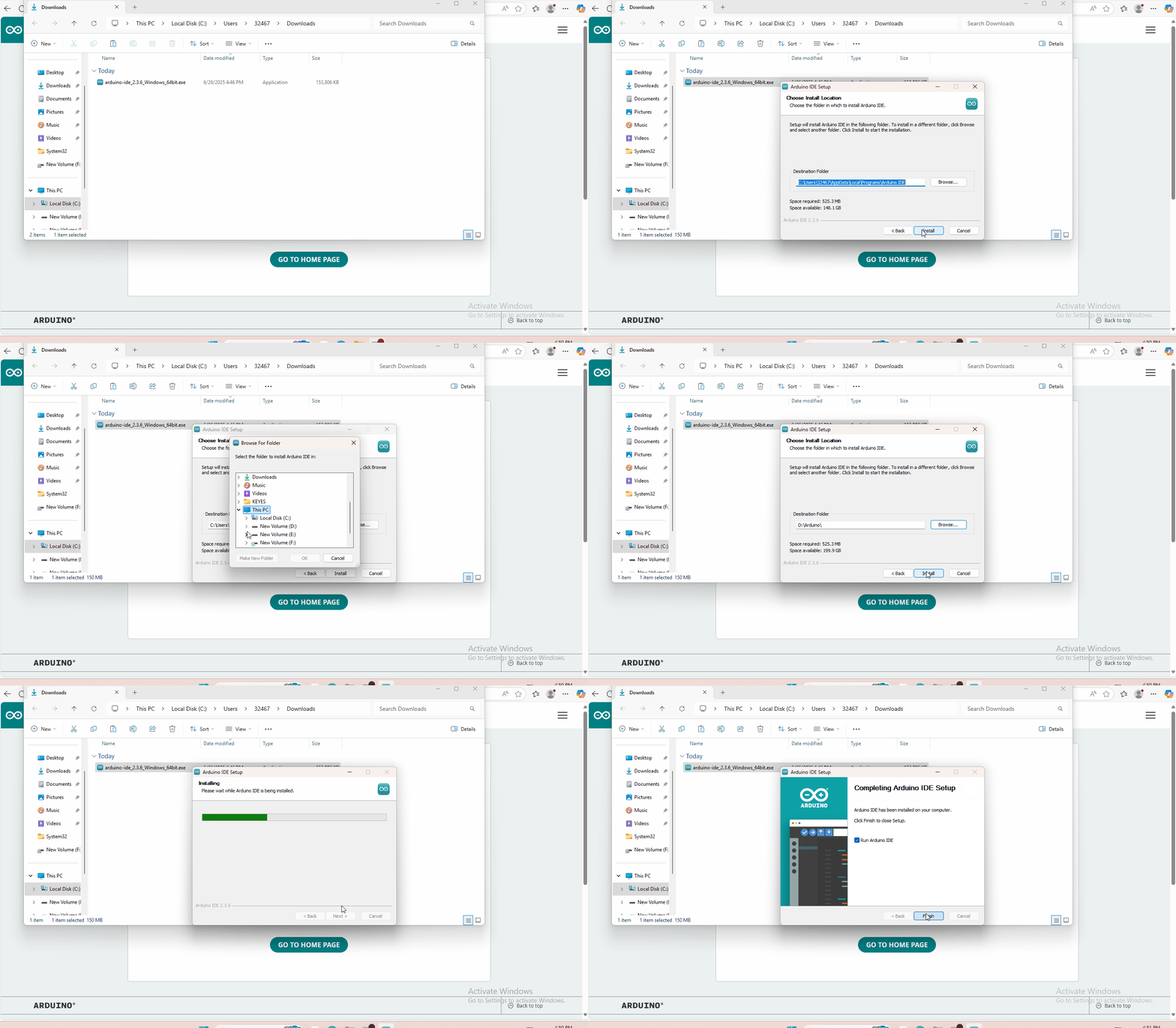
8. Installing the Driver
Download Driver : Driver
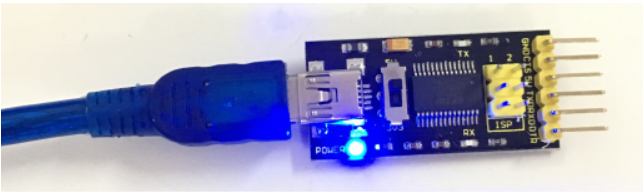
To program the Pro Mini board, you will need to connect an external USB to Serial module. Different USB to Serial modules might have different driver installation
The USB to serial port chip of this control board is FT232RL. So you need to install the driver for the chip.
In different systems, the driver installation is similar. Here we start to install the driver on the Win7 system.
Plug one end of your USB cable into the module and the other into a USB socket on your computer.
When you connect the module to your computer at the first time, right click your “Computer” —>for “Properties”—> click the “Device manager”, under Other devices, you should see the “USB Serial Port”.
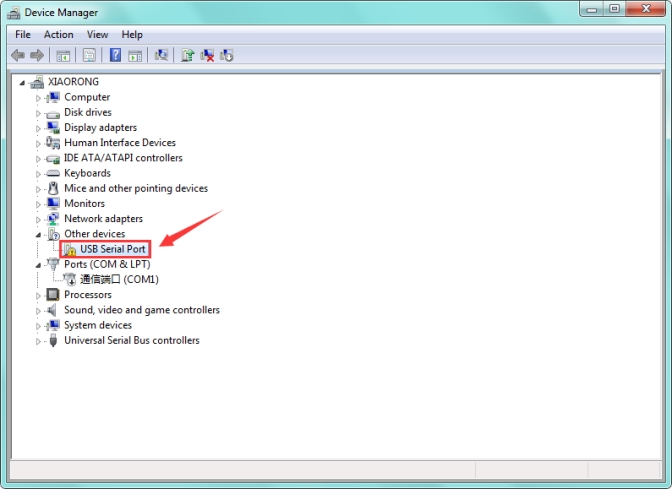
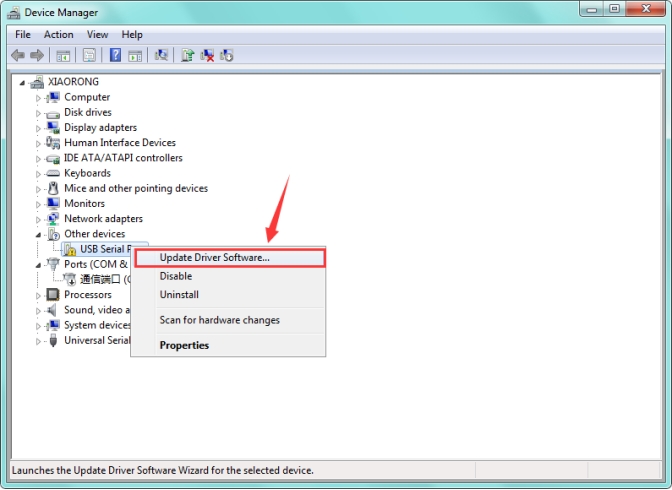
Then right-click on the USB Serial Port and select the top menu option (Update Driver Software…) shown as the figure below.
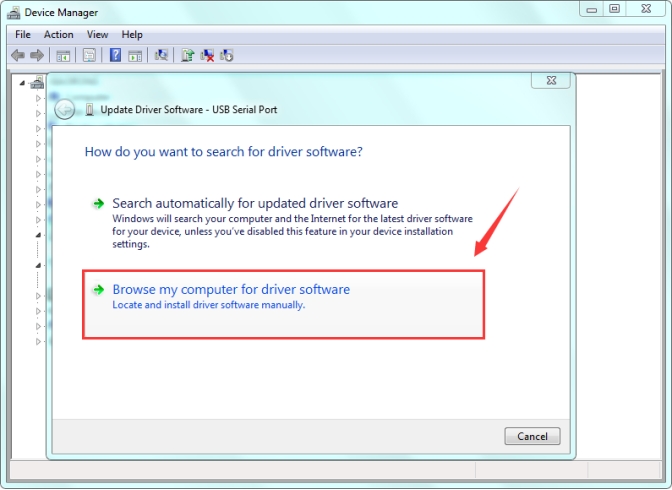
Then it will be prompted to either “Search Automatically for updated driver software” or “Browse my computer for driver software”. Shown as below. In this page, select “Browse my computer for driver software”.
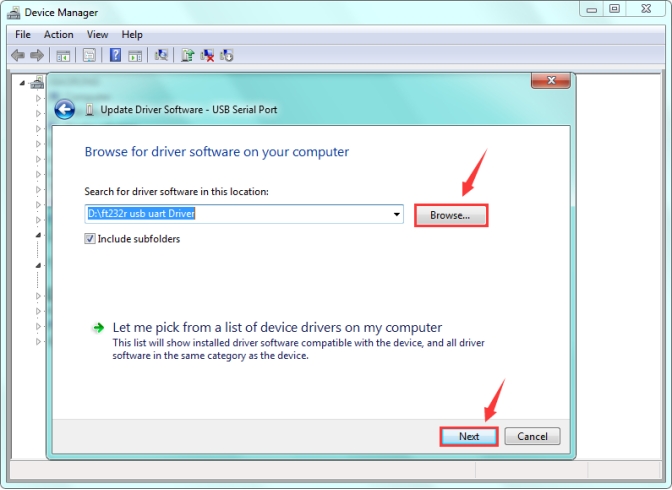
After that, select the option to browse and navigate to the “drivers” folder.
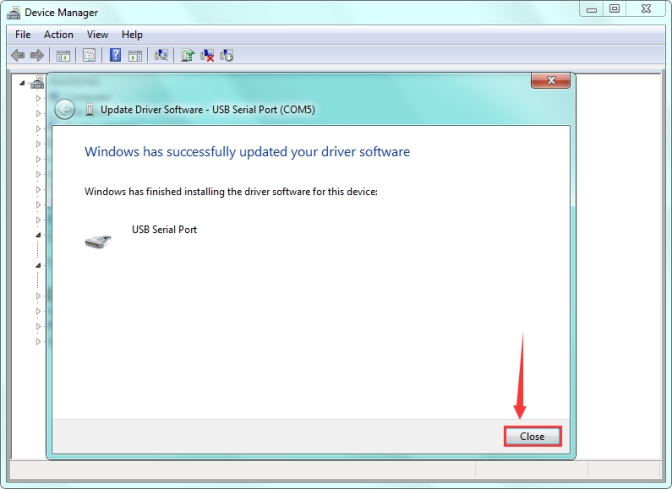
Once the driver has been installed, you will get a confirmation message. Installation completed, click “Close”.
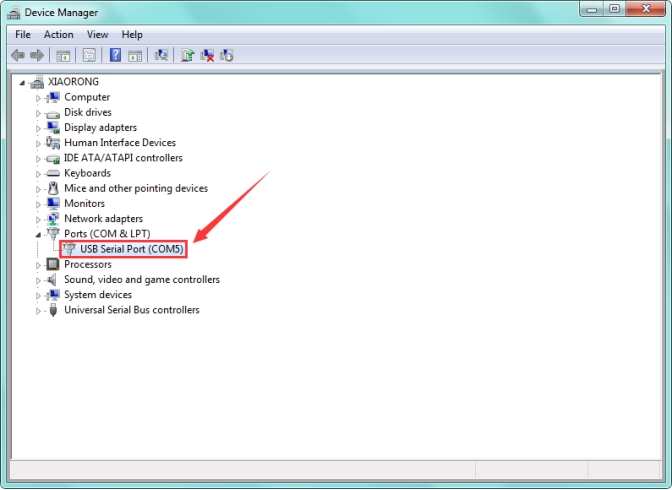
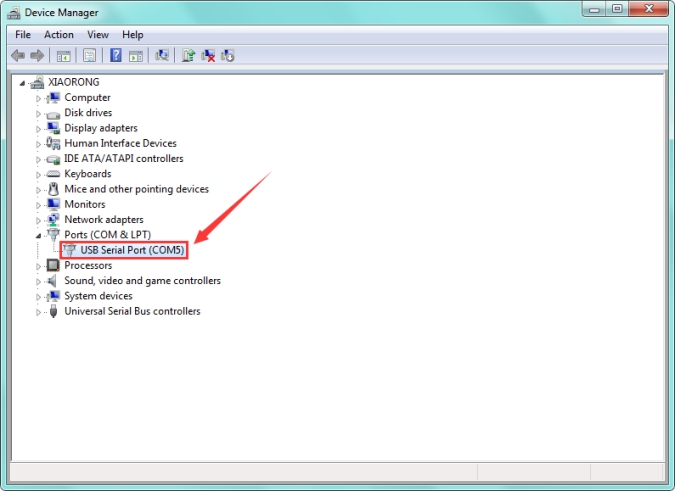
Up to now, the driver is installed well. Then you can right click “Computer” —>“Properties”—>“Device manager”, you should see the device as the figure shown below.
9. Set Arduino IDE
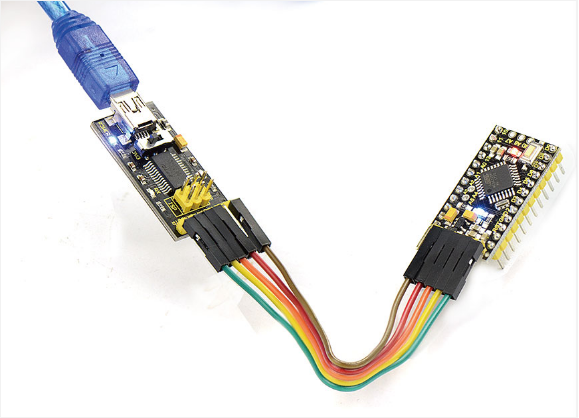
Driver installation completed, disconnect the module to computer, then connect it to pro mini board using F-F jumper wires. Shown below. The slide switch on the module is used to control the voltage for serial communication. Whether it is set to 5V or 3.3V, it can be programmed with the Pro Mini.
FTDI Basic Program Downloader |
keyestudio pro mini |
|---|---|
GND |
GND |
5V |
5V |
TXD |
RX |
RXD |
TX |
DIR |
DIR |
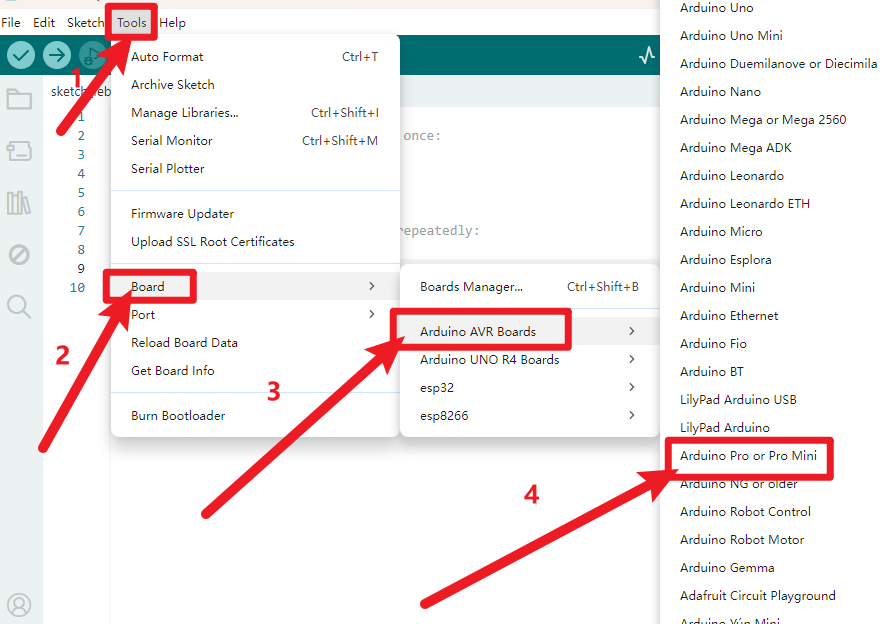
Connecting the board to the computer,and select the development board .
Select the port.
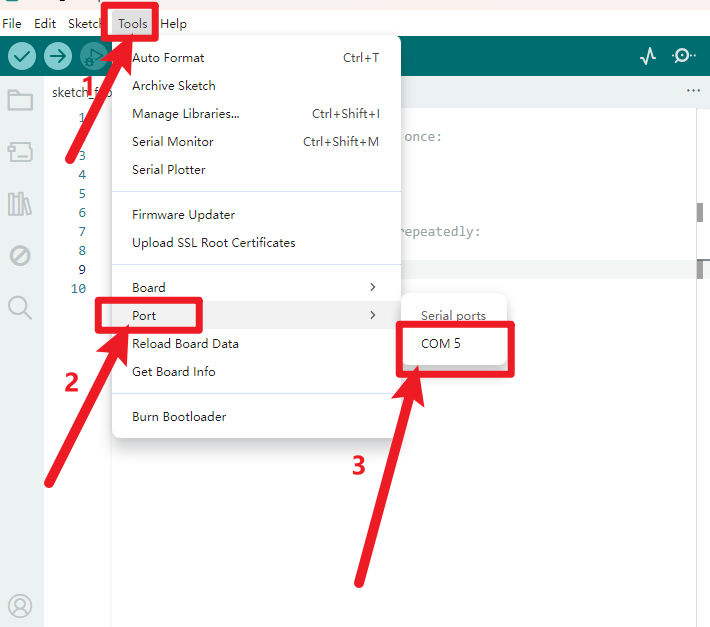
Note: to avoid errors, the COM Port should keep the same as the Ports shown on Device Manager.
10. Upload the Code
Below is an example code for displaying the Hello World! Copy and paste the code to the Arduino environment IDE.
int val;
int ledpin=13;

void setup()
{
    Serial.begin(9600);
    pinMode(ledpin,OUTPUT);
}

void loop()
{
    val=Serial.read();
    if(val=='R')
    {
        digitalWrite(ledpin,HIGH);
        delay(500);
        digitalWrite(ledpin,LOW);
        delay(500);
        Serial.println("Hello World!");
    }
}
Picture |
Introduction |
|---|---|
|
Check the code for errors |
|
Upload the current Sketch to the Arduino |
|
Display the serial data being sent from the Arduino |


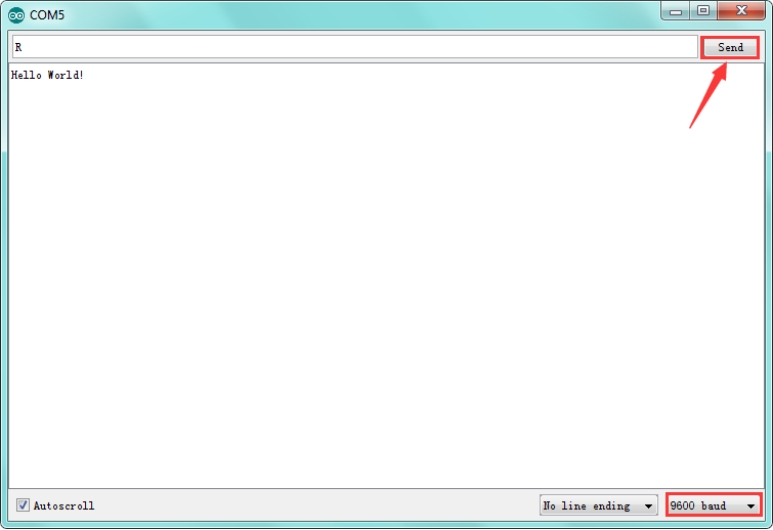
Then set the baud rate to 9600, enter an “R” and click Send, that is, the computer will send the character R. When pro mini board receives it, you should see the D13 led flash once. “Hello World!” is sent to the computer, so that you should see the “Hello World!” is showed on the monitor.