KS0375 keyestudio SR01 Ultrasonic Module V2
1. Introduction
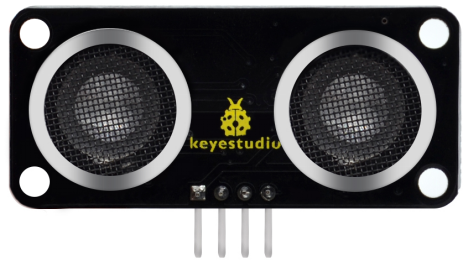
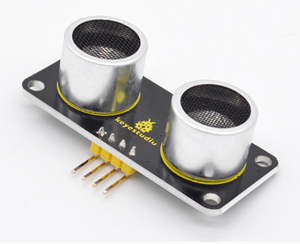
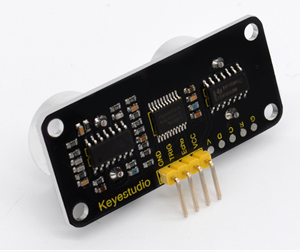
keyestudio SR01 Ultrasonic Module V2 is a very affordable proximity/distance sensor that has been used mainly for object avoidance in various robotics projects. It uses upgraded N76E003AT20 solution.
It essentially gives your Arduino eyes/spacial awareness and can prevent your robot from crashing or falling off a table.
It has also been used in turret applications, water level sensing, and even as a parking sensor.
This simple project will use the SR01 ultrasonic module V2 with an Arduino and a processing sketch to provide a neat little interactive display on your computer screen.
2. Specification
Working Voltage: DC 5V
Working Current: 15mA
Working Frequency: 40KHz
Max Range: 2–3m
Min Range: 2cm
Measuring Angle: 15 degree
Trigger Input Signal: 10µS TTL pulse
Environmental attributes: ROHS
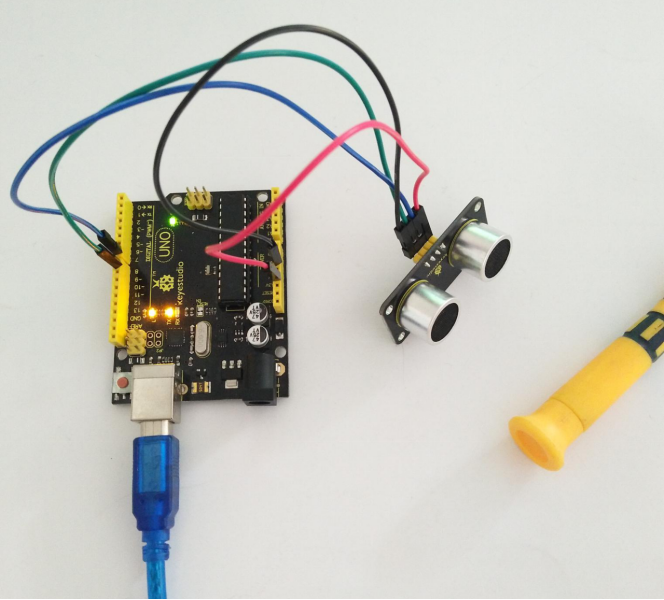
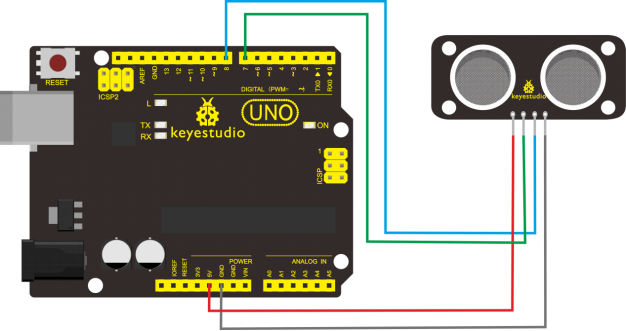
3. Connection Diagram
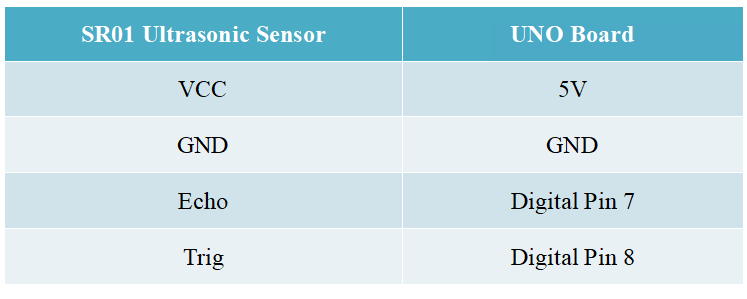
4. Sample Code
Download code : Code
#define echoPin 7 // Echo Pin
#define trigPin 8 // Trigger Pin
#define LEDPin 13 // Onboard LED

int maximumRange = 200; // Maximum range needed
int minimumRange = 0; // Minimum range needed
long duration, distance; // Duration used to calculate distance

void setup()
{
 Serial.begin (9600);
 pinMode(trigPin, OUTPUT);
 pinMode(echoPin, INPUT);
 pinMode(LEDPin, OUTPUT); // Use LED indicator (if required)
}

void loop()
{
 /* The following trigPin/echoPin cycle is used to determine the
 distance of the nearest object by bouncing soundwaves off of it. */
 digitalWrite(trigPin, LOW);
 delayMicroseconds(2);

 digitalWrite(trigPin, HIGH);
 delayMicroseconds(10);
 digitalWrite(trigPin, LOW);

 duration = pulseIn(echoPin, HIGH);

 //Calculate the distance (in cm) based on the speed of sound.
 distance = duration/58.2;

 if (distance >= maximumRange || distance <= minimumRange)
 {
 	/* Send a negative number to computer and Turn LED ON
 	to indicate "out of range" */
 	Serial.println("-1");
 	digitalWrite(LEDPin, HIGH);
 }
 else
 {
 	/* Send the distance to the computer using Serial protocol, and
 	turn LED OFF to indicate successful reading. */
 	Serial.println(distance);
 	digitalWrite(LEDPin, LOW);
 }
 //Delay 50ms before next reading.
 delay(50);
}
5. Result
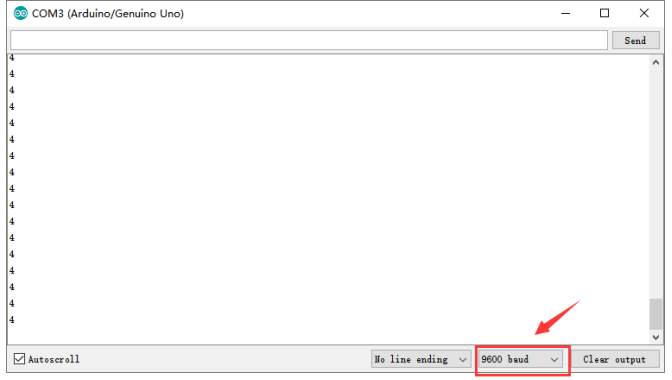
After upload the code to the board, open the serial monitor of Arduino IDE, and set the baud rate to 9600.
Move your hand or a large, flat object closer and farther away from the distance sensor. You can see the measured distance value pop up on the monitor.