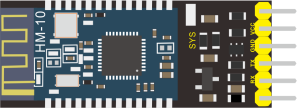
KS0455 keyestudio HM-10 Bluetooth-4.0 V3 Compatible with HC-06 Pins
1. Description
Bluetooth technology is a wireless standard technology that enables short-distance data exchange between fixed devices, mobile devices, and building personal area networks (using UHF radio waves in the ISM band of 2.4 to 2.485 GHz).
The Keyestudio HM-10 Bluetooth-4.0 V3 module is a master-slave machine. When use as the Host, it can send commands to the slave actively; when use as the Slave, it can only receive commands from the host.
The HM-10 Bluetooth module supports the Bluetooth 4.0 protocol, which not only supports Android mobile, but also supports iOS system.
2. Technical Details
Bluetooth protocol: Bluetooth Specification V4.0 BLE
No byte limit in serial port Transceiving
In open environment, realize 100m ultra-distance communication with iphone4s
USB protocol: USB V2.0
Working frequency: 2.4GHz ISM band
Modulation method: GFSK(Gaussian Frequency Shift Keying)
Transmission power: -23dbm, -6dbm, 0dbm, 6dbm, can be modified by AT command.
Sensitivity: ≤-84dBm at 0.1% BER
Transmission rate: Asynchronous: 6K bytes ; Synchronous: 6k Bytes
Security feature: Authentication and encryption
Supporting service: Central & Peripheral UUID FFE0, FFE1
Power consumption: Auto sleep mode, stand by current 400uA~800uA, 8.5mA during transmission.
Power supply: 5V DC
Working temperature: –5 to +65 Centigrade
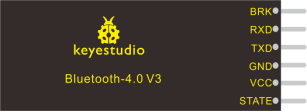
3. Pins Description
Pins |
Description |
|---|---|
BRK |
Input pin; short press for control, or input a low-level single pulse of about 1000ms, you can implement the following features: |
RXD |
Serial data input |
TXD |
Serial data output |
GND |
ground |
VCC |
Power positive input 5V |
STATE |
Output pin |
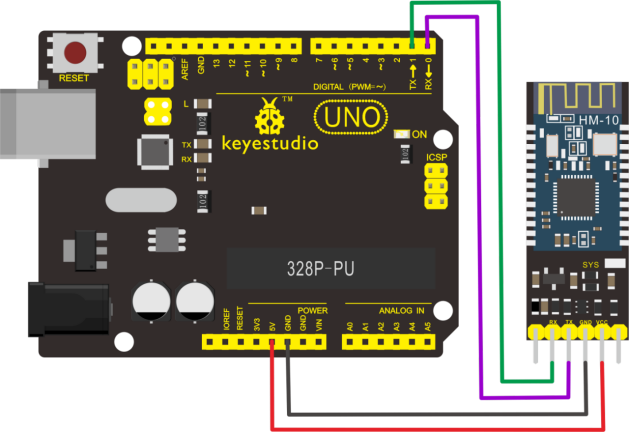
4. Wiring Diagram
5. Test Code
Download Resource : Resource
Note: before uploading the code, you need to import the library files; otherwise, the code upload will fail.
When uploading the code, CANNOT connect the Bluetooth module; otherwise uploading fails! You are supposed to upload the code to control board, then connect the Bluetooth module.
#include "DFRobot_ST7687S_Latch.h"

#ifdef __AVR__
uint8_t pin_cs = 3, pin_rs = 5, pin_wr = 6, pin_lck = 7;
#else
uint8_t pin_cs = D3, pin_rs = D5, pin_wr = D6, pin_lck = D7;
#endif

DFRobot_ST7687S_Latch tft(pin_cs, pin_rs, pin_wr, pin_lck);

void setup(void)
{
  Serial.begin(115200);
  tft.begin();
  tft.fillScreen(DISPLAY_WHITE);
}

void loop(void)
{
  tft.drawTriangle(-20, -50, 0, 0, 50, 20, DISPLAY_ORANGE);  //draw triangle
  delay(1000);
  tft.fillScreen(DISPLAY_WHITE);
}
6. Result
First should install the APP on the cellphone.
Android APP
Allow APP to access “location” in settings of your cellphone when connecting to Bluetooth module.
We only provide Android APP.
APP installed well, you can see the icon on your Android phone.
After wiring, upload the test code to UNO R3 board and then connect the Bluetooth module. Powered on, Bluetooth module’s built in LED flashes.
Open the Android APP ,click to scan device. As shown below.
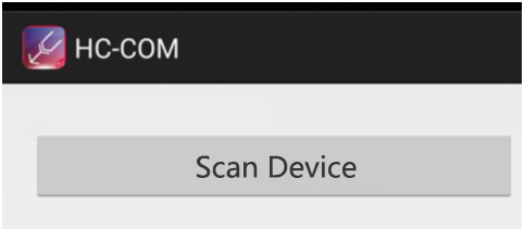
Click Scan Device to search the Bluetooth.
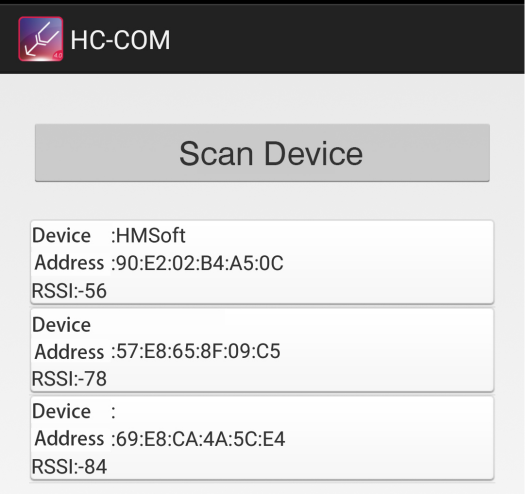
Click the first device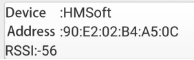 to connect the Bluetooth.
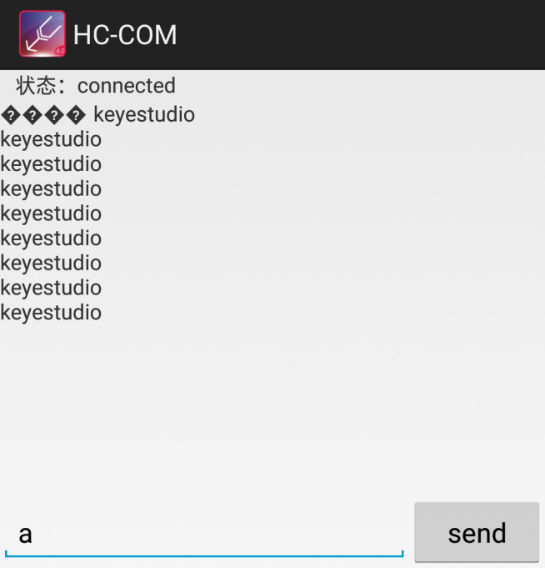
Connected, built-in LED on the Bluetooth module is normally on. APP interface will show the state connected.
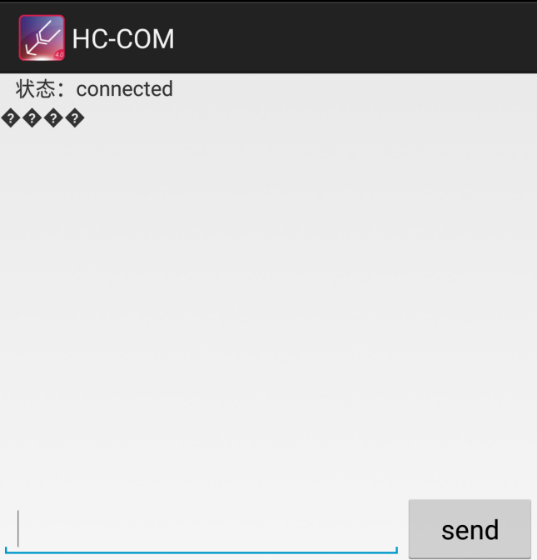
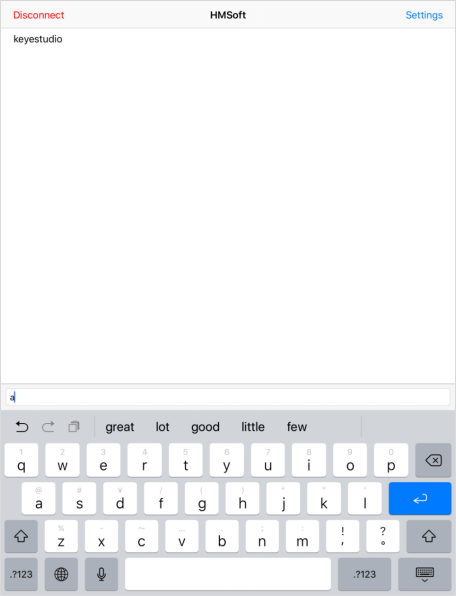
On the bar enter letter a, and click to send, APP will print out the character “keyestudio” and D13 indicator on the UNO R3 board will flash once.
Continue to send the letter a, APP prints out multiple “keyestudio” character and D13 indicator flashes.
mac/iOS APP
You need to download the mac/iOS compatible APP in APP store.
First we enter the APP store, search hm10, and select the hm10 bluetooth serial lite.
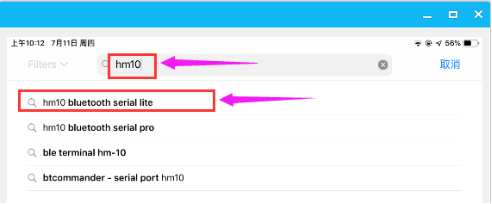
Click to install the APP, as shown below.
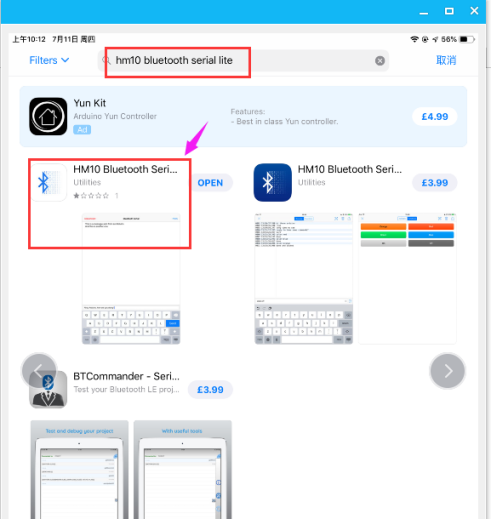
After the APP is installed, a Bluetooth icon will pop up on your phone. Click to enter the APP.
Upload the test code to control board successfully, then plug in the Bluetooth module.
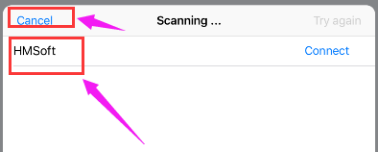
Open the Bluetooth APP, click  to start searching and pairing the Bluetooth module. Click
 to copnnect HM-10 Bluetooth module.
Connected, the built-in LED on the Bluetooth module will be from quick flash to normally on.
On the input bar enter a letter a, and click to send, APP will print out the character “keyestudio” and D13 indicator on the UNO R3 board will flash once.
Continue to send the letter a, APP prints out multiple “keyestudio” characters and D13 indicator flashes.