KS0535 Keyestudio Motor PLUS Development Board
1. Description
When doing DIY electronic product experiments, we often use arduino series microcontrollers to program on the Arduino IDE.
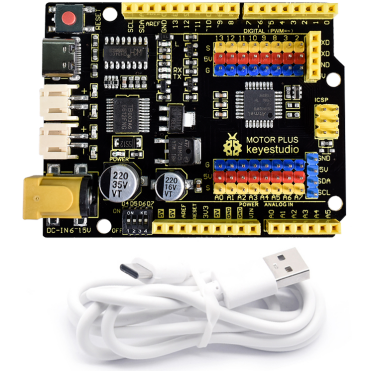
The Keyestudio Motor PLUS development board is a control board fully compatible with the Arduino IDE development environment.
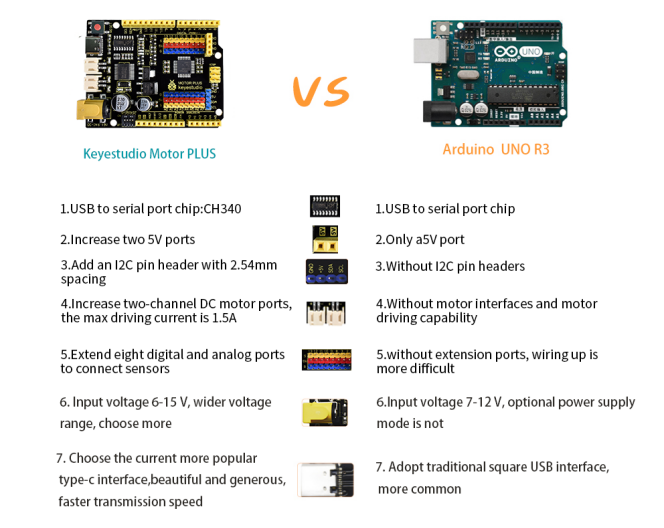
It is as same as the UNO R3 board. In addition, we also made some improvements.
Two DC motor drive modules on the board can control one or two DC motors through the toggle switch. It is suitable for platforms and systems that need to control two DC motors, as well as related applications that require IO ports to output large currents. make it more powerful. The specific improvement is shown in the figure below. In order to facilitate wiring, we also equipped a USB cable with a type-c interface with a length of 1 meter.
2. Specification
USB to serial port chip: CH340
Working voltage: 5V
External power supply: DC 6-15V (9V recommended)
Digital I/O pins: 14 (D0-D13)
PWM channels: 6 (D3 D5 D6 D9 D10 D11)
Analog Input Channels (ADC): 8(A0-A7)
DC output capability per I/O: 20 mA
5V port output maximum capacity: 1.5A
Maximum power: 7.5W
Maximum output current of motor interface: 1.5A
Motor interface: PH2.0mm-2P socket
Flash Memory: 32 KB (of which the bootloader uses 0.5 KB)
SRAM: 2KB (ATMEGA328P-AU)
EEPROM: 1 KB (ATMEGA328P-AU)
Clock Speed: 16MHz Onboard LED pin: D13
Weight: 21g
Size: 71mm * 53mm * 12mm
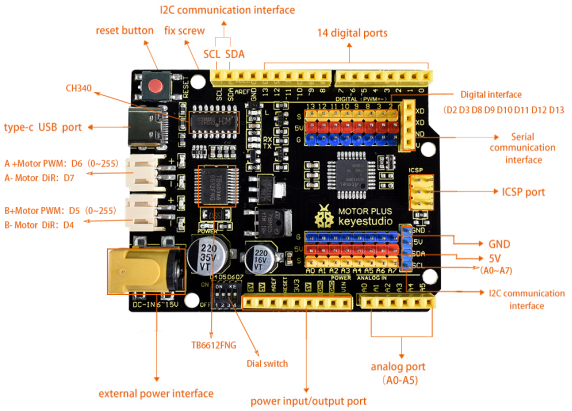
3. Pin OUT
4. Specialized Functions of Some Pins
Serial Communication: D0 (RX0) and D1 (TX1);
PWM Pins (Pulse-Width Modulation): D3, D5, D6, D9, D10 and D11
External Interrupts: D2 (interrupt 0), D3 (interrupt 1),
SPI communication: D10 (SS), D11(MOSI), D12(MISO) and D13(SCK)
IIC communication: A4(SDA) and A5(SCL)
5. Software Download
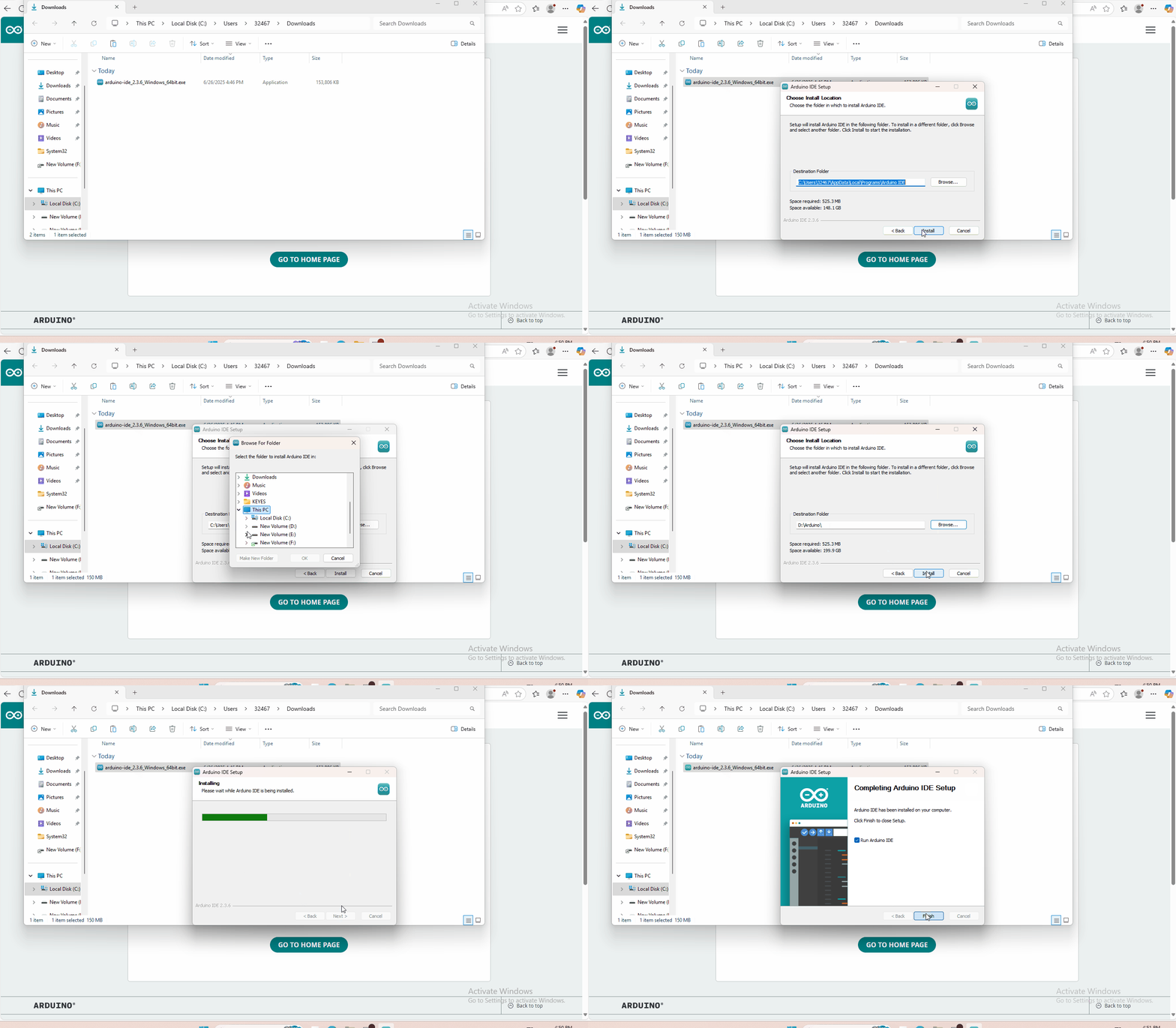
Open the browser and search: https://www.arduino.cc/en/software, we will take WINDOWS system as an example to show you how to download and install.
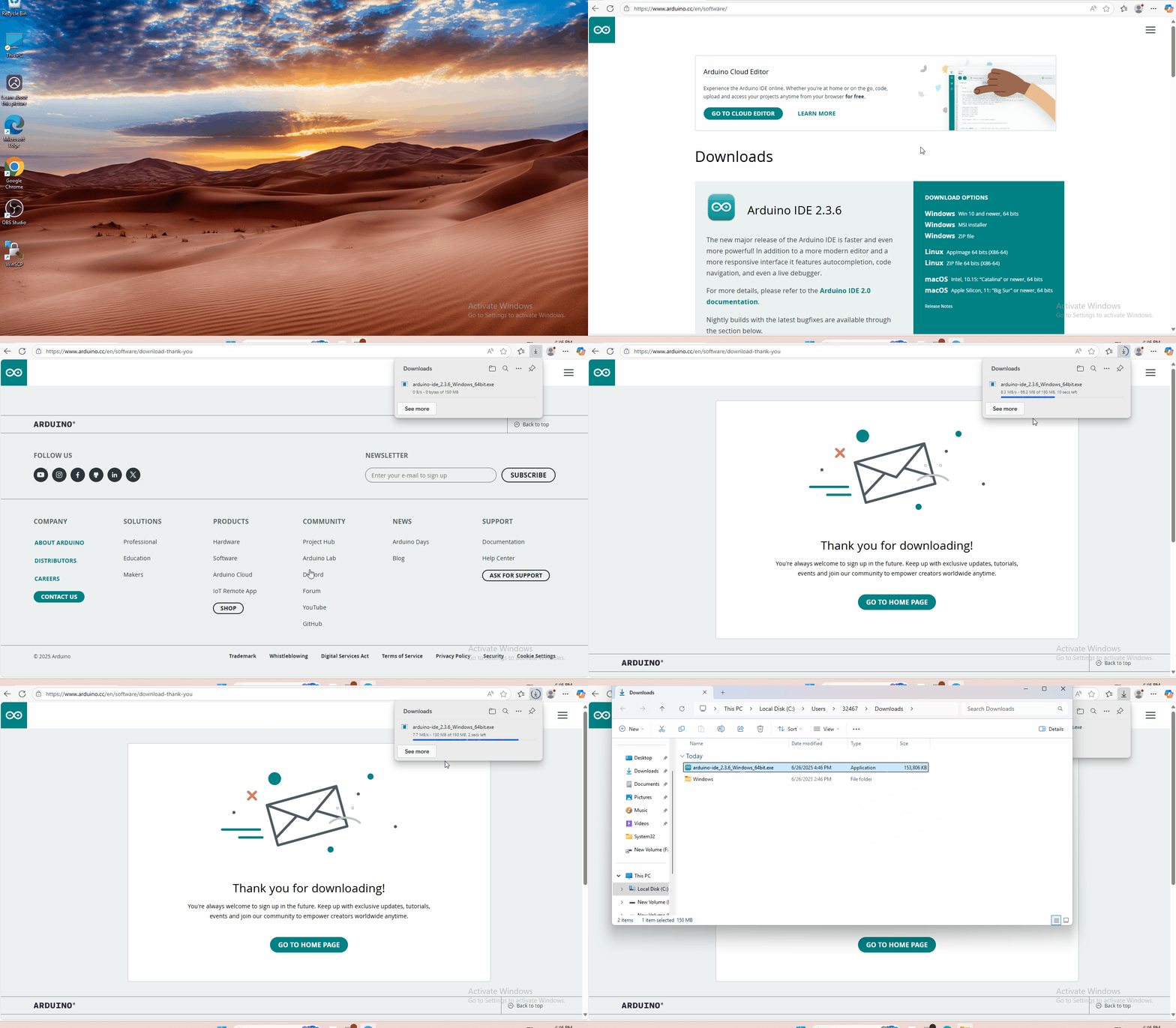
You just need to click JUSTDOWNLOAD,then click the downloaded file to install it. And when the ZIP file is downloaded,you can directly unzip and start it.
6. Driver installation
The driver is usually installed automatically when the board is connected to the computer. When the Arduino IDE can recognize the board port and upload the program, it proves that the installation has been completed automatically, so there is no need to carry out the operation of the tutorial in this section. If you can’t recognize the board port and upload the program, please refer to the tutorial to install the driver manually.
6.1 Windows System
Checking the driver
Connect the motherboard to the computer.
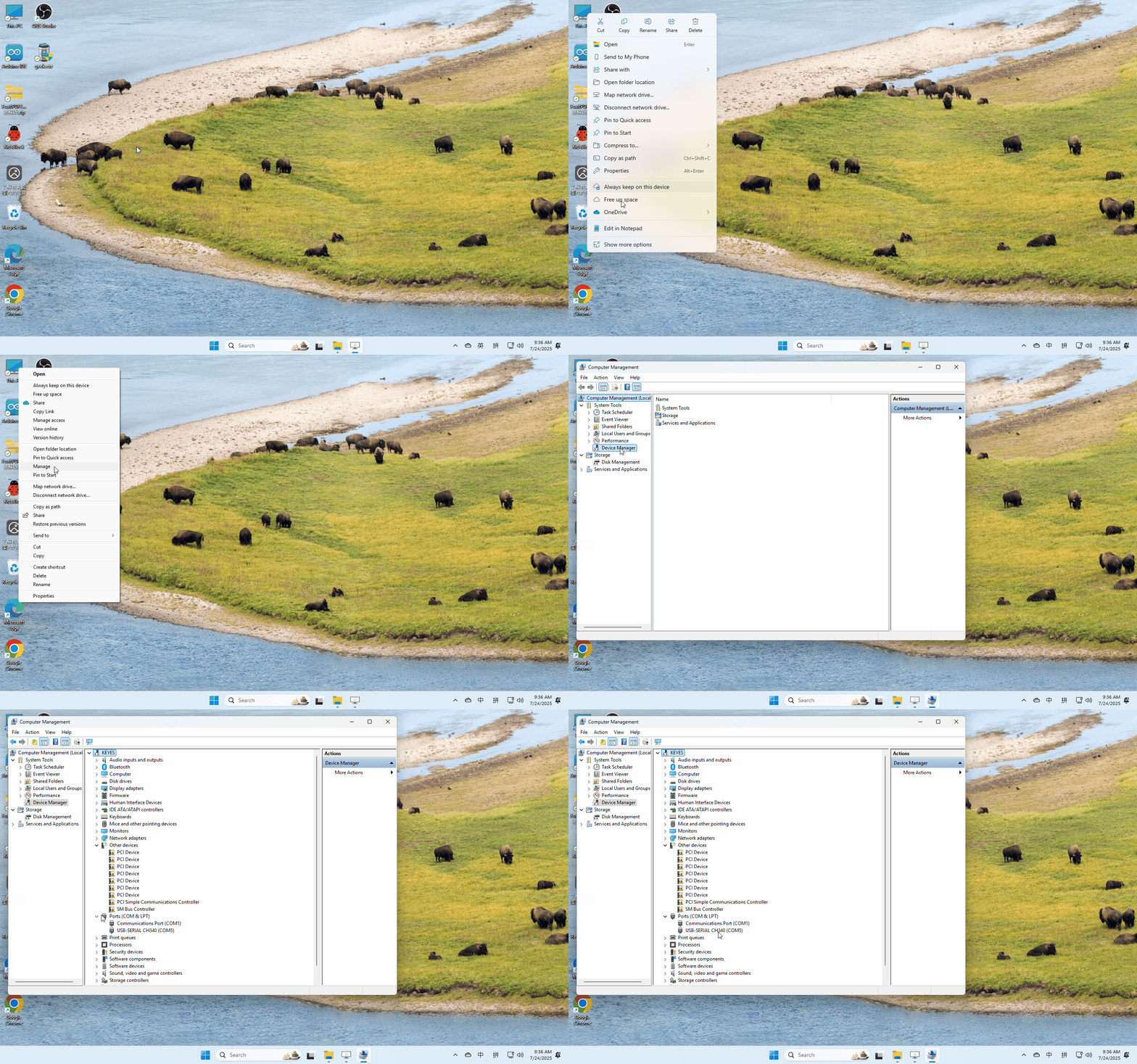
Open Device Manager,Open the device manager, if the prompt “USB-SERIAL CH340(COMX)” appears to prove that the driver has been installed, please skip the “Driver installation” part.
Manual driver installation
Driver download
Windows System: Windows System driver
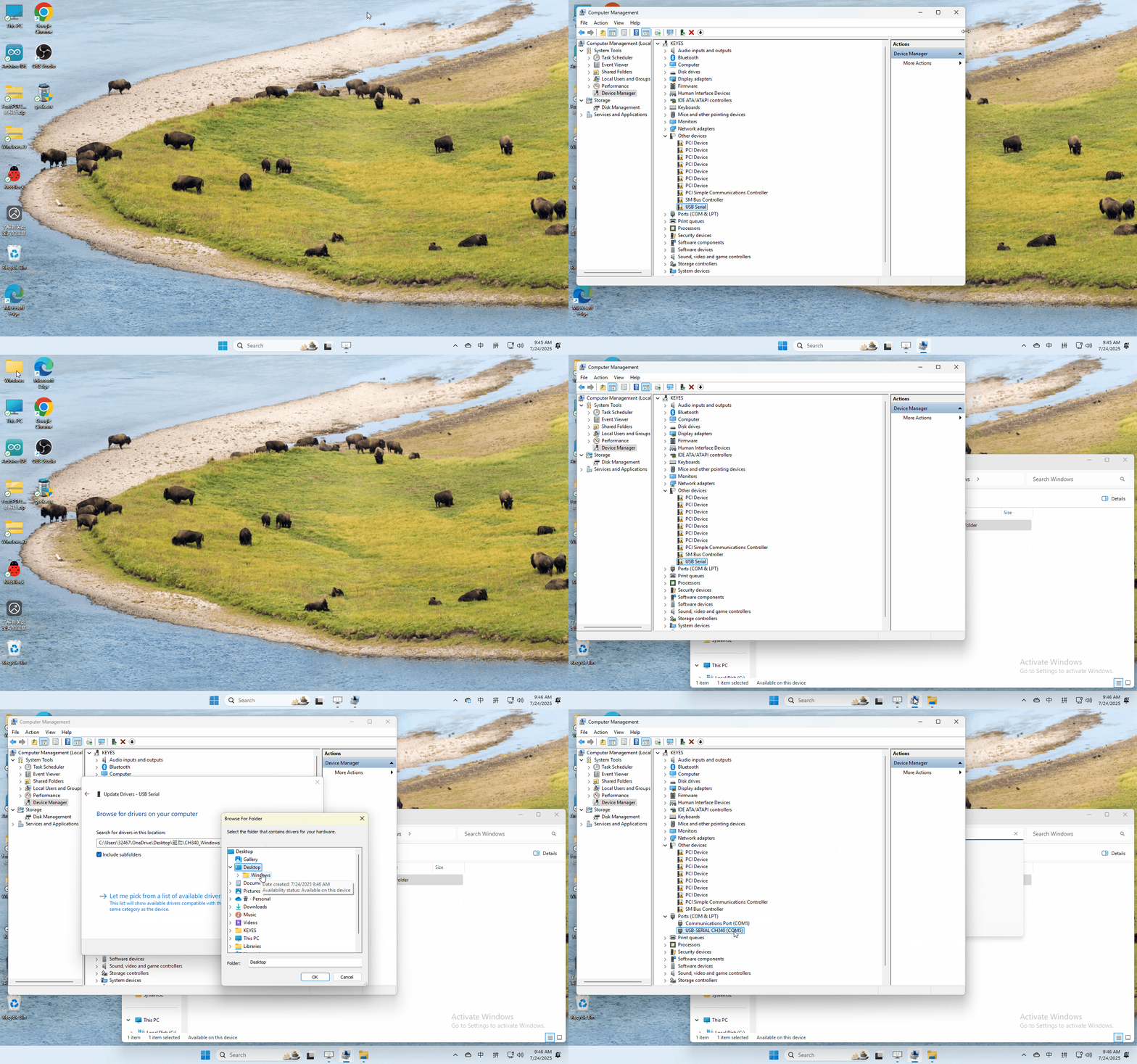
Connect the motherboard to the computer, open the device manager, if there is a yellow exclamation mark in front of the driver in the picture, it proves that the driver is not installed, please download the driver and install it manually.
6.2 MAC System
1 Checking the driver
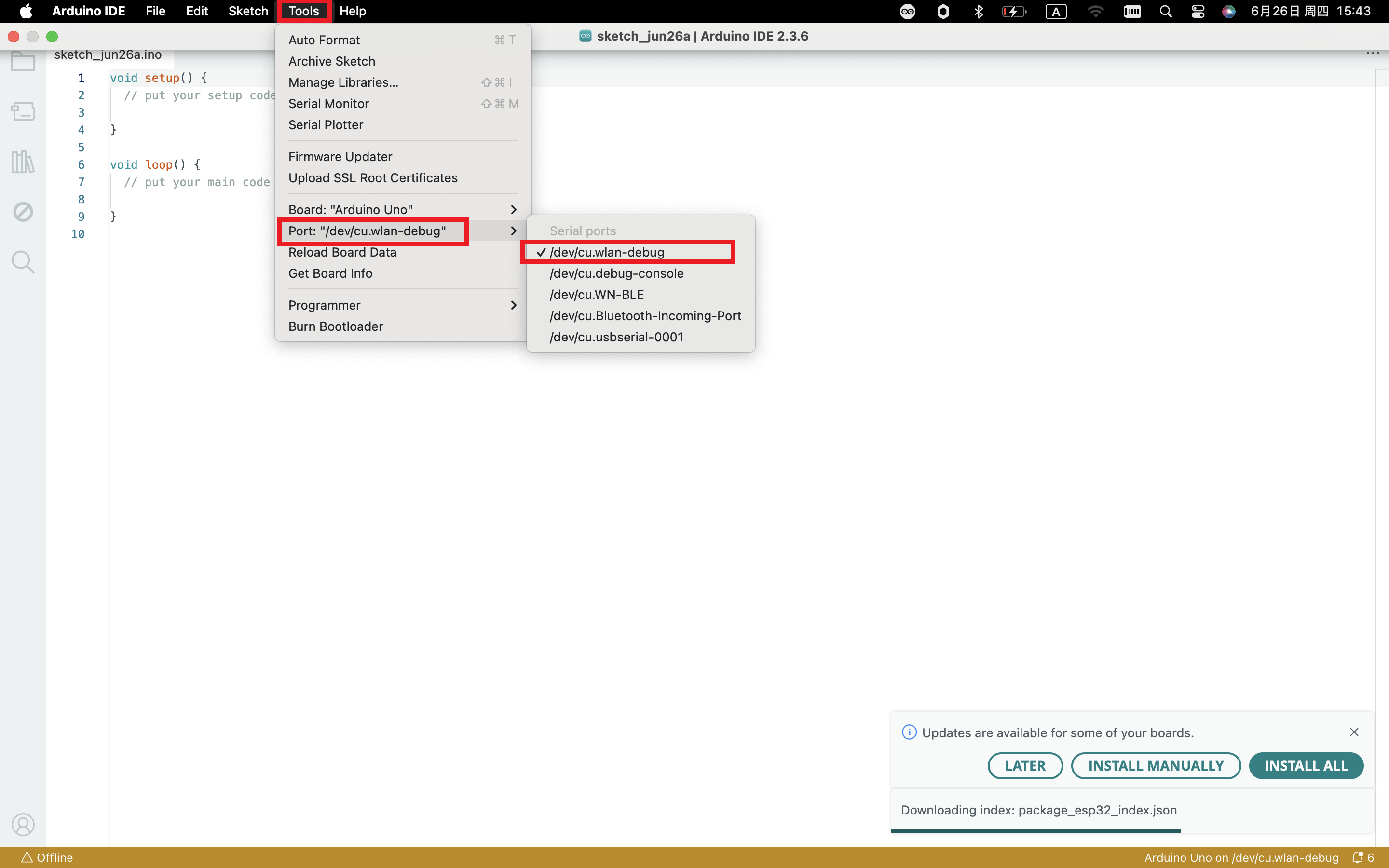
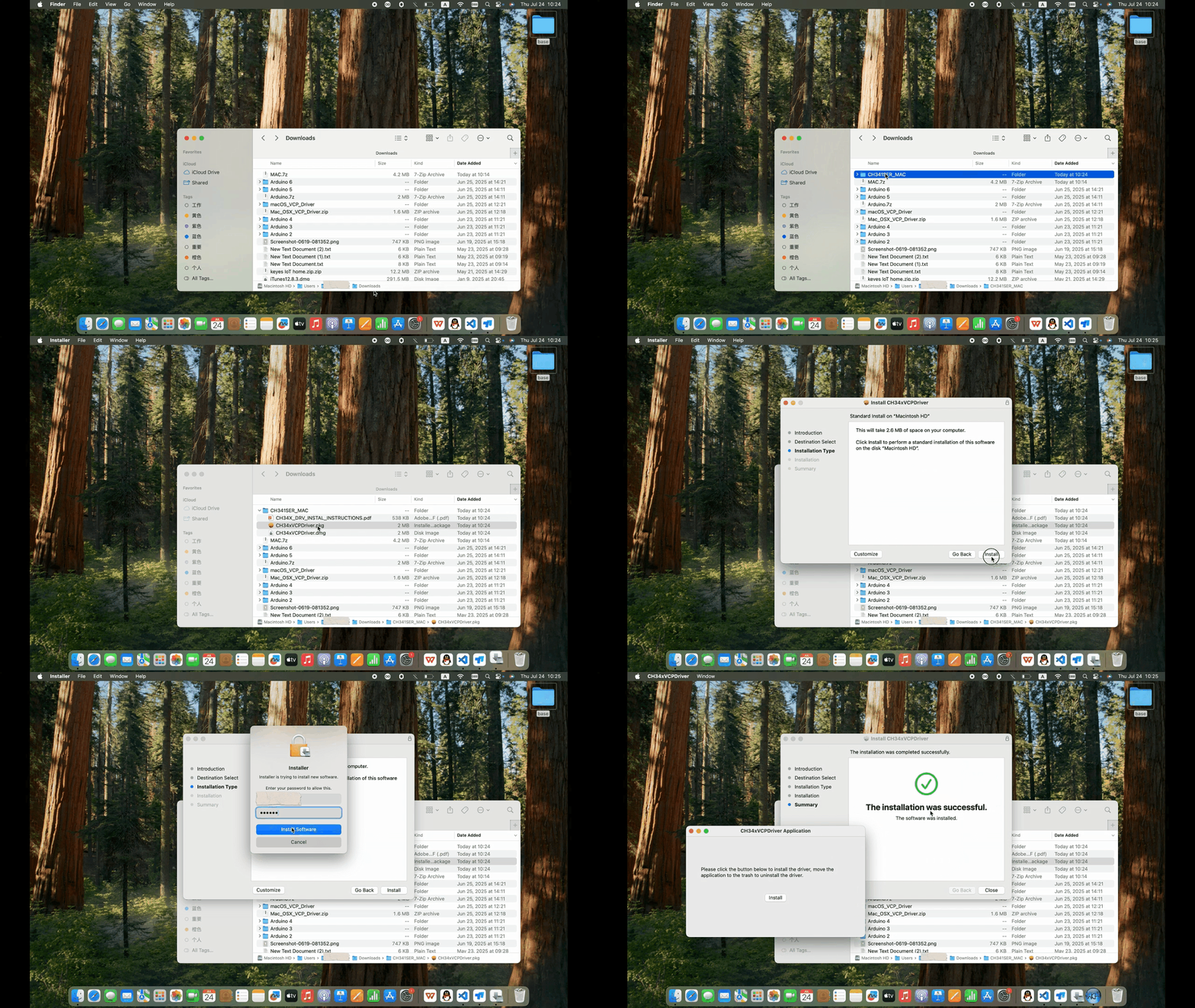
Connect the development board to the computer, according to [Tools] —> [Port] to select the development board port (Note: If you can not confirm which port is the development board, please connect the motherboard to take pictures to record all the ports, and then unplug the development board to re-take pictures to record all the ports, and then compare to find the disappeared ports, and then unplug the motherboard after the disappeared ports is the port of the board, and then select the port on the line)If you can not recognize the port, please replace the computer USB port or around the phone cable to re-recognize the port, if it still does not work refer to the following steps to install the driver.
2 Manual driver installation
Driver download
Mac System: Mac System driver
double-click to decompress the downloaded driver zip package
7. Set Arduino IDE
Connecting the board to the computer,and select the development board and port.

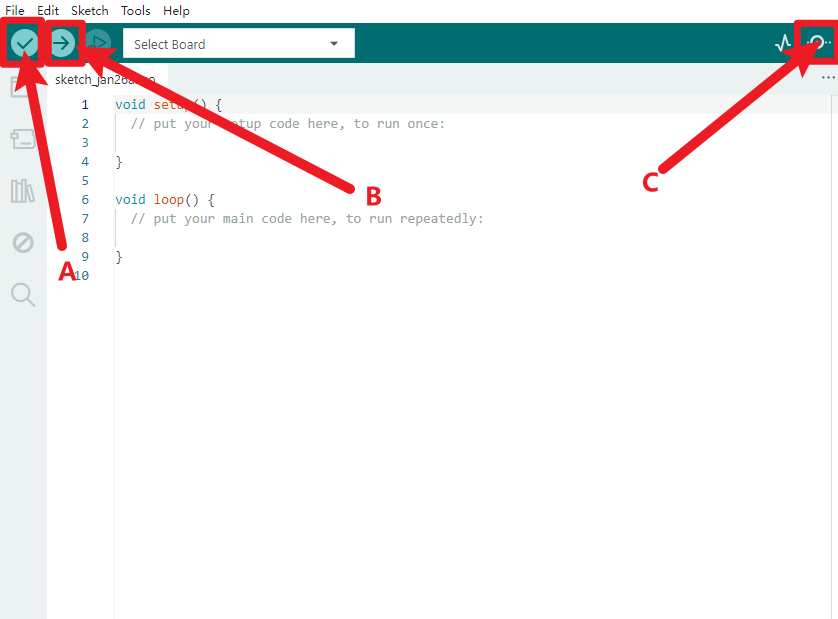
A- Used to verify whether there is any compiling mistakes or not.
B- Used to upload the sketch to your Arduino boar.
C-Used to send the serial data received from board to the serial monitor.
Start your first program
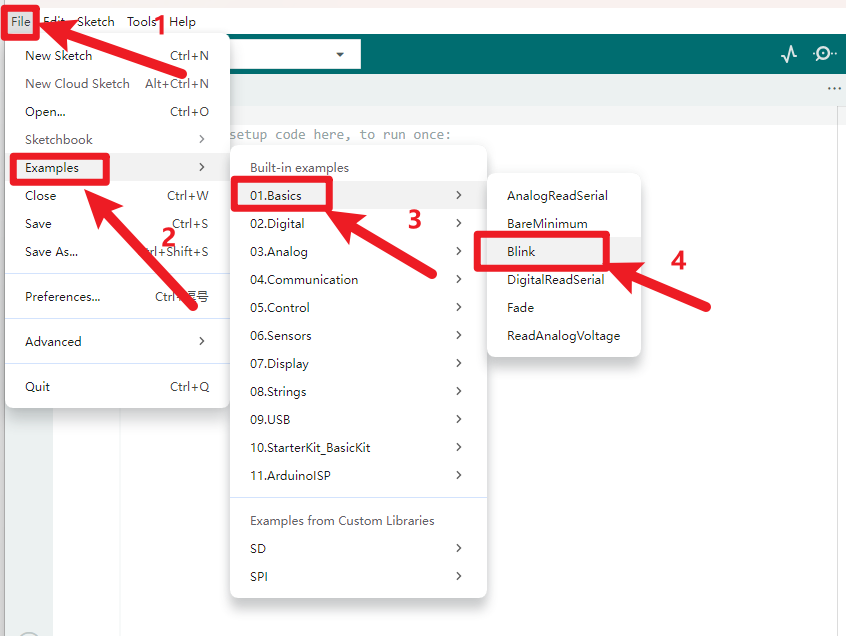
Click to start compiling the program, check errors.
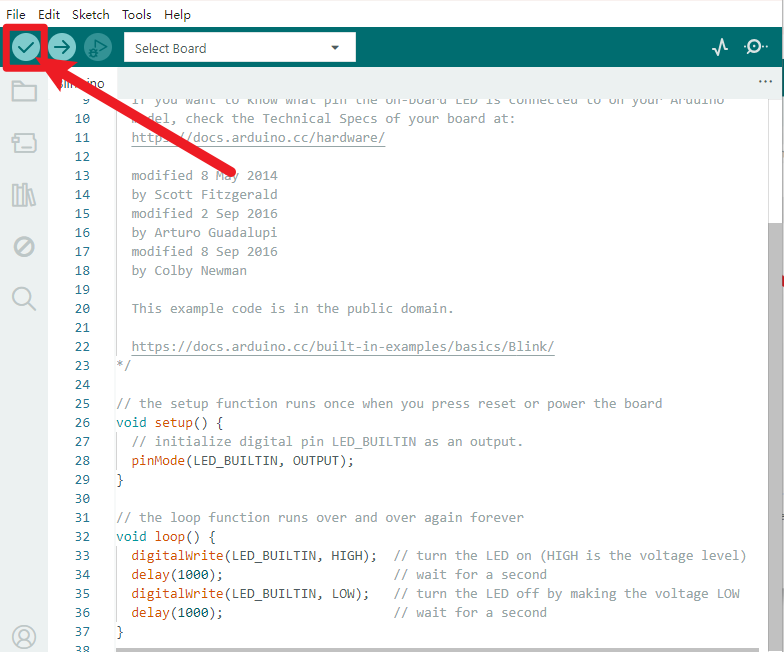
Click to upload the program, upload successfully.
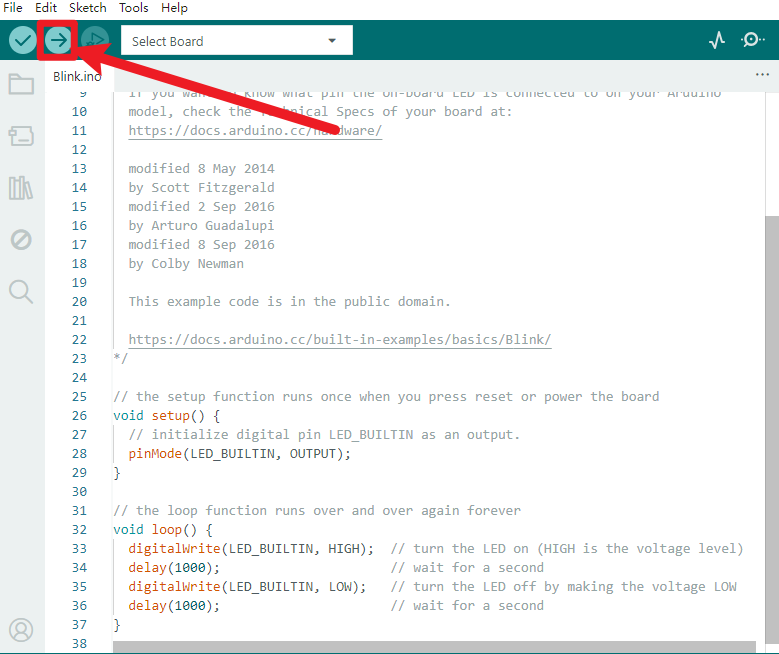
After the program is uploaded successfully, the onboard LED blinks. Congratulation, you finish the first program.