KS0542 Keyestudio LY51M02 Bluetooth 5.0 Module
1. Description
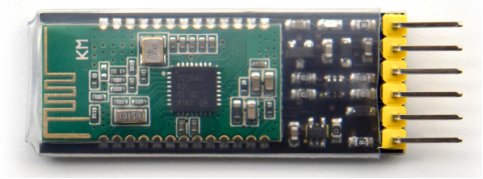
The LY51M02 Bluetooth module is a data transmission module based on Bluetooth Specification V5.1 BLE Bluetooth protocol. The wireless working frequency band is 2.4GHz ISM, and the modulation method is GFSK (Gaussian Frequency Shift Keying).
The module transmit power is adjustable, -21dbm ~ +5dbm, a total of 13 power levels. It adopts a TI’s CC2640R2L chip and supports Bluetooth 5.1BLE, applied to industrial remote control, gamepad, data acquisition equipment, intelligent lighting equipment, Bluetooth remote control toys, wireless LED displays, Bluetooth printer, smart home, industrial control and other fields.
2. Specification
Module model: LY51M02
Working frequency band: 2.4G
Chip model: TICC2640R2L
Communication interface: UART (3.3V TTL)
Working voltage: 3.3V~5V
Working current: 4mA
Transmit power: 5dBm (maximum)
Communication rate: 5-10K/s
Antenna connection method: PCB on-board antenna
Working temperature: 0℃~+85℃
Module size: 80 * 17 * 7mm
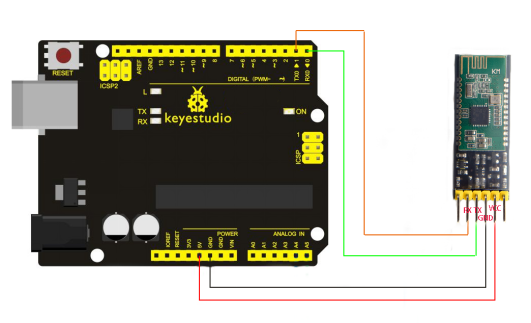
3. Connection Diagram
4. Test Code
String comdata = "";
int LED_Pin = 13;

void setup()
{
  //Serial.begin(115200);
  Serial.begin(9600);
  pinMode(LED_Pin, OUTPUT);
}

void loop()
{
  while (Serial.available() > 0)
  {
    comdata += char(Serial.read());
    delay(10);
  }
  if (comdata.length() > 0)
  {
    Serial.println(comdata);
    if (comdata == "R" | comdata == "r")
    {
      Serial.println("Keyestudio");
      digitalWrite(LED_BUILTIN, HIGH);
    }
    else digitalWrite(LED_BUILTIN, LOW);
    comdata = "";
  }
}
5. Test Result
Download the APP: APP
Note: Before uploading the code, the Bluetooth module cannot be inserted into the UNO board, otherwise the code cannot be uploaded to the UNO board.
Android System
Upload the test code,open ,click to search devices and click
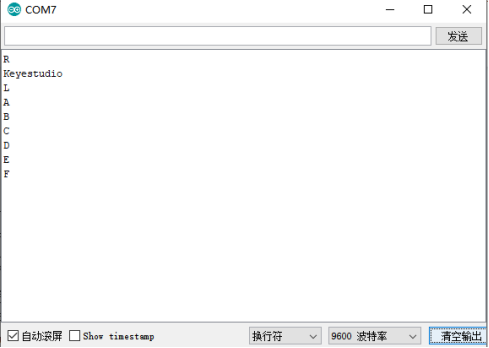
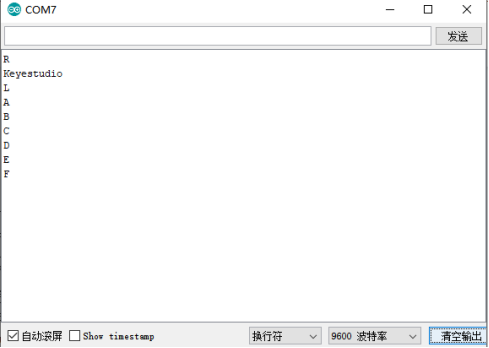
  to connect a device you want, then the LED indicator of the module will stop blinking. Input R in the HC-COM, click Send. Then the indicator will light up and monitor will show Keyestudio; when sending other characters, the LED will go off and the monitor will show corresponding characters.
Mac System
Upload the test code, open the APP store and download the BT debug assistant . Then click
  to search devices and click thumb to connect a device you want, then the LED indicator of the module will stop blinking. Input R in the APP and click Write. Then the indicator will light up and monitor will show Keyestudio; when sending other characters, the LED will go off and the monitor will show corresponding characters.