Project 31:IR Control Sound and LED
Introduction
Infrared remote control is a low-cost, easy-to-use wireless communication technology. IR light is very similar to visible light, except that it has a slightly longer wavelength. This means that infrared rays cannot be detected by the human eye, which is perfect for wireless communication. For example, when you press a button on the TV remote control, an infrared LED will switch on and off repeatedly at a frequency of 38,000 times per second, sending information (such as volume or channel control) to the infrared sensor on the TV.
We will first explain how common IR communication protocols work. Then we will start this project with a remote control and an IR receiving component.
Components Required
 |
 |
 |
 |
 |
 |
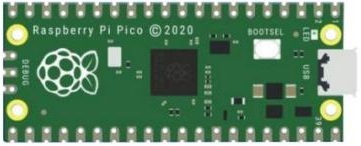
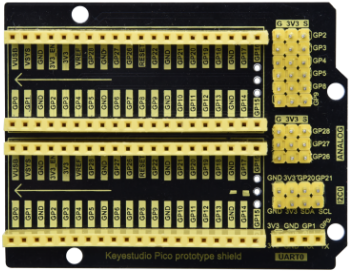
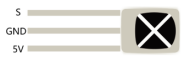
| Raspberry Pi Pico*1 | Raspberry Pi Pico Expansion Board*1 | IR Receiver *1 | RGB LED*1 | 220ΩResistor*3 | USB Cable*1 |
 |
 |
 |
 |
 |
|
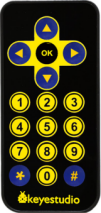
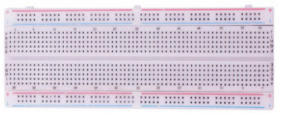
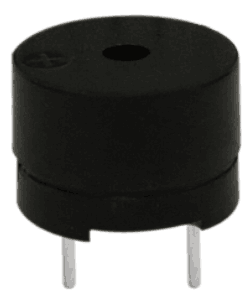
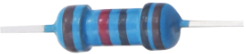
| IR Remote Controller*1 | Breadboard*1 | Passive Buzzer*1 | 10KΩResistor*1 | Jumper Wires |
Component Knowledge
IR Remote Controller: It is a device that has a certain number of buttons. Pressing different buttons causes the infrared transmitter tubes at the front of the remote control to send infrared signals in different codes. Infrared remote control technology is widely used, such as TV, air conditioner and so on. Therefore, in today’s technologically advanced society, the infrared remote control technology makes it very convenient for us to change TV programs and adjust the temperature of the air conditioner.
The remote control we used is as follows:
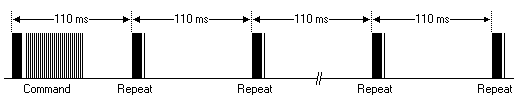
The infrared remote controller adopts NEC code and the signal cycle is 110ms.

IR Receiver: It is a component that can receive infrared light, which can be used to detect the infrared signal sent by the infrared remote control. The infrared signal received by the infrared receiver demodulation can be converted back to binary, then the information will be passed to a microcontroller.
Process Diagram:

NEC Infrared communication protocol:
NEC Protocol
To my knowledge the protocol I describe here was developed by NEC (Now Renesas). I’ve seen very similar protocol descriptions on the internet, and there the protocol is called Japanese Format.
I do admit that I don’t know exactly who developed it. What I do know is that it was used in my late VCR produced by Sanyo and was marketed under the name of Fisher. NEC manufactured the remote control IC.
This description was taken from my VCR’s service manual. Those were the days, when service manuals were filled with useful information!
Features
8 bit address and 8 bit command length.
Extended mode available, doubling the address size.
Address and command are transmitted twice for reliability.
Pulse distance modulation.
Carrier frequency of 38kHz.
Bit time of 1.125ms or 2.25ms.
Modulation
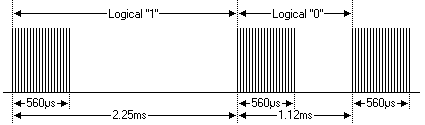
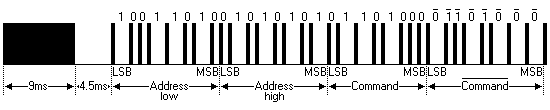
The NEC protocol uses pulse distance encoding of the bits. Each pulse is a 560µs long 38kHz carrier burst (about 21 cycles). A logical “1” takes 2.25ms to transmit, while a logical “0” is only half of that, being 1.125ms. The recommended carrier duty-cycle is 1/4 or 1/3
Protocol
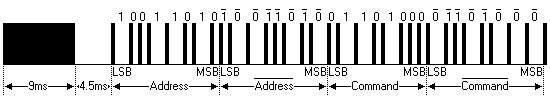
The picture above shows a typical pulse train of the NEC protocol. With this protocol the LSB is transmitted first. In this case Address $59 and Command $16 is transmitted. A message is started by a 9ms AGC burst, which was used to set the gain of the earlier IR receivers. This AGC burst is then followed by a 4.5ms space, which is then followed by the Address and Command.
Address and Command are transmitted twice. The second time all bits are inverted and can be used for verification of the received message. The total transmission time is constant because every bit is repeated with its inverted length. If you’re not interested in this reliability you can ignore the inverted values, or you can expand the Address and Command to 16 bits each!
Keep in mind that one extra 560µs burst has to follow at the end of the message in order to be able to determine the value of the last bit.
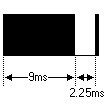
A command is transmitted only once, even when the key on the remote control remains pressed. Every 110ms a repeat code is transmitted for as long as the key remains down. This repeat code is simply a 9ms AGC pulse followed by a 2.25ms space and a 560µs burst.
Extended NEC protocol
The NEC protocol is so widely used that soon all possible addresses were used up. By sacrificing the address redundancy the address range was extended from 256 possible values to approximately 65000 different values. This way the address range was extended from 8 bits to 16 bits without changing any other property of the protocol.
By extending the address range this way the total message time is no longer constant. It now depends on the total number of 1’s and 0’s in the message. If you want to keep the total message time constant you’ll have to make sure the number 1’s in the address field is 8 (it automatically means that the number of 0’s is also 8). This will reduce the maximum number of different addresses to just about 13000.
The command redundancy is still preserved. Therefore each address can still handle 256 different commands.
Keep in mind that 256 address values of the extended protocol are invalid because they are in fact normal NEC protocol addresses. Whenever the low byte is the exact inverse of the high byte it is not a valid extended address.
Decode Infrared Signal:
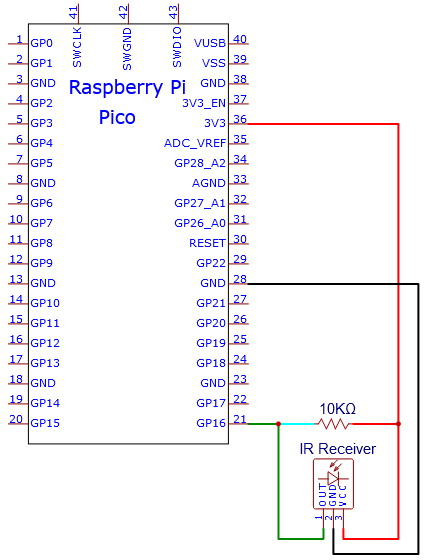
We connect the infrared receiving element to the Raspberry Pi Pico according to the wiring diagram below.

The code used in this tutorial is saved in the file …\Python_Codes. You can move the code to anywhere,for example,we can save the Python_Codes file in the Disk(D), the route is <span “color: rgb(0, 209, 0);”>D:\Python_Codes.
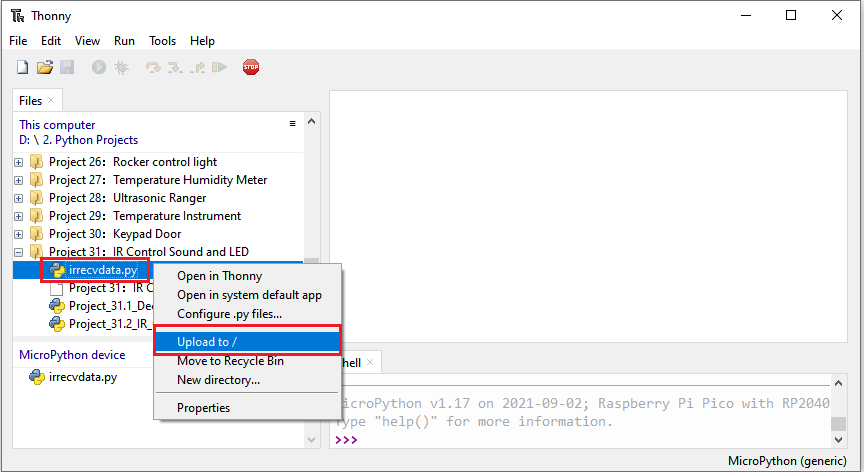
Open“Thonny”, click“This computer”→“D:”→“Python_Codes”→“Project 31:IR Control Sound and LED”. Select“irrecvdata.py”, right-click and select“Upload to /”,waiting for the“irrecvdata.py”to be uploaded to the Raspberry Pi Pico. And double left-click the“Project_31.1_Decoded_IR_Signal.py”.
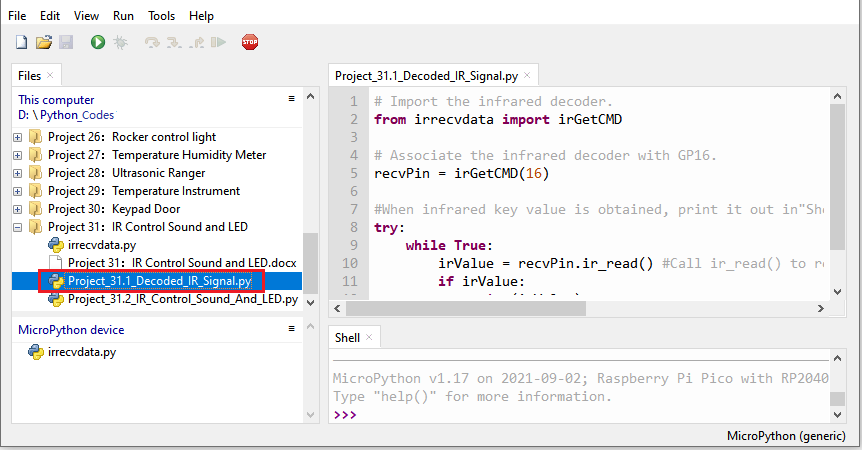
# Import the infrared decoder.
from irrecvdata import irGetCMD
# Associate the infrared decoder with GP16.
recvPin = irGetCMD(16)
#When infrared key value is obtained, print it out in"Shell".
try:
while True:
irValue = recvPin.ir_read() #Call ir_read() to read the value of the pressed key and assign it to IRValue.
if irValue:
print(irValue)
except:
pass
Ensure that the Raspberry Pi Pico is connected to the computer,click “Stop/Restart backend”.

Click  “Run current script”, the code starts executing, we will see that aim the infrared remote control transmitter at the infrared receiving head, press the button on the infrared controller, and the “Shell” window of Thonny IDE will print the current received key code values. Press“Ctrl+C”or click“Stop/Restart backend”to exit the program.

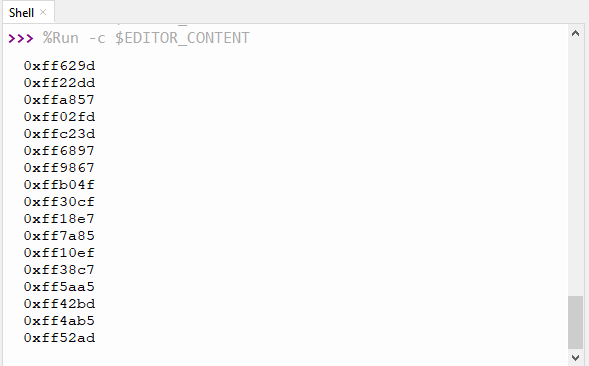
Write down the code associated with each button, because you will need that information later.

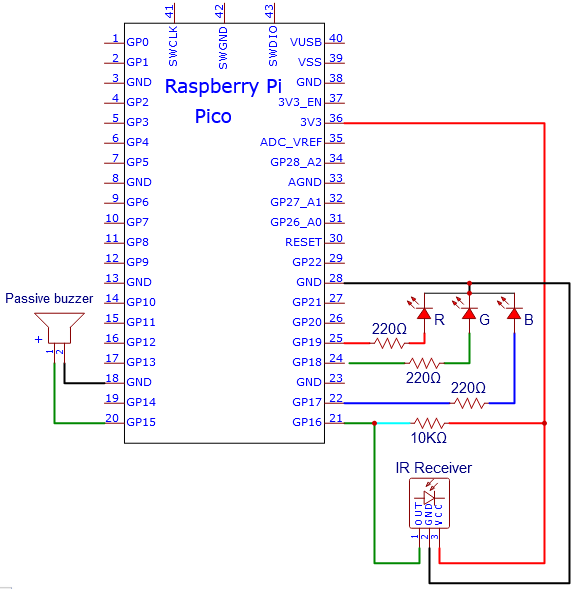
5. Circuit Diagram and Wiring Diagram

6. Test Code
The code used in this tutorial is saved in the file …\Python_Codes. You can move the code to anywhere,for example,we can save the Python_Codes file in the Disk(D), the route is <span “color: rgb(0, 209, 0);”>D:\Python_Codes.
Open“Thonny”, click“This computer”→“D:”→“Python_Codes”→“Project 31:IR Control Sound and LED”. Select“irrecvdata.py”,right-click and select“Upload to /”,waiting for the“irrecvdata.py”to be uploaded to the Raspberry Pi Pico. And double left-click the“Project_31.2_IR_Control_Sound_And_LED.py”.
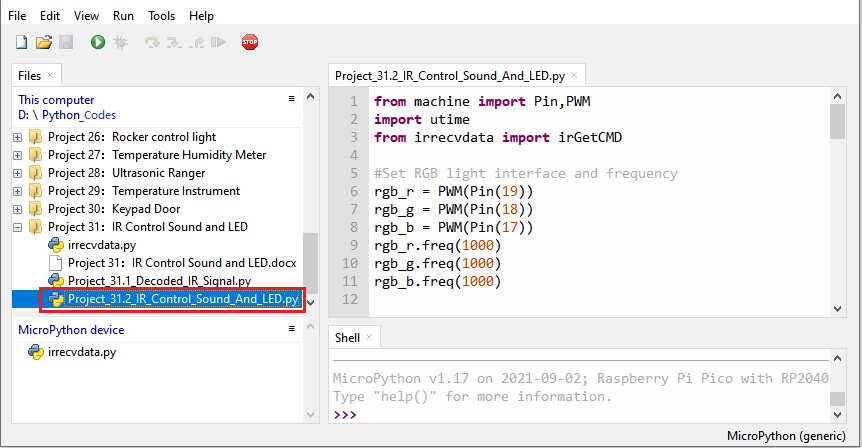
from machine import Pin,PWM
import utime
from irrecvdata import irGetCMD
#Set RGB light interface and frequency
rgb_r = PWM(Pin(19))
rgb_g = PWM(Pin(18))
rgb_b = PWM(Pin(17))
rgb_r.freq(1000)
rgb_g.freq(1000)
rgb_b.freq(1000)
# Initialize the buzzer pin to PWM function
buzzer=PWM(Pin(15, Pin.OUT))
buzzer.freq(262)
buzzer.duty_u16(0)
# Play the frequency of midrange tones 1-7
freq = [262, 294, 330, 350, 393, 441, 495]
#Configure infrared receiving pin and library
recvPin = irGetCMD(16)
# Set the buzzer to emit different tones.
# index=[0-7], where 0 is closed, and 1-7 respectively represent middle C, middle D, middle E, middle F, middle G, middle A, middle B.
# time represents the function delay time (a positive integer), in milliseconds.
# auto_off indicates whether the buzzer will be turned off automatically after the delay time.
def tone(index, time=0, auto_off=False):
if index == 0:
buzzer.duty_u16(0)
utime.sleep_ms(time)
elif index >= 1 and index <= 7:
tone_freq = freq[int(index - 1)]
buzzer.freq(tone_freq)
buzzer.duty_u16(32768)
utime.sleep_ms(time)
if auto_off == True:
buzzer.duty_u16(0)
# print("----freq:", index, tone_freq)
else:
print("Tones must be 0-7")
delay = 0
tone(1, 100, True)
while True:
irValue = recvPin.ir_read() # Read remote control data
# Determine whether there is a button that meets the needs
if irValue:
print(irValue)
if irValue == '0xff6897': #1
rgb_r.duty_u16(65535)
rgb_g.duty_u16(0)
rgb_b.duty_u16(0)
tone(1, delay)
elif irValue == '0xff9867': #2
rgb_r.duty_u16(0)
rgb_g.duty_u16(65535)
rgb_b.duty_u16(0)
tone(2, delay)
elif irValue == '0xffb04f': #3
rgb_r.duty_u16(0)
rgb_g.duty_u16(0)
rgb_b.duty_u16(65535)
tone(3, delay)
elif irValue == '0xff30cf': #4
rgb_r.duty_u16(65535)
rgb_g.duty_u16(65535)
rgb_b.duty_u16(0)
tone(4, delay)
elif irValue == '0xff18e7': #5
rgb_r.duty_u16(65535)
rgb_g.duty_u16(0)
rgb_b.duty_u16(65535)
tone(5, delay)
elif irValue == '0xff7a85': #6
rgb_r.duty_u16(0)
rgb_g.duty_u16(65535)
rgb_b.duty_u16(65535)
tone(6, delay)
elif irValue == '0xff10ef': #7
rgb_r.duty_u16(65535)
rgb_g.duty_u16(65535)
rgb_b.duty_u16(65535)
tone(7, delay)
else:
rgb_r.duty_u16(0)
rgb_g.duty_u16(0)
rgb_b.duty_u16(0)
tone(0)
Test Result
Ensure that the Raspberry Pi Pico is connected to the computer,click“Stop/Restart backend”.
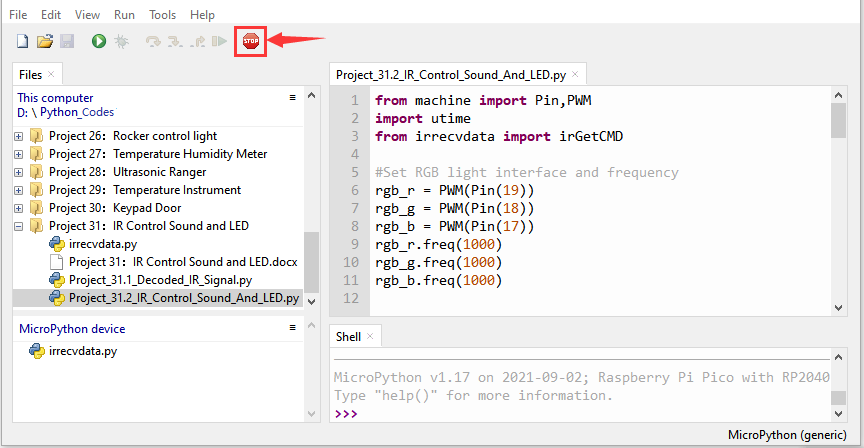
Click “Run current script”, the code starts executing, we will see that press buttons 1 to 7 on the infrared remote controller, we can hear buzzers such as do、re、mi、fa、sol、la、si ,etc. At the same time, the RGB will be red , green , blue , yellow , magenta, blue and green, white respectively. However, if we press other buttons(except 1-7), the buzzer stops playing and the RGB goes off. Press“Ctrl+C”or click“Stop/Restart backend”to exit the program.
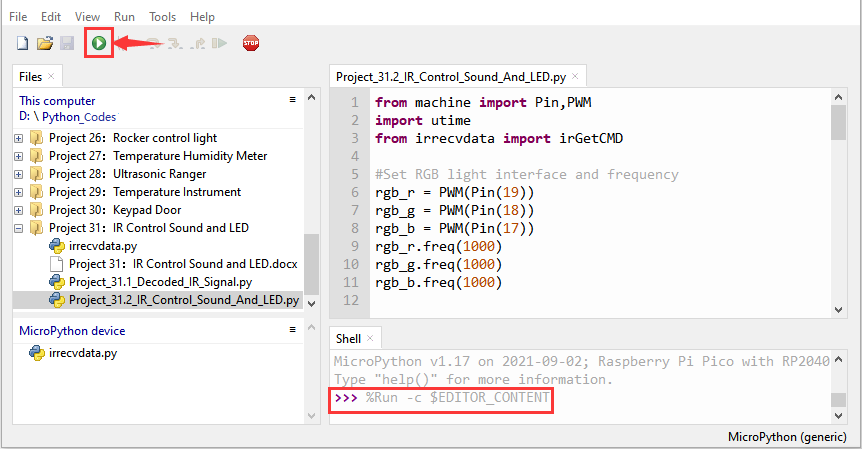
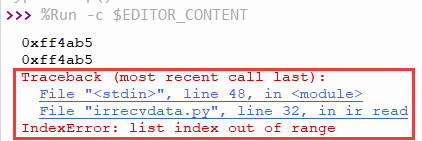
Note:When the code is running, the following prompt appears, you just need to click“Stop/Restart backend”,then click“Run current script”to make the code run again.
(<span “color: rgb(255, 76, 65);”>Note: Before use, we need to remove the plastic sheet from the bottom of the infrared remote controller.)