keyestudio Humidity temperature Module
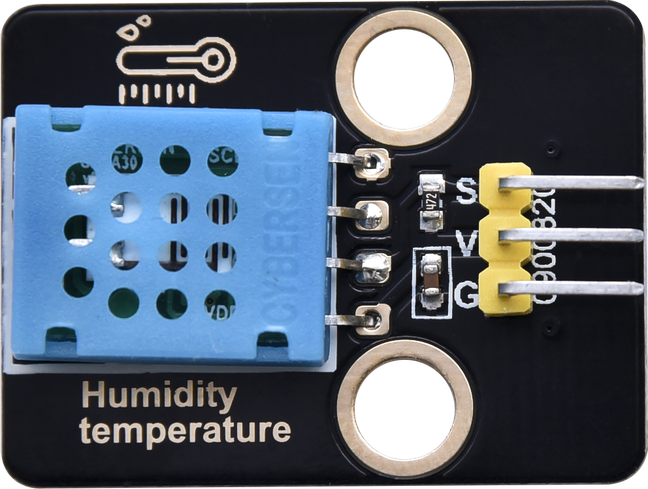
1. Introduction
This tutorial explains how to use a DHT11 Temperature and Humidity Sensor Module. You will learn how to measure ambient temperature and humidity levels using the sensor.
2.Specifications
Parameter |
Description |
|---|---|
Operating Voltage |
DC5V |
Control Method |
Arduino digital pin (D0-D13) |
Dimensions |
Length:31.5 mm Width:23.5 mm |
3.Required Materials
Arduino Uno (Compatible with ESP32, STM32, Raspberry Pi, and others)
keyestudio Light Sensor (LDR) Module
Jumper wires
4.Wiring Instructions(Arduino UNO R3)
Humidity temperature Module Pin |
Arduino Pin |
|---|---|
VCC |
5V |
GND |
GND |
S |
D3(or other digital pins) |

5.Sample Code
Temperature and humidity readings
Read the ambient temperature and humidity and display them in the serial monitor.
#include "DHT.h"

#define DHTPIN 3          // Define the pin where the DHT11 data line is connected
#define DHTTYPE DHT11     // Define the type of DHT sensor used

DHT dht(DHTPIN, DHTTYPE);

void setup() {
  Serial.begin(9600);   // Initialize serial communication at 9600 baud rate
  dht.begin();          // Initialize the DHT sensor
  Serial.println("DHT11 sensor test");
}

void loop() {
  // Read humidity (percentage)
  float humidity = dht.readHumidity();
  // Read temperature in Celsius
  float temperature = dht.readTemperature();

  // Check if any reads failed and exit early (to try again)
  if (isnan(humidity) || isnan(temperature)) {
    Serial.println("Failed to read from DHT sensor!");
  } else {
    Serial.print("Humidity: ");
    Serial.print(humidity);
    Serial.print(" %\t");
    Serial.print("Temperature: ");
    Serial.print(temperature);
    Serial.println(" *C");
  }

  delay(2000);  // Wait a few seconds between measurements
}
Experimental phenomena:
After uploading the code to your Arduino and opening the Serial Monitor (set to 9600 baud rate), the Arduino will start reading data from the DHT11 sensor.
Every approximately 2 seconds, the Serial Monitor will print the current humidity and temperature readings from the sensor.