keyestudio AHT20 Temperature and Humidity Sensor Module
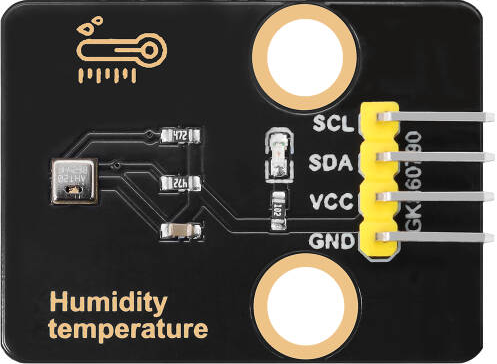
1. Introduction
This tutorial explains how to use an AHT20 Temperature and Humidity Sensor Module. You will learn how to read the current ambient temperature and humidity.
2.Specifications
Parameter |
Description |
|---|---|
Operating Voltage |
DC3.3–5V |
Interface type |
IIC |
Temperature range |
- 40 ℃ ~ + 120 ℃ |
Humidity range |
0%RH~100%RH |
Dimensions |
Length:31 mm Width:24 mm |
3.Required Materials
Arduino Uno (Compatible with ESP32, STM32, Raspberry Pi, and others)
keyestudio AHT20 Temperature and Humidity Sensor Module
Jumper wires
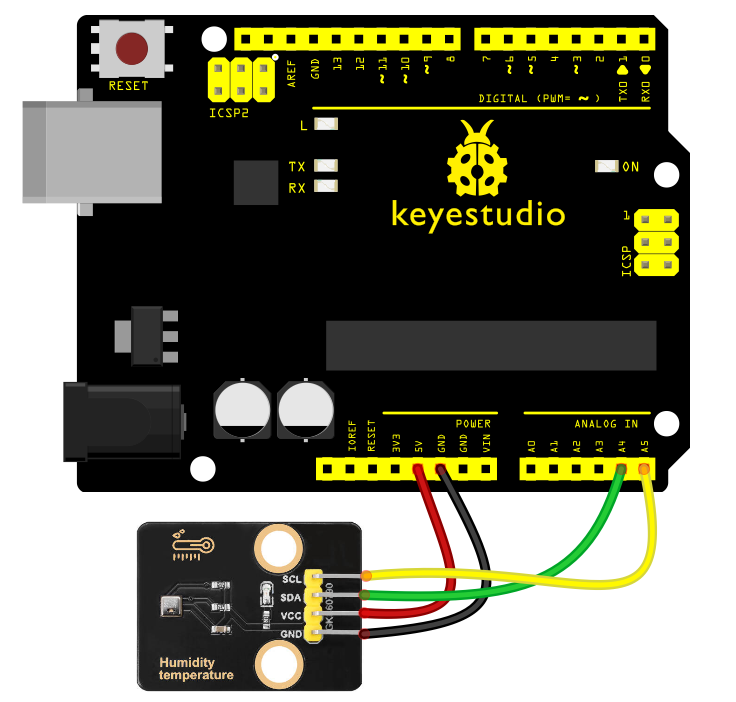
4.Wiring Instructions(Arduino UNO R3)
AHT20 Module Pin |
Arduino Pin |
|---|---|
VCC |
5V |
GND |
GND |
SCL |
A5 |
SDA |
A4 |
5.Sample Code
Read Temperature and Humidity (Basic)
library download:library
Prints the temperature and humidity values to the serial monitor.
/************************************************************************

   Tests the getTemperature and getHumidity functions of the aht20 library
 ***********************************************************************/

#include <Wire.h>
#include <AHT20.h>
AHT20 aht20;

void setup()
{
  Serial.begin(115200);
  Serial.println("Humidity AHT20 examples");

  Wire.begin(); //Join I2C bus
  //Check if the AHT20 will acknowledge
  if (aht20.begin() == false)
  {
    Serial.println("AHT20 not detected. Please check wiring. Freezing.");
    while (1);
  }
  Serial.println("AHT20 acknowledged.");
}

void loop()
{
  //If a new measurement is available
  if (aht20.available() == true)
  {
    //Get the new temperature and humidity value
    float temperature = aht20.getTemperature();
    float humidity = aht20.getHumidity();

    //Print the results
    Serial.print("Temperature: ");
    Serial.print(temperature, 2);
    Serial.print(" C\t");
    Serial.print("Humidity: ");
    Serial.print(humidity, 2);
    Serial.print("% RH");

    Serial.println();
  }

  //The AHT20 can respond with a reading every ~50ms. However, increased read time can cause the IC to heat around 1.0C above ambient.
  //The datasheet recommends reading every 2 seconds.
  delay(2000);
}
Experimental phenomena:
After uploading the code using the Arduino IDE, open the Serial Monitor. You will observe that the values displayed on the serial monitor fluctuate with the changes in the temperature and humidity of the current environment. (You can cover the sensor area with your finger to simulate temperature changes.)