3. Troubleshooting
MAINTENANCE: Code fails to download to Micro:bit
1. Problem
Recently, many users encounter the issue that Micro:bit board doesn’t respond when download code.
If the way you operate is correct, maybe you accidentally press the reset button and enter the Maintenance mode or the firmware is lost due to mis-operation.
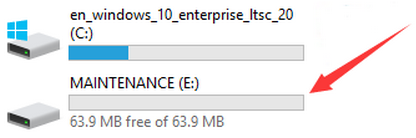
Plug in Micro:bit board, the “MAINTENANCE” drive appears, which means the program can’t be downloaded.
2. Solutions
(1) Download the .hex file from this page to your computer.
Download the latest micro:bit firmware-0255. If you do not want to download from this website, we also provide it in our tutorial.
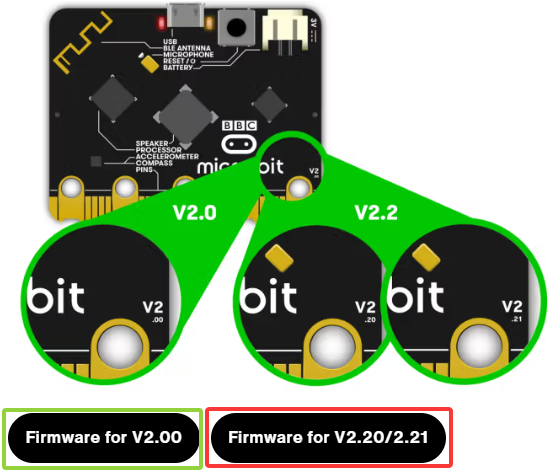
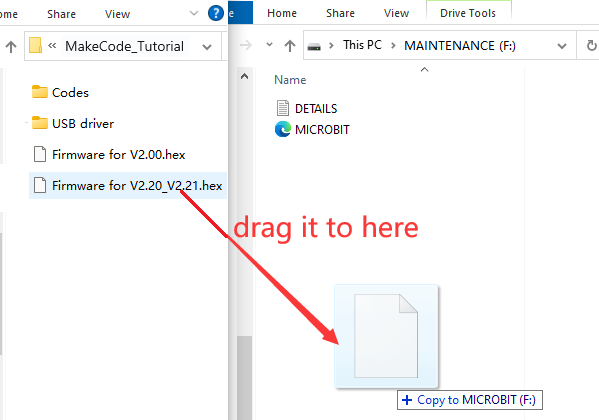
(2) After the latest firmware is downloaded, then drag Firmware for V2.20_V2.21 into the “MAINTENANCE” to make Micro:bit back to normal mode.
We install different firmwares according to micro:bit board models. Here it is Firmware for V2.20_V2.21.
3. Avoid to enter “MAINTENANCE”
(1) Make sure the Reset button is not pressed when plugging the board by USB cable.
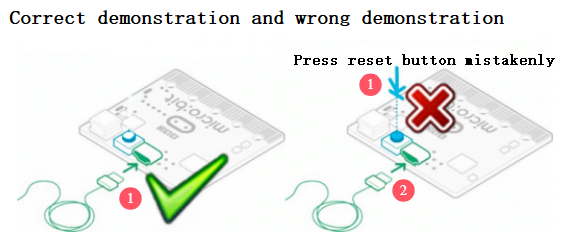
(2) Don’t unplug the cable suddenly during downloading micro:bit program, otherwise, the firmware will be lost and micro:bit will enter “MAINTENANCE” mode.
(3) In the experiment, wrong wiring also cause a short circuit or firmware lost.
Troubleshooting Downloads with WebUSB
Clink:Troubleshooting Downloads with WebUSB
Having issues pairing your micro:bit with WebUSB? Let’s try to figure out why!
Step 1: Check your cable
Make sure that your micro:bit is connected to your computer with a micro USB cable. For example, in Windows Explorer you should see a MICROBIT drive appear when it’s connected.
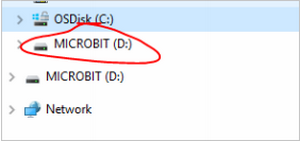
If you can see the MICROBIT drive go to step 2. If you can’t see the drive:
(1) Make sure that the USB cable is working.
Does the cable work on another computer? If not, find a different cable to use. Some cables may only provide a power connection and don’t actually transfer data.
(2) Try another USB port on your computer.
Is the cable good but you still can’t see the MICROBIT drive? Hmm, you might have a problem with your micro:bit.
Try the additional steps described in the fault finding page at microbit.org. If this doesn’t help, you can create a support ticket to notify the Micro:bit Foundation of the problem. Skip the remaining troubleshooting steps.
Step 2: Check your firmware version
If your downloads still aren’t working, it’s possible that the firmware version on the micro:bit needs an update. Let’s check:
Go to the MICROBIT drive;
Open the DETAILS.TXT file;
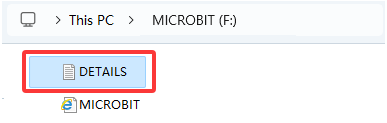
Find the firmware version number; Look for a line in the file that says the version number. It should say Version:
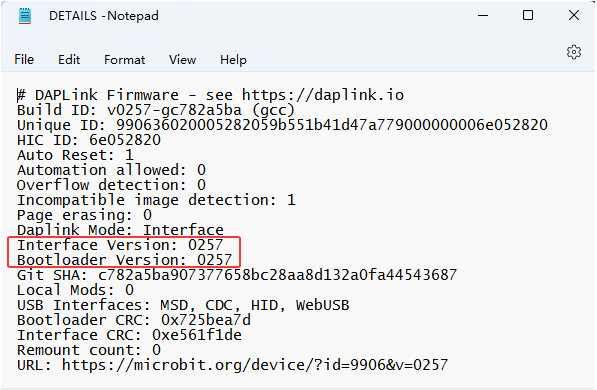
If the version is 0234, 0241, 0243 you NEED to update the firmware on your micro:bit. Go to Step 3 and follow the upgrade instructions.
If the version is 0249, 0250 or higher, you have the right firmware go to step 4.
Step 3: Upgrade the firmware
(1) Put your micro:bit into MAINTENANCE Mode.
To do this, unplug the USB cable from the micro:bit and then reconnect the USB cable while you hold down the reset button. Once you insert the cable, you can release the reset button.
You should now see a MAINTENANCE drive instead of the MICROBIT drive like before. Also, a yellow LED light will stay on next to the reset button.
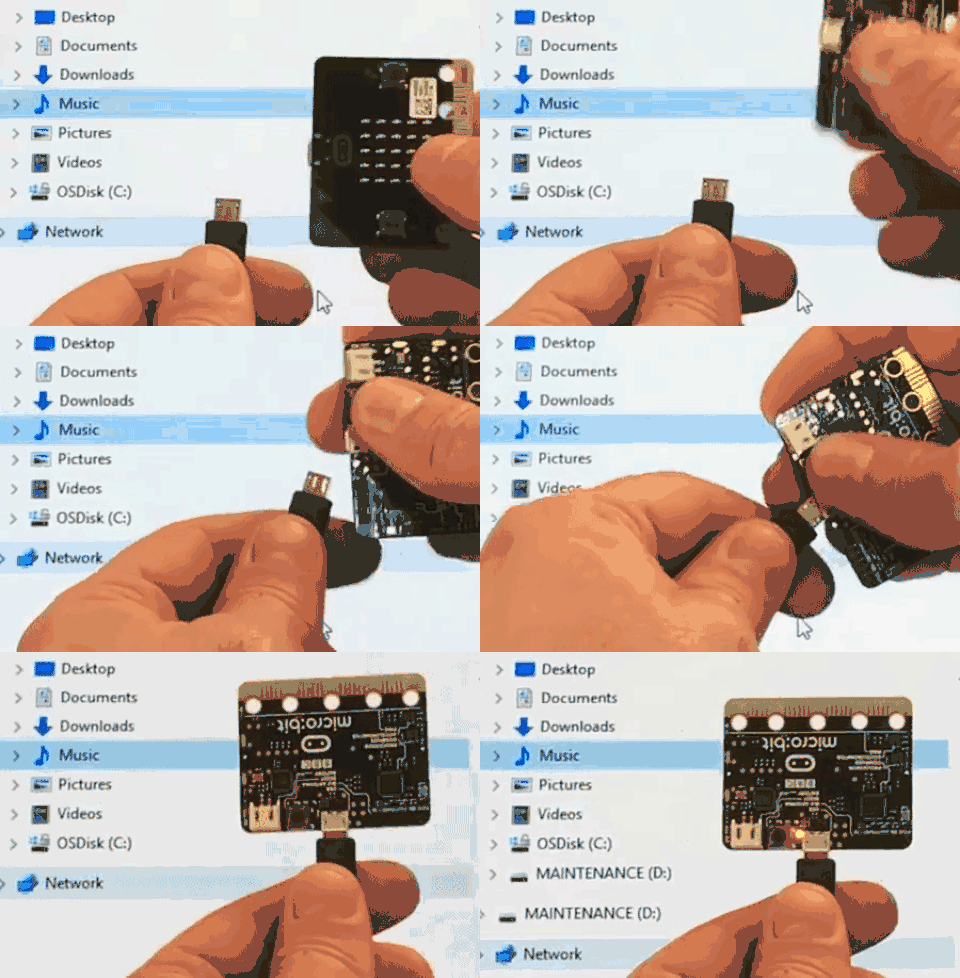
(2) Download the firmware .hex file.
We install different firmwares according to micro:bit board models. Here it is Firmware for V2.20_V2.21.
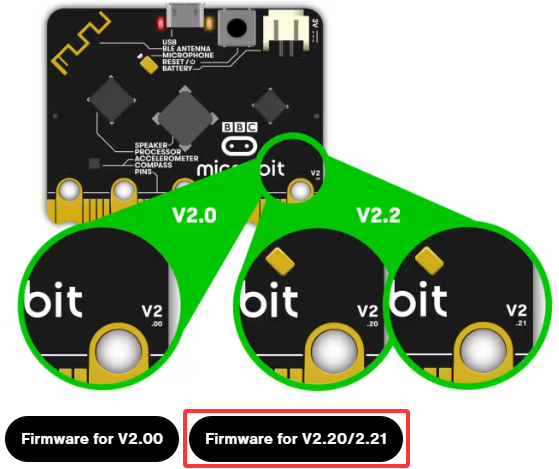
(3) Drag and drop that file onto the MAINTENANCE drive.
(4) Look for the flashing LED.
The yellow LED will flash while the HEX file is copying. When the copy finishes, the LED will go off and the micro:bit resets. The MAINTENANCE drive now changes back to MICROBIT.
(5) Upgrade complete.
The upgrade is complete! You can open the DETAILS.TXT file to check and see that the firmware version changed to the match the version of the HEX file you copied.
If you want to know more about connecting the board, MAINTENANCE Mode, and upgrading the firmware, read about it in the Firmware guide.
Step 4: Check your browser version
WebUSB is a fairly new feature and may require you to update your browser. Check that your browser version matches one of those below: Browser versions for Android, Chrome OS, Linux, macOS, and Chrome 65+ for Windows 10.
Step 5: Pair device
Once you’ve updated the firmware, open the Chrome Browser, go to the editor and click on Pair Device in the gearwheel menu. See WebUSB(/device/usb/webusb) for pairing instructions.
Enjoy fast downloads!