Project 1 Simulating Keyboard
1.Introduction
As a typical input device, used in interactive products, keyboard has special advantages. For example, we can directly pass on to flash through a keyboard without special interface like serial interface. Though we can disassemble a traditional keyboard and then lead out inner keys . But by doing so we can’t change dynamically the key value and press more than one key each time. If using analog keyboard, we can set liberally key pressing time and value. For instance, in this project ,we simulate 6 number keys, namely No. 1, 2, 3, 4, 5, 6.
2.Sample Code
#include "UsbKeyboard.h"
int InData1 = 0, InData2 = 0, InData3 = 0, InData4 = 0, InData5 = 0, InData0 = 0; //touch input value
//temporary storage
int TouchSensitivity = 30; //touch sensitivity。0~1023,the larger the value, the lower the sensitivity
void setup()
{
    for(int i = A0; i <= A5; i++)
    {
    	pinMode(i, INPUT); //A0~A5 port as input port
    }
    for(int i = 6; i <= 12; i++)
    {
    	pinMode(i, OUTPUT); //A0~A5 port as input port
    }
    TIMSK0 &= !(1 << TOIE0);
}

void loop()
{
    UsbKeyboard.update();
    //read out the voltage value of all pins, and because of pull-up resistor
    //the default of all pins of maximum level is 1023,decrease the level of pins though touch.
    //so the value is by 1024-analogRead(A0);
    InData0 = 1024 - analogRead(A0);
    InData1 = 1024 - analogRead(A1);
    InData2 = 1024 - analogRead(A2);
    InData3 = 1024 - analogRead(A3);
    InData4 = 1024 - analogRead(A4);
    InData5 = 1024 - analogRead(A5);
    //trigger keyboard events with various possibility
    if(InData0 >= TouchSensitivity)
    {
        digitalWrite (11, HIGH);
        UsbKeyboard.sendKeyStroke(79); //right
    }
    else
    	digitalWrite(11, LOW);
    if(InData1 >= TouchSensitivity)
    {
        digitalWrite(10, HIGH);
        UsbKeyboard.sendKeyStroke(80); //left
    }
    else
    	digitalWrite(10, LOW);
    if(InData2 >= TouchSensitivity)
    {
        digitalWrite(9, HIGH);
        UsbKeyboard.sendKeyStroke(81); //down
    }
    else
    	digitalWrite(9, LOW);
    if(InData3 >= TouchSensitivity)
    {
        digitalWrite(8, HIGH);
        UsbKeyboard.sendKeyStroke(82); //up
    }
    else
    	digitalWrite(8, LOW);
    if(InData4 >= TouchSensitivity)
    {
        digitalWrite(7, HIGH);
        UsbKeyboard.sendKeyStroke(KEY_SPACE);
    }
    else
    	digitalWrite(7, LOW);
    if(InData5 >= TouchSensitivity)
    {
        digitalWrite(6, HIGH);
        UsbKeyboard.sendKeyStroke(KEY_ENTER);
    }
    else
    	digitalWrite(6, LOW);
    delay(100);
}
3.Connection
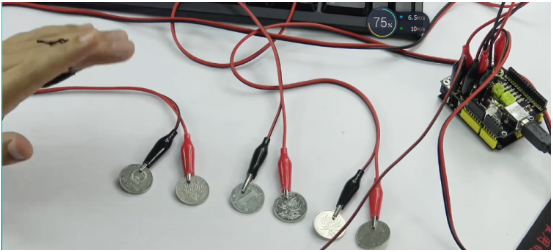
First, connect one end of an alligator clip to GND; hold the metal part of the other end of the alligator clip between your fingers. You are now “grounded”.
Next, connect one end of an alligator clip to A0 port on the Touch key USB Shield, and connect the other end to a coin. Connect A1-A5 ports using the same way.
4.Result
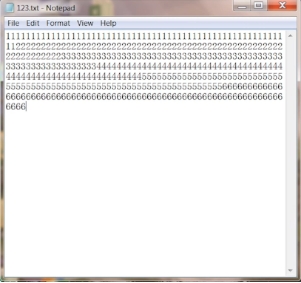
After uploading program, take down one end of the Arduino cable on the control board; plug the end of the Arduino cable into Touch key USB Shield, and the other end still into PC USB port, now appearing new hardware “USB input device” on your PC. It is no need to install device driver, because generally XP and Win7 system support it. Finally, open a blank document; when one end connected to GND, hold the metal part of the other end of the alligator clip between your fingers with one hand; the other hand touches coins the other end of which have been connected to A1-A5 port; you can see No. 1, 2, 3, 4, 5, 6 on the document.