Kidsblock - Read Me First
1 Download code file
Click to download the code file required for the course:Click to download
2 Software installation of Windows System
1、Download kidsblock:https://wiki.kidsbits.cc/projects/KidsBlock/en/latest/
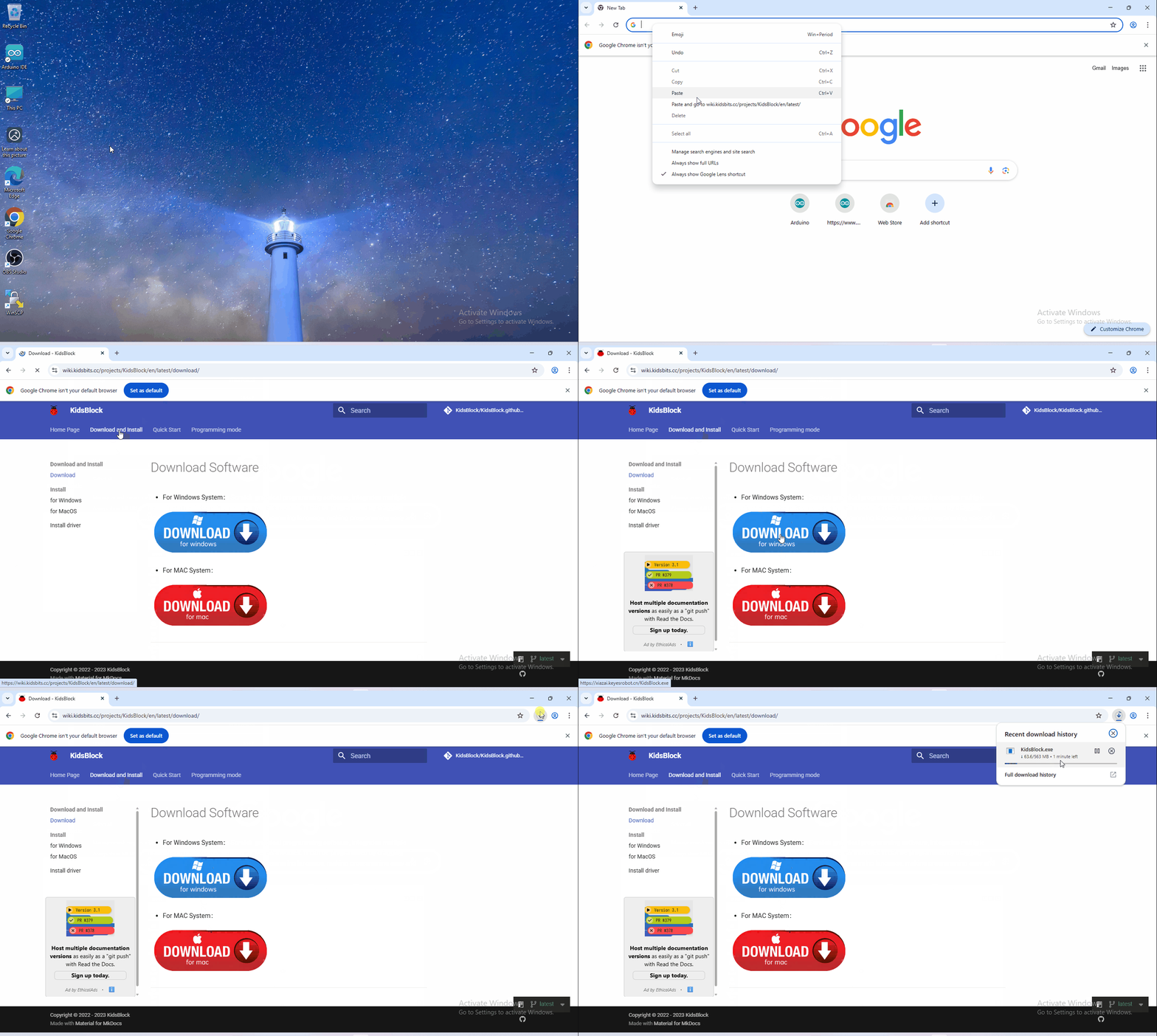
2、software installation
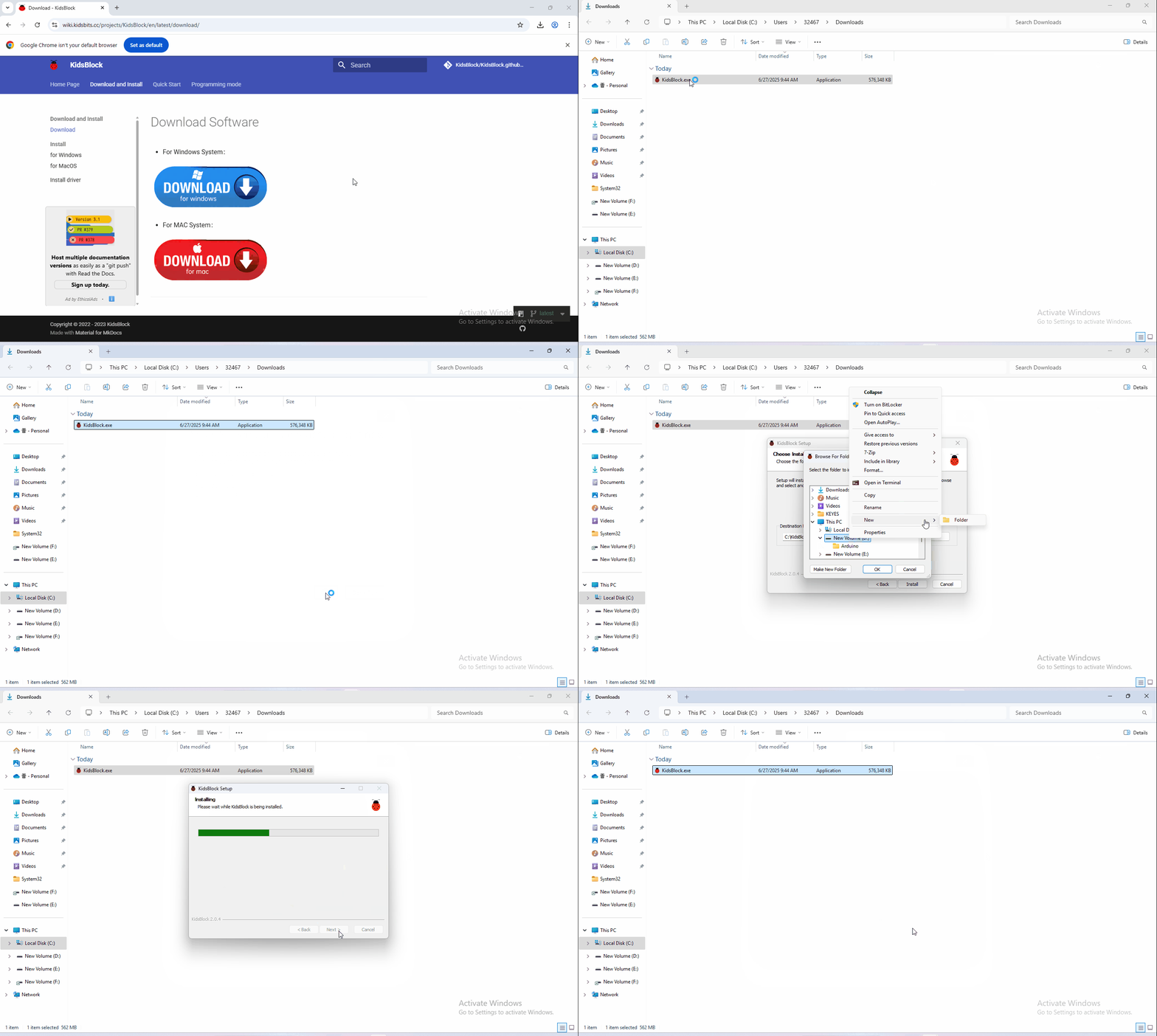
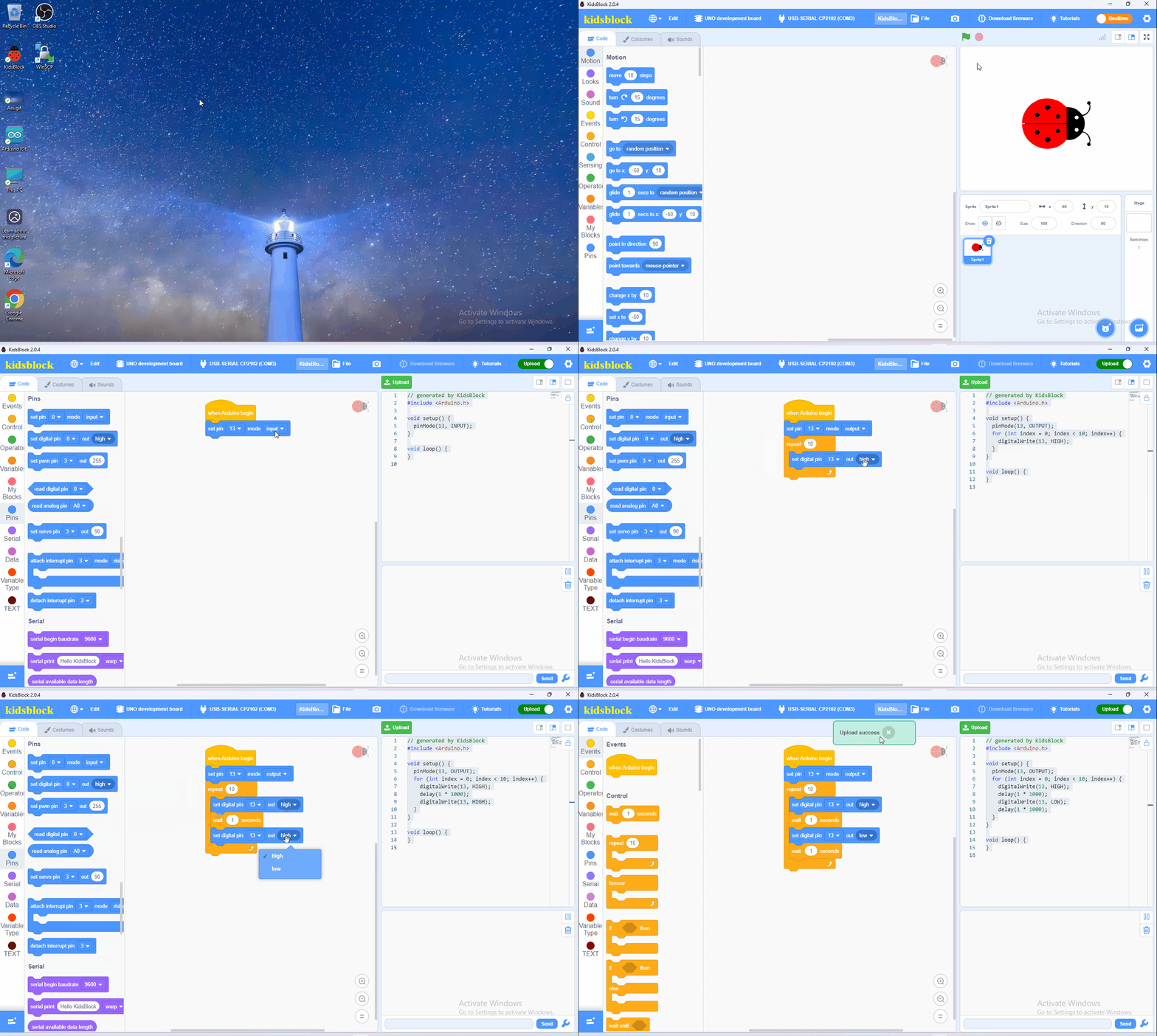
3.operating software
First connect the development board to the computer
3 Software installation of Mac System
1.Download kidsblock:https://xiazai.keyesrobot.cn/KidsBlock.dmg
2.Click KidsBlock, and drag KidsBlock Desktop into Applications.
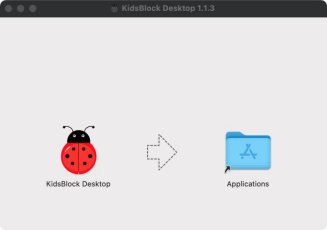
3.Wait for installing. KidsBlock icon will show up in Launchpad if it is installed successfully.
4 How to use KidsBlock
We demonstrate how to use KidsBlock on Windows system
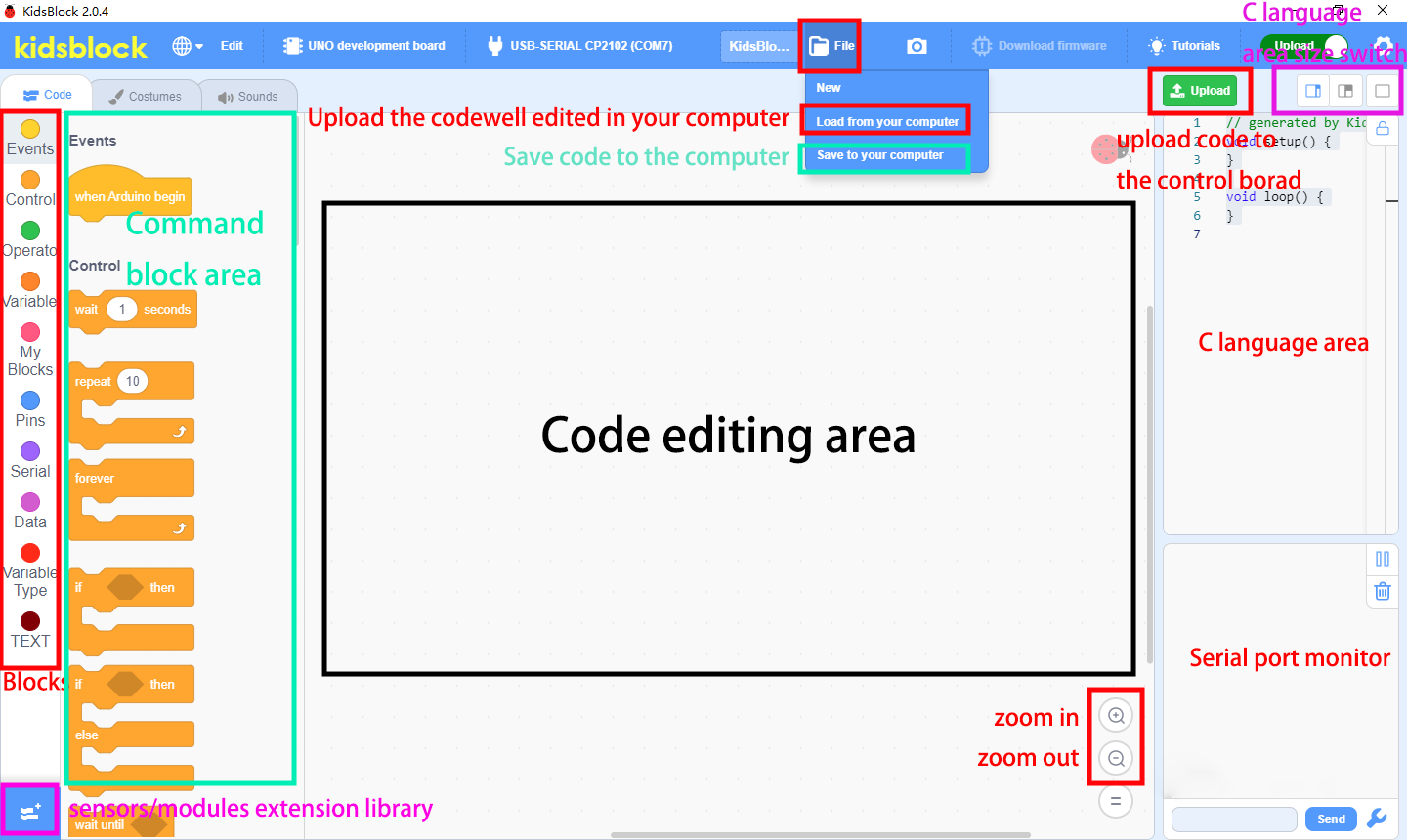
1.Interface
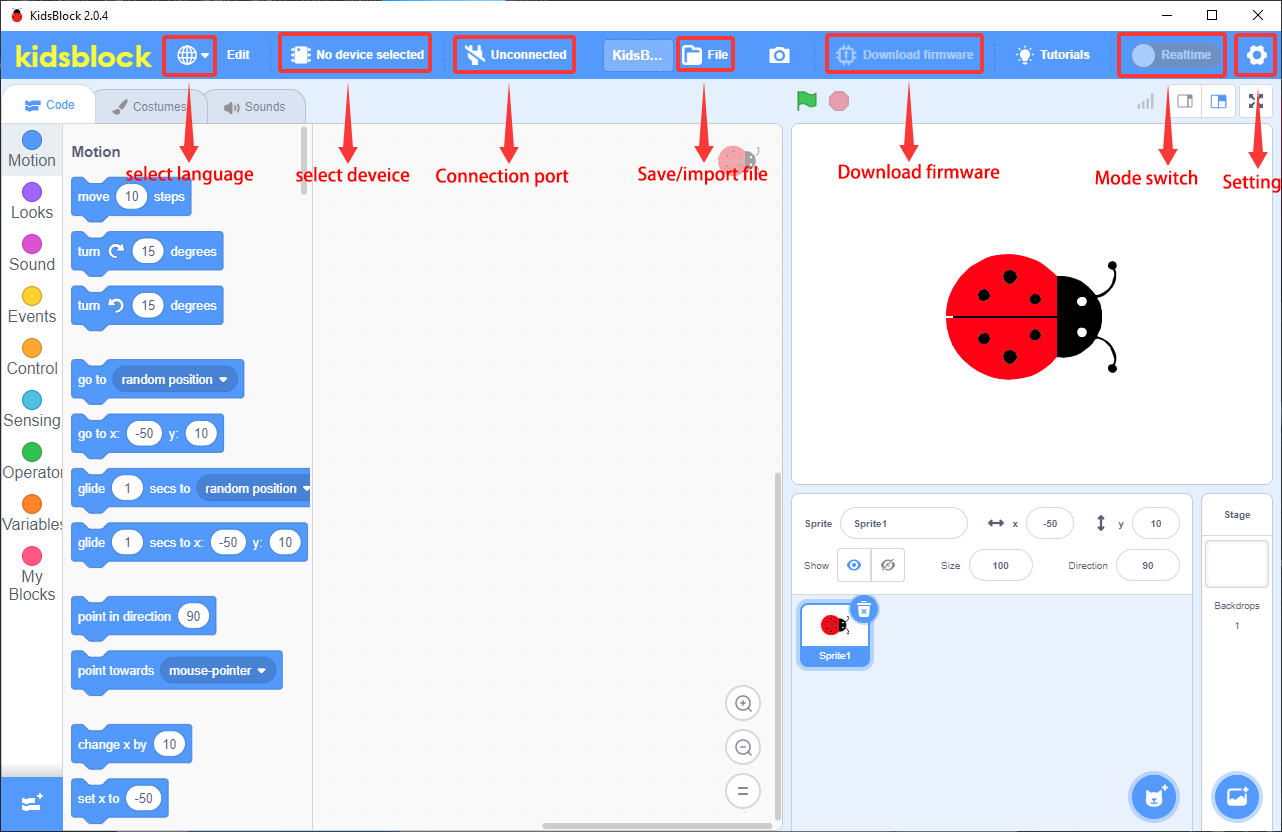
2.Click to switch to different languages.

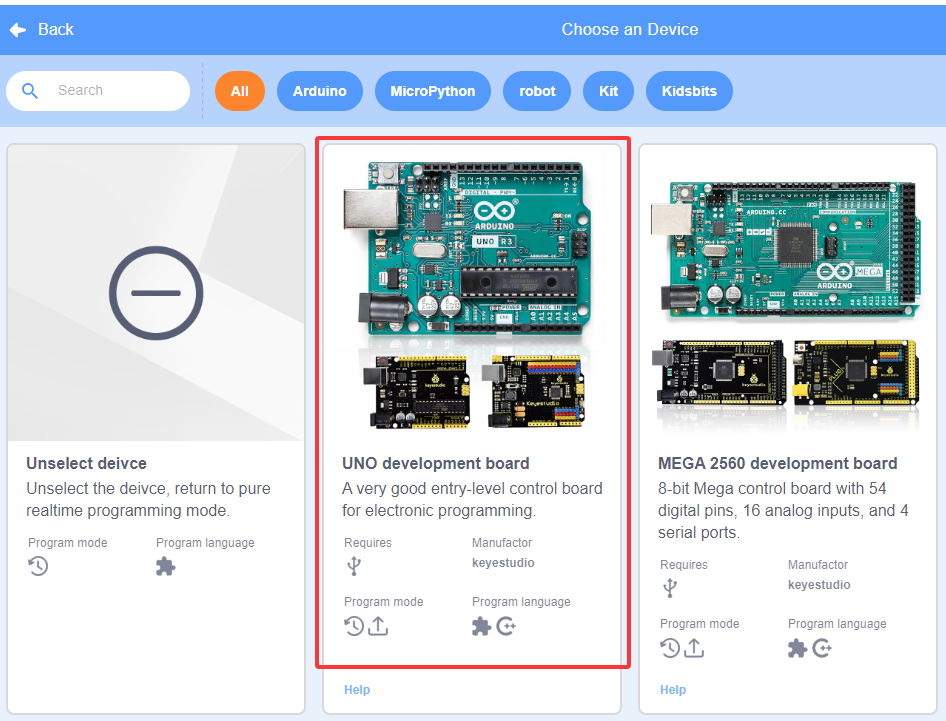
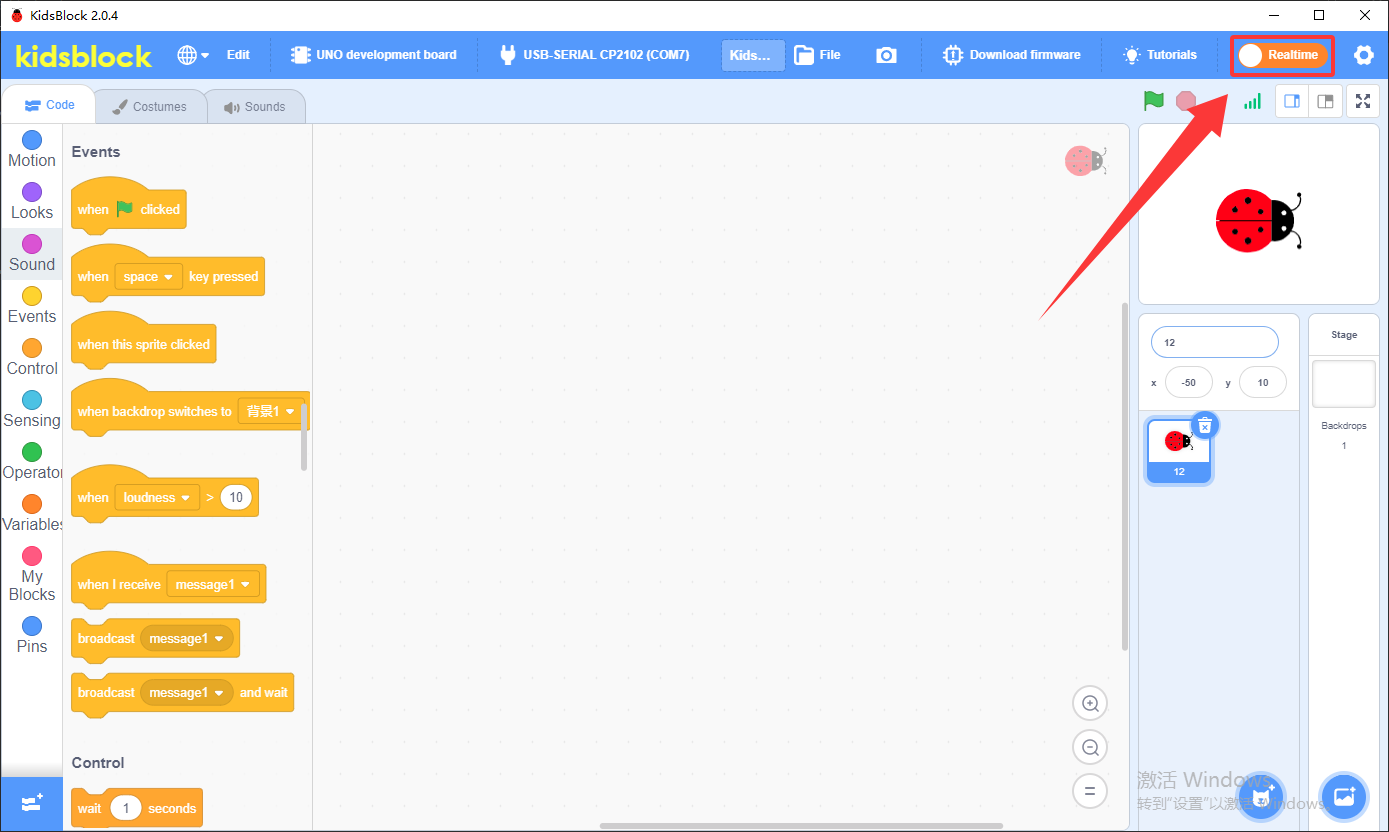
3.Click  to enter the main page, select the control board needed. In this project, we select the “UNO development board” mainboard and click Connect, then it is connected. Click Go to Editor to return the code editor.
Icon
to enter the main page, select the control board needed. In this project, we select the “UNO development board” mainboard and click Connect, then it is connected. Click Go to Editor to return the code editor.
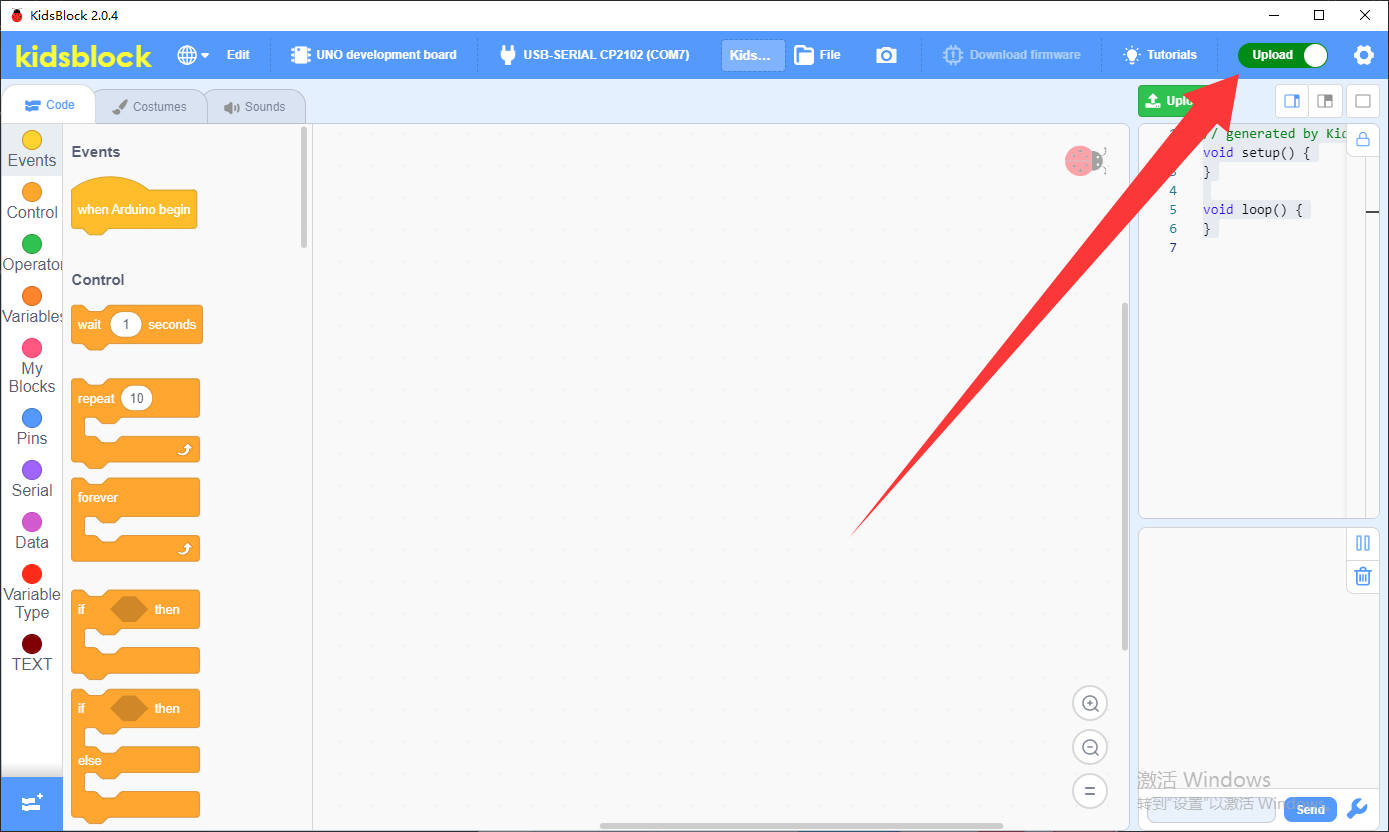
Icon  will change into
 ,and
,and will change into
  . This means the Uno Plus mainboard and ports(COM)are connected.
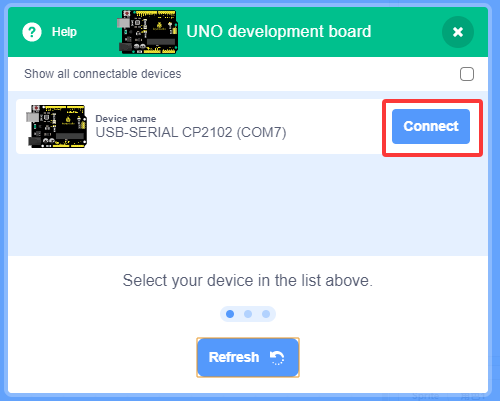
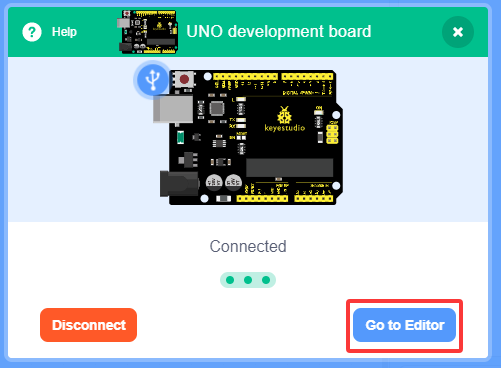
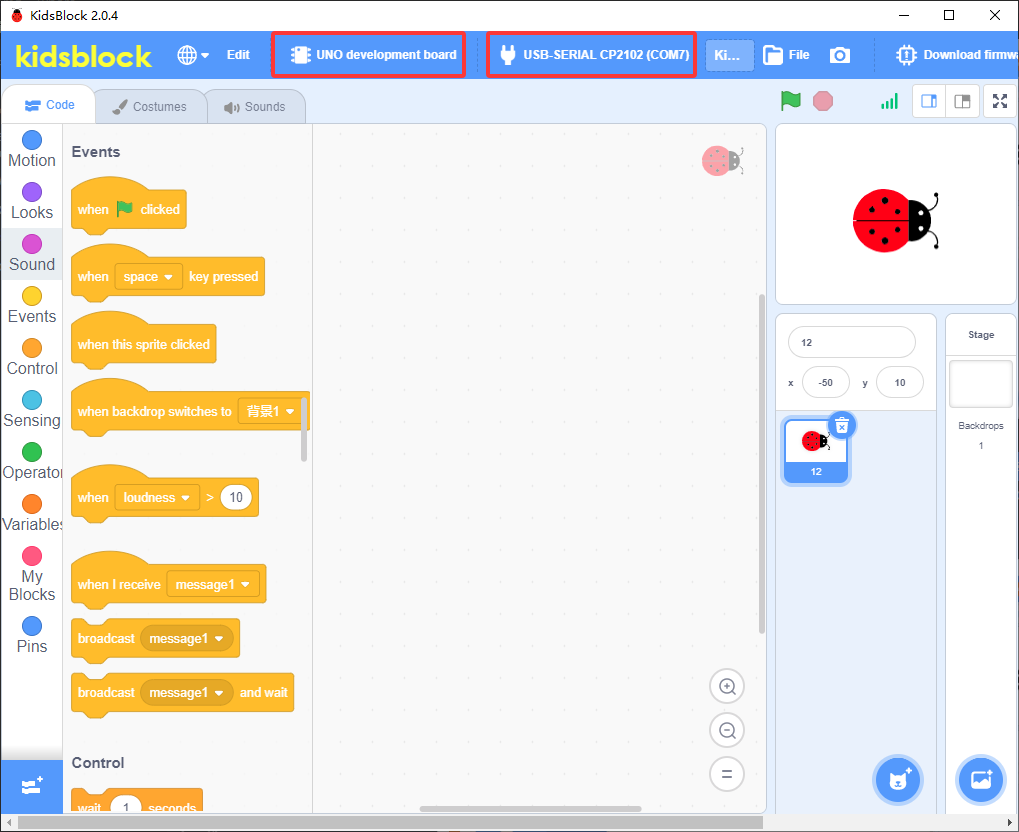
4.If the Uno Plus mainboard is connected , but icondoesn’t change into  . You need to click to connect the COM port. Click and then click Connect. Then you will find a page pop up, showing Connected.
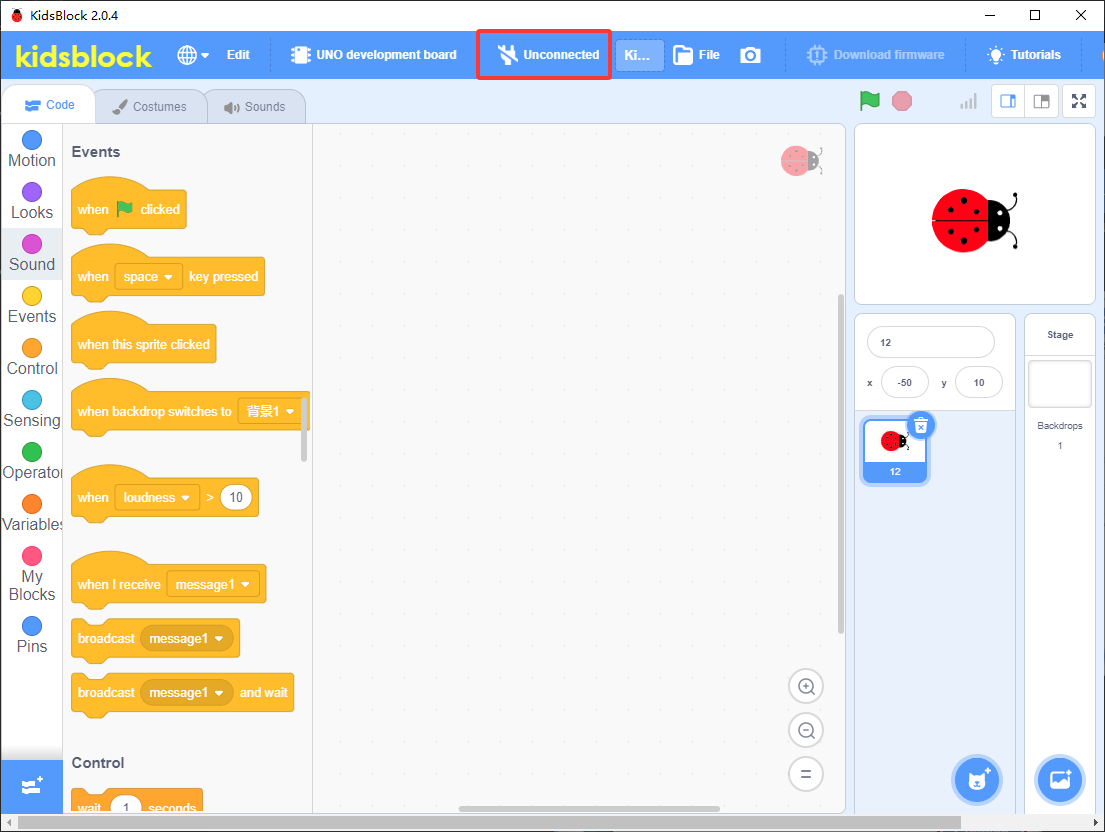
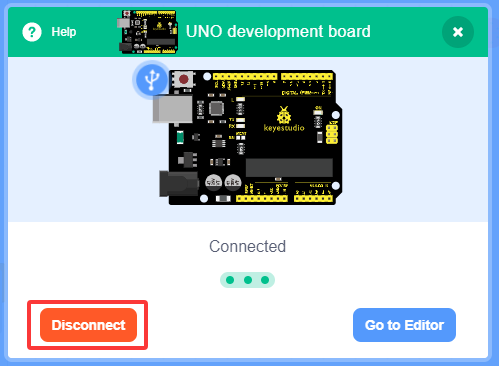
To disconnect the port, just click  andDisconnect.
5.The Uno Plus mainboard and the COM port are connected, then click will change into
  .
.
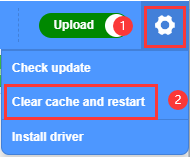
Note: if you want to update libraries of KidsBlock, click then Clear cache and restart.
6. stands for extension libraries of sensors and modules. Click to enter the page of extension libraries, click a sensor or module to add.
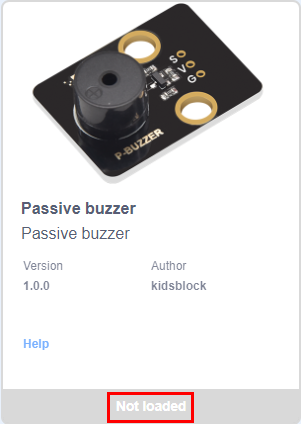
For example, if click the“passive buzzer”module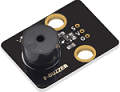 ,“Not loaded”will change into “Loaded”. Then the passive buzzer is added.
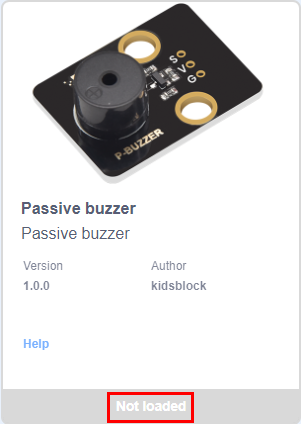
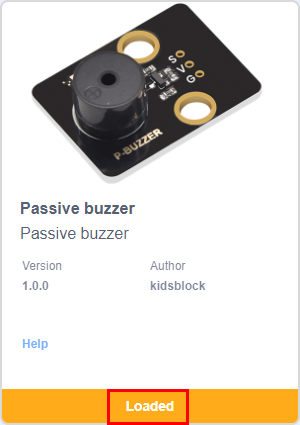
Click  to return the code editor. Then you can view the passive buzzer in the blocks area.
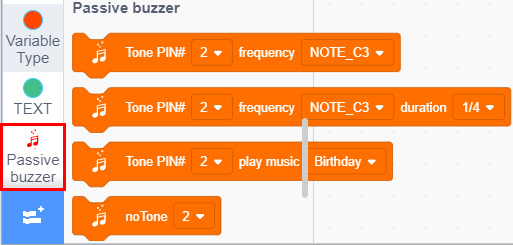
If you want to delete the passive buzzer, click to select the passive buzzer. Then “Loaded” will change into “Not loaded”. Then the passive buzzer is deleted.
The way of deleting other sensors or modules is as same as the passive buzzer.
7.How to open SB3 type files:
1). Double-click SB3 type files to open them. For instance, open  , then we need to double-click
.
, then we need to double-click
.
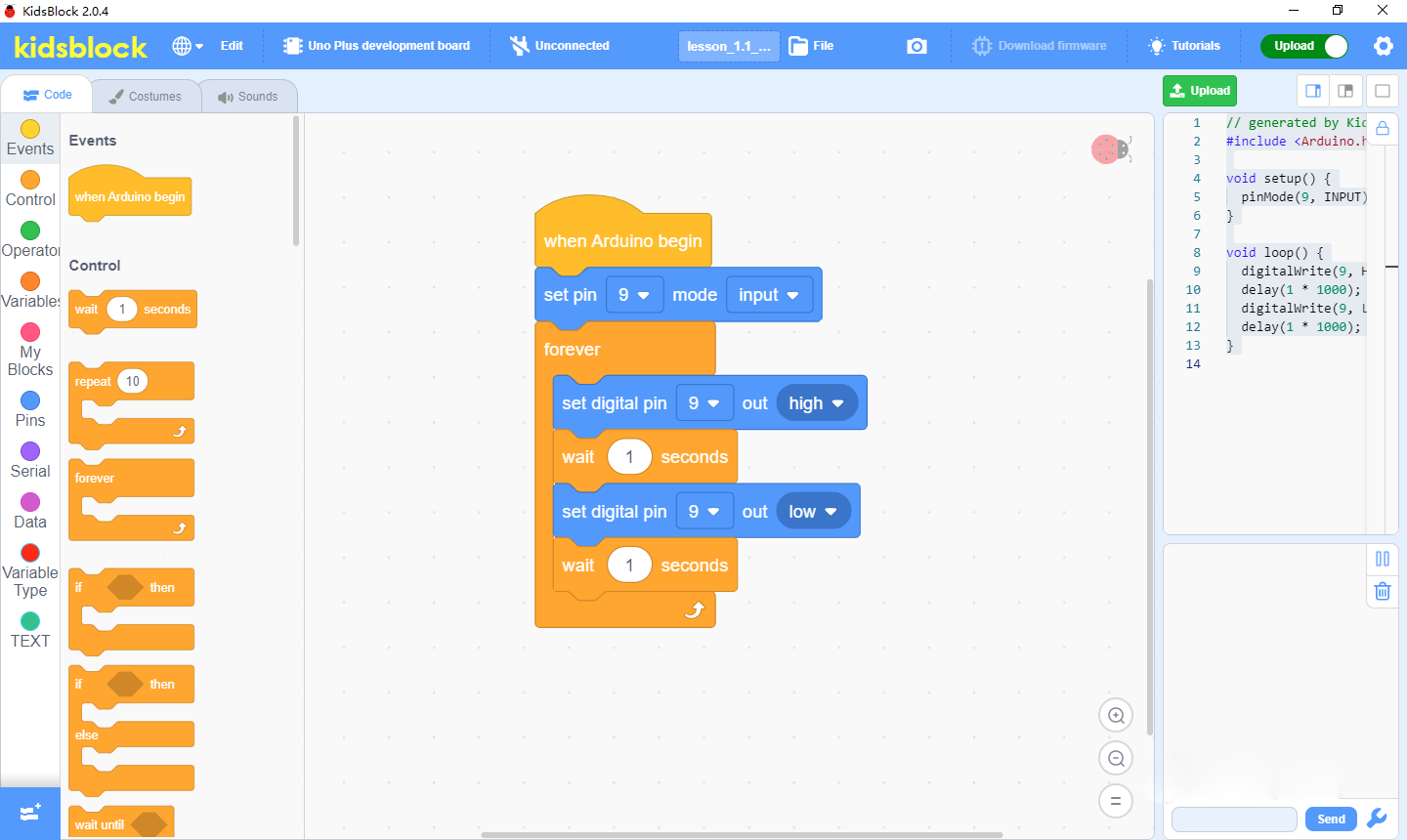
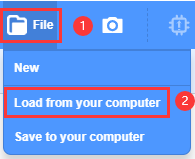
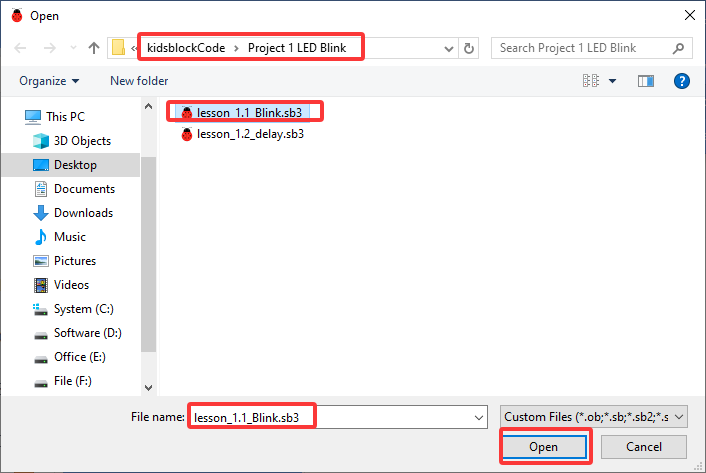
2). Open Kidsblock,click file and Load from your computer,then select the SB3 type file on the computer.(for example: ).
Note:Please refer to the following link for MacOS:https://kidsblocksite.readthedocs.io/en/latest/