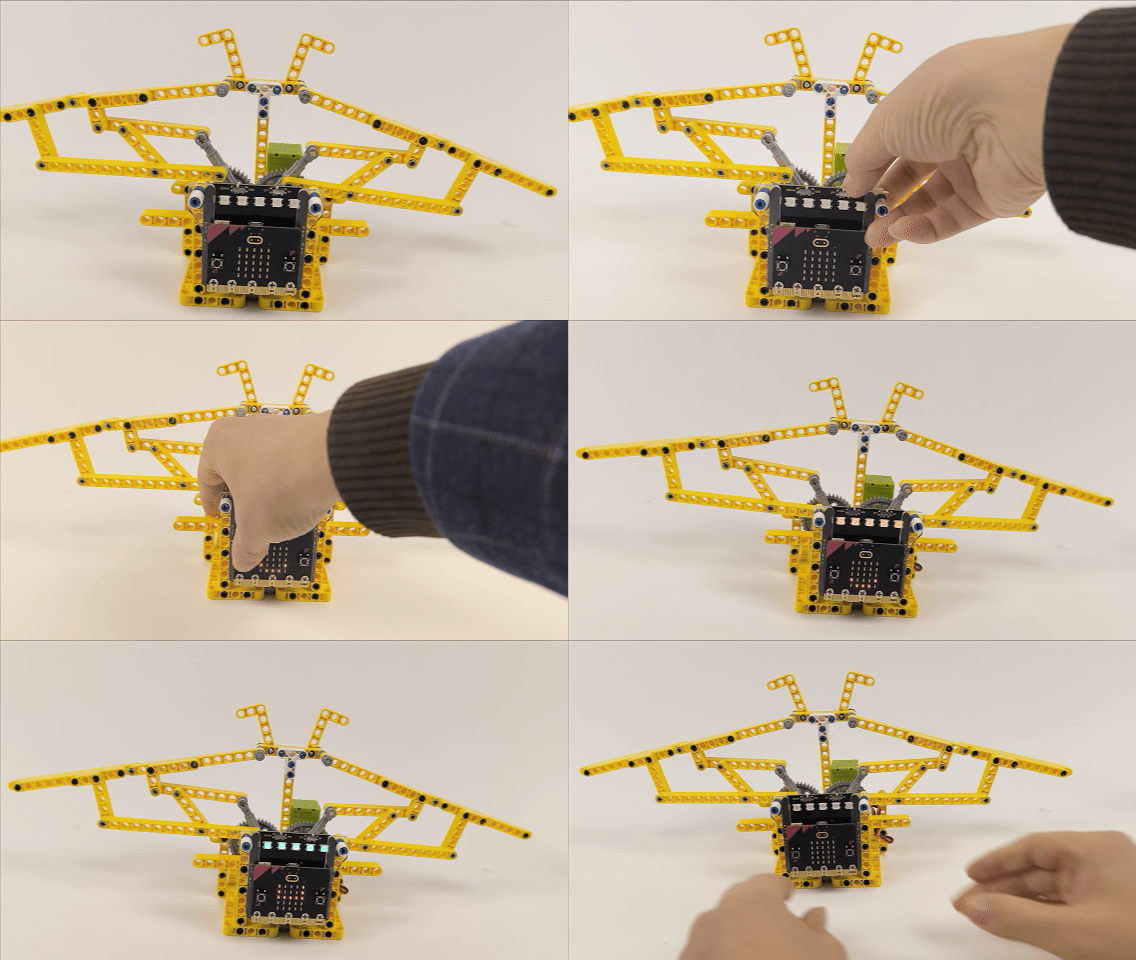
3.2.8 Hovering Hawk
3.2.8.1 Overview

Here we build a hovering hawk with a Micro:bit V2 board, a servo expansion board, a 360° LEGO servo and some LEGO parts. We program to control the fluttering of its wings through the Micro:bit V2 buttons A, B and A+B.

3.2.8.2 Materials Required
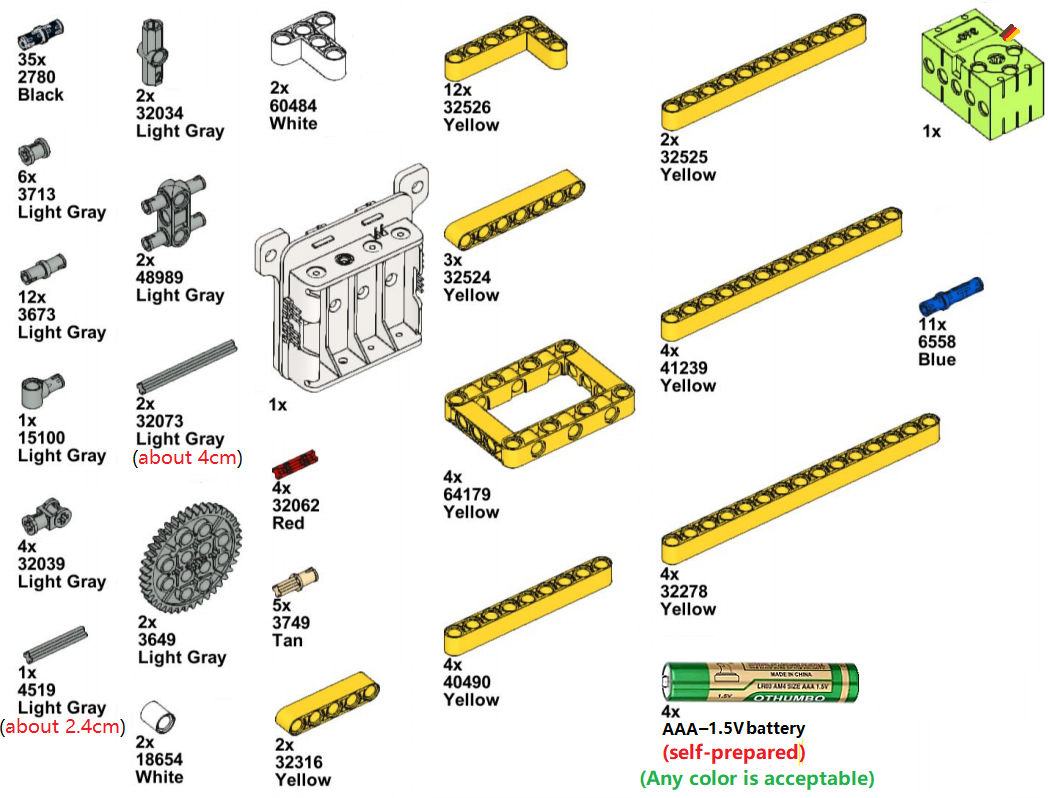
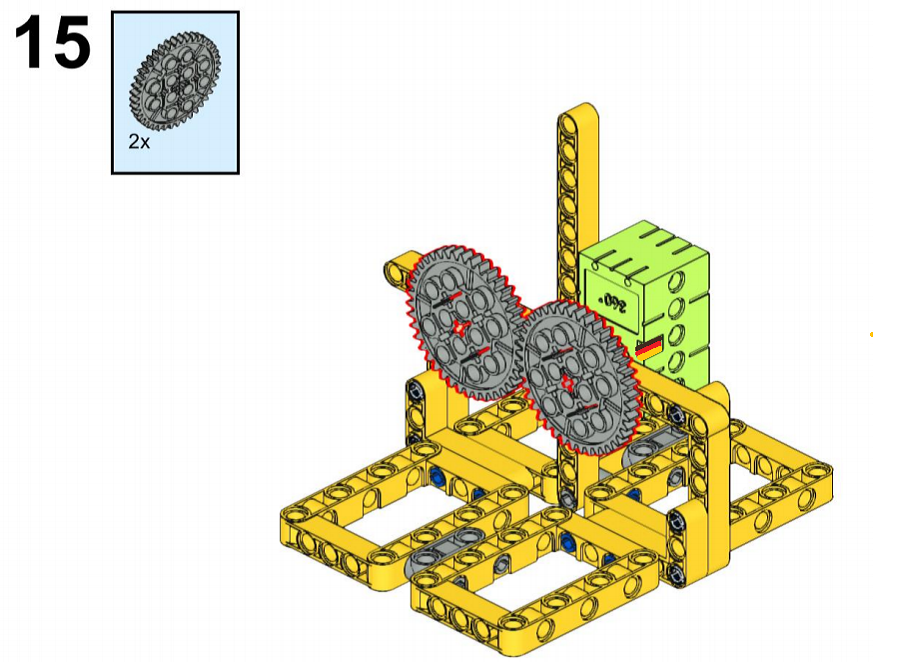
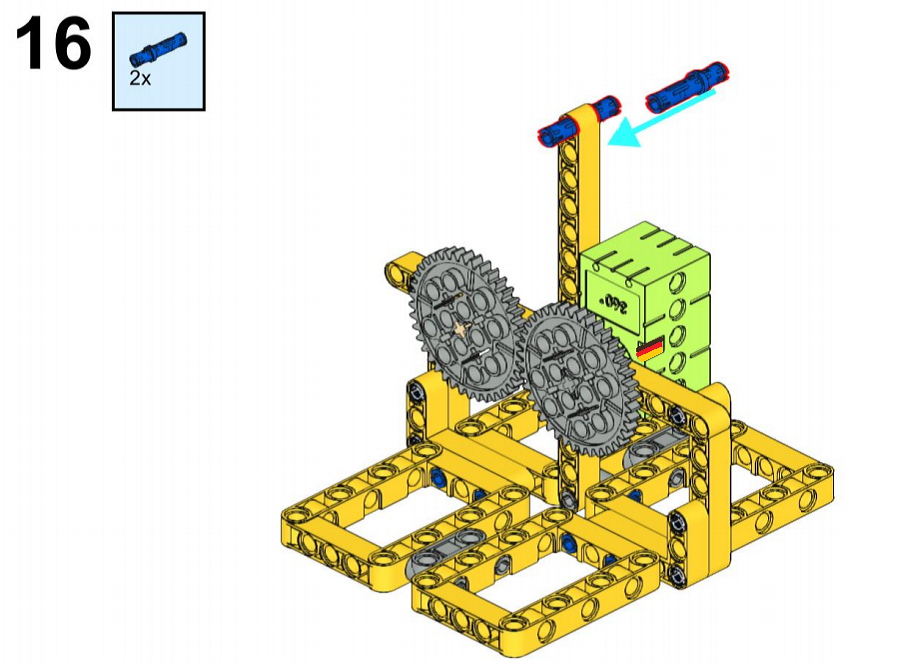
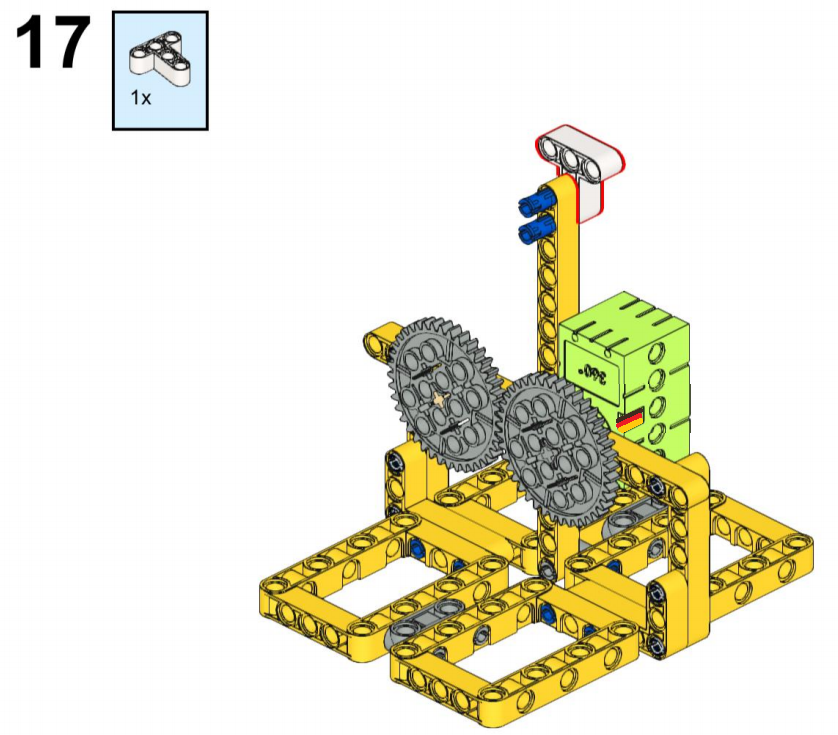
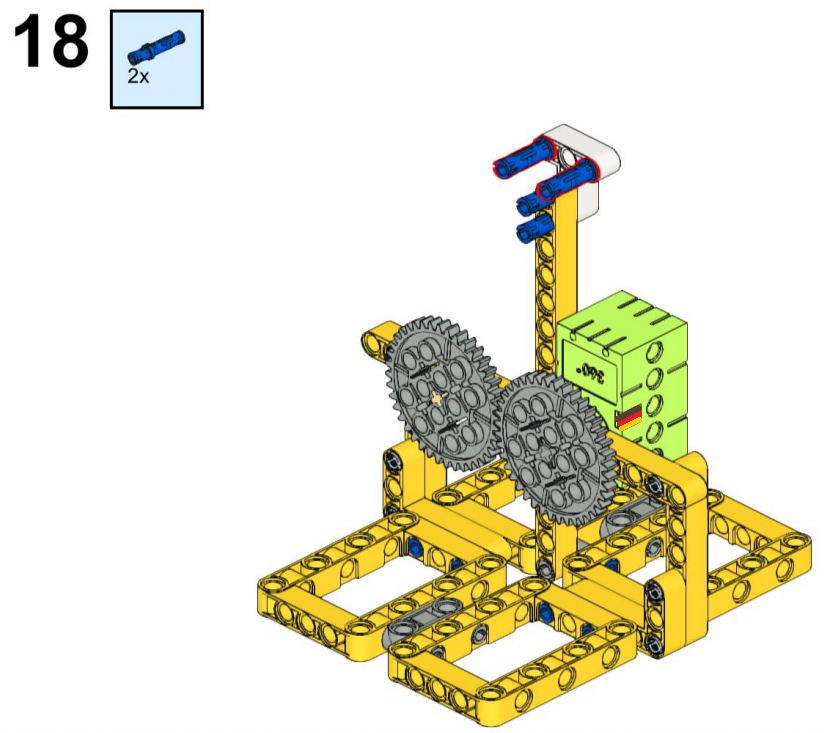
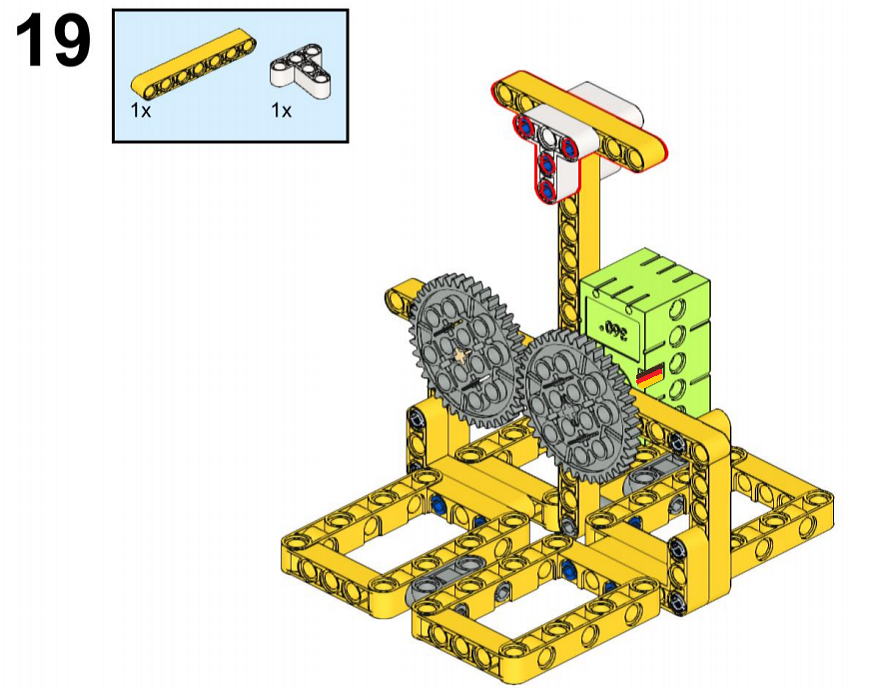
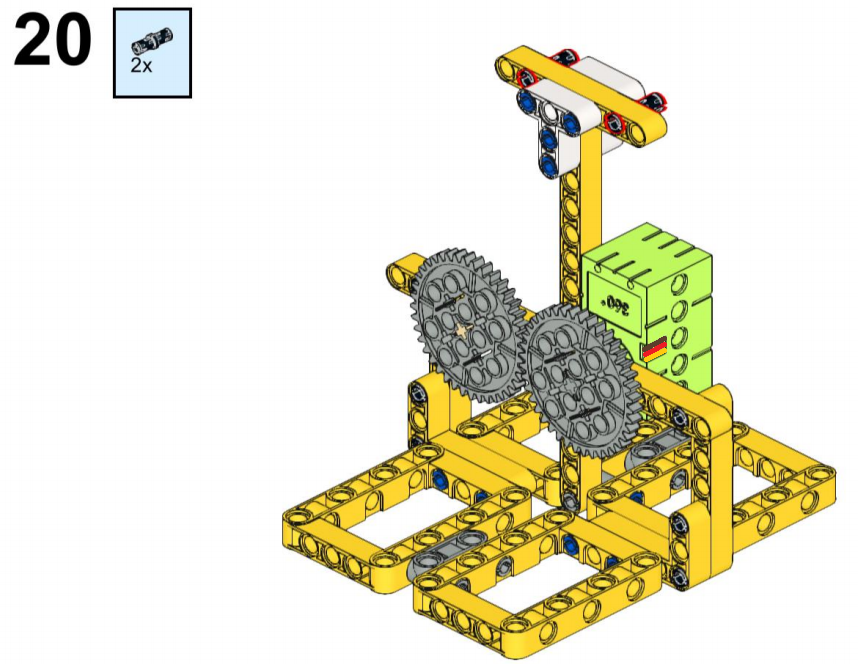
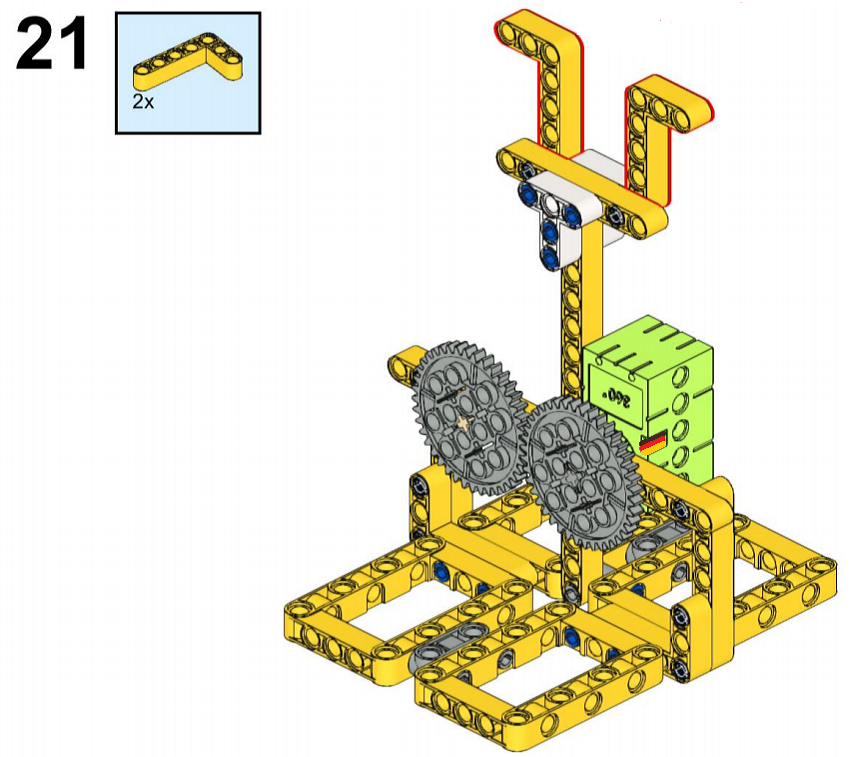
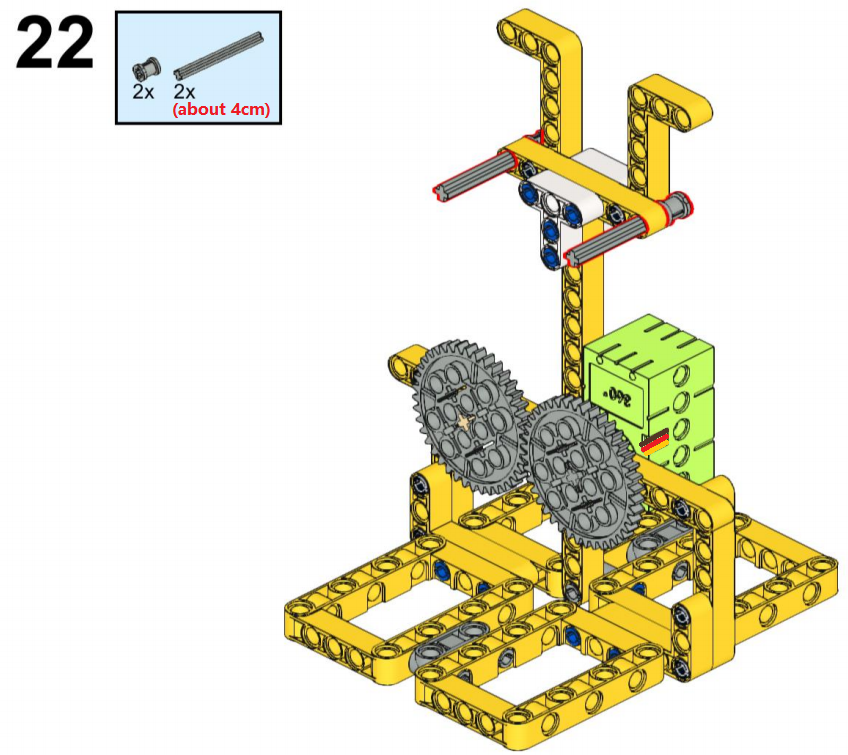
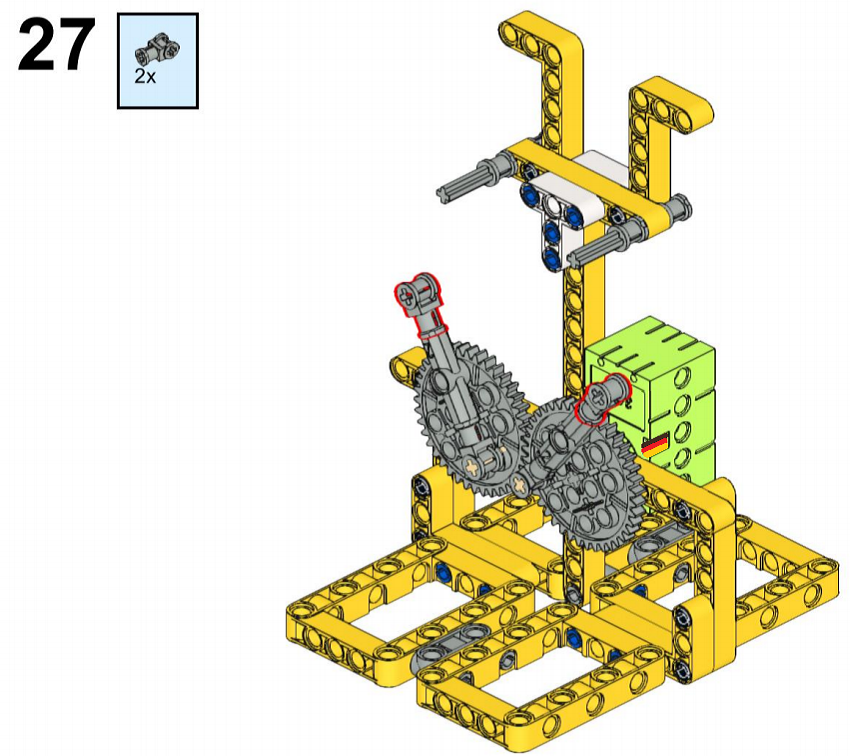
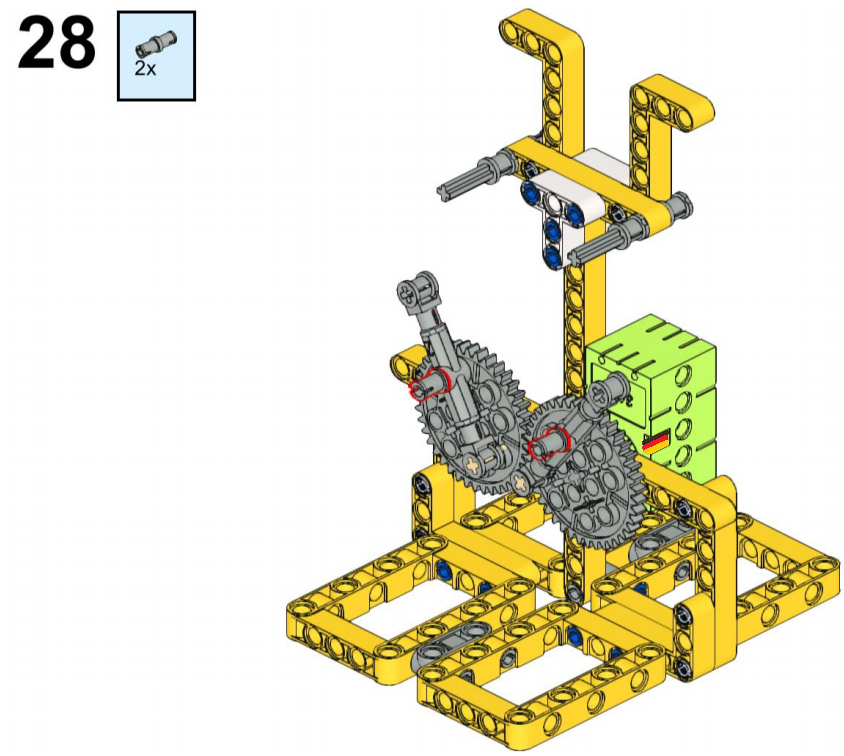
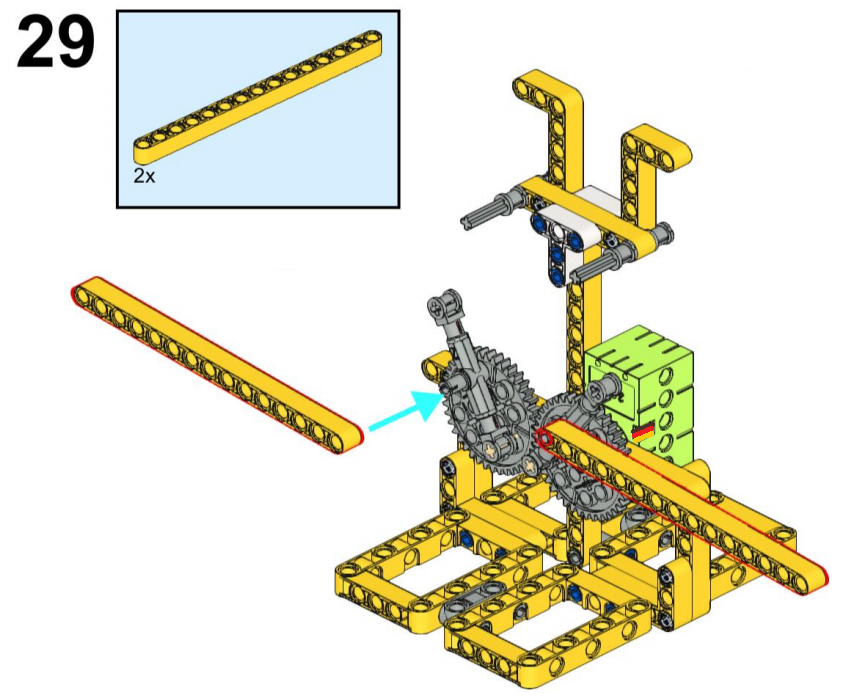
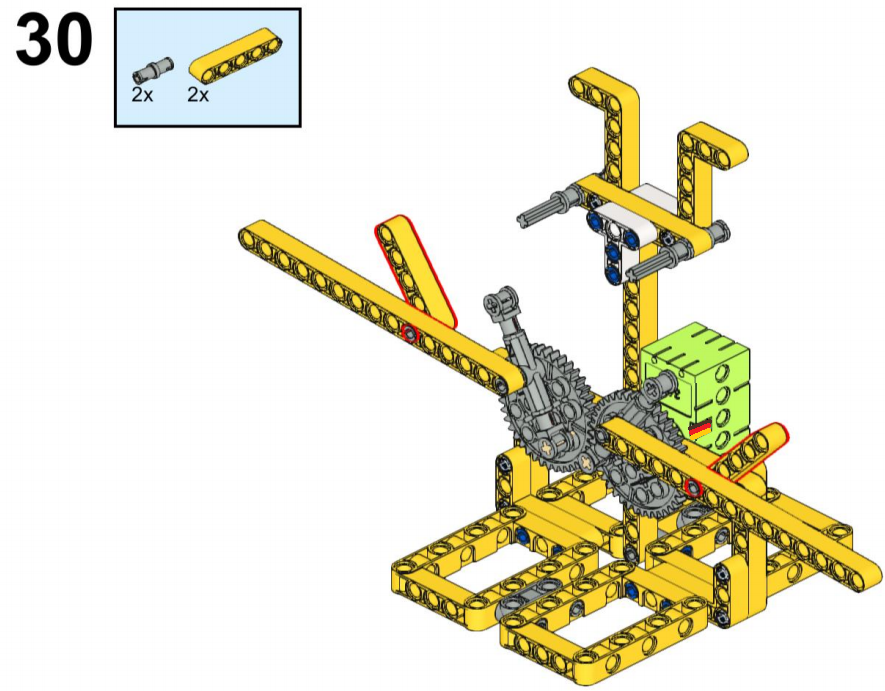
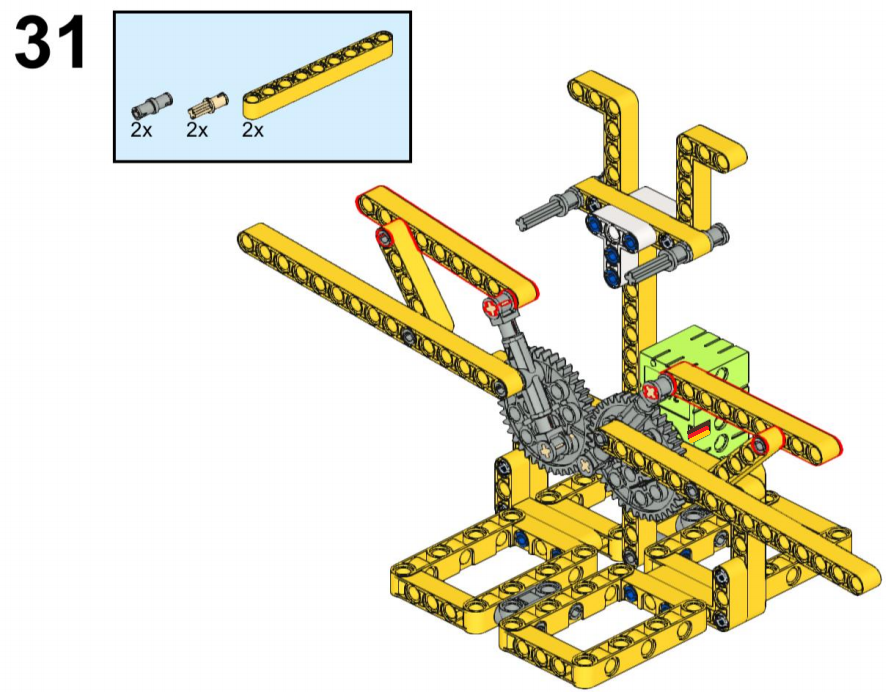
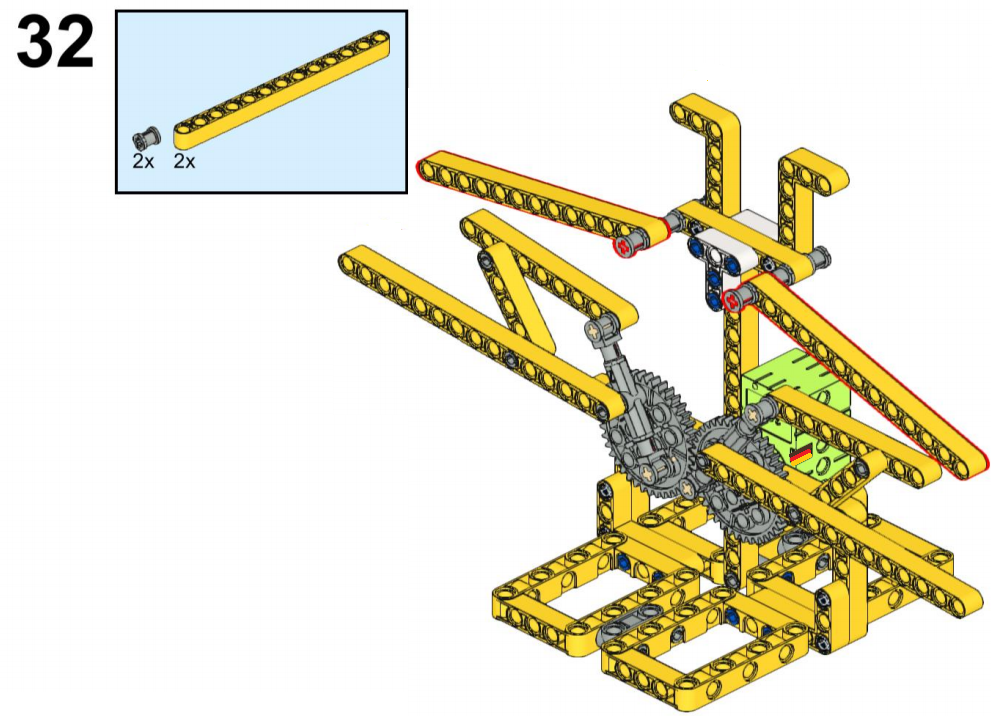
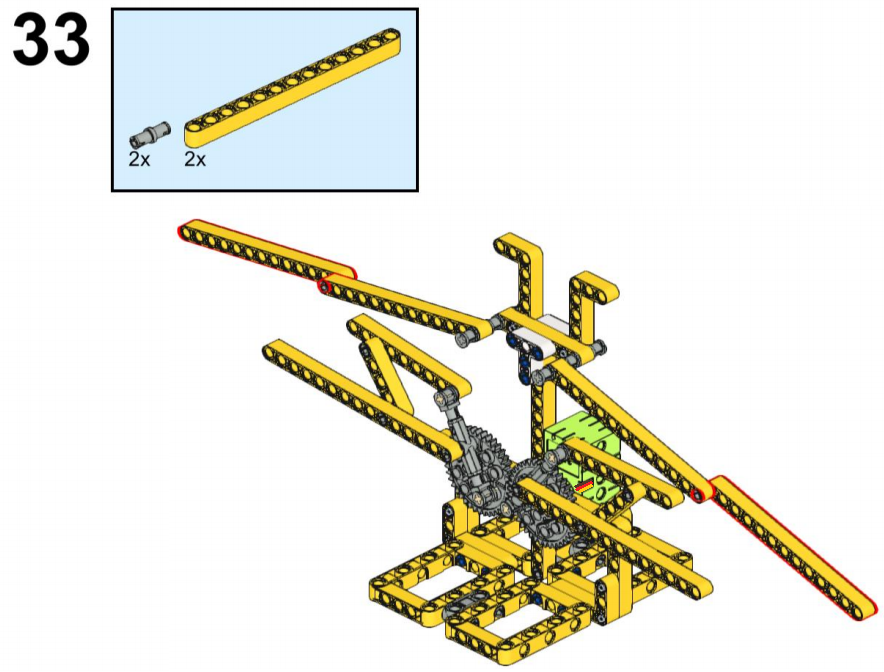
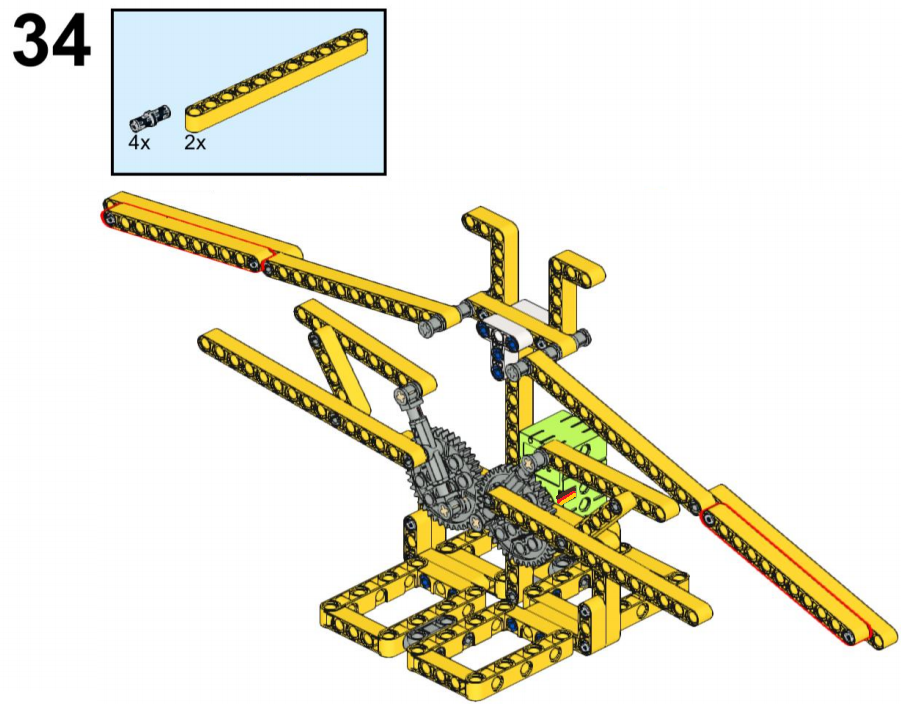
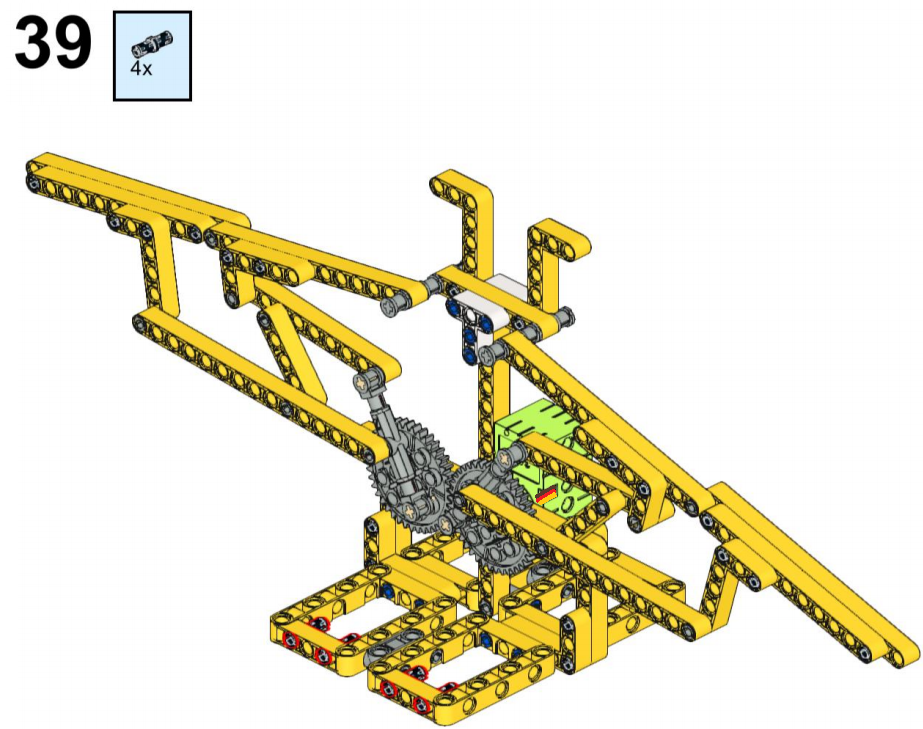
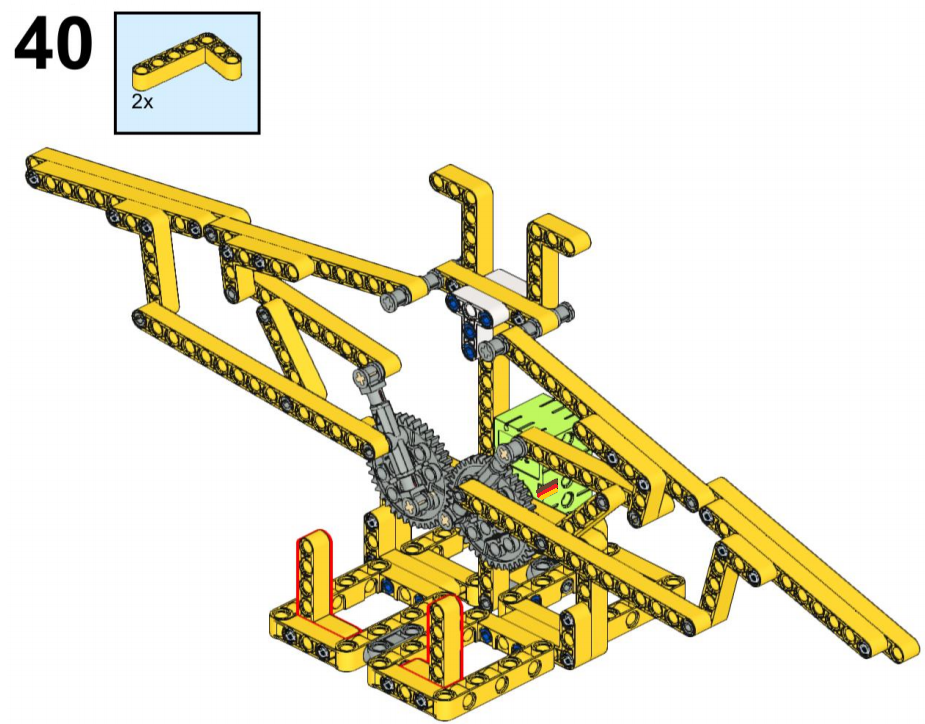
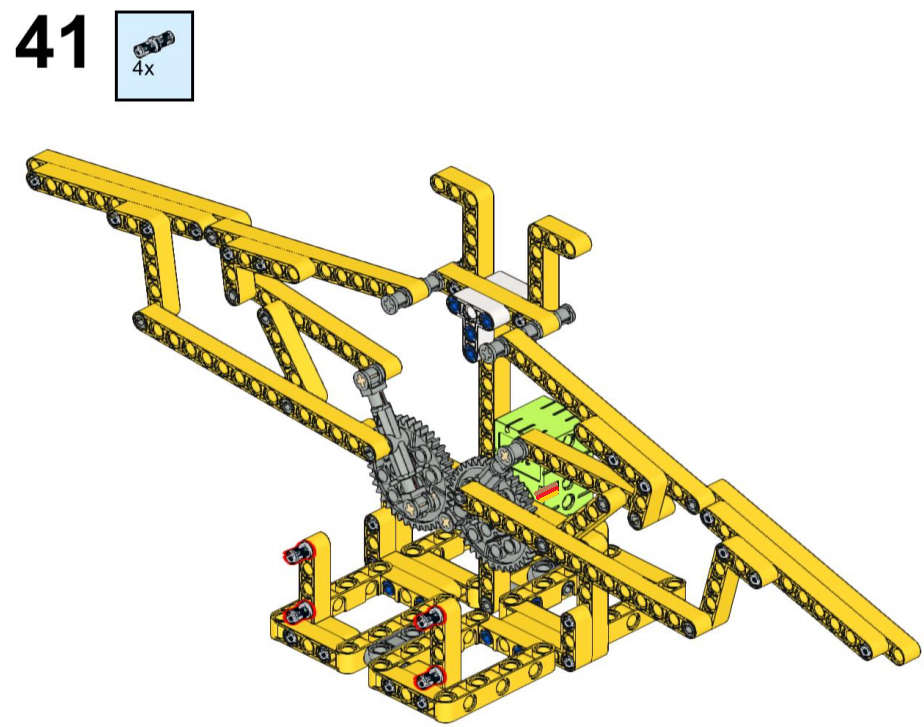
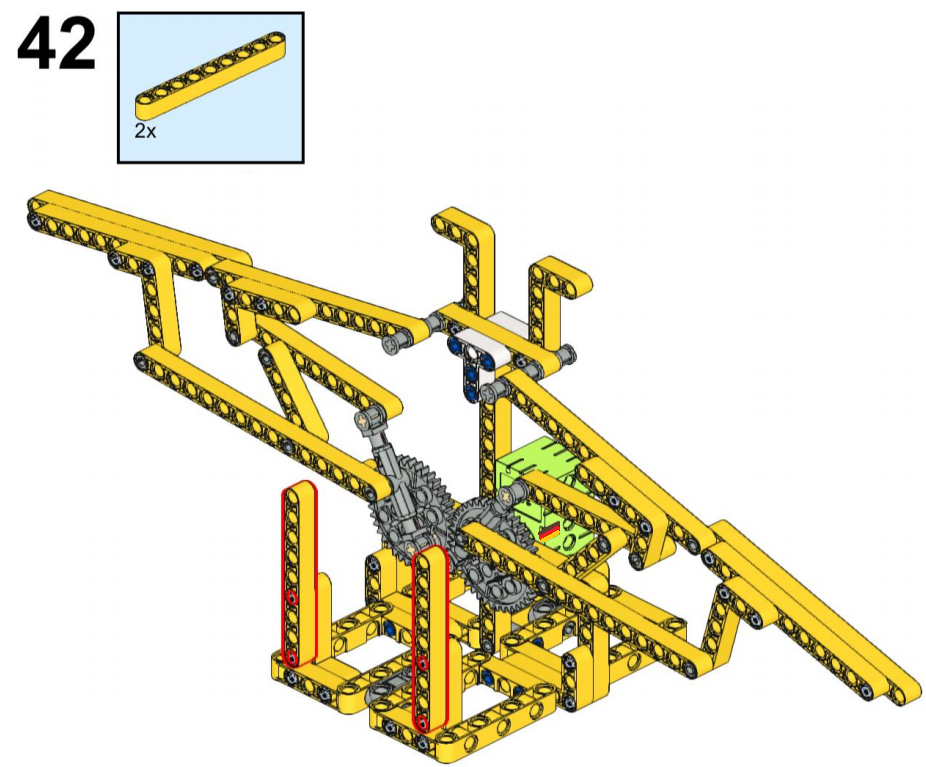
3.2.8.3 Installation Steps

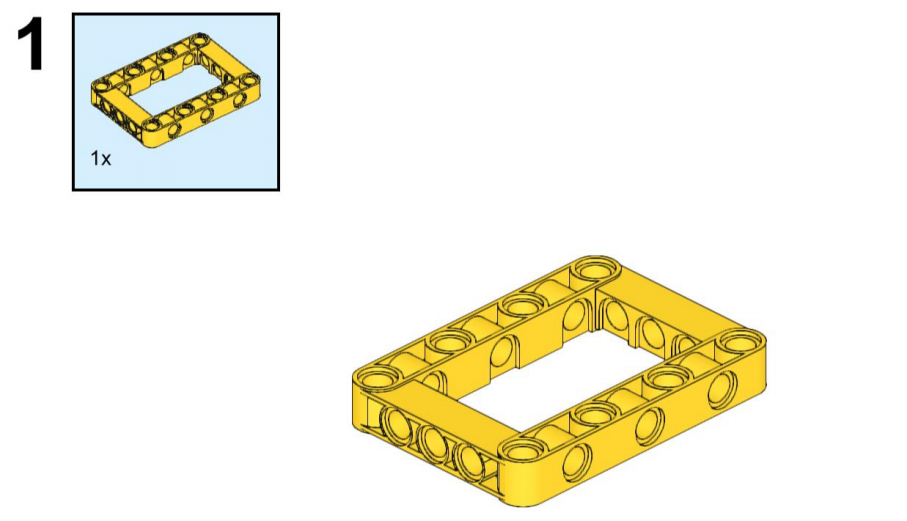
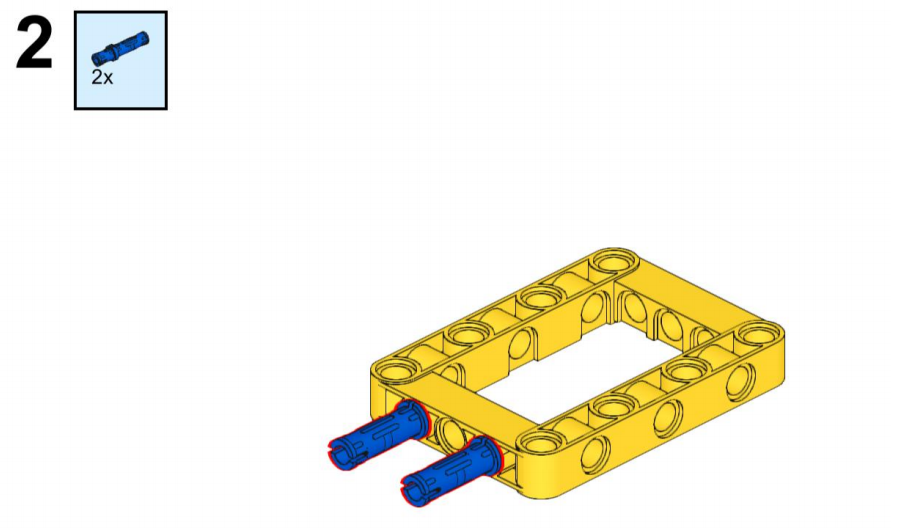
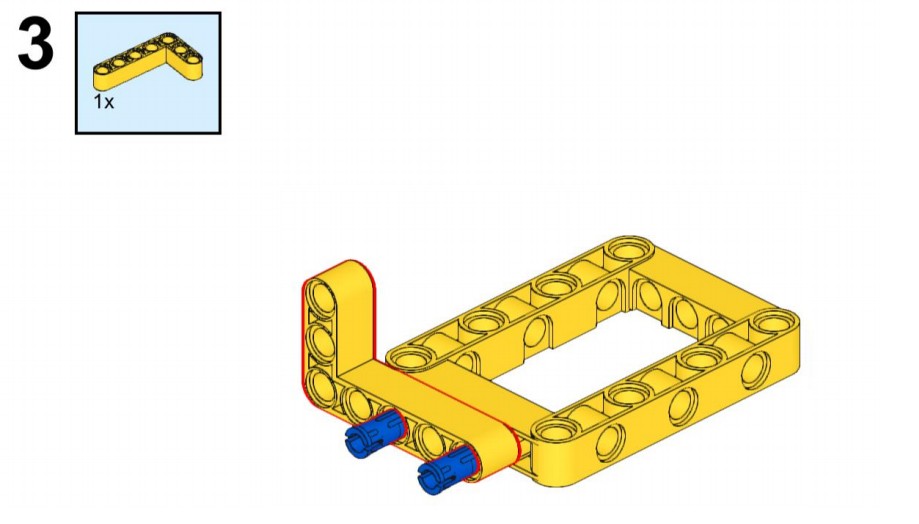
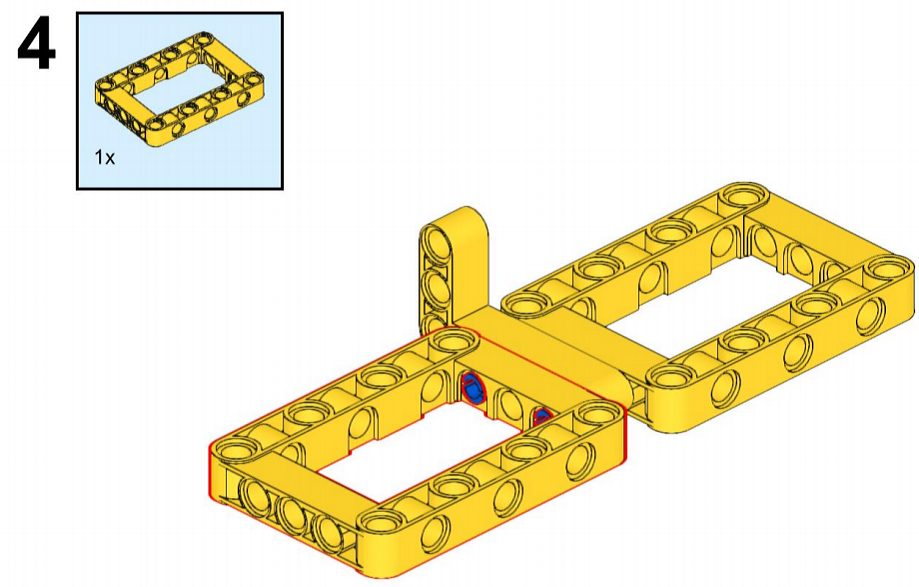
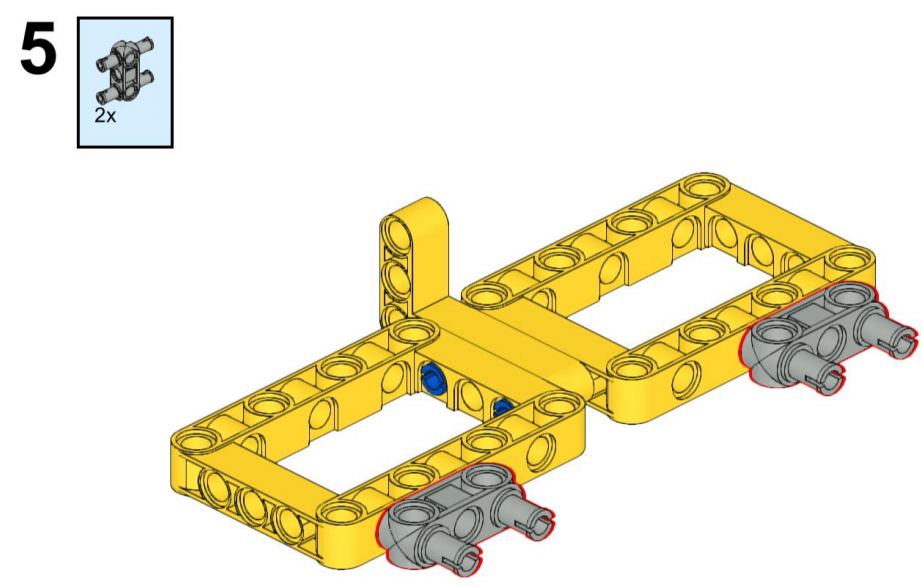
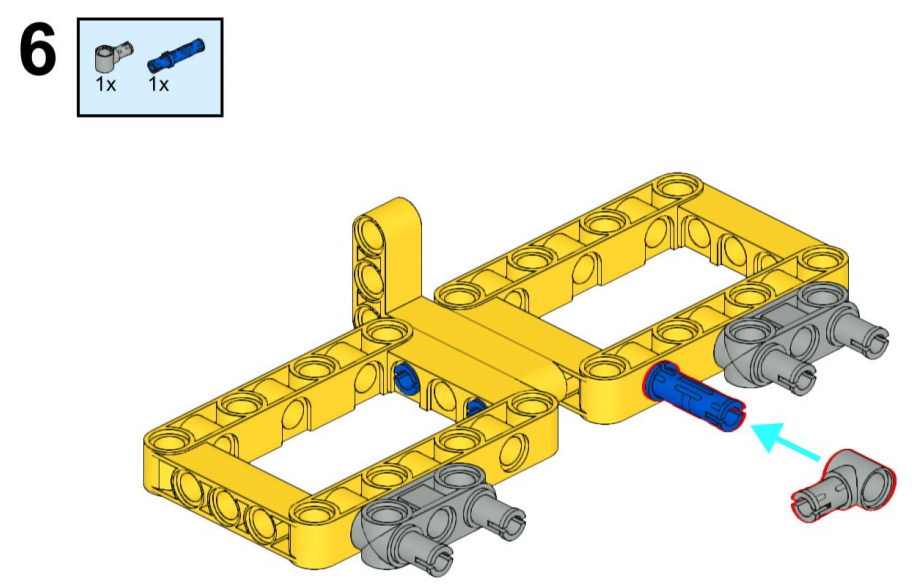
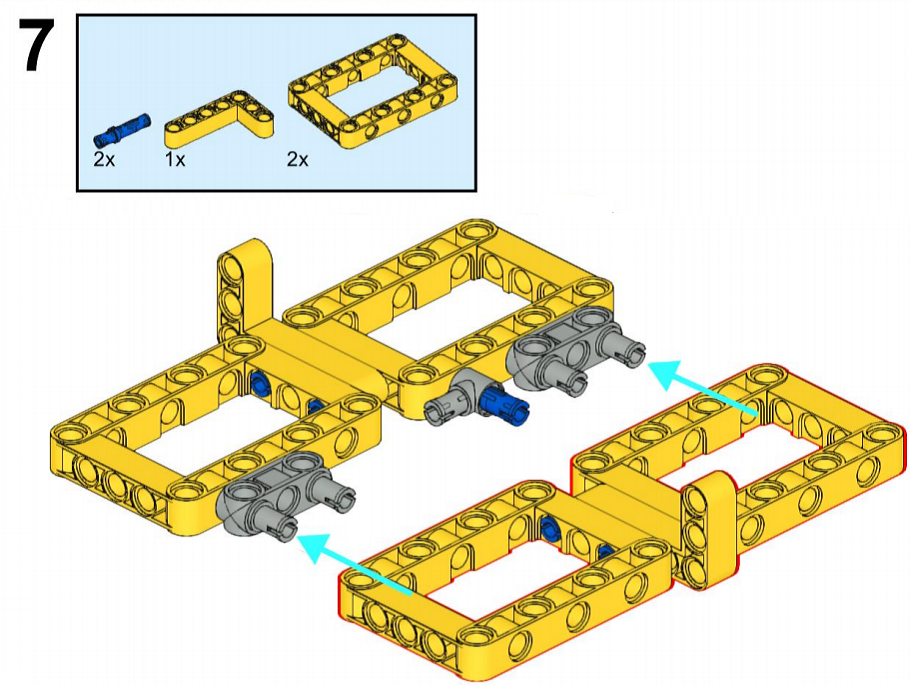
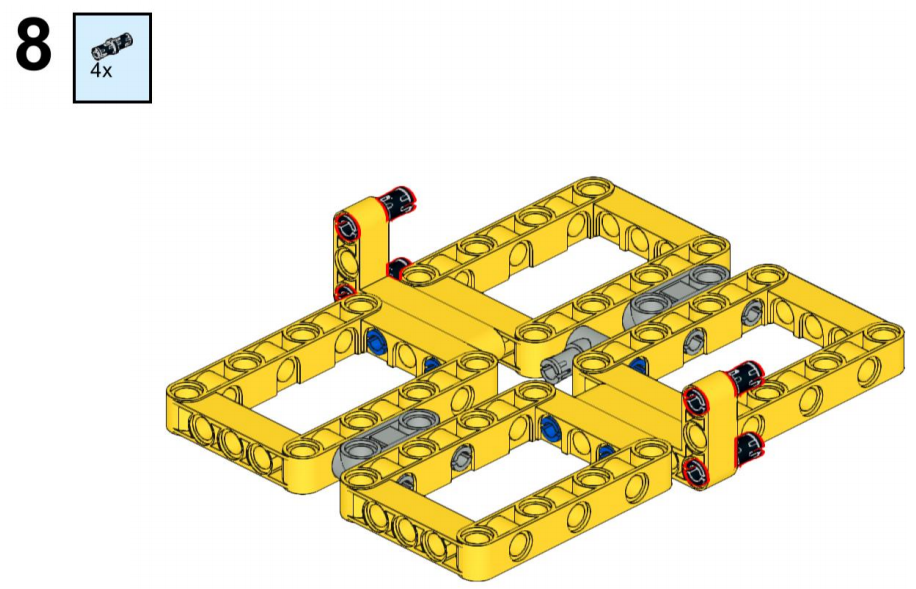
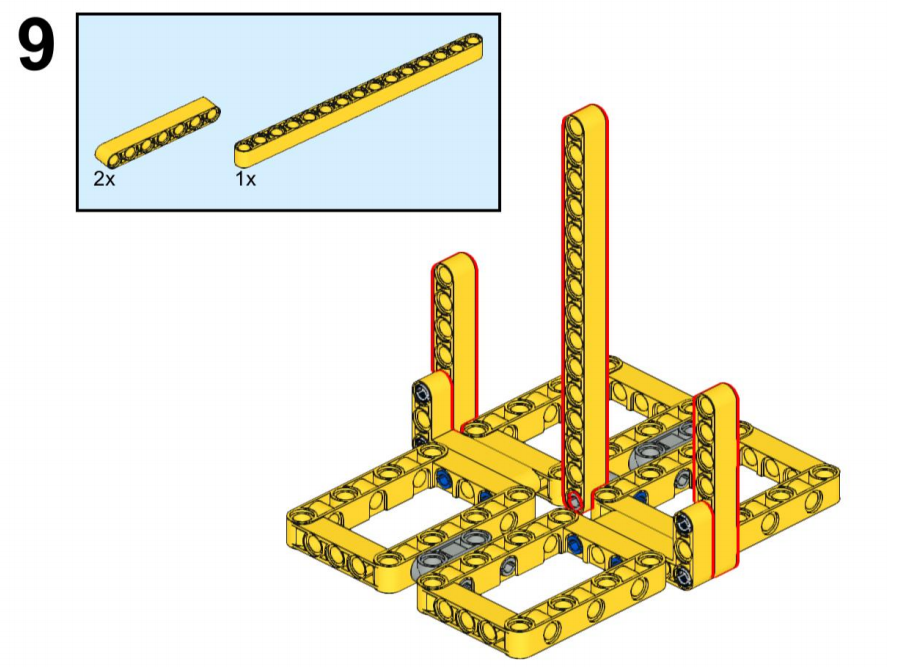
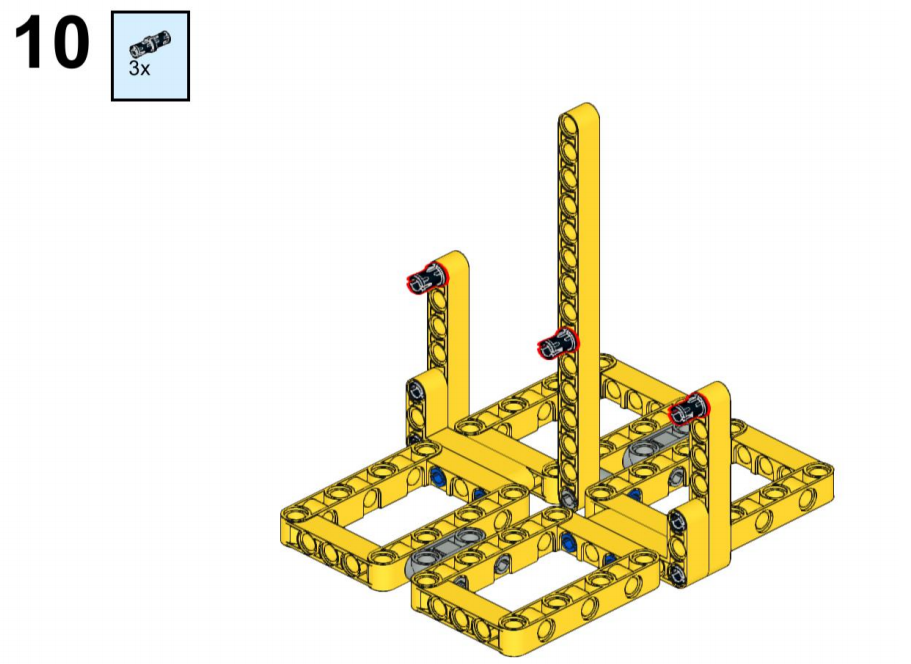
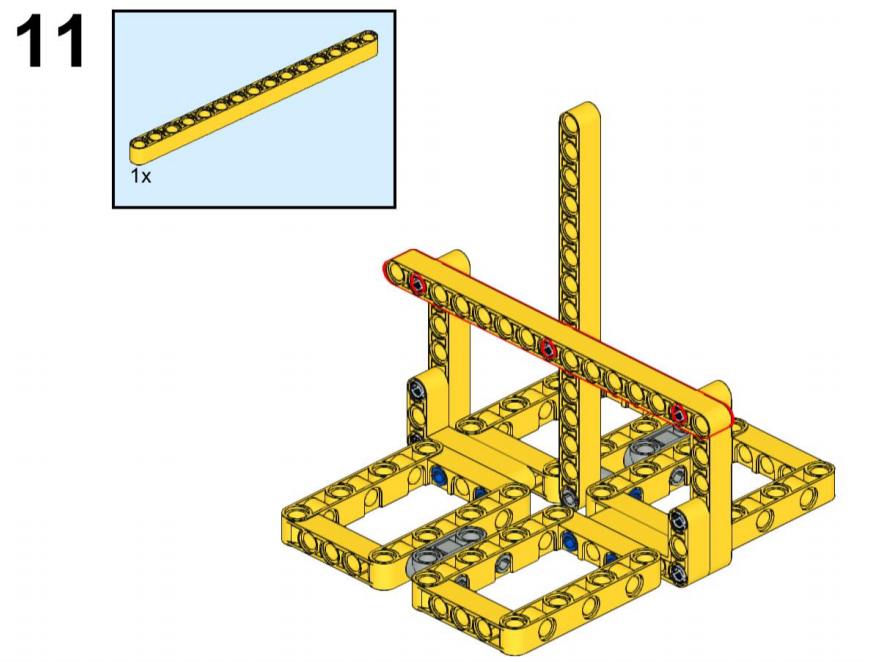
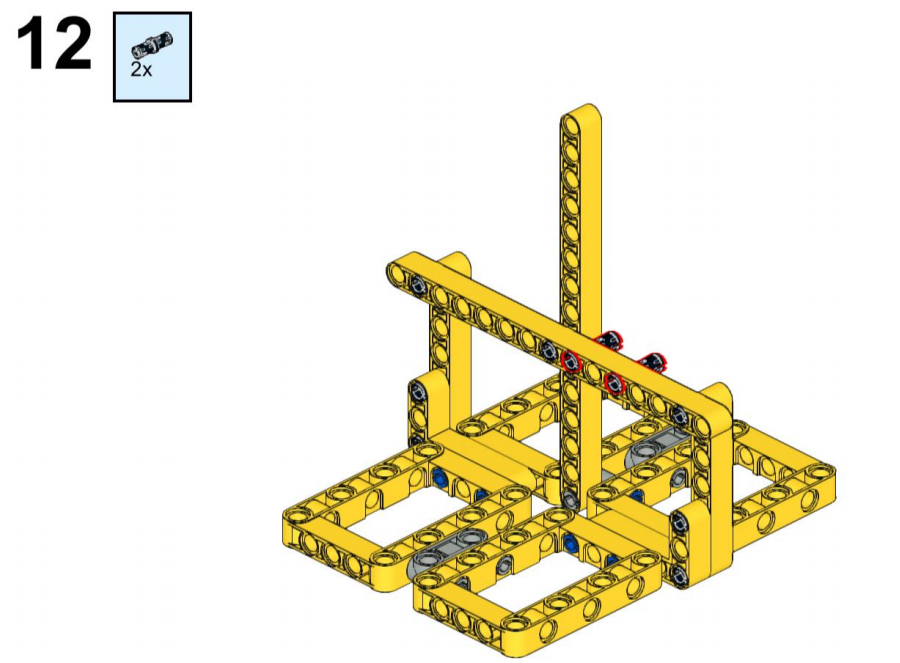
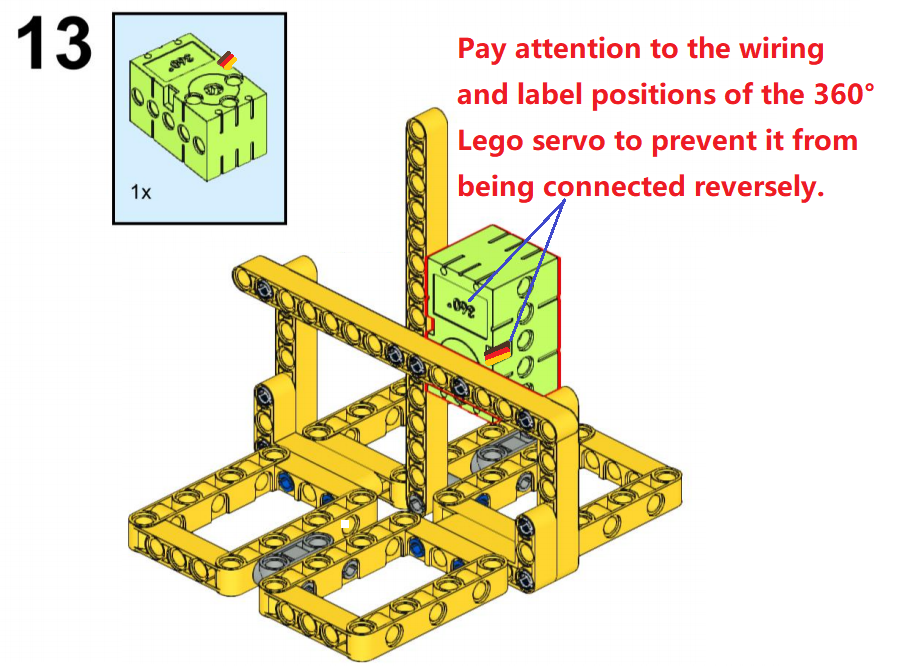
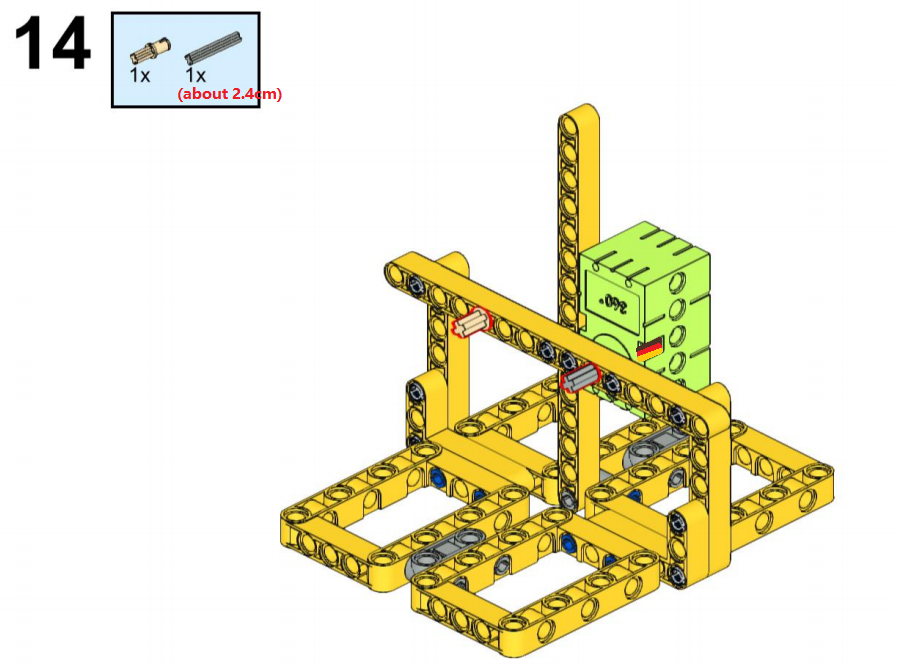
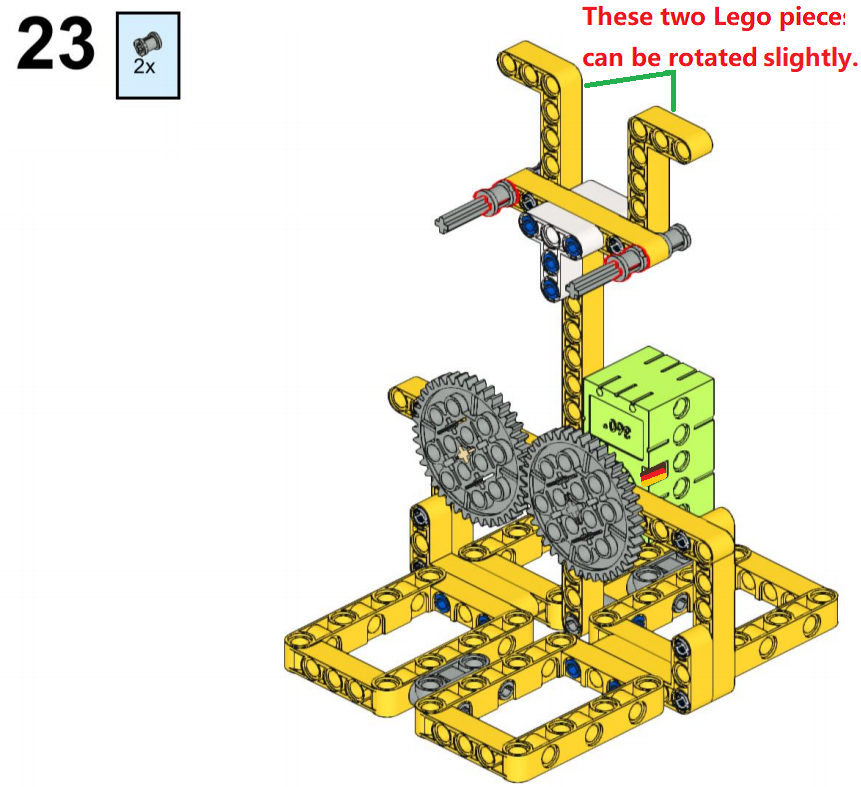
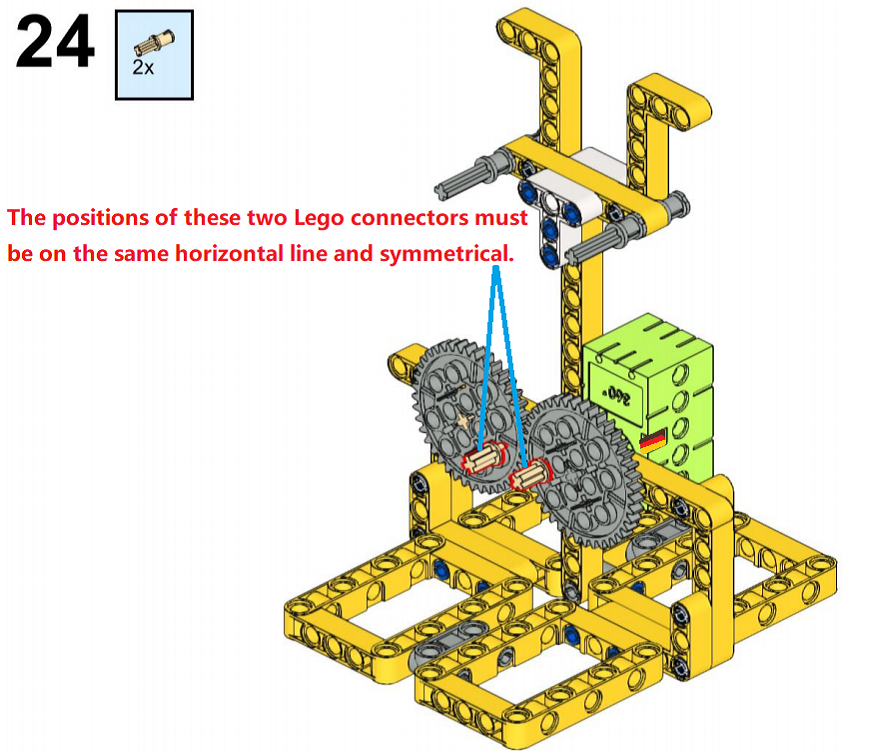
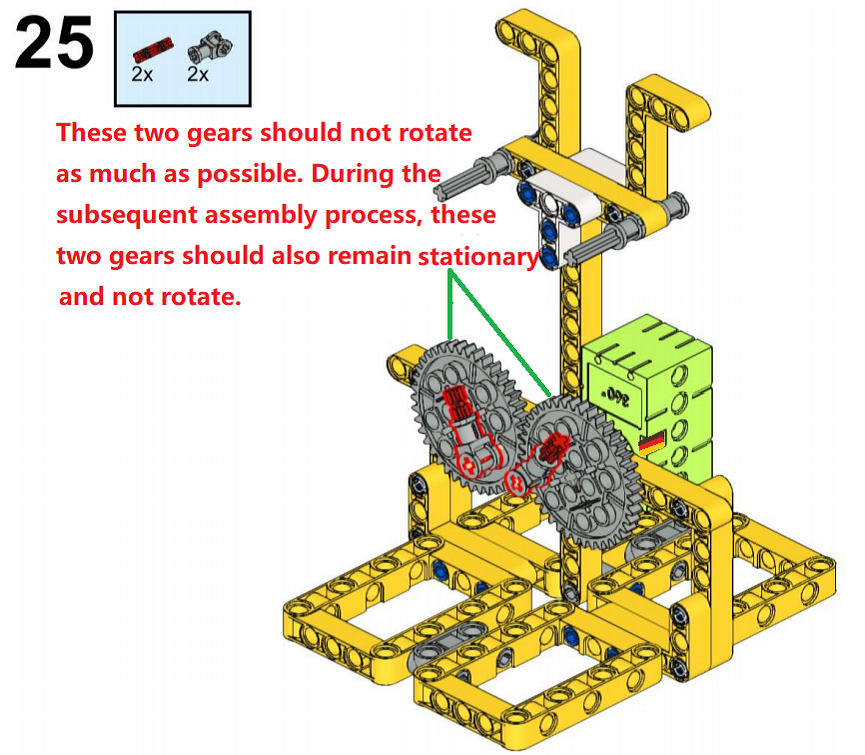
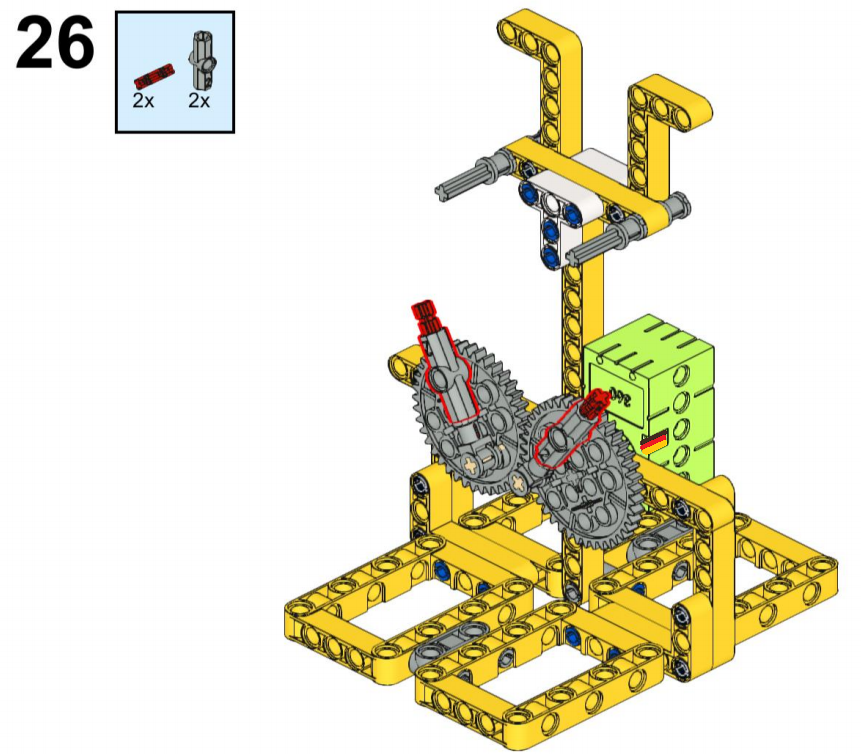
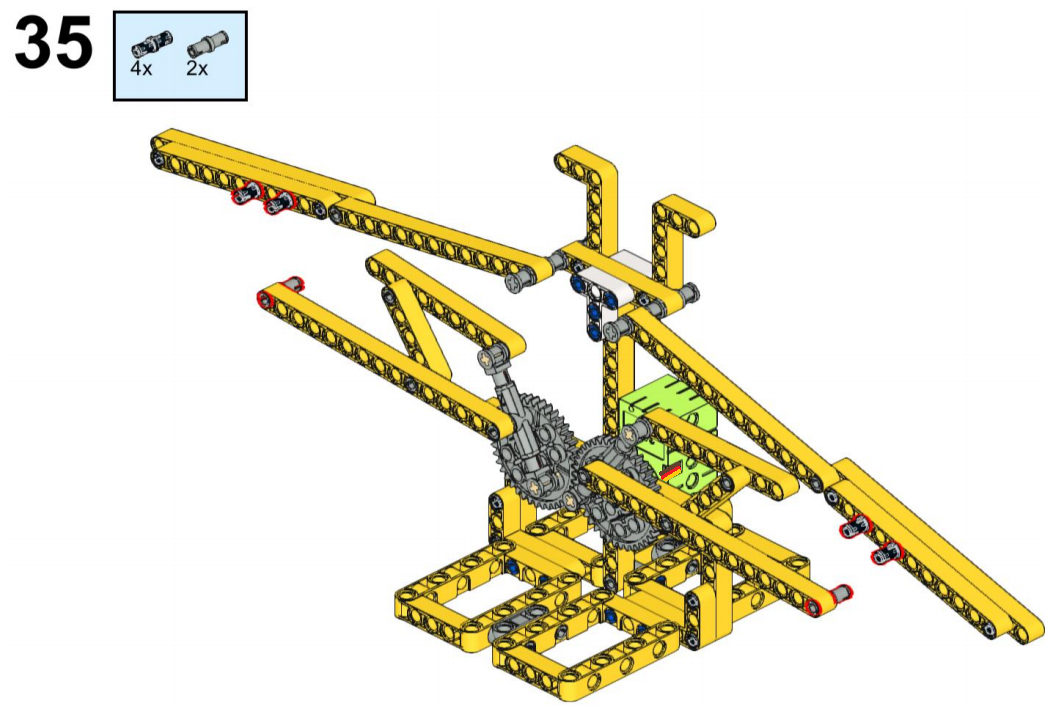
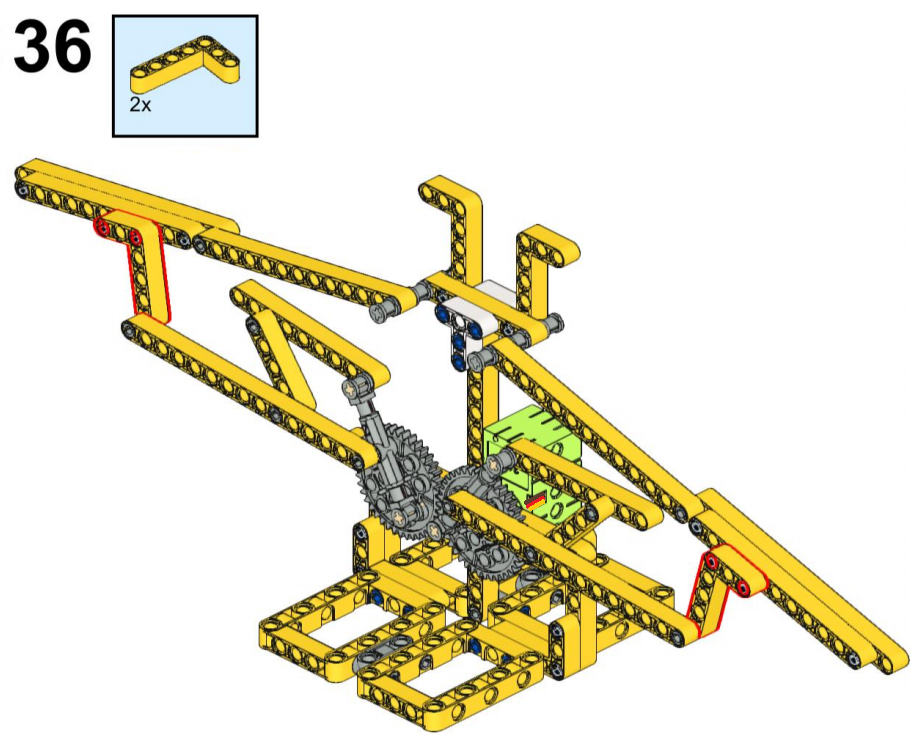
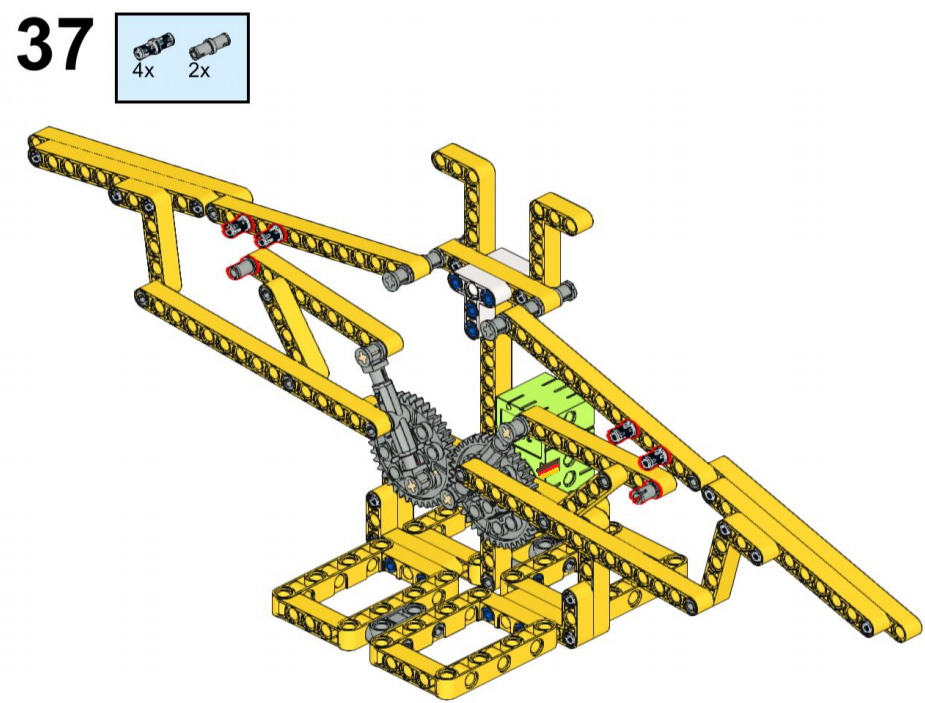
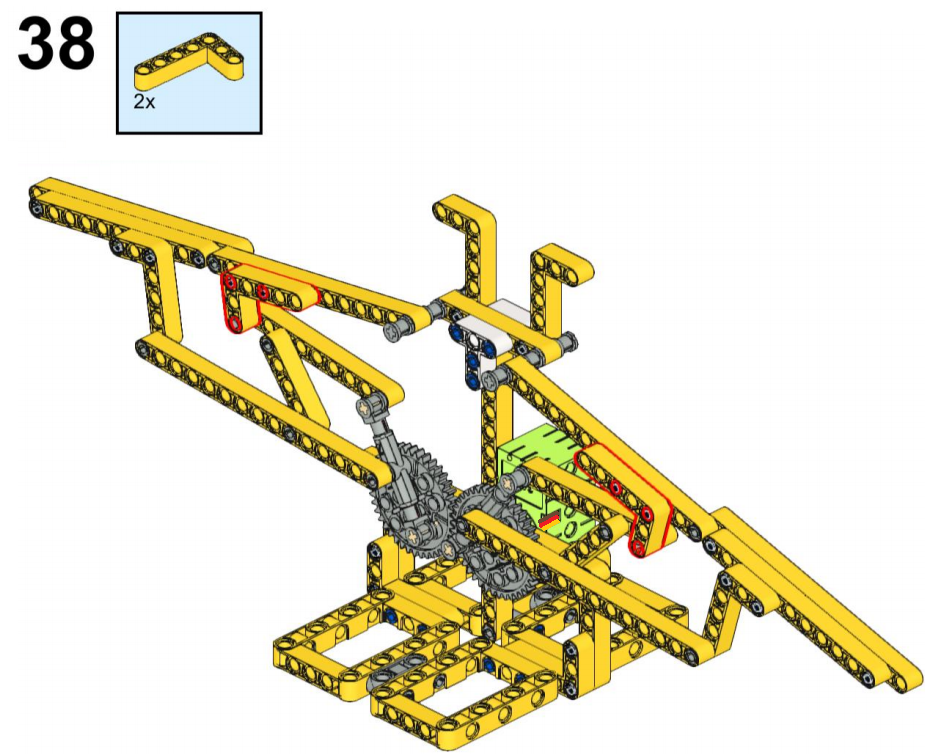
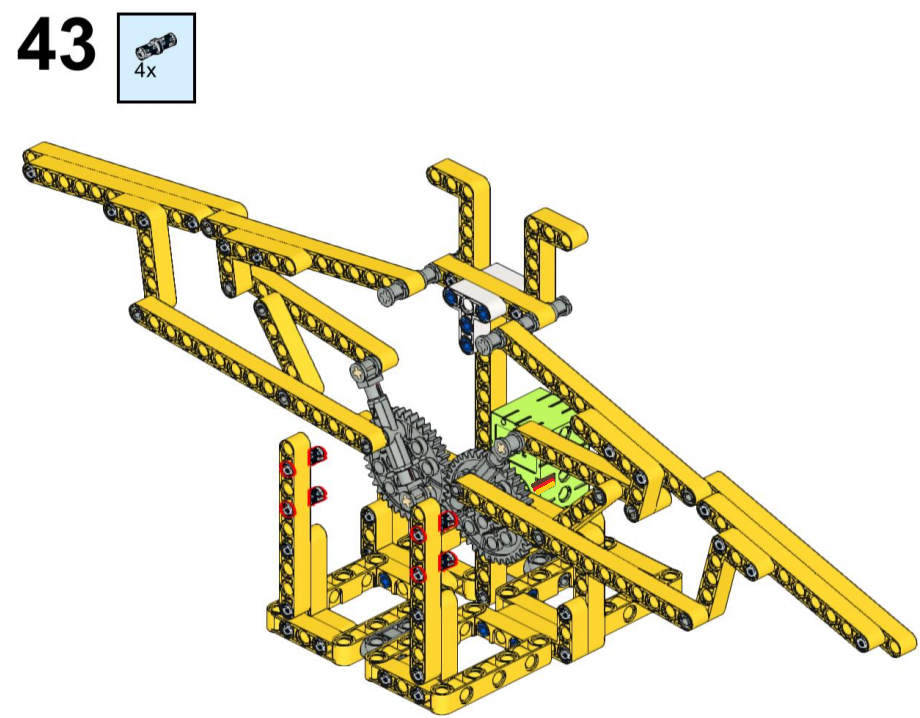
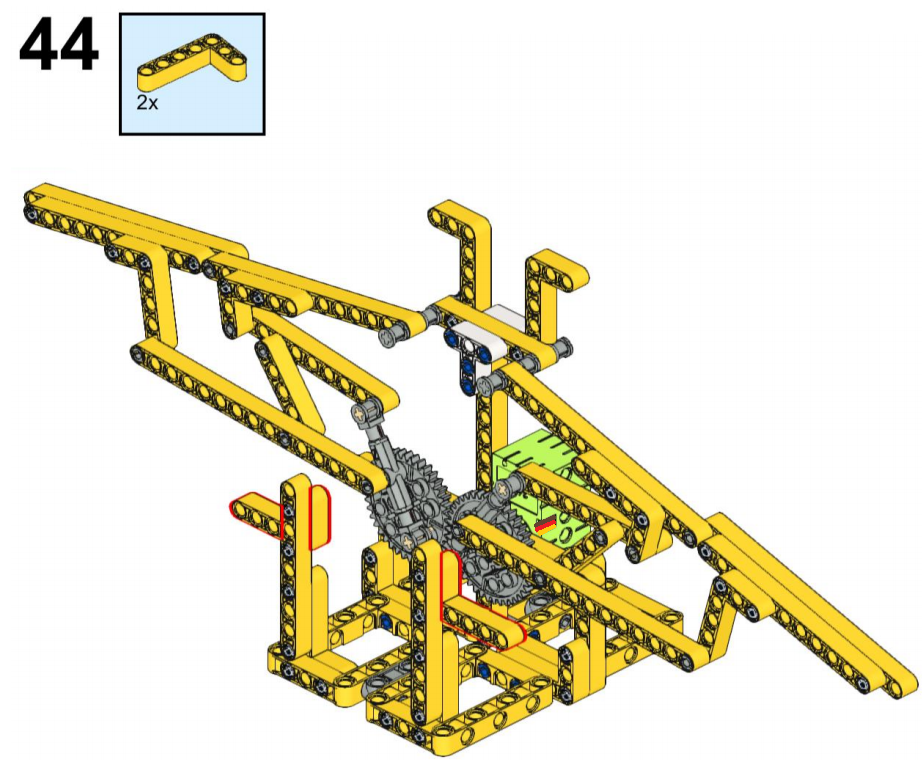
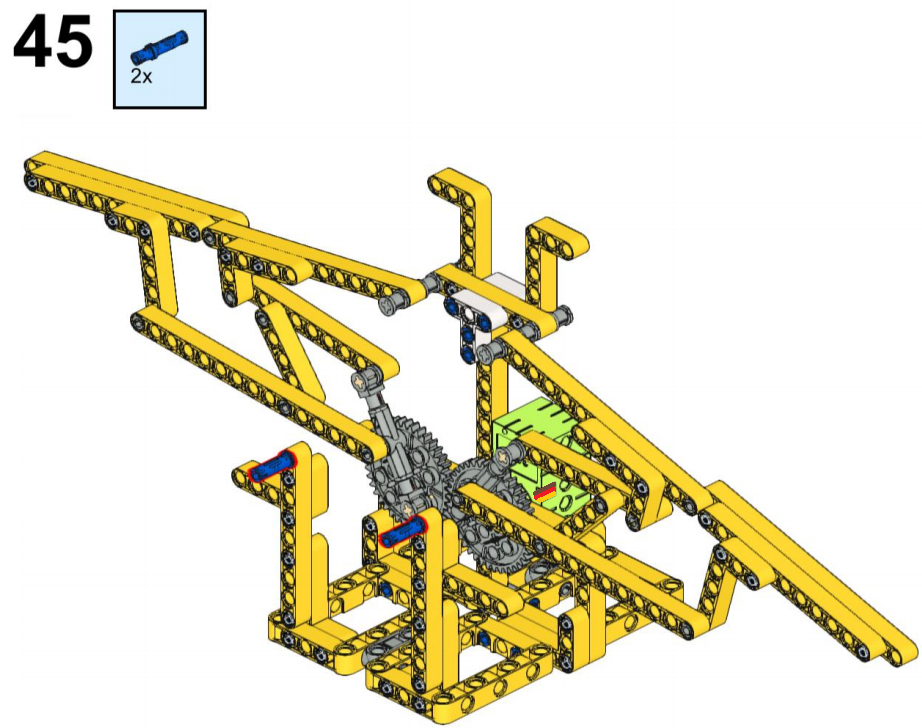
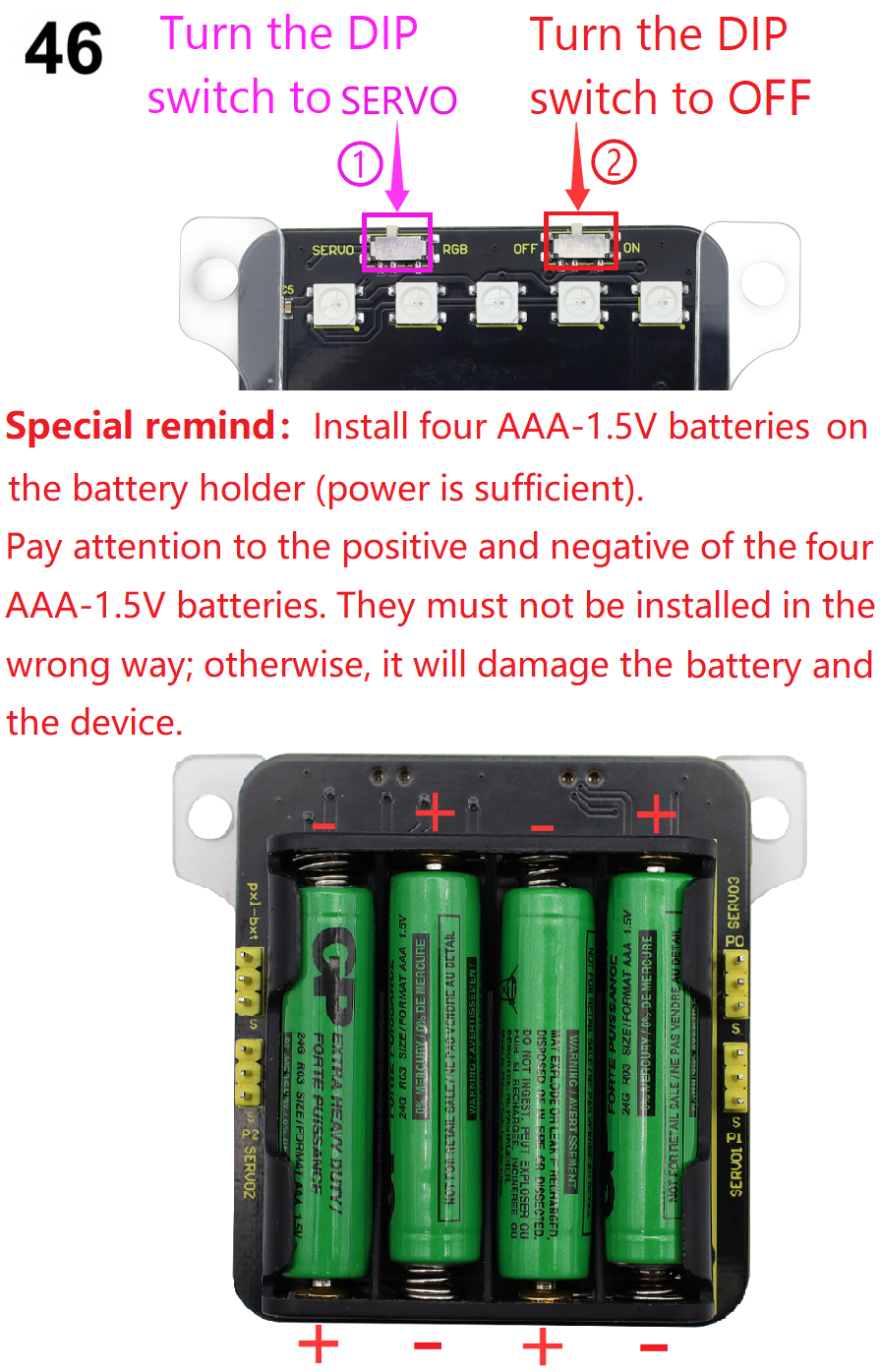
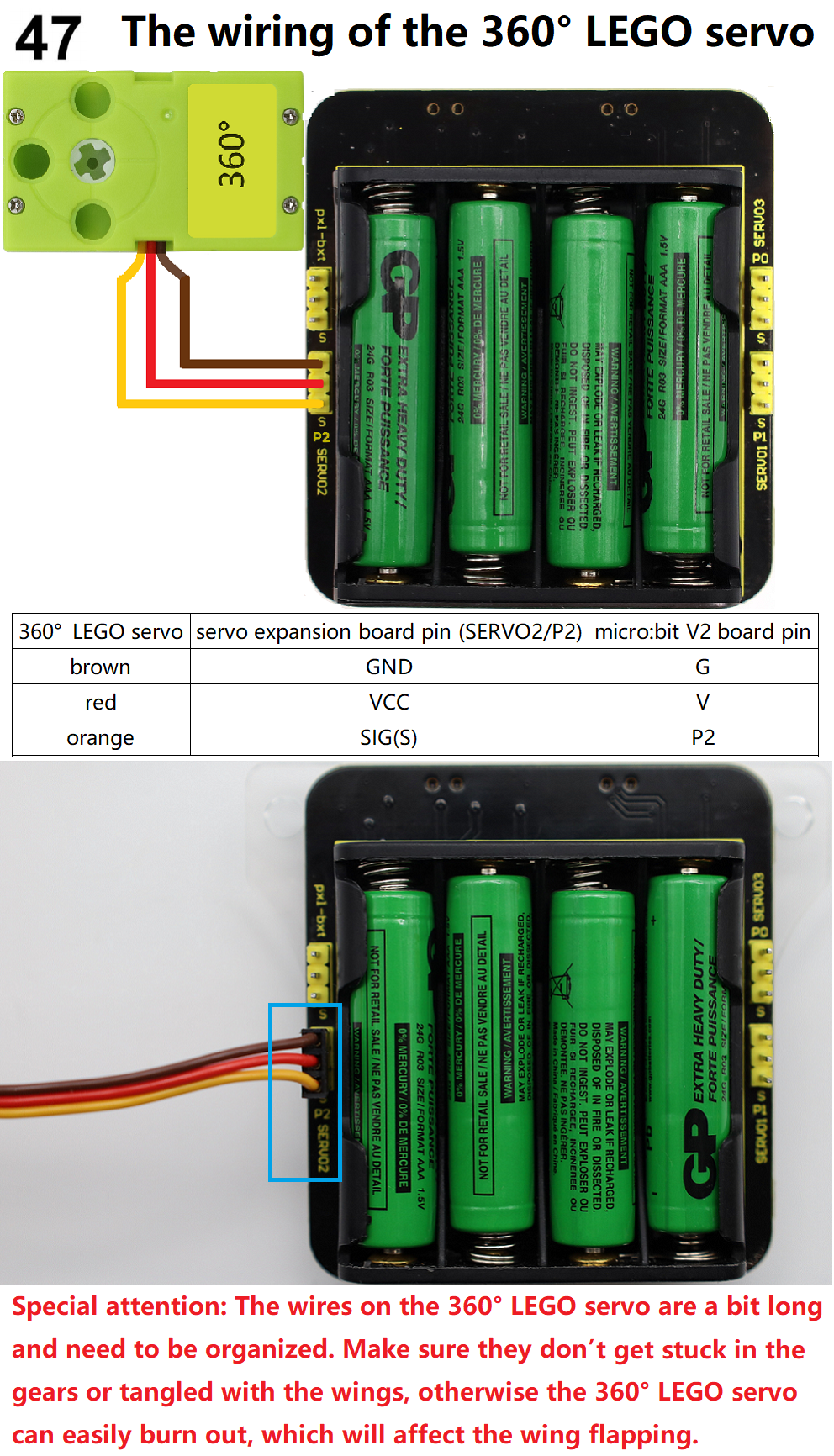
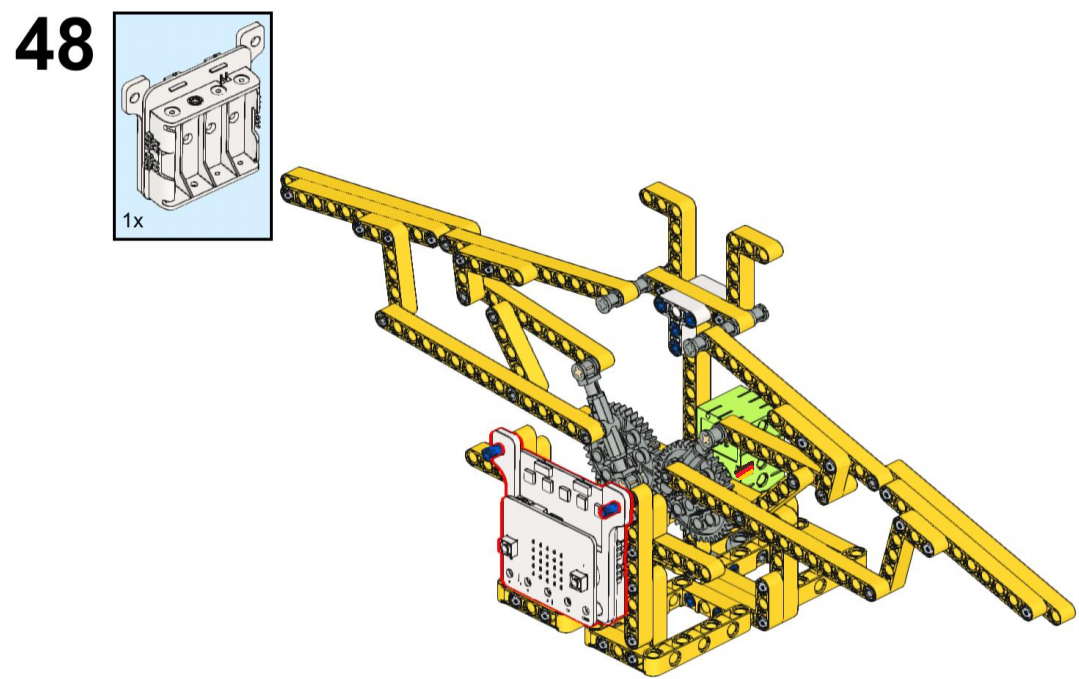
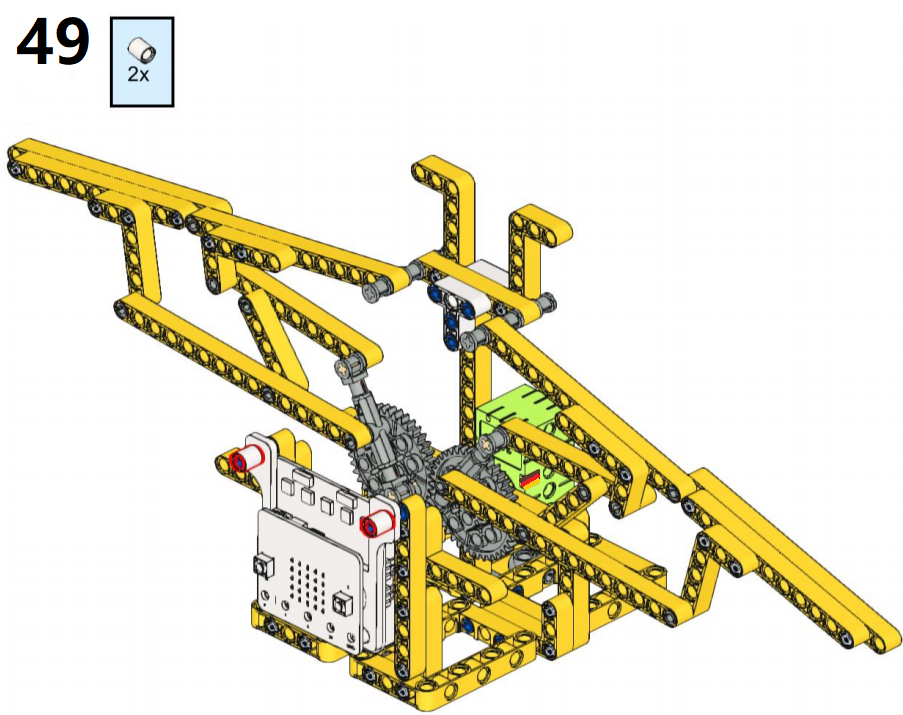
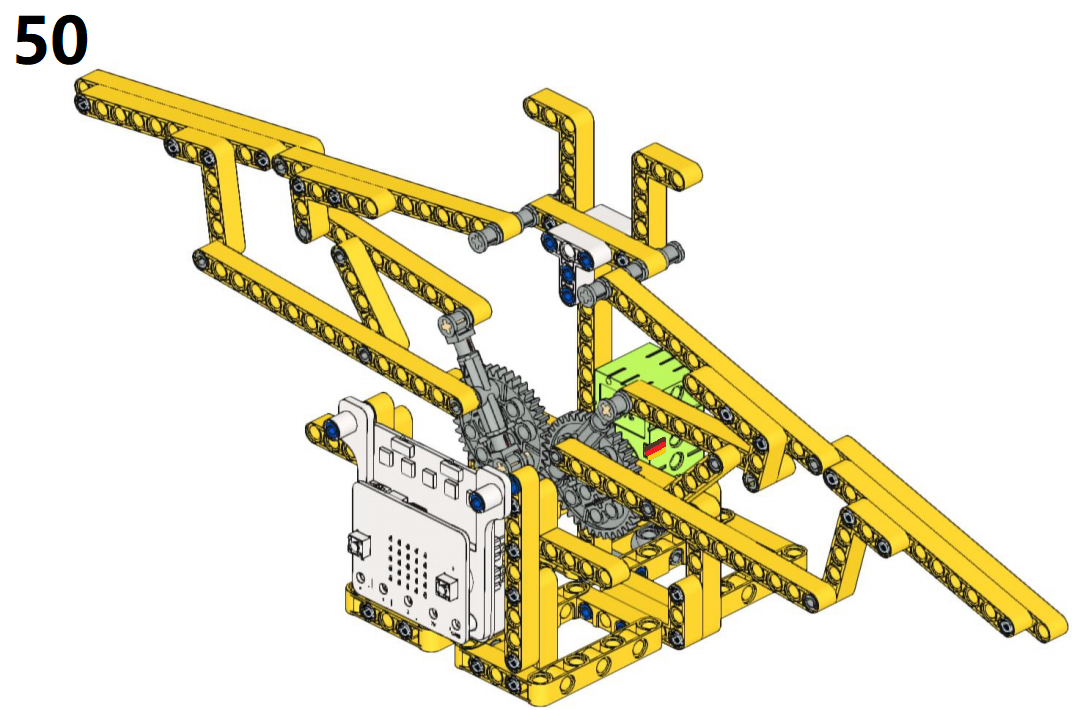

3.2.8.4 Test Code
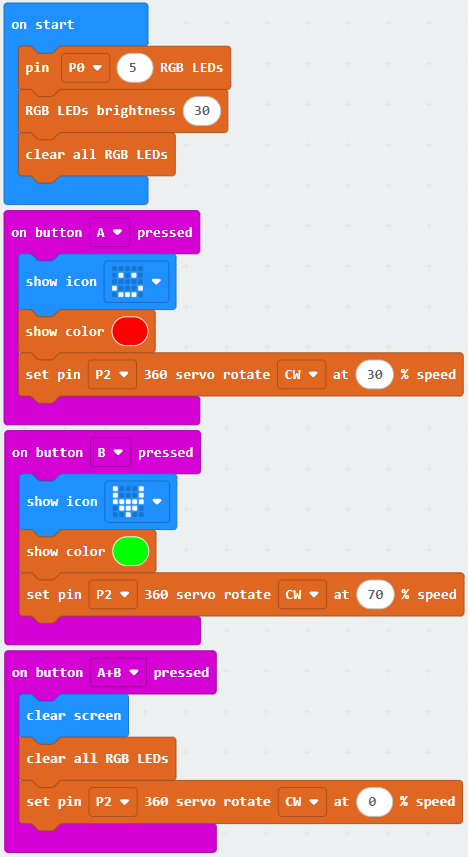
⚠️ Special reminder: You can obtain the sample code through the following two methods.
Method 1: drag and drop code blocks to build the sample code
1. MakeCode programming environment
The online version of MakeCode: MakeCode editor
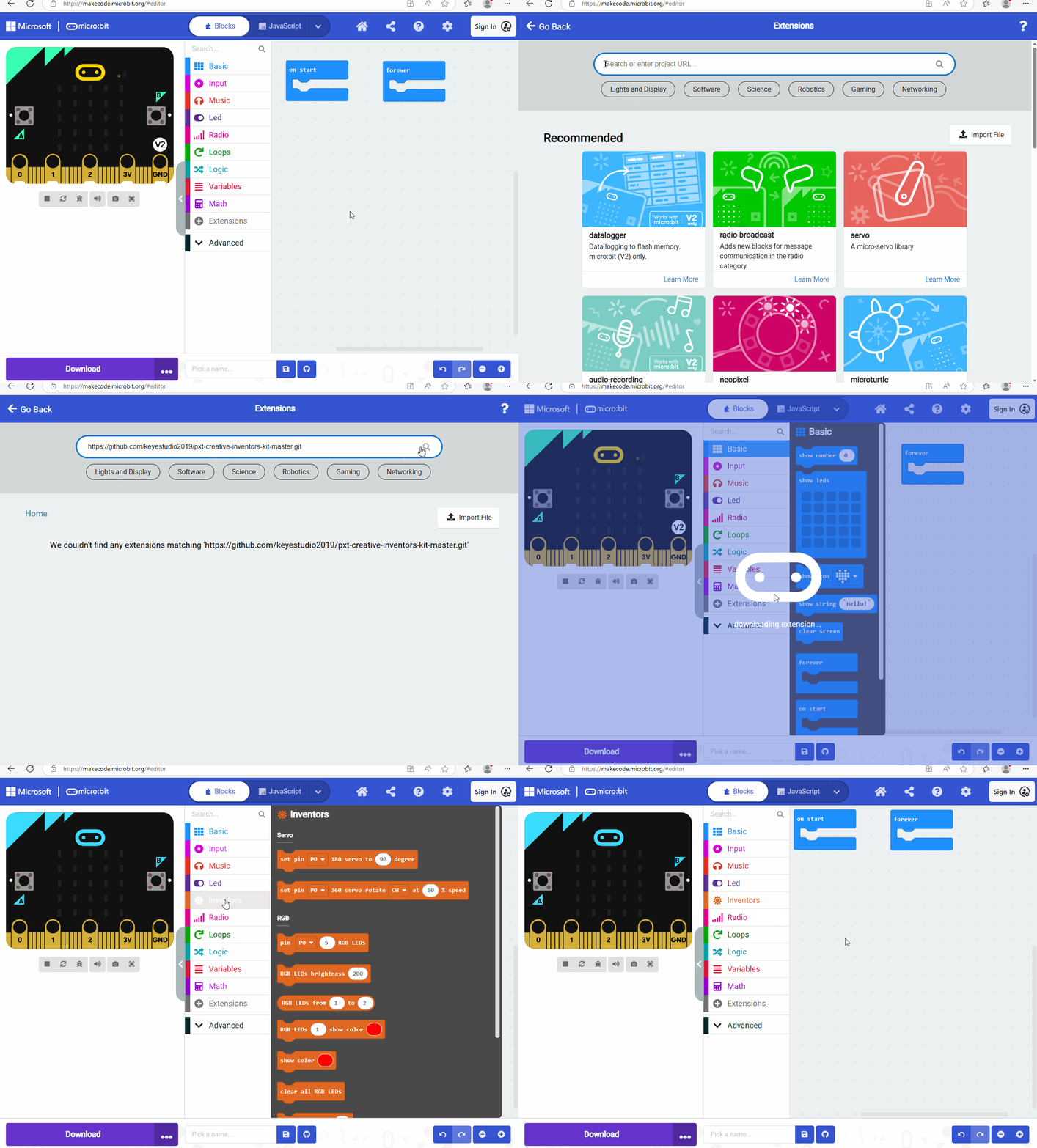
2. MakeCode extension library
⚠️ Special reminder: Copy and paste the link: https://github.com/keyestudio2019/pxt-creative-inventors-kit-master.git into the search box to import the library.
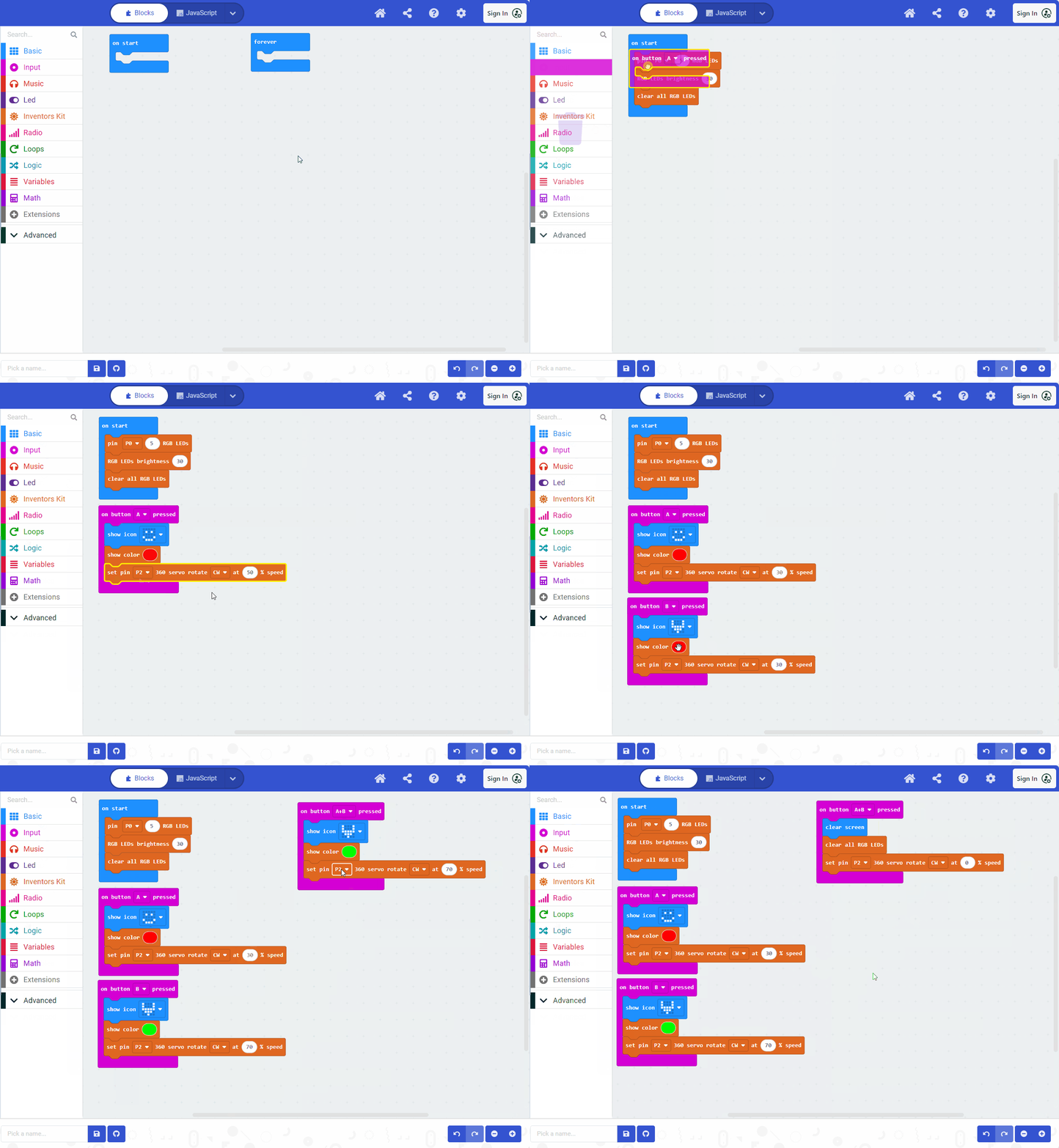
3. Write the sample code
Method 2: download the sample code file directly
1. Download the code file
Click to download the code file: 3_3_8_Hovering_Hawk
2. MakeCode programming environment
The online version of MakeCode: MakeCode editor
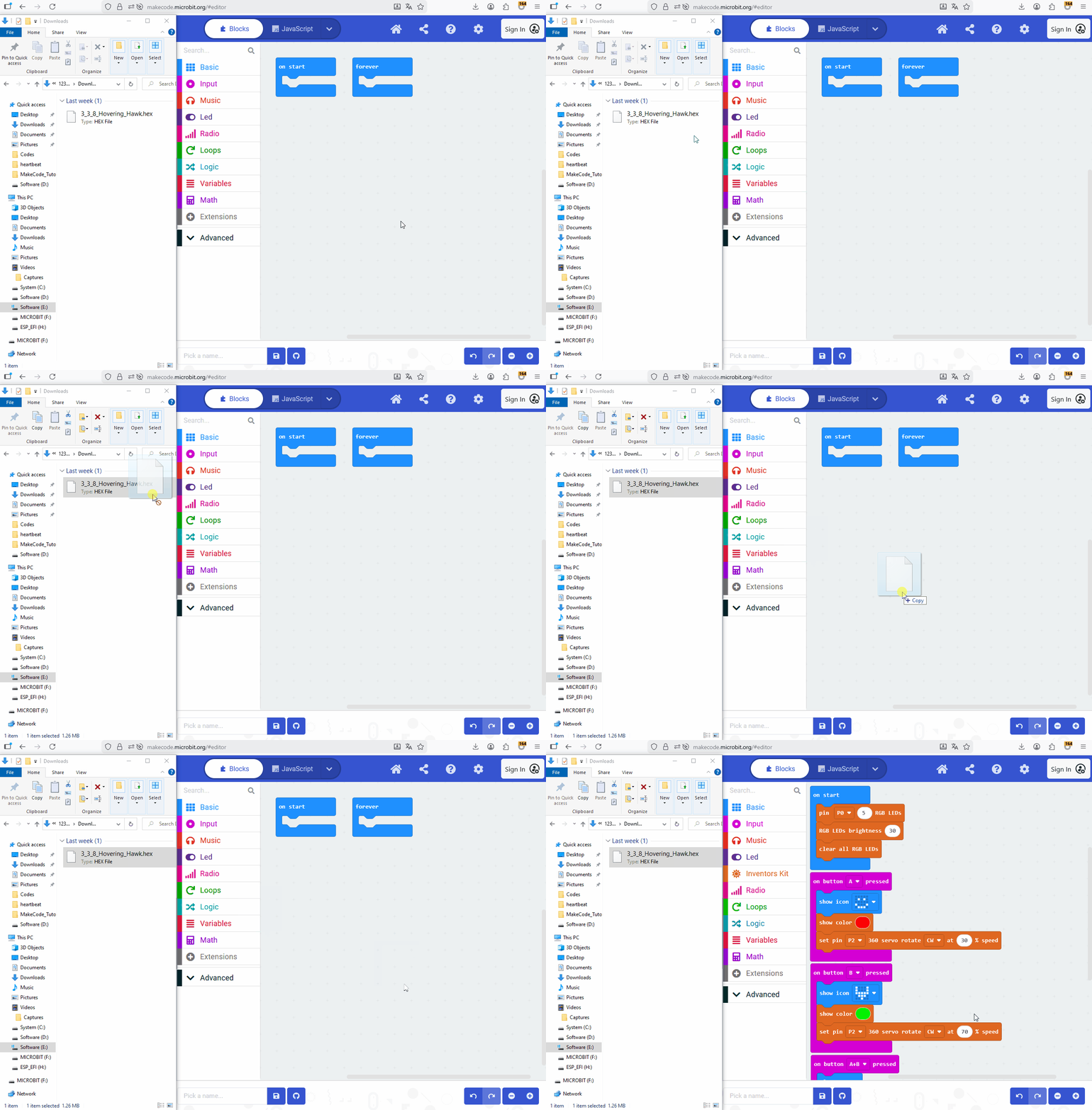
3. Load the sample code
Drag and drop the sample code to the MakeCode editor.

3.2.8.5 Test Result

Wire up and power on through Micro USB cable, and connect an external power source (four AAA-1.5V batteries installed in the battery box, ensuring sufficient power).
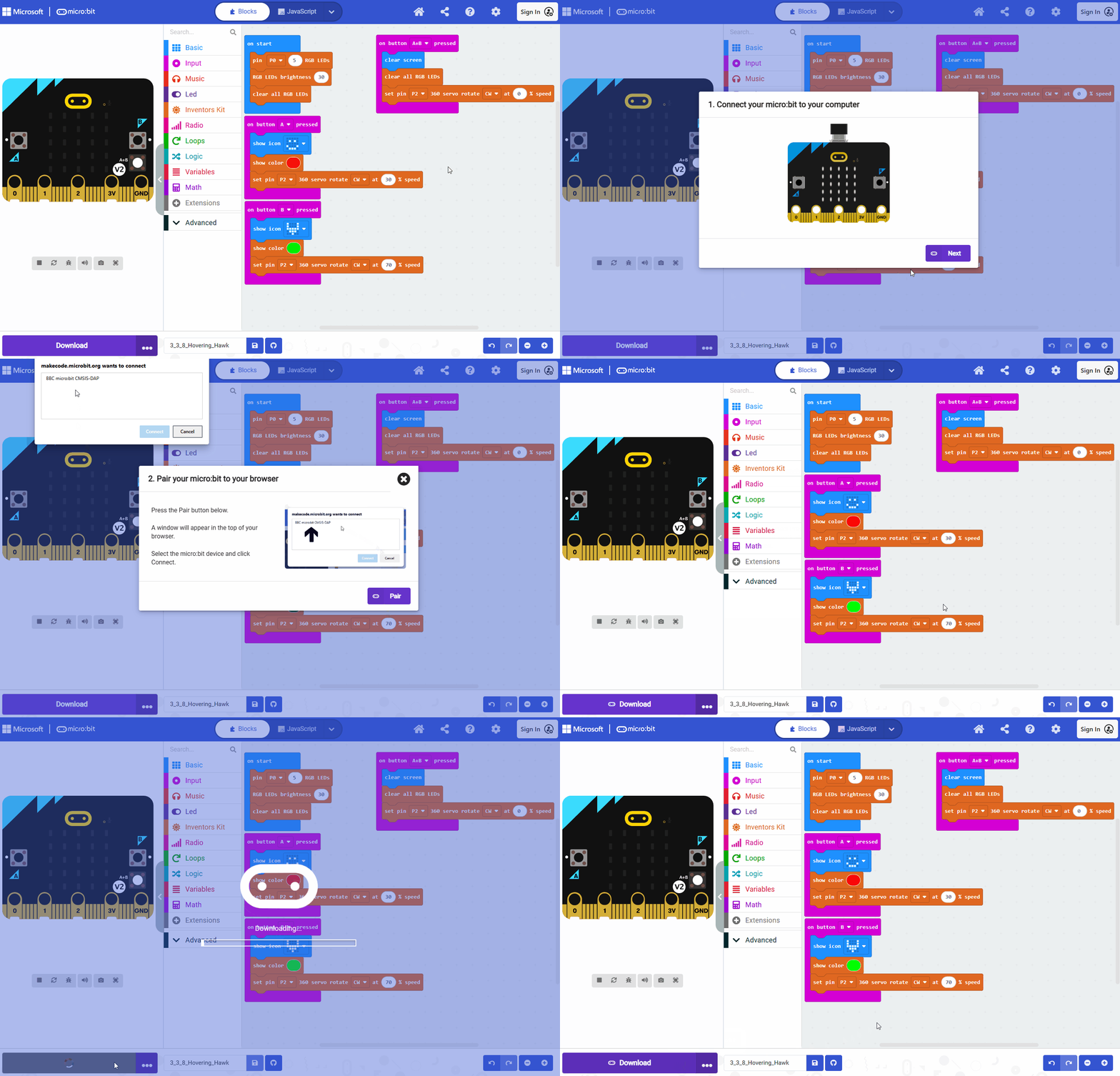
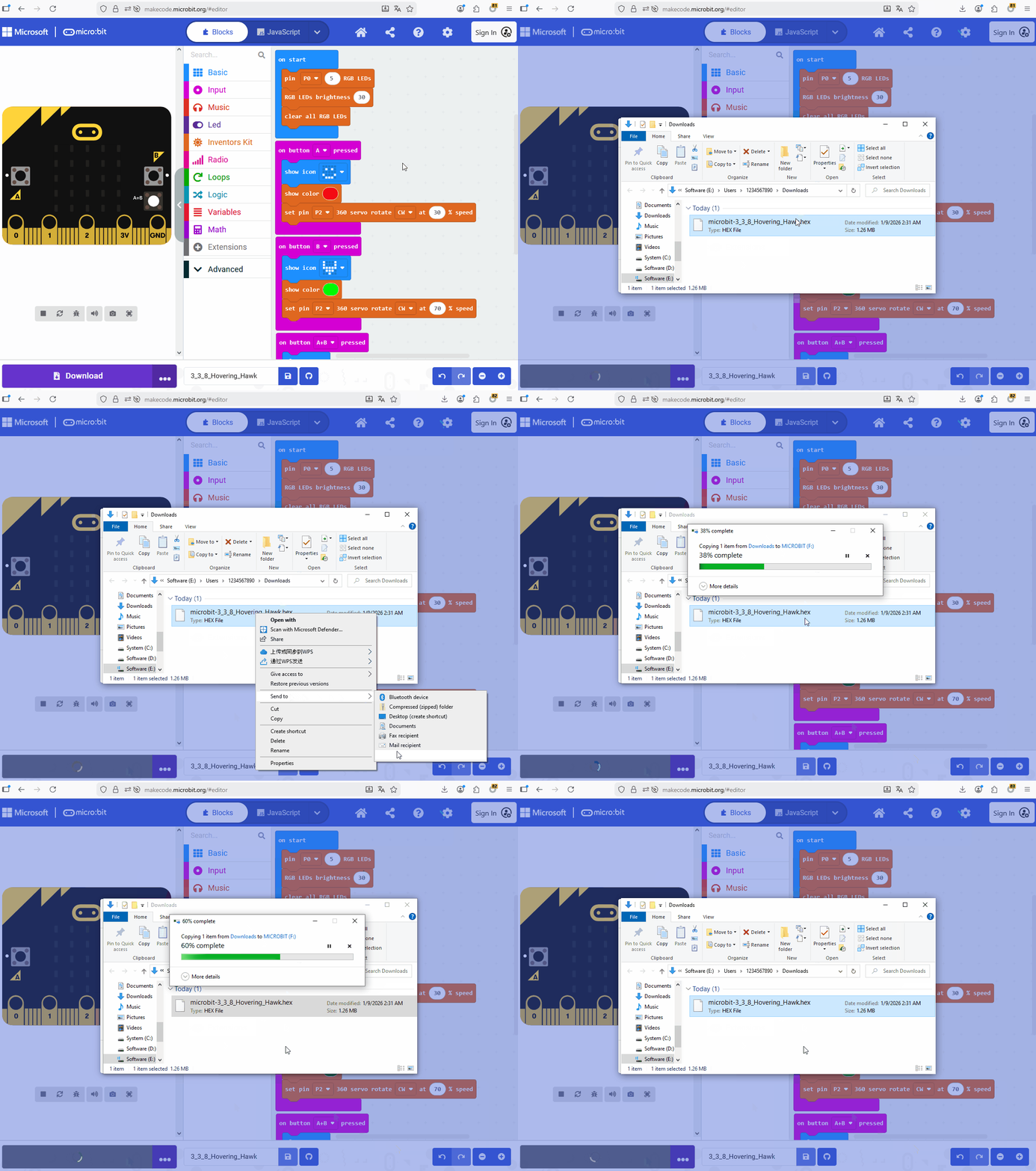
To download the sample code using an online browser, you need to send the downloaded “.hex” file to the Micro:bit V2 board. There are two ways as follows:
① Download through WebUSB
For browsers like Google Chrome / Microsoft Edge, you need to click “Connect Device” to pair the device first. After that, click “Download” to load the sample code to the Micro:bit V2 board.
② Download without WebUSB
For browsers like Safari / Firefox / Other, download and send the sample code to the Micro:bit V2 board.
After downloading the sample code, unplug the Micro USB cable to the Micro:bit V2 board.
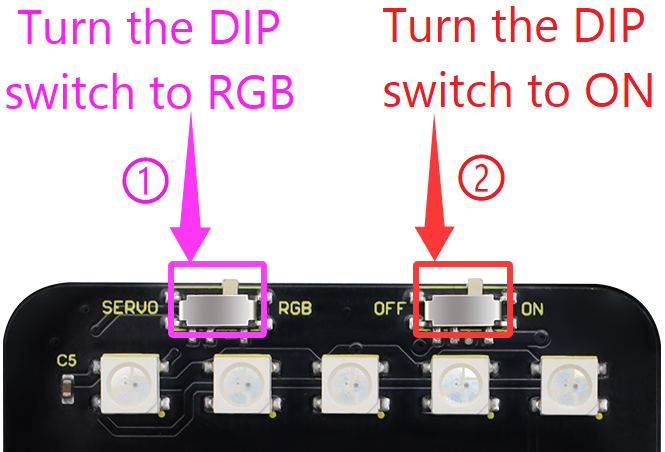
Turn the DIP switched to the RGB and ON.
Press button A on the Micro:bit V2 board and release it, the wings flutter slowly, these SK6812 RGB LEDs emit red light, and the 5×5 LED matrix displays  .
.
Press button B on the Micro:bit V2 board and release it, the wings flap rapidly, these SK6812 RGB LEDs emit green light, and the 5×5 LED matrix displays  .
.
Press button A and B on the Micro:bit V2 board simultaneously and release them, the wings stop, and these SK6812 RGB LEDs and the 5×5 LED matrix turn off.