2. USB Driver Installation (Optional)
This is not a required reading part. Micro:bit can be driven without a USB driver. Yet if your computer cannot recognize the micro:bit board, you need to install a micro:bit driver according to the following steps.
2.1 USB Driver Download
Click to download the USB driver.
2.2 Driver Installation
⚠️ ATTENTION: Please install the driver on the Windows system according to these steps. They can also serve as a reference for macOS systems.
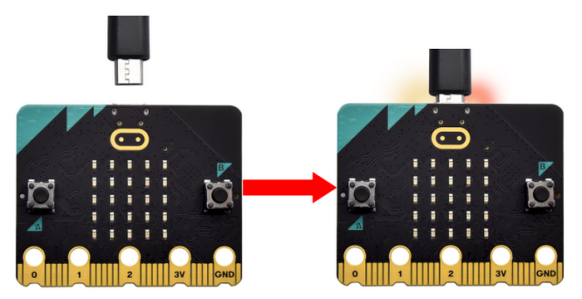
1. Connect the micro:bit board to the computer through a micro USB cable.
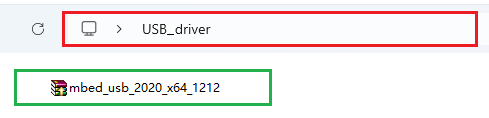
2. In the folder USB driver, open the driver file to “Install”.
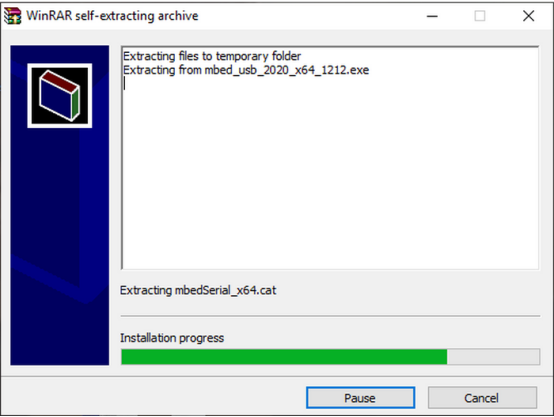
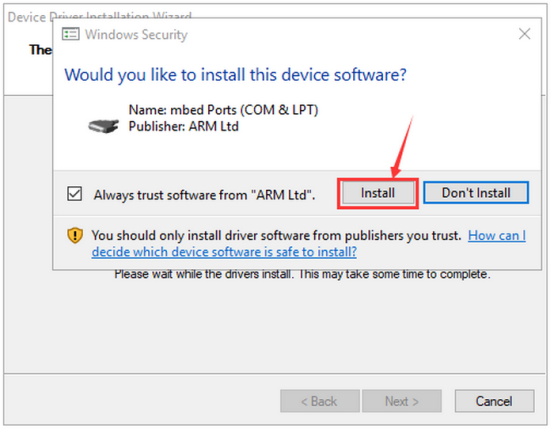
3. “Install” and “Next”.
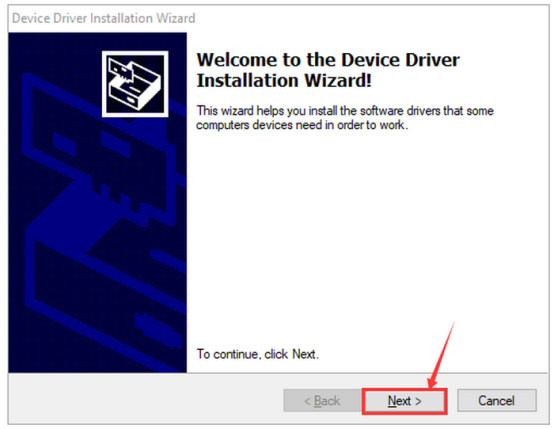
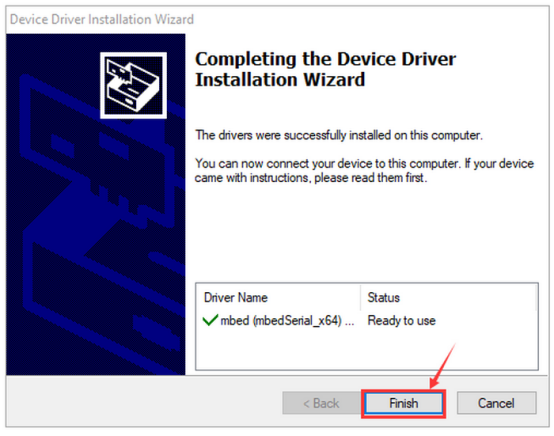
4. “Install” and “Finish”.
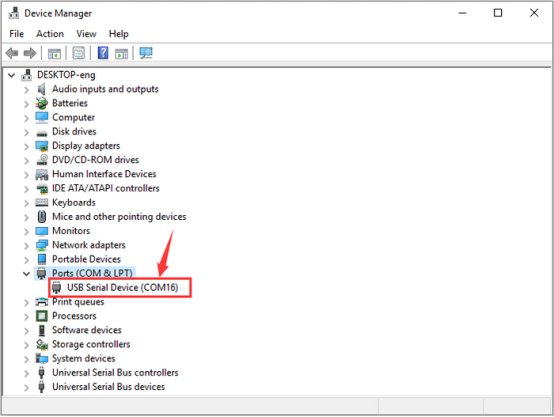
5. After that, “Computer” —> “Properties” —> “Device manager” and you will see: