5.2.1 Windows
Download KidsBlock IDE on Windows.
Install the KidsBlock IDE:
1. Click “KidsBlock.exe”: 
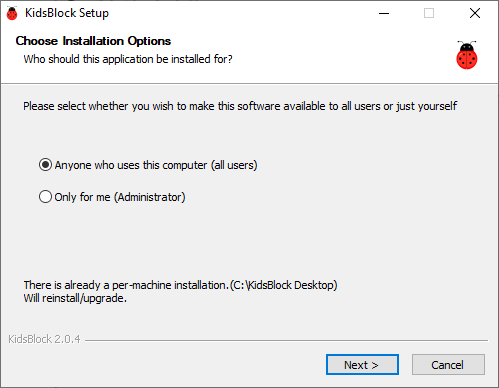
2. Tick “Anyone who uses this computer(all users)” and click “Next”.
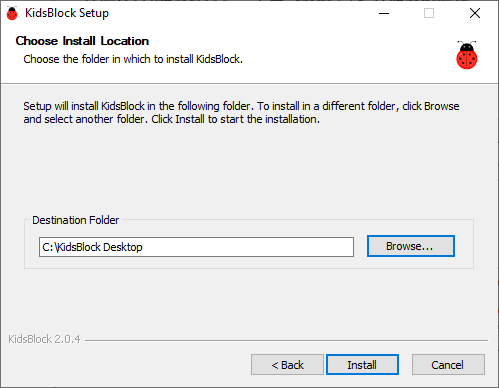
3. Click “Browse…” to choose a path for the software (here we choose Disk C) and then “Install”.
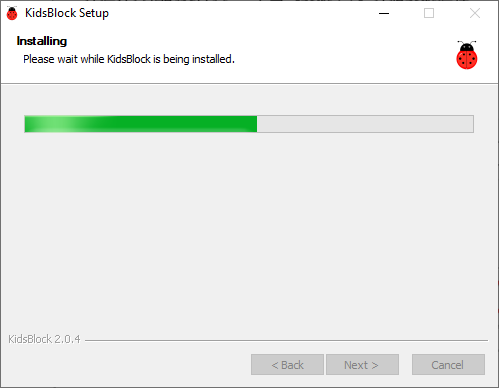
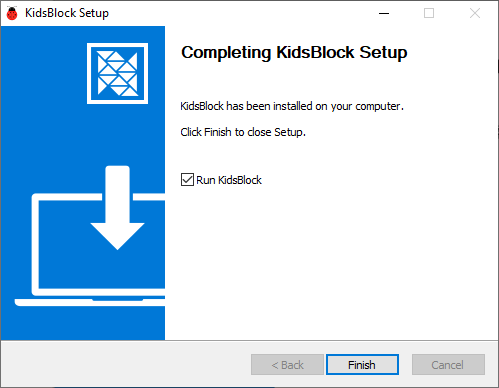
4. Click “Finish” and open Kidsblock.
5. If a warning interface pops up, just “Allow access”.
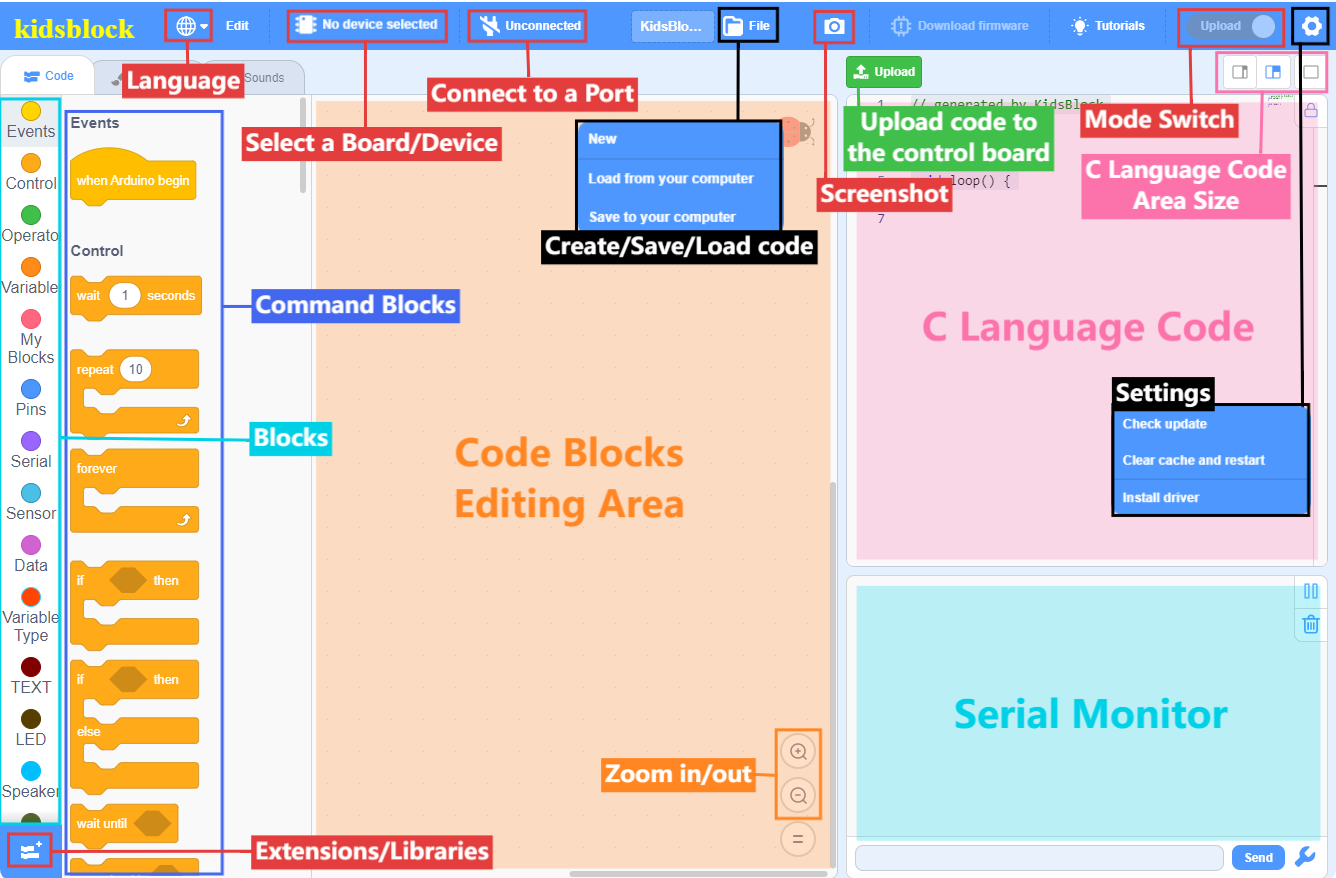
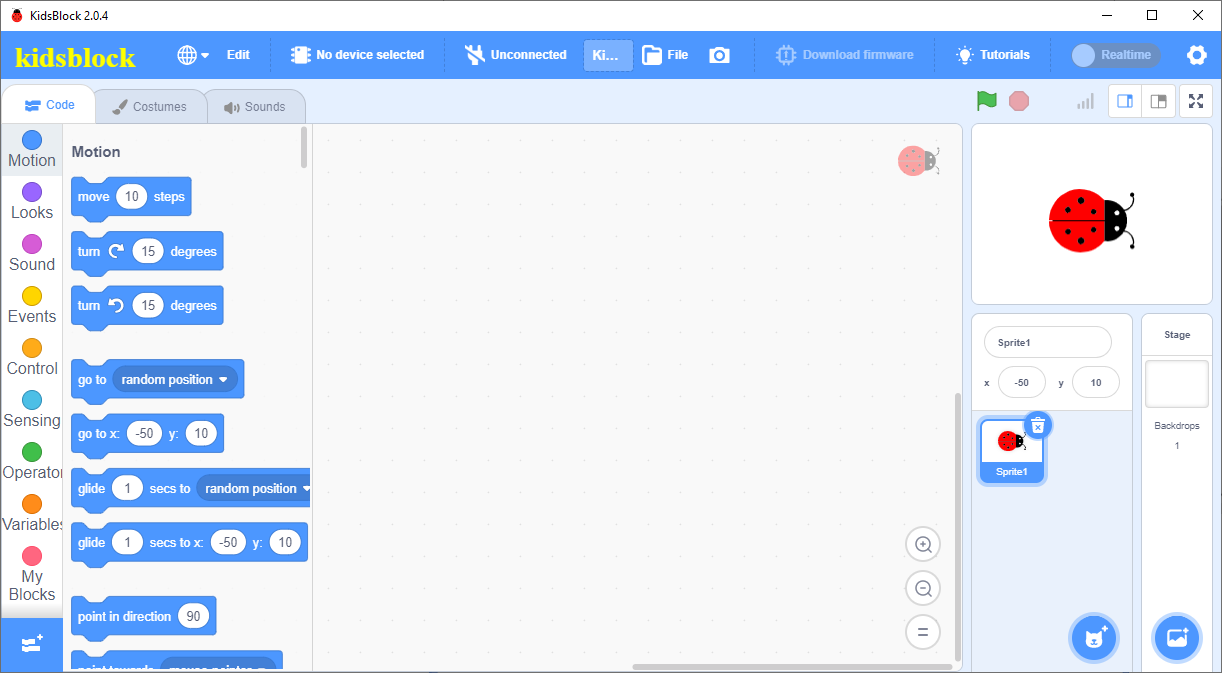
6. Main interface of Kidsblock:
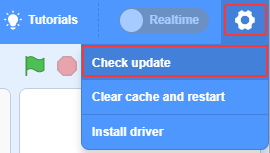
7. Check update:

⚠️ In addition to following the above steps, you can also refer to the animated demonstration in the link below.
https://docs.keyestudio.com/projects/KidsBlock/en/latest/docs/Kidsblock.html
5.2.2 MacOS
Download KidsBlock IDE on MacOS.
⚠️ The installation steps of Kidsblock IDE are as follows. Please refer to the animated demonstration in the link below.
https://docs.keyestudio.com/projects/KidsBlock/en/latest/docs/Kidsblock.html
5.2.3 Getting started with Kidsblock
⚠️ Here we demonstrate on Windows, and it can be a reference for MacOS.
5.2.3.1 Select a Device
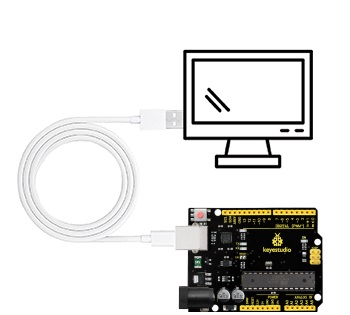
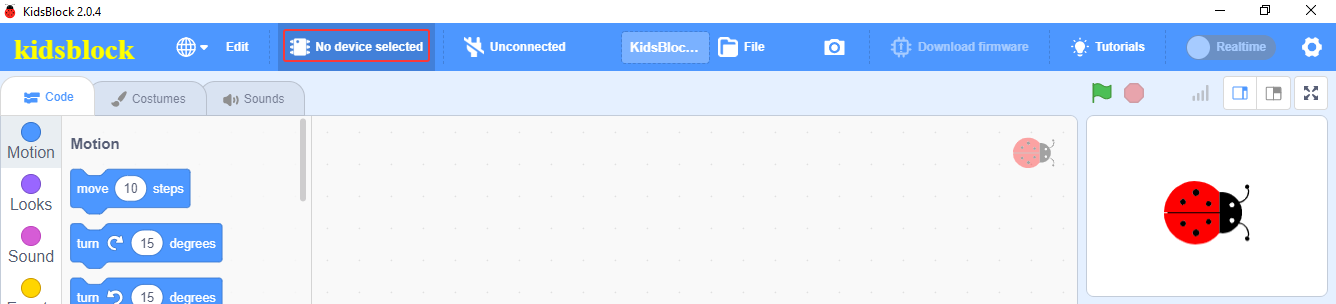
1. Connect the board to your computer via the USB cable. Click “KidsBlock”  to open it.
2. Click  .
.
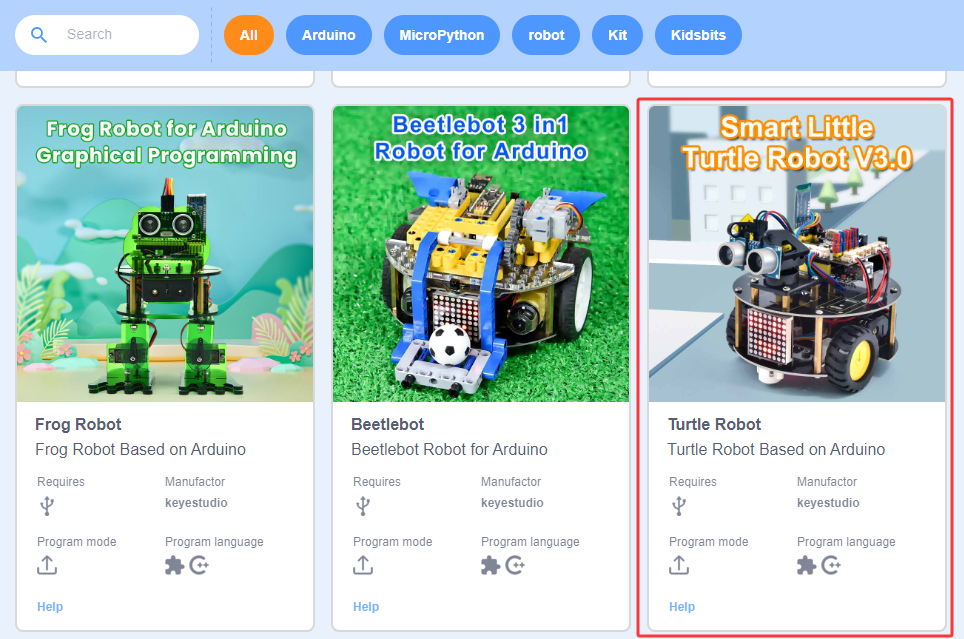
3. Select “Turtle Robot”.
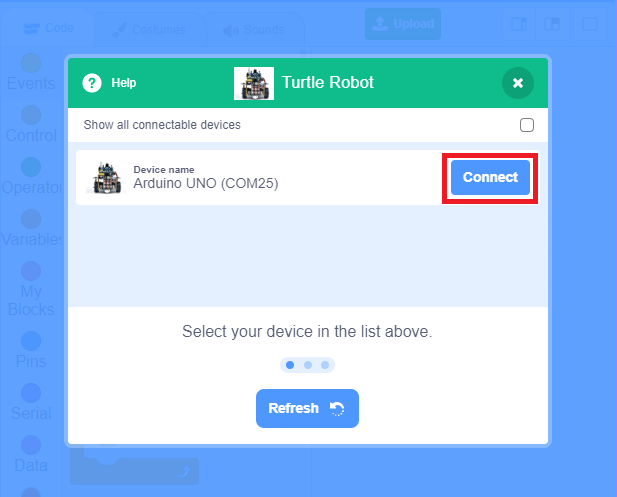
4. Choose the USB serial port (COM25) to Connect.
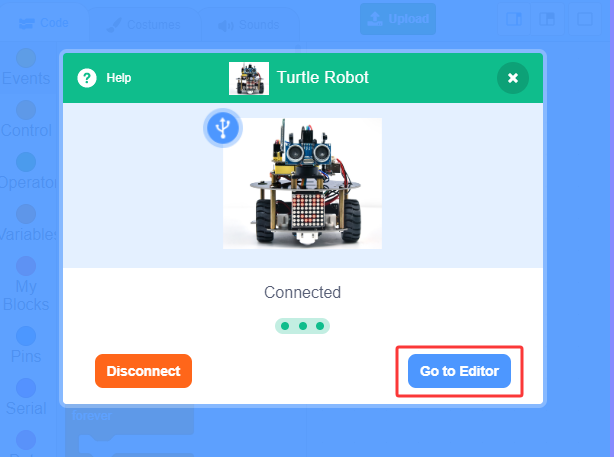
5. Click Go to Editor, Back to the editor.
5.2.3.2 Main Interface Functions