Project 1: Hello World
1. Overview
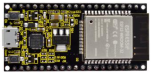
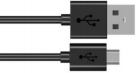
For ESP32 beginners, we will start with some simple things. In this project, you only need a ESP32 mainboard, a USB cable and a computer to complete the “Hello World!” project, which is a test of communication between the ESP32 mainboard and the computer as well as a primary project.
2. Components
|
|
|---|---|
ESP32*1 |
USB Cable*1 |
3. Wiring Diagram
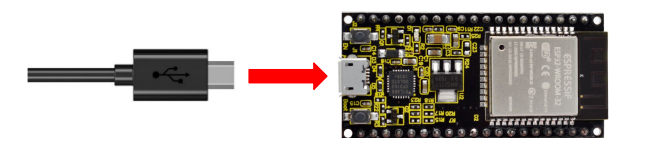
In this project, we will use a USB cable to connect the ESP32 to a computer.
4. Running code online
To run the ESP32 online, you need to connect the ESP32 to the computer, which allows you to compile or debug programs using Thonny software.
Advantages:
1. You can use the Thonny software to compile or debug programs.
2. Through the “Shell” window, you can view error messages and output results generated during the running of the program as well as query related function information online to help improve the program.
Disadvantages:
1. To run the ESP32 online, you must connect the ESP32 to a computer and run it with the Thonny software.
2. If the ESP32 is disconnected from the computer , when they reconnect, the program won’t run again.
Basic Operation:
1. Open Thonny and click“Open…”.
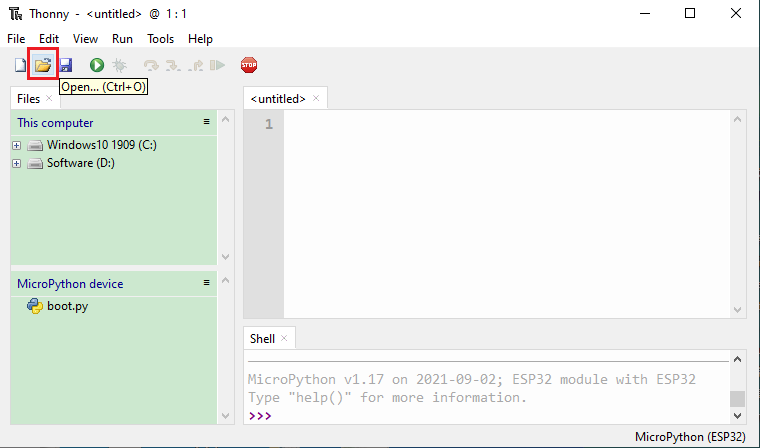
2. Click“This computer”in the new pop-up window.
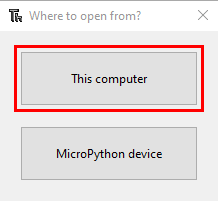
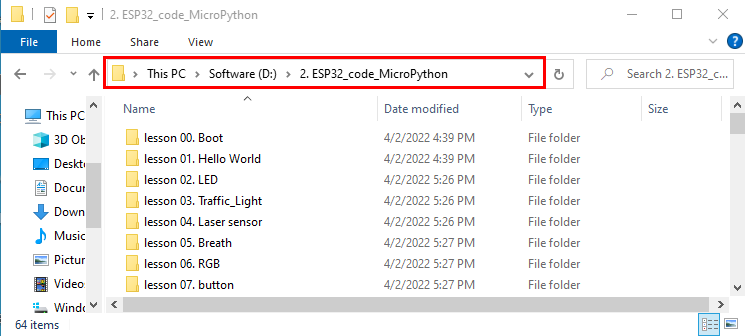
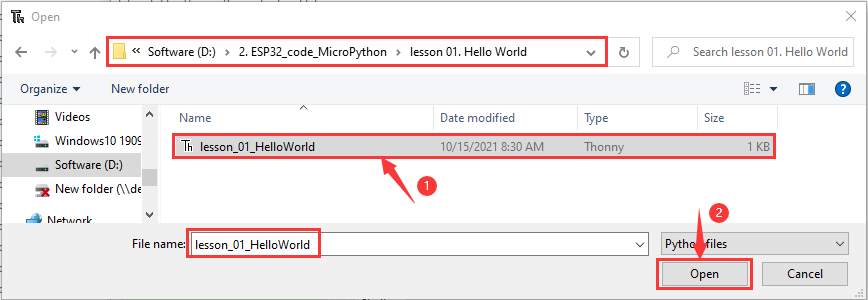
In the new dialog box,select“Project_01_HelloWorld.py”,click“Open”. The code used in this tutorial is saved in the file MicroPython\ESP32_code_MicroPython. You can move the code to anywhere, for example, we can save theESP32_code_MicroPython in the Disk(D), the route is D:\2.ESP32_code_MicroPython.(The code in this tutorial is saved in the Disk(D) on your computer)
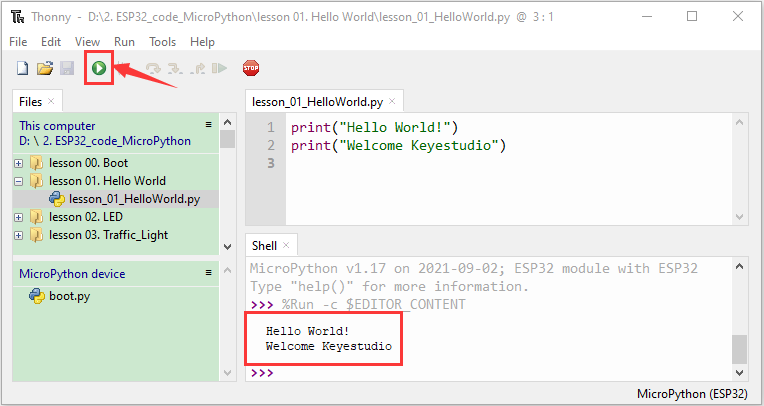
3. Click “Run current script”to execute the program“Hello World!”, “Welcome Keyestudio” , which will be printed in the“Shell”window.
5. Exit running online
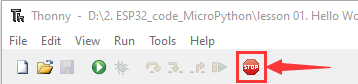
When running online, click “Stop /Restart Backend”or press “Ctrl+C”on the Thonny to exit the program.
6. Test Code
print("Hello World!")
print("Welcome Keyestudio")