Project 8: LCD1602 Display
Description
As we all know, screen is one of the best ways for people to interact with electronic devices.
Component Knowledge
1602 is a line that can display 16 characters. There are two lines, which use IIC communication protocol.

Control Pins
SDA |
SDA |
|---|---|
SCL |
SCL |
Project 8.1 LCD 1602 Display Characters
Description
We will use library file i2c_lcd.py and lcd_api.py, which should be saved in the ESP32 memory.

Operations
Open“Thonny”,click“This computer”→“D:”→“2. Python Projects”→“pj8_1_lcd1602”. Select “i2c_lcd.py”, right-click your mouse to select “\ Upload to /\ ”,wait for “i2c_lcd.py” to be uploaded to ESP32; and then select “lcd_api.py”, right-click your mouse to select “\ Upload to /\ ”,wait for “lcd_api.py” to be uploaded to ESP32.

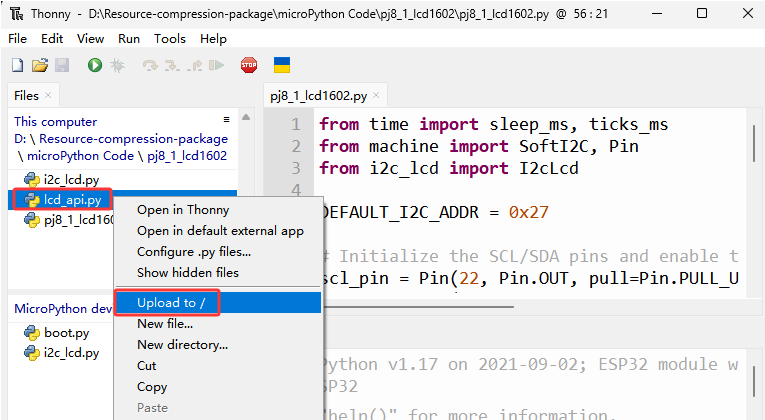
The saved name are i2c_lcd.py and lcd_api.py

Test Code
from time import sleep_ms, ticks_ms
from machine import I2C, Pin
from i2c_lcd import I2cLcd

DEFAULT_I2C_ADDR = 0x27

i2c = I2C(scl=Pin(22), sda=Pin(21), freq=400000)
lcd = I2cLcd(i2c, DEFAULT_I2C_ADDR, 2, 16)

lcd.move_to(1, 0)
lcd.putstr('Hello')
lcd.move_to(1, 1)
lcd.putstr('keyestudio')

# The following line of code should be tested
# using the REPL:

# 1. To print a string to the LCD:
#    lcd.putstr('Hello world')
# 2. To clear the display:
#lcd.clear()
# 3. To control the cursor position:
# lcd.move_to(2, 1)
# 4. To show the cursor:
# lcd.show_cursor()
# 5. To hide the cursor:
#lcd.hide_cursor()
# 6. To set the cursor to blink:
#lcd.blink_cursor_on()
# 7. To stop the cursor on blinking:
#lcd.blink_cursor_off()
# 8. To hide the currently displayed character:
#lcd.display_off()
# 9. To show the currently hidden character:
#lcd.display_on()
# 10. To turn off the backlight:
#lcd.backlight_off()
# 11. To turn ON the backlight:
#lcd.backlight_on()
# 12. To print a single character:
#lcd.putchar('x')
# 13. To print a custom character:
#happy_face = bytearray([0x00, 0x0A, 0x00, 0x04, 0x00, 0x11, 0x0E, 0x00])
#lcd.custom_char(0, happy_face)
#lcd.putchar(chr(0))
Test Result
The first line of the LCD1602 shows hello and the second line shows keyestudio.
Project 8.2 Dangerous Gas Alarm
Description
When a gas sensor detects a high concentration of dangerous gas, the buzzer will sound an alarm and the display will show dangerous.
Component Knowledge
MQ2 Smoke Sensor:
It is a gas leak monitoring device for homes and factories, which is suitable for liquefied gas, benzene, alkyl, alcohol, hydrogen as well as smoke detection. Our sensor leads to digital pin D and analog output pin A, which is connected to D as a digital sensor in this project .

Control Pin
Gas Sensor |
23 |
|---|---|
\ |
Test Code
from time import sleep_ms, ticks_ms
from machine import SoftI2C, Pin
from i2c_lcd import I2cLcd

DEFAULT_I2C_ADDR = 0x27

scl_pin = Pin(22, Pin.OUT, pull=Pin.PULL_UP)  # GPIO22 with internal pull-up enabled
sda_pin = Pin(21, Pin.OUT, pull=Pin.PULL_UP)  # GPIO21 with internal pull-up enabled

i2c = SoftI2C(scl=Pin(22), sda=Pin(21), freq=100000)
lcd = I2cLcd(i2c, DEFAULT_I2C_ADDR, 2, 16)

from machine import Pin
import time
gas = Pin(23, Pin.IN, Pin.PULL_UP)

while True:
    gasVal = gas.value()  # Reads the value of button 1
    print("gas =",gasVal)  #Print it out in the shell
    lcd.move_to(1, 1)
    lcd.putstr('val: {}'.format(gasVal))
    if(gasVal == 1):
        #lcd.clear()
        lcd.move_to(1, 0)
        lcd.putstr('Safety       ')
    else:
        lcd.move_to(1, 0)
        lcd.putstr('dangerous')
    time.sleep(0.1) #delay 0.1s
Test Result
The screen displays “safety” in normal state. However, when the gas sensor detects some dangerous gases, such as carbon monoxide, at a certain concentration, the buzzer will sound an alarm and the screen displays “dangerous”.