Project 8: LCD1602-display
Beschrijving
Zoals we allemaal weten, is een scherm een van de beste manieren voor mensen om te communiceren met elektronische apparaten.
Componentkennis
1602 is een type dat 16 tekens kan weergeven. Er zijn twee regels, die het IIC-communicatieprotocol gebruiken.
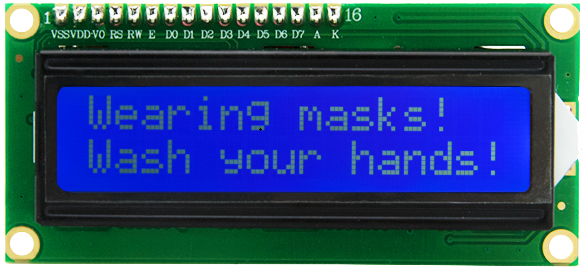
Aansluitpinnen
SDA |
SDA |
|---|---|
SCL |
SCL |
Project 8.1 LCD 1602 Display Tekens
Beschrijving
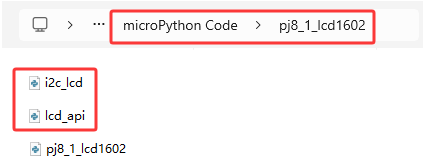
We gebruiken de bibliotheekbestanden i2c_lcd.py en lcd_api.py, die opgeslagen moeten worden in het ESP32-geheugen.
Werkwijze
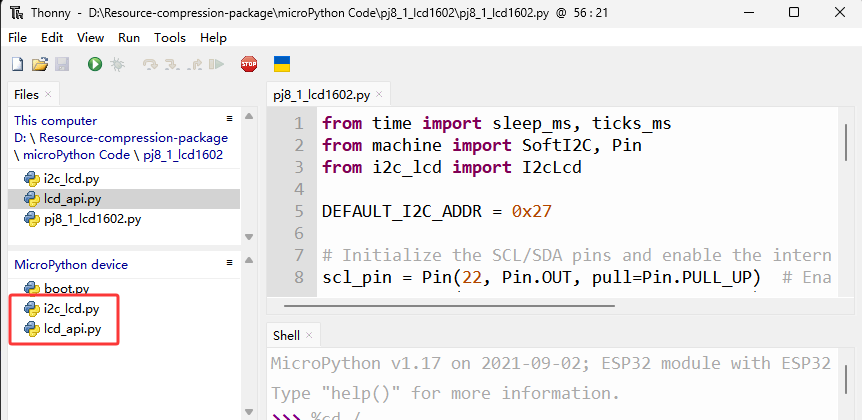
Open “Thonny”, klik op “This computer”→“D:”→“2. Python Projects”→“pj8_1_lcd1602”. Selecteer “i2c_lcd.py”, klik met de rechtermuisknop om “\ Upload to /\ ” te selecteren, wacht tot “i2c_lcd.py” naar de ESP32 is geüpload; selecteer vervolgens “lcd_api.py”, klik met de rechtermuisknop om “\ Upload to /\ ” te selecteren, wacht tot “lcd_api.py” naar de ESP32 is geüpload.
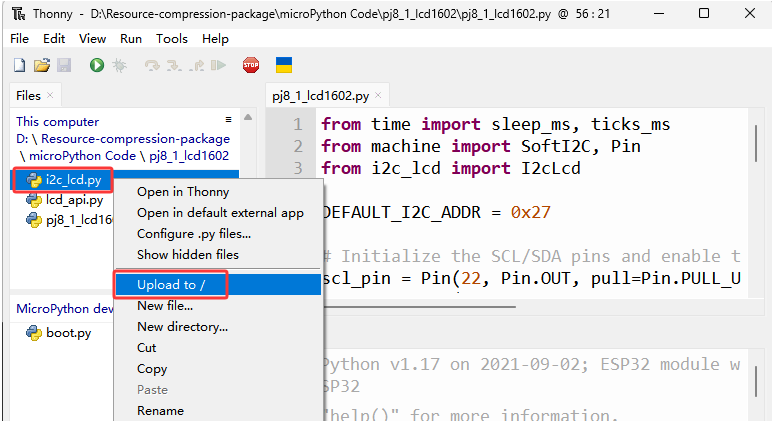
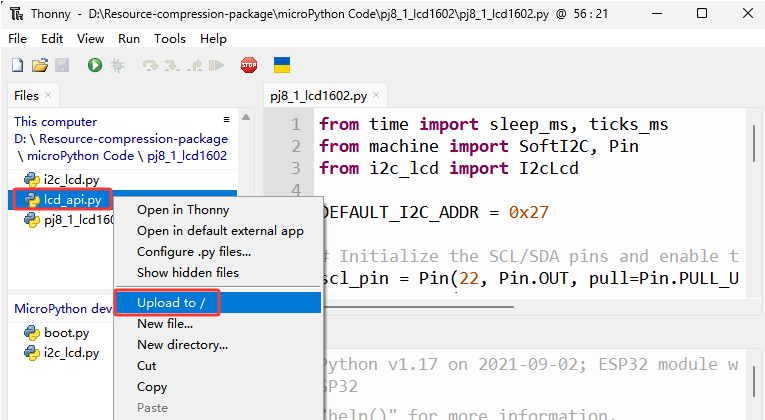
De opgeslagen namen zijn i2c_lcd.py en lcd_api.py
Testcode
from time import sleep_ms, ticks_ms
from machine import I2C, Pin
from i2c_lcd import I2cLcd

DEFAULT_I2C_ADDR = 0x27

i2c = I2C(scl=Pin(22), sda=Pin(21), freq=400000)
lcd = I2cLcd(i2c, DEFAULT_I2C_ADDR, 2, 16)

lcd.move_to(1, 0)
lcd.putstr('Hello')
lcd.move_to(1, 1)
lcd.putstr('keyestudio')

# The following line of code should be tested
# using the REPL:

# 1. To print a string to the LCD:
#    lcd.putstr('Hello world')
# 2. To clear the display:
#lcd.clear()
# 3. To control the cursor position:
# lcd.move_to(2, 1)
# 4. To show the cursor:
# lcd.show_cursor()
# 5. To hide the cursor:
#lcd.hide_cursor()
# 6. To set the cursor to blink:
#lcd.blink_cursor_on()
# 7. To stop the cursor on blinking:
#lcd.blink_cursor_off()
# 8. To hide the currently displayed character:
#lcd.display_off()
# 9. To show the currently hidden character:
#lcd.display_on()
# 10. To turn off the backlight:
#lcd.backlight_off()
# 11. To turn ON the backlight:
#lcd.backlight_on()
# 12. To print a single character:
#lcd.putchar('x')
# 13. To print a custom character:
#happy_face = bytearray([0x00, 0x0A, 0x00, 0x04, 0x00, 0x11, 0x0E, 0x00])
#lcd.custom_char(0, happy_face)
#lcd.putchar(chr(0))
Testresultaat
De eerste regel van de LCD1602 toont ‘Hello’ en de tweede regel toont ‘keyestudio’.
Project 8.2 Alarm voor gevaarlijk gas
Beschrijving
Wanneer een gassensor een hoge concentratie gevaarlijk gas detecteert, zal de zoemer een alarm laten klinken en zal het scherm ‘dangerous’ weergeven.
Componentkennis
MQ2 Rooksensor:
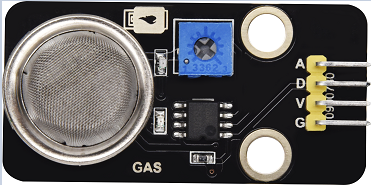
Het is een gaslekkage-detectieapparaat voor huizen en fabrieken, geschikt voor het detecteren van vloeibaar gas, benzeen, alkyl, alcohol, waterstof en rook. Onze sensor heeft een digitale pin D en een analoge uitgangspin A; in dit project is deze via D als digitale sensor aangesloten.
Aansluitpin
Gassensor |
23 |
|---|---|
\ |
Testcode
from time import sleep_ms, ticks_ms
from machine import SoftI2C, Pin
from i2c_lcd import I2cLcd

DEFAULT_I2C_ADDR = 0x27

scl_pin = Pin(22, Pin.OUT, pull=Pin.PULL_UP)  # GPIO22 with internal pull-up enabled
sda_pin = Pin(21, Pin.OUT, pull=Pin.PULL_UP)  # GPIO21 with internal pull-up enabled

i2c = SoftI2C(scl=Pin(22), sda=Pin(21), freq=100000)
lcd = I2cLcd(i2c, DEFAULT_I2C_ADDR, 2, 16)

from machine import Pin
import time
gas = Pin(23, Pin.IN, Pin.PULL_UP)

while True:
    gasVal = gas.value()  # Reads the value of button 1
    print("gas =",gasVal)  #Print it out in the shell
    lcd.move_to(1, 1)
    lcd.putstr('val: {}'.format(gasVal))
    if(gasVal == 1):
        #lcd.clear()
        lcd.move_to(1, 0)
        lcd.putstr('Safety       ')
    else:
        lcd.move_to(1, 0)
        lcd.putstr('dangerous')
    time.sleep(0.1) #delay 0.1s
Testresultaat
Het scherm toont ‘safety’ in de normale toestand. Wanneer de gassensor echter gevaarlijke gassen detecteert, zoals koolmonoxide, boven een bepaalde concentratie, zal de zoemer een alarm laten klinken en toont het scherm ‘dangerous’.