2. Arduino Tutorial
2.1 Resource download
Arduino information contains library files and project code ,please click to download for follow-up study.
Data download: Arduino
2.2 Software Download
Open the browser and search: https://www.arduino.cc/en/software, we will take WINDOWS system as an example to show you how to download and install.
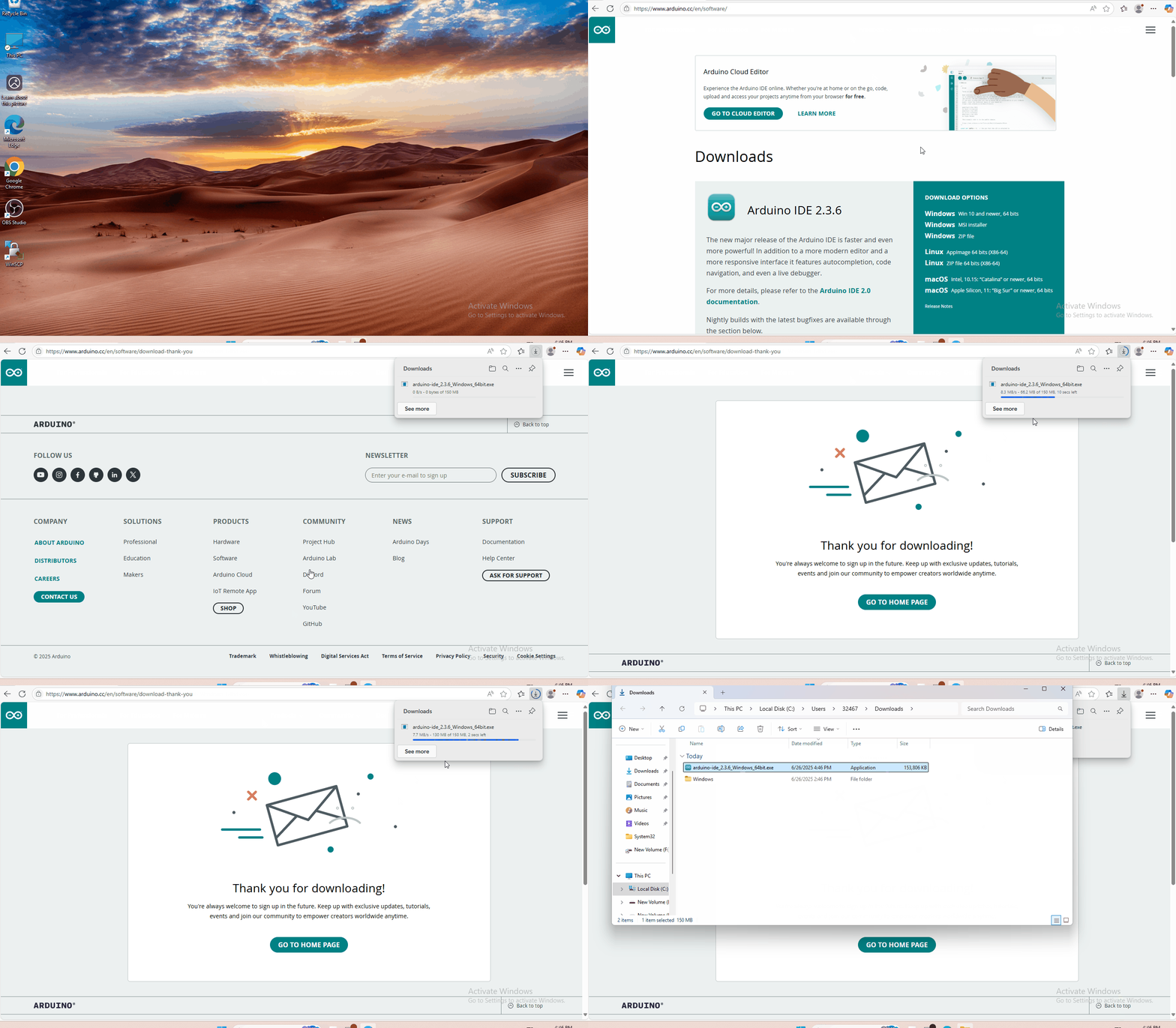
You just need to click JUSTDOWNLOAD,then click the downloaded file to install it. And when the ZIP file is downloaded,you can directly unzip and start it.
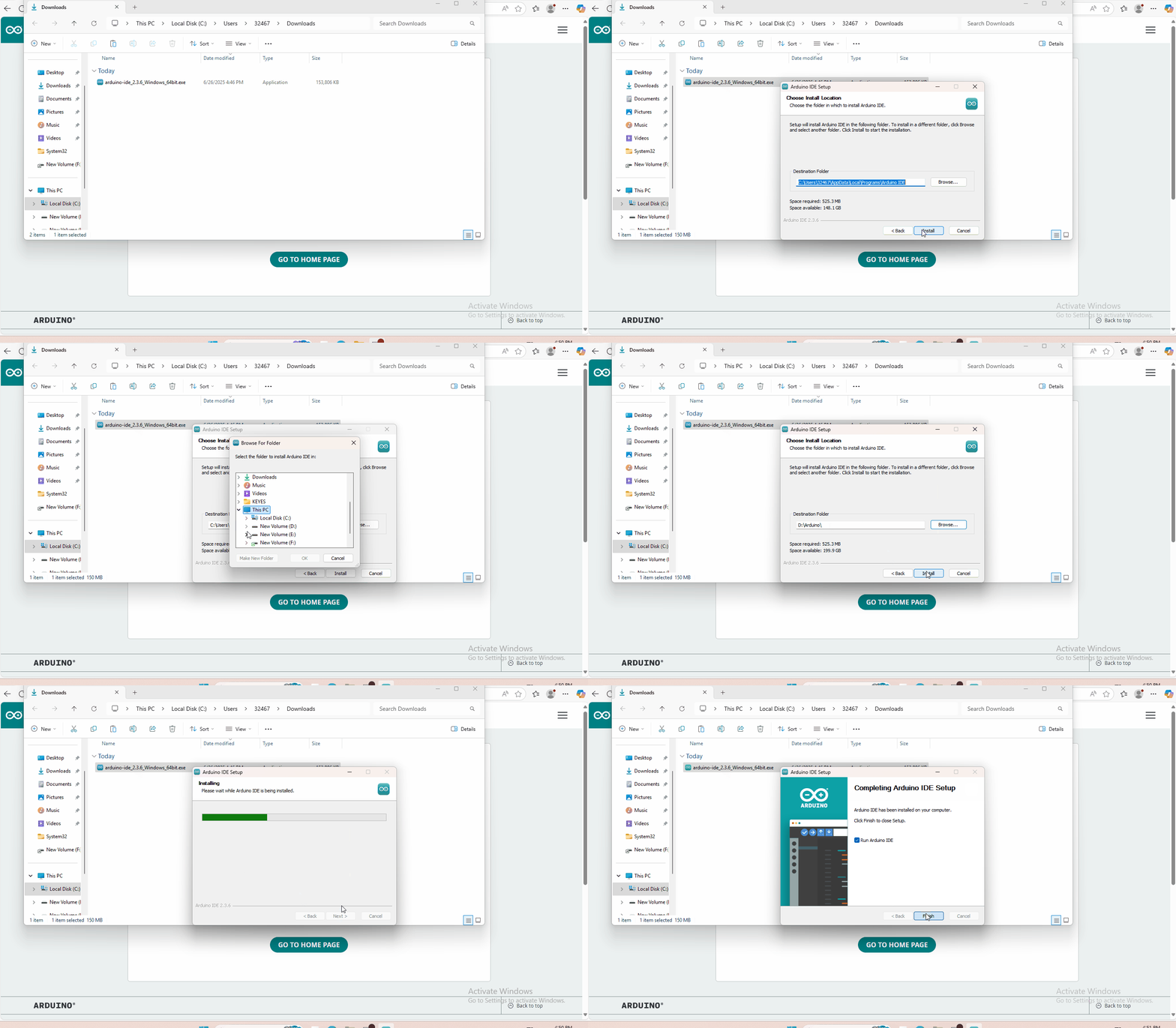
2.3 Set Arduino IDE
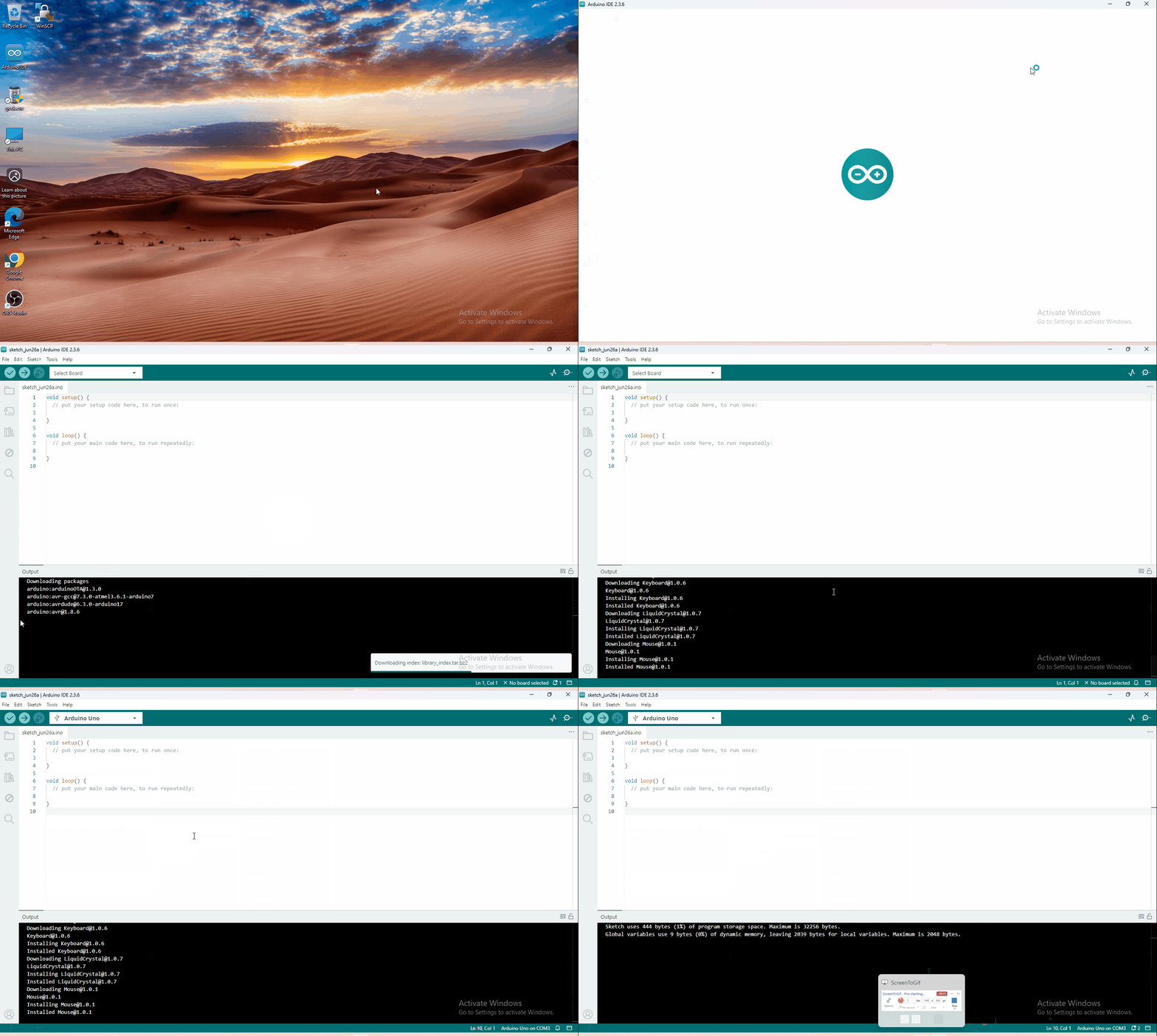
Connecting the board to the computer,and select the development board and port.
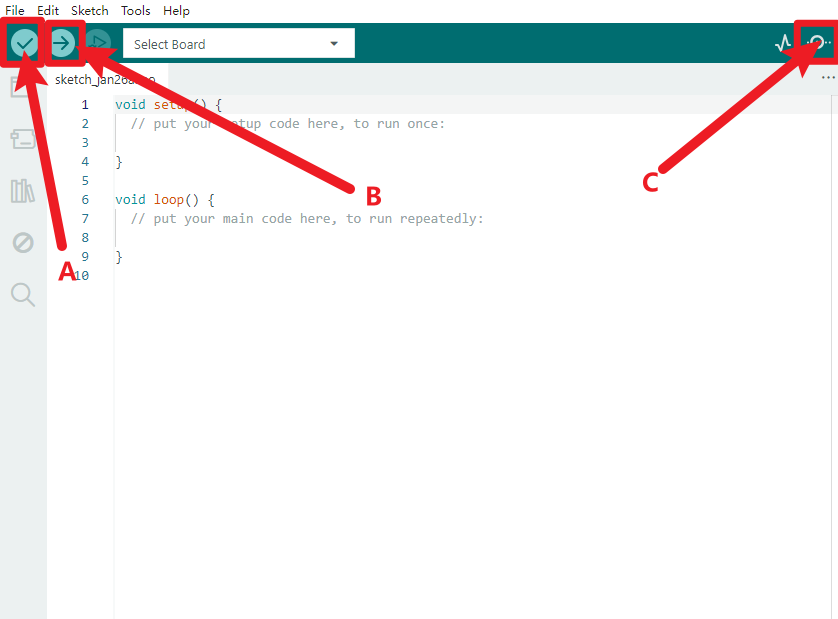
A- Used to verify whether there is any compiling mistakes or not.
B- Used to upload the sketch to your Arduino boar.
C-Used to send the serial data received from board to the serial monitor.
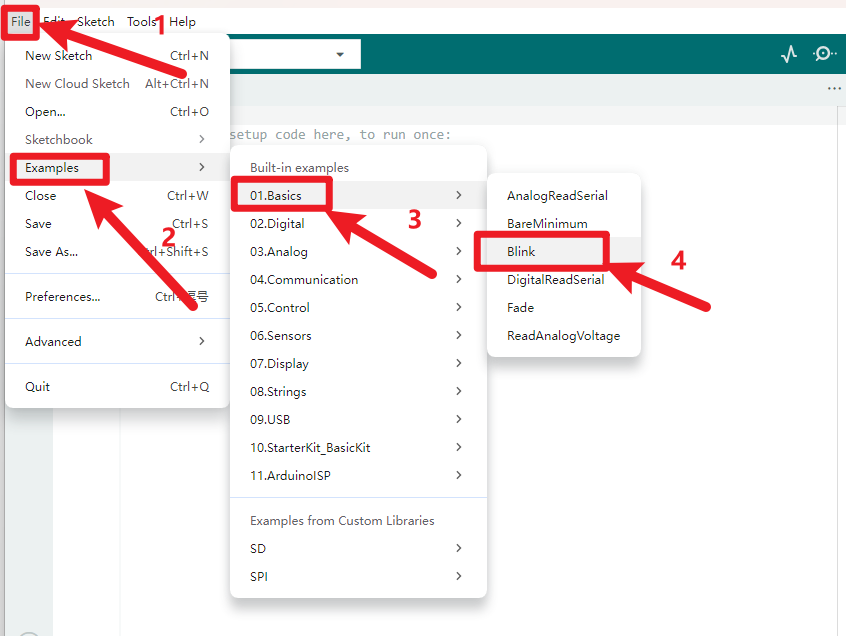
Start your first program
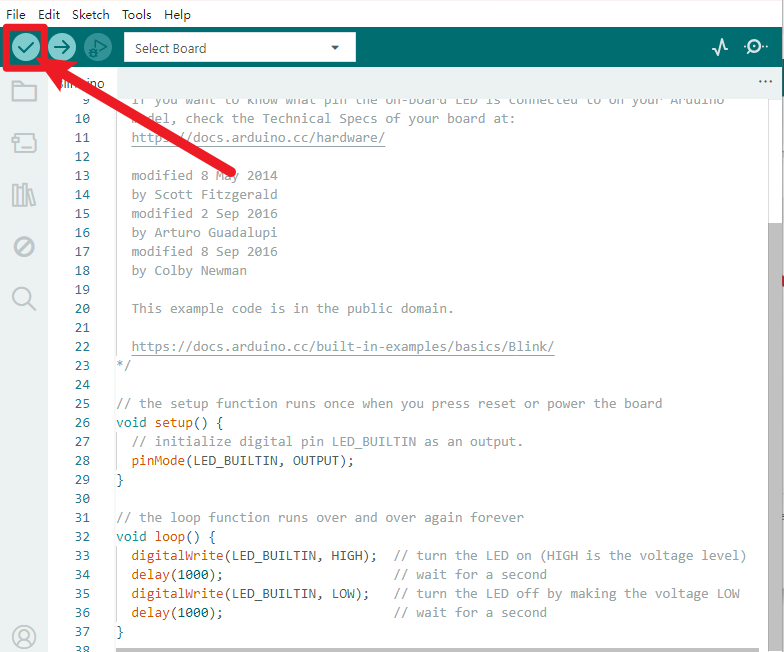
Click to start compiling the program, check errors.
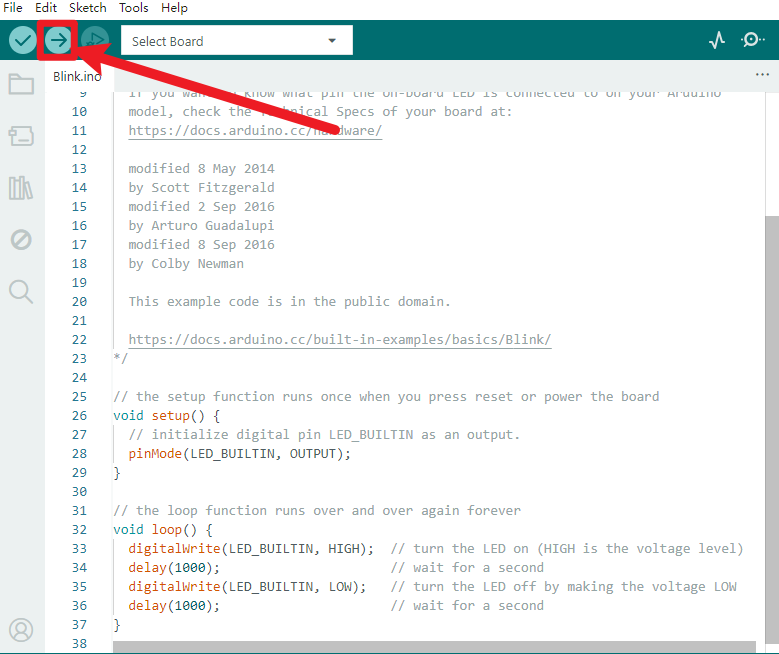
Click to upload the program, upload successfully.
Upload the program successfully, the onboard LED lights on for 1s, lights off for 1s. Congratulation, you finish the first program.
2.4 Add Library
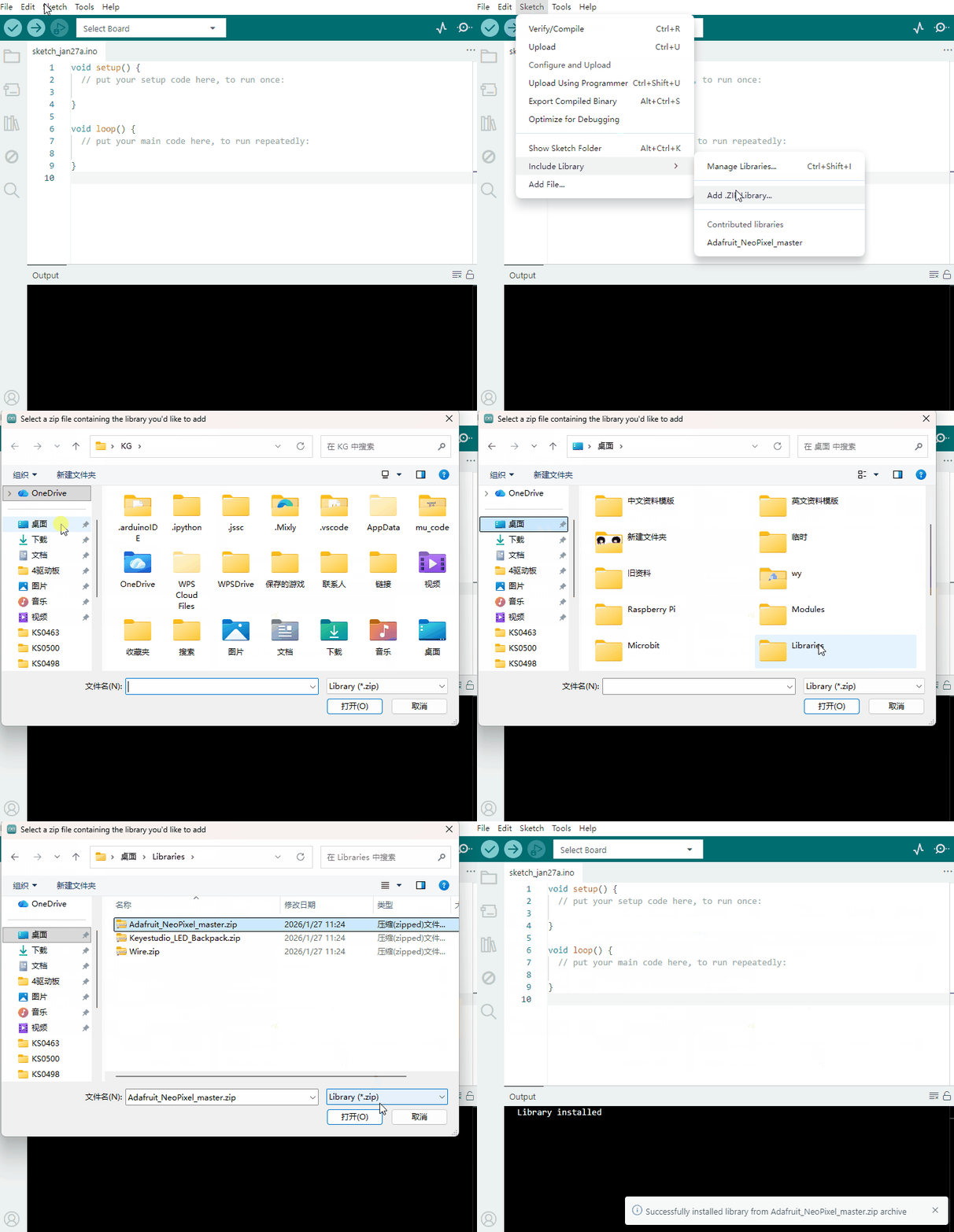
Open the Arduino IDE, follow [Sketch] → [Include Library] → [Add .zip Library]. This method can only import one library file at a time. If the product has multiple libraries, please import them one by one following this process!
2.5 Project
- Project 1 Hello world
- Project 2 LED blink
- Project 3 SOS light
- Project 4 Breathing LED
- Project 5 Traffic light
- Project 6 LED Chasing Effect
- Project 7 Play Music
- Project 8 WS2812 RGB LED
- Project 9 To make a lamp
- Project 10 To make a night light
- Project 11 Voice-activated
- Project 12 8*16 dot matrix-turn on a led
- Project 13 8*16 dot matrix-turn on one line
- Project 14 8*16 dot matrix-draw a rectangle
- Project 15 8*16 dot matrix-produce a circle
- Project 16 8*16 dot matrix-display texts and numbers
- Project 17 8*16 dot matrix-display images
- Project 18 8*16 dot matrix-knob control
- Project 19 8*16 dot matrix-light control
- Project 20 8*16 dot matrix-sound control
- Project 21 8*16 dot matrix-game project