Project 11 Bluetooth Test
1.Description
The micro:bit robot car shield comes with a Bluetooth module. We can use the built-in Bluetooth module to communicate with your phone’s APP, thus control the external devices connected to micro:bit control board using APP.
In the experiment, we only use the phone’s APP to control the LED matrix on the micro:bit main board, showing the different characters.
(note that when controlled by Bluetooth, use leds show matrix drawing module, easy to crash.)
2.Library link settings
The micro:bit robot car shield comes with a Bluetooth module.
Before sending the test code, we should add the library to micro:bit on the browser. The method is as below.
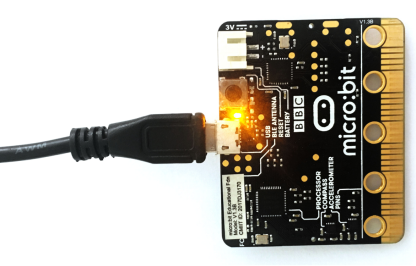
Connect the micro:bit main board to your computer using a USB cable.
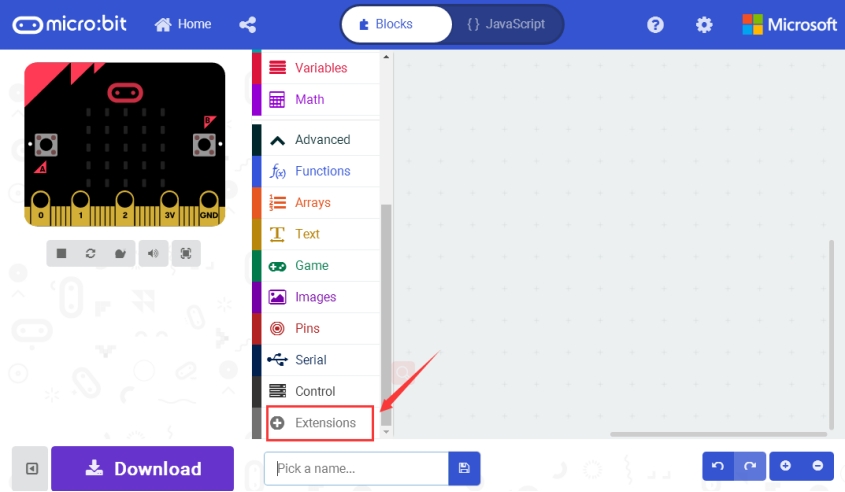
Open micro:bit MakeCode Block editor: https://makecode.microbit.org/#editor. Firstly click the Extensions.
Then click the Bluetooth.

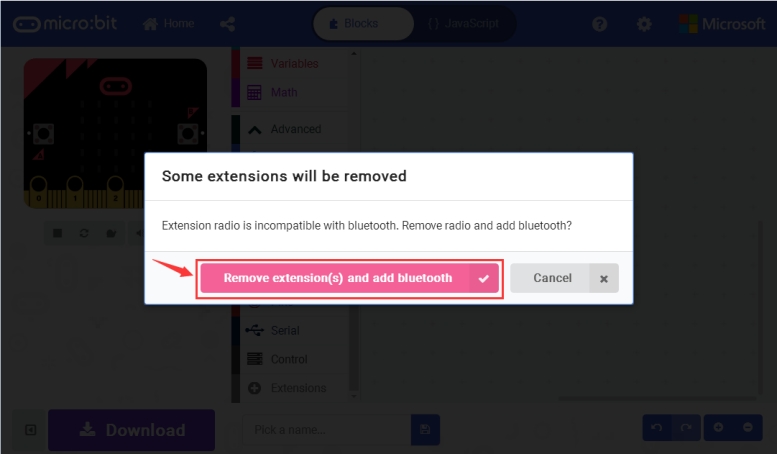
TAP Remove extensions and add Bluetooth.
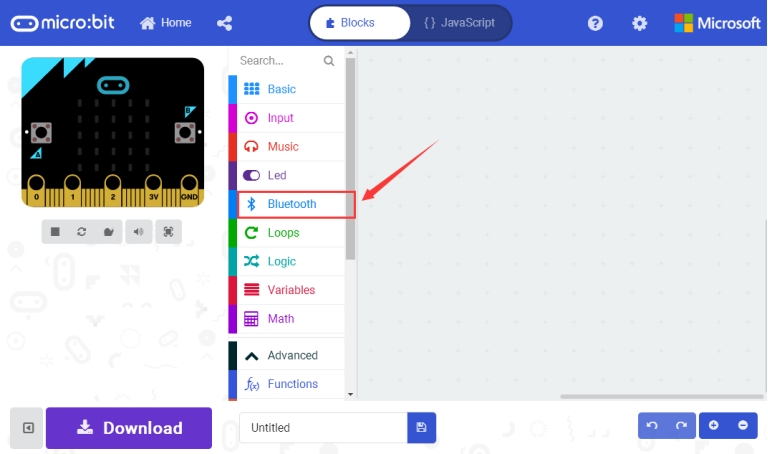
Finally, you should see the Bluetooth is added well.
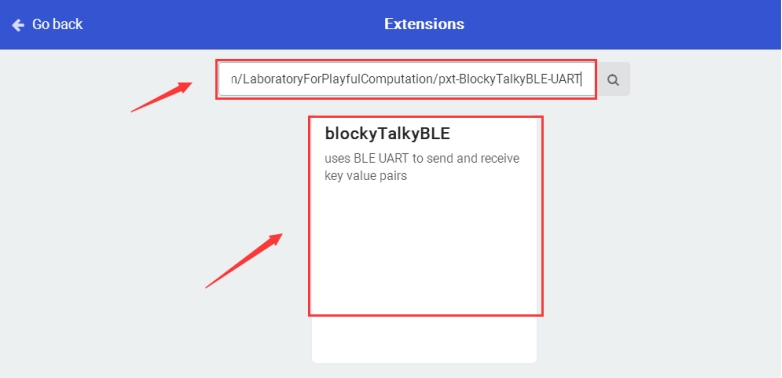
Then click the Extensions again, enter the library link below and search: https://github.com/LaboratoryForPlayfulComputation/pxt-BlockyTalkyBLE-UART
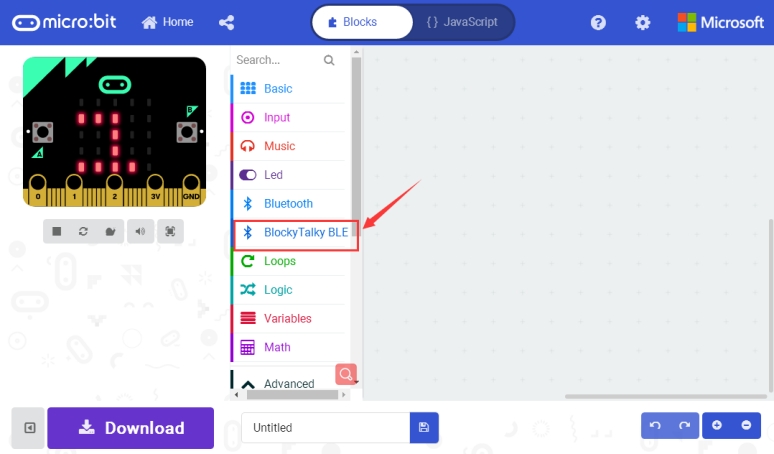
Finally, you should see the library blocky Talky BLE is added successfully.
3.Test Code
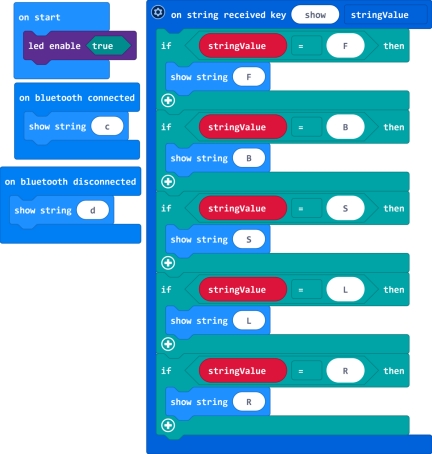
4.Bluetooth APP Use
After add the library and send the test code to micro:bit main board, power on the micro:bit main board.
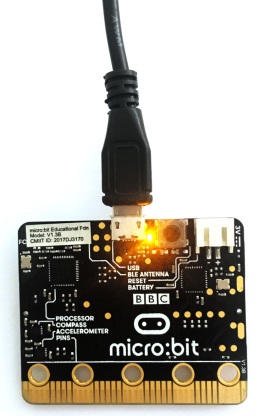
Click the link to download the Bluetooth APP: https://drive.google.com/open?id=17jJB–GKxPytDyPuqqhs6B2NUCCu7kST
Installed the APP, click the APP icon to open it.
When your phone detects the Bluetooth module on the micro:bit main board, the APP will prompt to open the Bluetooth. Choose to open the Bluetooth. Pop up the interface below.
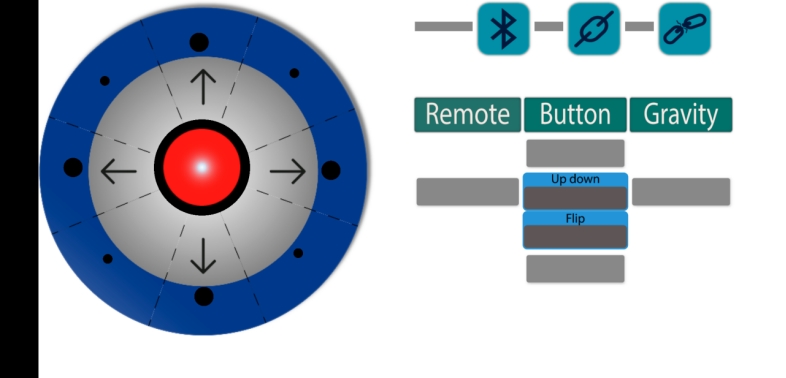
Then click the Bluetooth icon  , it will pop up the micro:bit information.
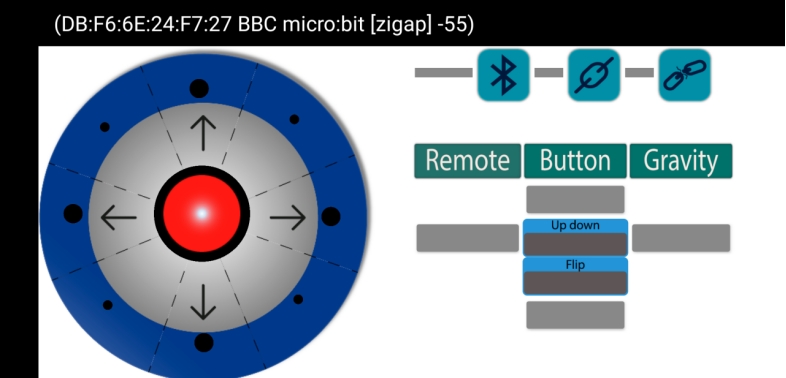
Then click to connect the micro:bit Bluetooth.
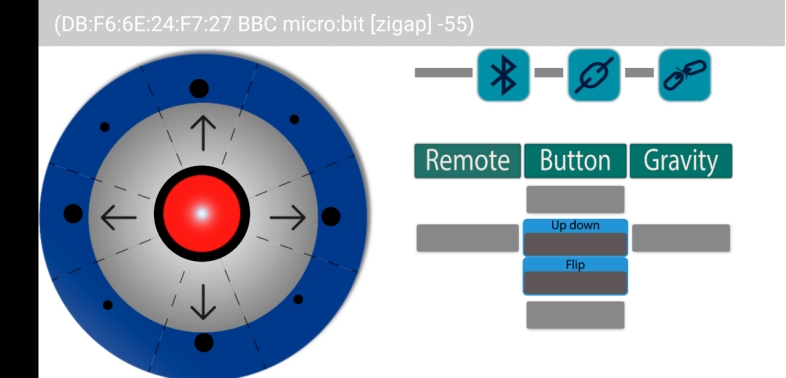
After that, click for connection, pop up the interface shown below.
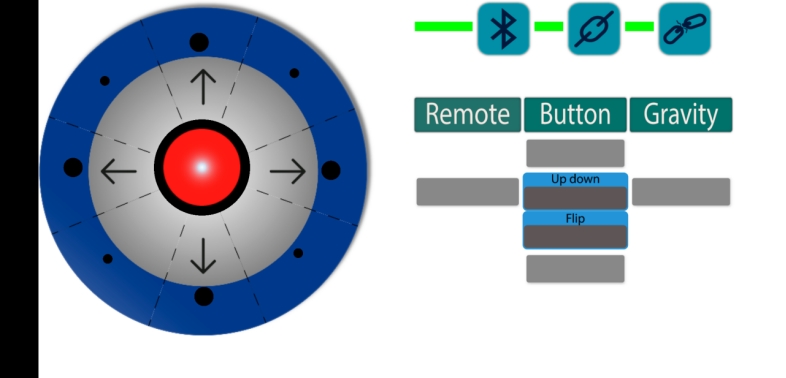
Here the Bluetooth is connected successfully, you can use the APP to control your micro:bit car. The options are shown on the right side.
You can click the to disconnect the Bluetooth. Shown below.
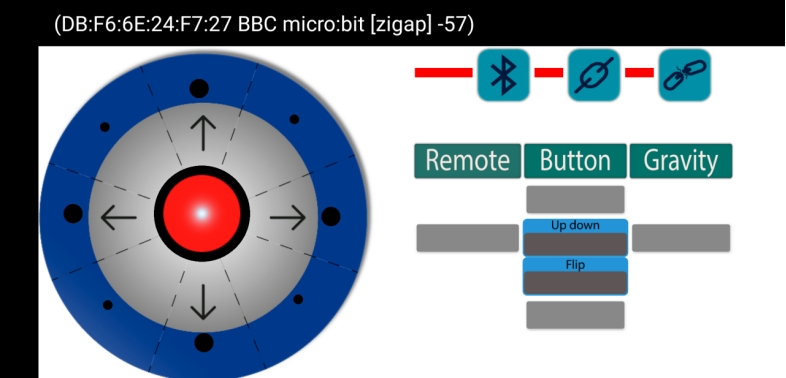
5.Test Result
Send well the test code to micro:bit main board, and power on the micro:bit main board. Follow the method mentioned above, connect the Bluetooth on the micro:bit main board using your phone’s APP.
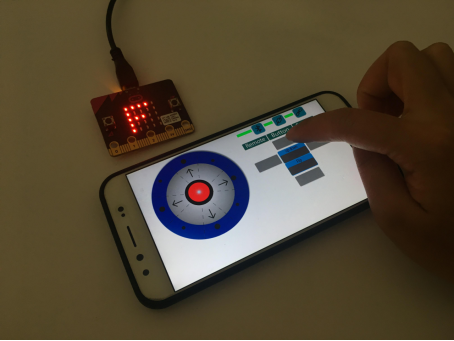
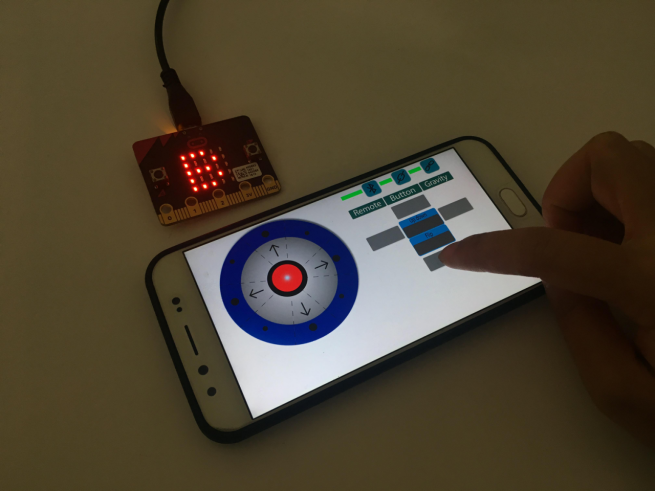
Connected, click the right icons on the APP, the LED matrix on the micro:bit main board should show different letters.