Project 17 Joysticks Control Robot Arm
1. Description
In this project, we will combine the previous projects to control the robot arm to achieve multiple movements via two joysticks.
When controlling, set the initial posture as shown below:
Initial Servo Angles
Servo 4 (Left): 130°
Servo 1 (Right): 60°
Servo 2 (Base rotation): 90°
Servo 3 (Claw): 60°
2. Joysticks Control Logic
Left Joystick
Condition |
Servo |
|---|---|
x < 100 |
Servo 2 angle gradually decreases to 30° |
x > 900 |
Servo 2 angle gradually increases to 150° |
y1 > 900 |
Servo 4 angle gradually increases to 180° |
y1 < 100 |
Servo 4 angle gradually decreases to 35° |
Right Joystick
Condition |
Servo |
|---|---|
y2 < 100 |
Servo 1 angle gradually increases to 180° |
y2 > 800 |
Servo 1 angle gradually decreases to 0° |
z = 1 |
Servo 3 angle becomes 180° |
z = 0 |
Servo 3 angle becomes 60° |
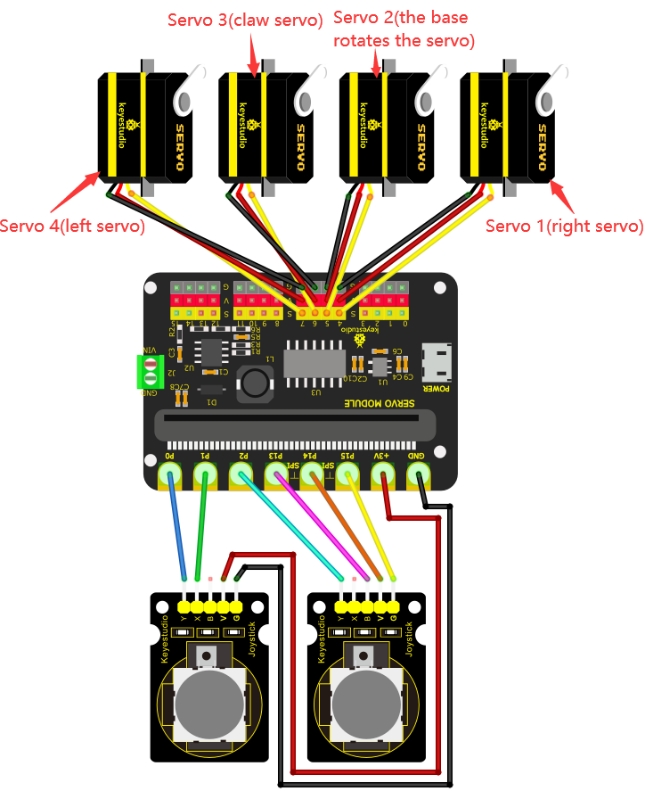
3. Wiring Diagram
Servo Connections
Servo |
Port |
Brown |
Red |
Orange |
|---|---|---|---|---|
Servo 1 (Right) |
S(4) |
G |
V |
S(4) |
Servo 2 (Base) |
S(5) |
G |
V |
S(5) |
Servo 3 (Claw) |
S(6) |
G |
V |
S(6) |
Servo 4 (Left) |
S(7) |
G |
V |
S(7) |
Left Joystick Module Pins
Pin |
Micro:bit |
|---|---|
Y |
P0 |
X |
P1 |
V |
+3V |
G |
GND |
Right Joystick Module Pins
Pin |
Micro:bit |
|---|---|
Y |
P2 |
B |
P13 |
V |
P14 |
G |
P15 |
4. Test Code
1. Preparations
Insert the Micro:bit into the robot arm’s 16-channel servo shield.
Connect the external power supply.
Connect the Micro:bit to your computer via a Micro USB cable.
Open the MakeCode editor (web or offline version).
Import Hex file, or drag the code manually (add the pca9685 extension library first, refer to 1. Development Environment Configuration).
2. drag the code manually
Add pca9685 Extension
⚠️ Prerequisite: This project requires importing a specific extension to function. If you are new to this or unsure how to import extensions, please refer to our “General Guide on Importing Micro:bit Extensions” first. Once you are familiar with the process, please return to this tutorial.
Extensions_URL: https://github.com/keyestudio2019/pxt-pca9685-smallest
3. Import Hex file
To import the Hex file directly, please locate the downloaded Hex file and drag it into the editor.
🏡Click to download the code for this lesson
After downloading the code, simply drag it directly into the coding area to upload it. (Note: The image below is for demonstration purposes only—please drag in the code you downloaded for this lesson above.)

5. Test Result
Download the program to the Micro:bit.
Power on using the external power supply.
Press the reset button on the Micro:bit board.
The robot arm will move to the initial position.
Shake the left and right joysticks to control the robot arm’s multiple movements.