Project 18 Read BT Data

1. Description
The micro:bit control board is equipped with built-in Bluetooth Low Energy (BLE) functionality, enabling seamless wireless communication and control with a wide range of devices—including smartphones, tablets, and computers. It offers full compatibility with both Android and iOS platforms.
By using a dedicated Bluetooth-enabled mobile application (BT APP), users can wirelessly interact with the micro:bit and control external peripherals connected to it—such as LEDs, motors, sensors, and more.
In this project, you will: Explore the user interface of the BT APP; Learn the function of each on-screen button; Understand how to interpret and process the character data transmitted from the app to the micro:bit via Bluetooth.
This foundational knowledge will empower you to design interactive projects that bridge mobile devices and physical computing through wireless communication.
2. APP Installation
1. APP Buttons for Controlling the Robot Arm
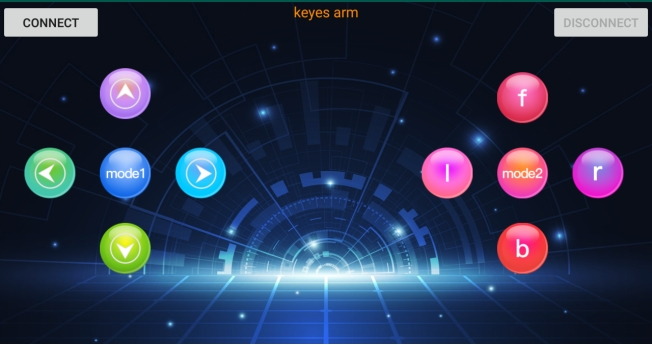
The APP contains 10 control buttons. When the BT module on the Micro:bit is connected, pressing a button sends its corresponding value via Bluetooth. We can read and test the values through the serial monitor.
2. Download and Install the Official App
Please follow the steps below to install the “keyes arm” application on your device:
For Android Users (Google Play)
Open the Google Play Store on your phone.
Enter “keyes arm” in the search bar.
Find the official app published by keyestudio and tap “Install”.
For iOS Users (App Store)
Open the App Store on your iPhone or iPad.
Search for “keyes arm”.
Tap “Get” or the cloud download icon to install the app.
Alternative Download Method
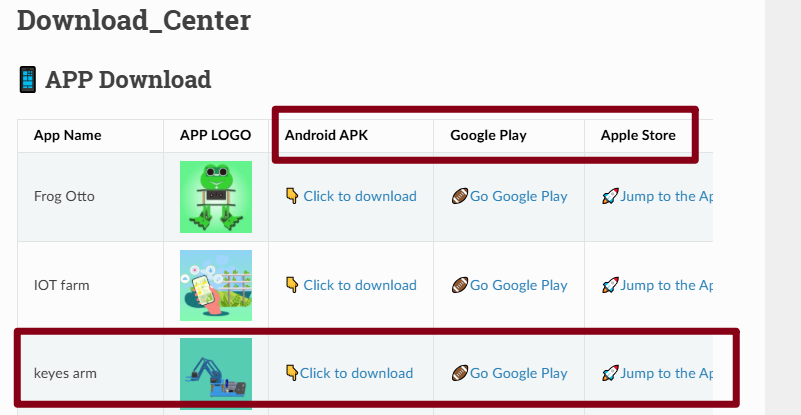
You can also download the application via the official Keyestudio Download Center:
Open input the link:
https://docs.keyestudio.com/en/latest/docs/Download_Center/Download_Center.html
Select ‘keyes arm’ and install.
⚠️ Important: App Permissions
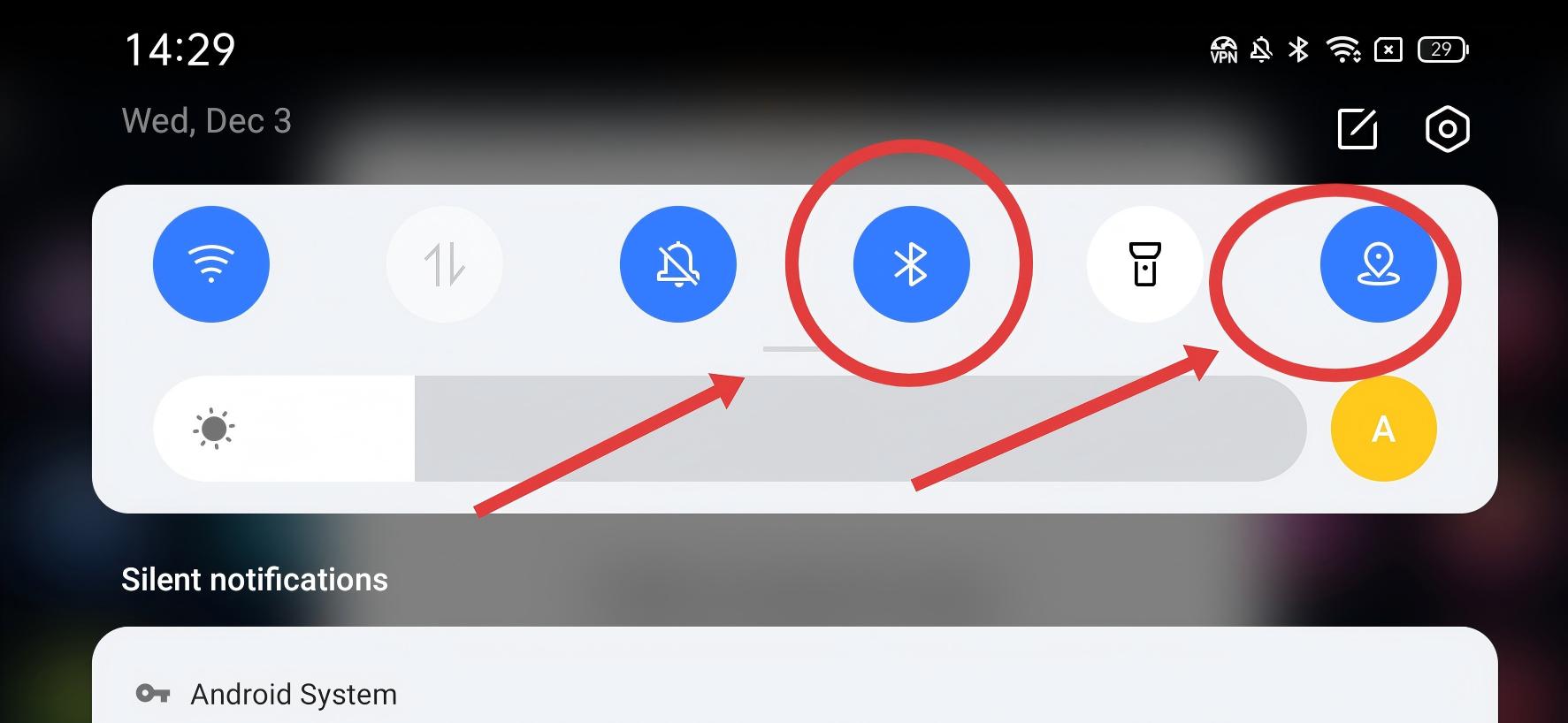
For the Bluetooth connection to function correctly, the APP must have Location Permission enabled on your smartphone or tablet.
Please allow this permission when prompted upon first opening the app.
Without this permission, the app may fail to search for or connect to the device.
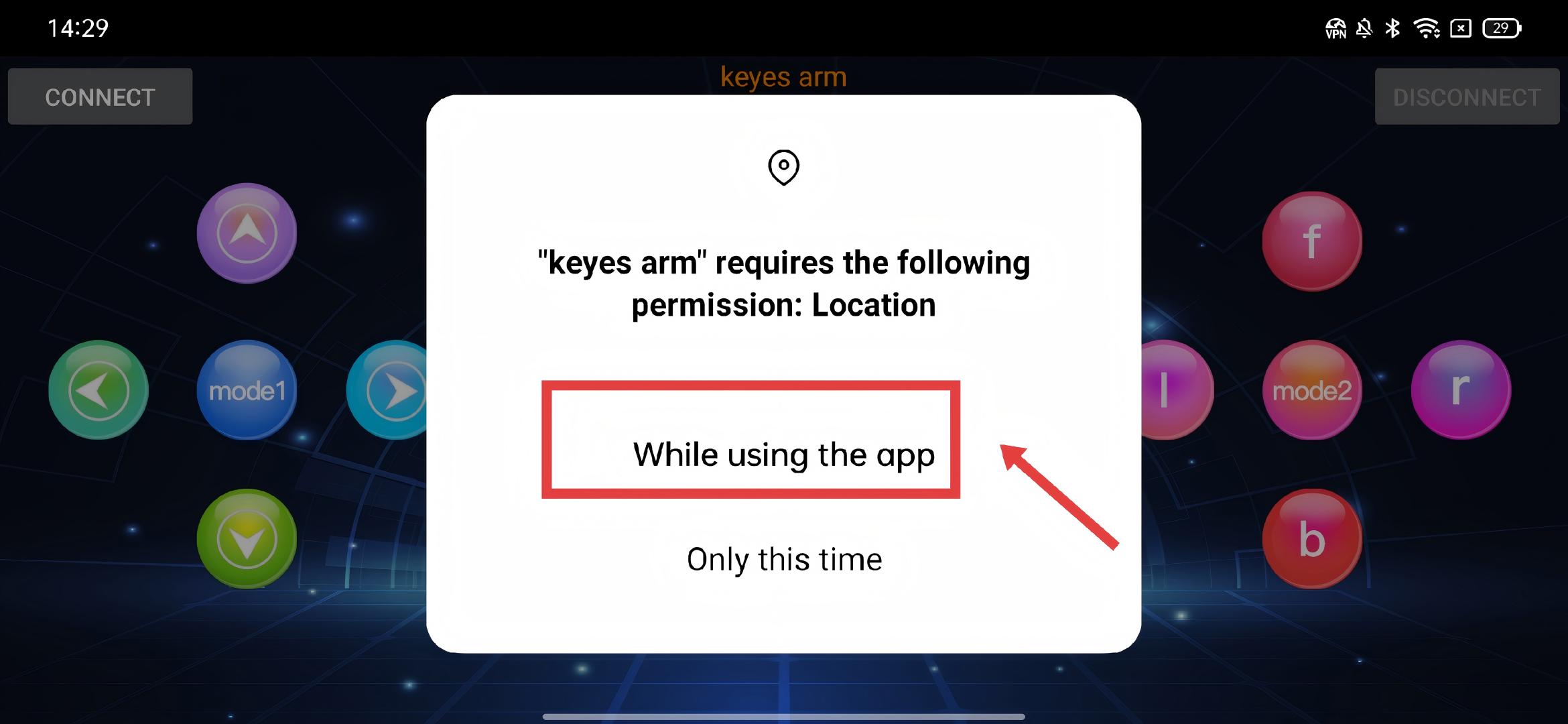
Note: Do not download APK files from third-party websites. To ensure security and compatibility, please always install the official app via Google Play, the App Store, or the official Keyestudio website.
3. Load Code and Add Bluetooth Extension
Step 1: Open MakeCode Open the offline software or visit the Web version of MakeCode at: https://makecode.microbit.org/
Step 2: Import Code You can either Import the Hex file directly into the editor or drag/write the code manually. (Note: If you are coding manually from scratch, you must add the Bluetooth extension library first.)
** Add the Bluetooth Extension**
Click on Extensions .
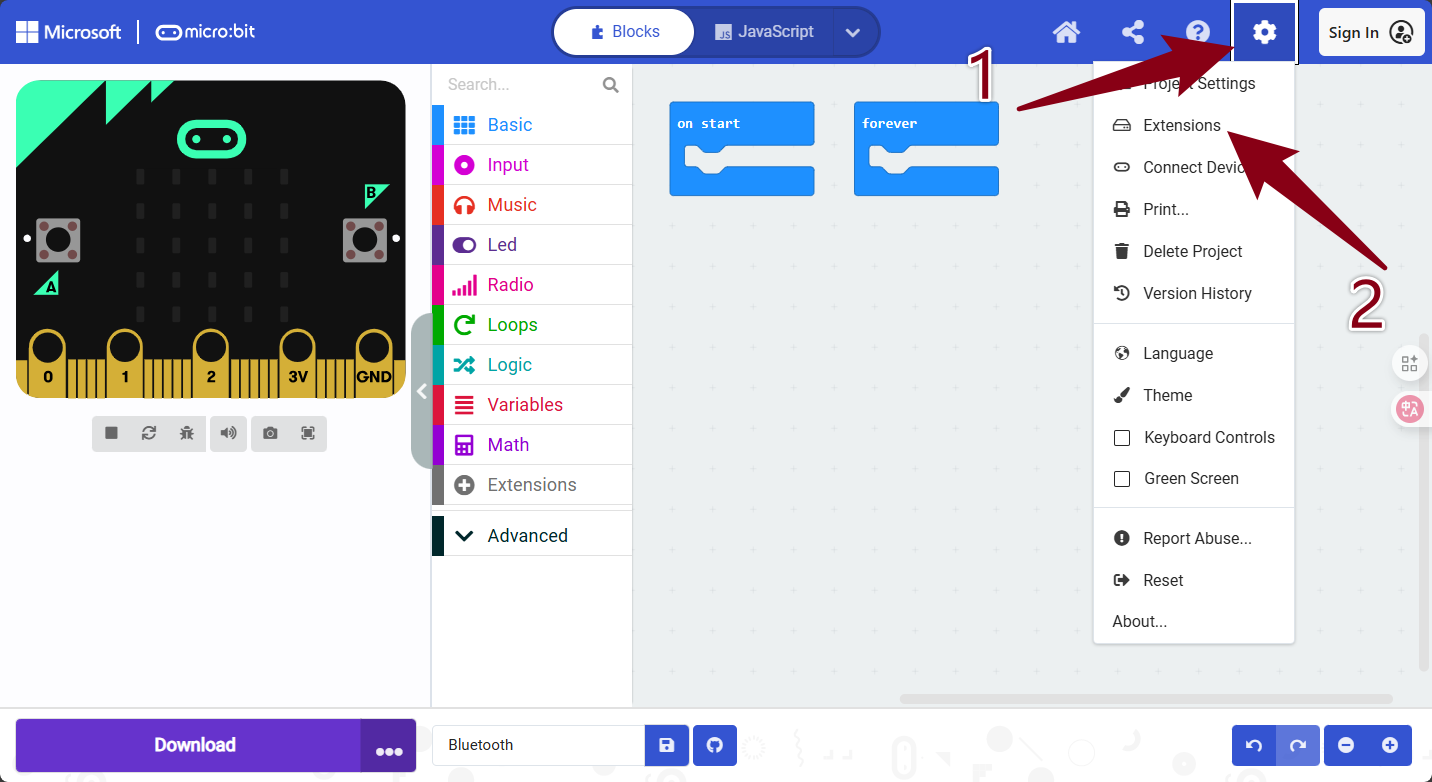
In the search bar on the library page, type “bluetooth” and search.
Click on the “bluetooth” extension card to add it.
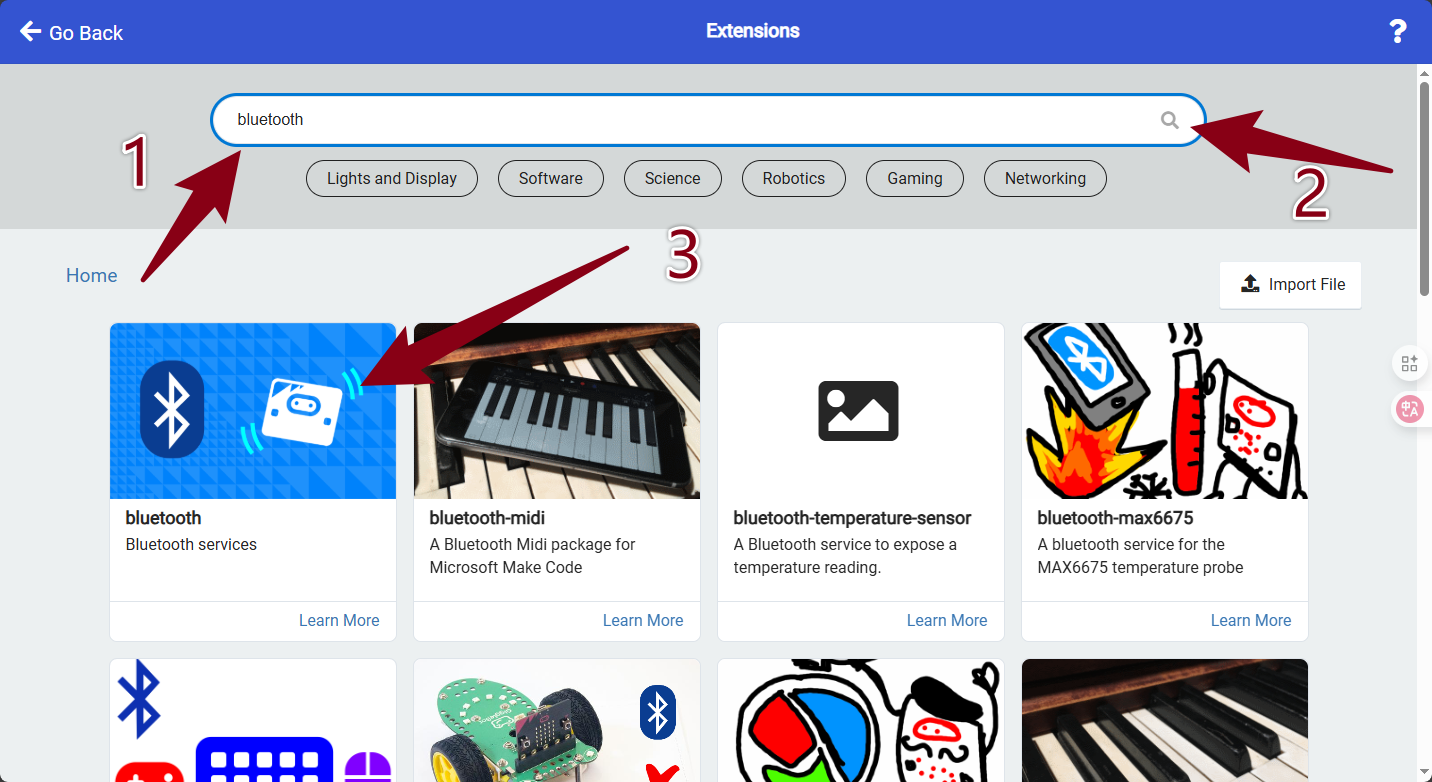
⚠️ Important: Bluetooth & Radio Compatibility
Due to hardware limitations of the Micro:bit, Bluetooth and Radio functions cannot work simultaneously. Therefore, their extension libraries are incompatible with each other.
When installing the “bluetooth” extension library, if you receive a compatibility warning, please click “Remove extension(s) and add bluetooth” to confirm the change.
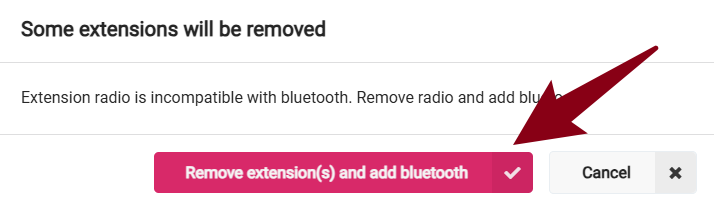
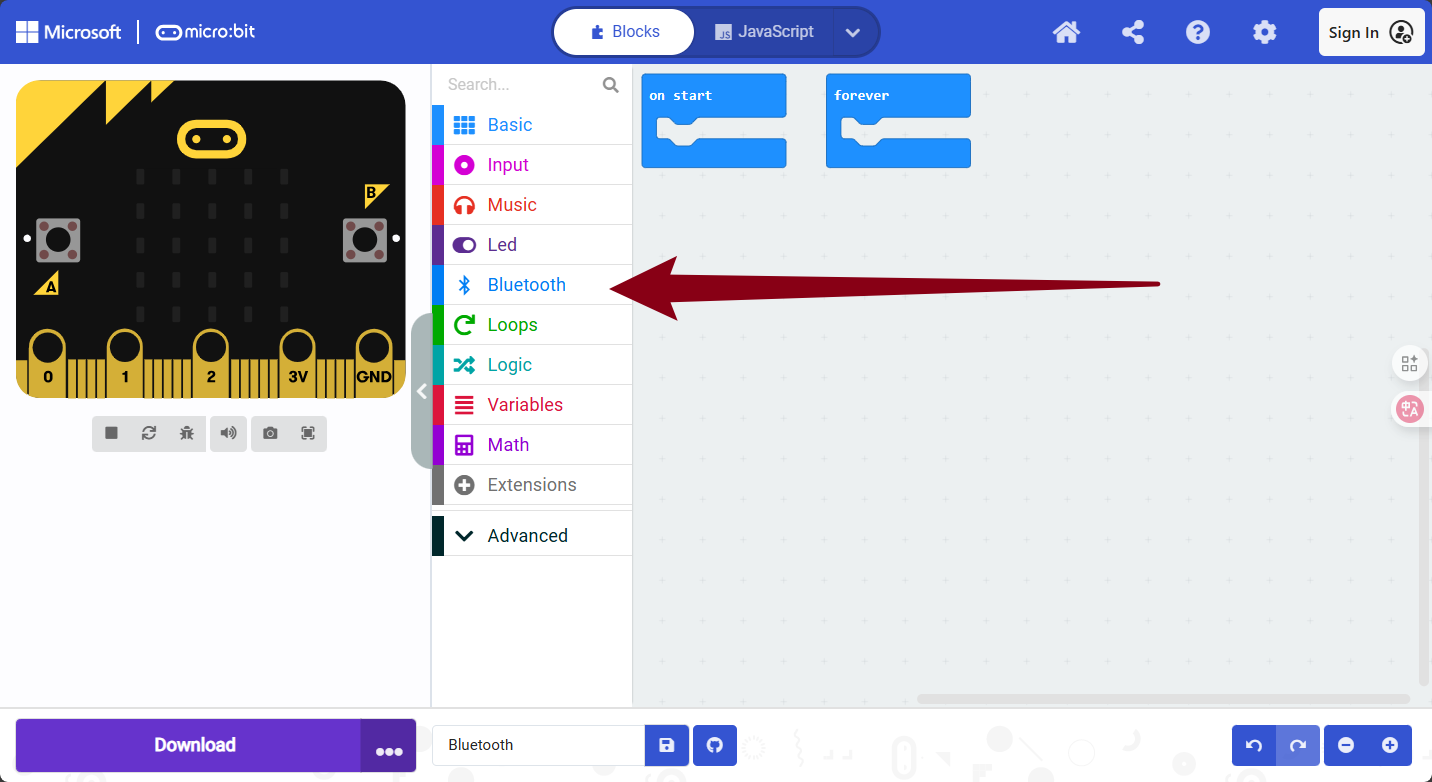
Note: If the “Bluetooth” category is already visible in the block list on the left, you do not need to search for or add it again.
4. Text code
Manually drag the code block out from the sidebar as shown below.
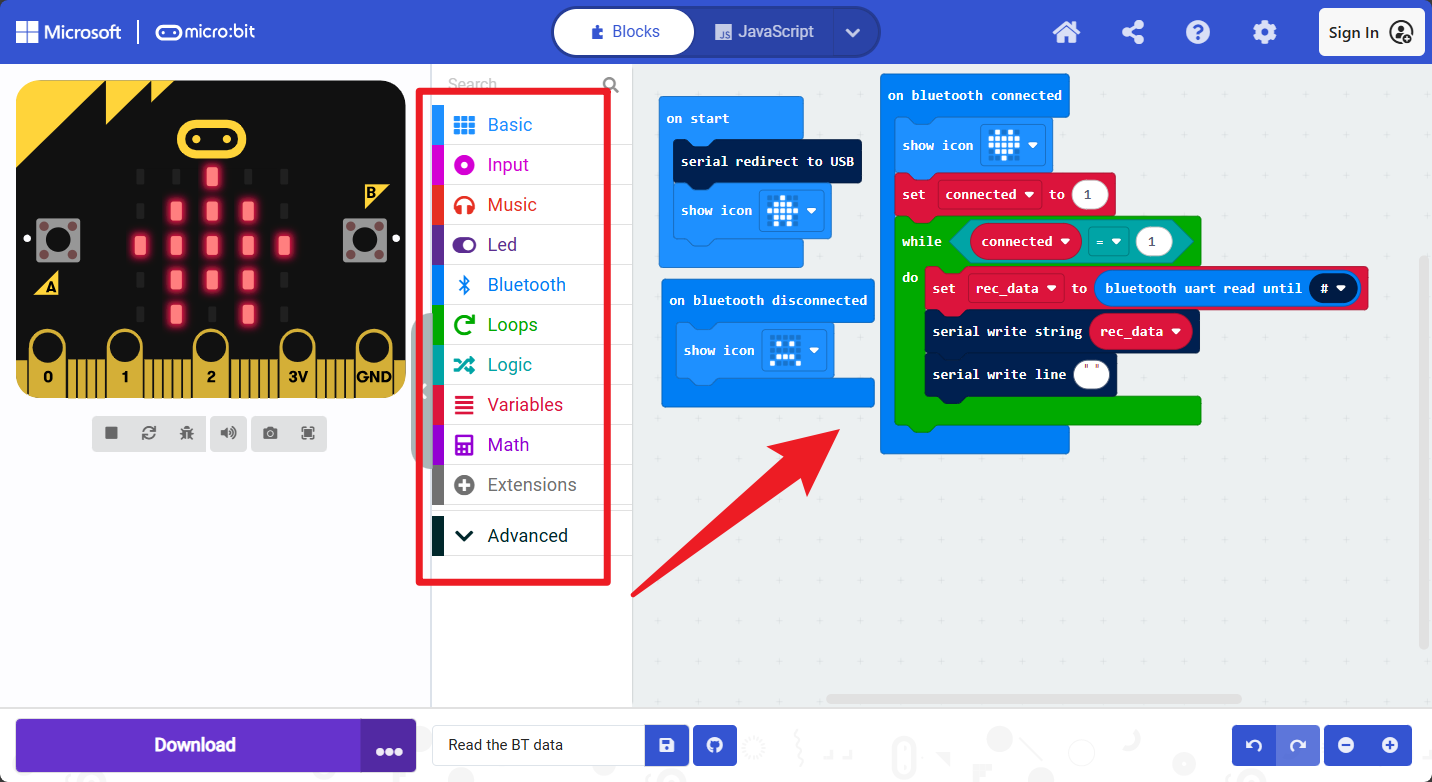
To import the Hex file directly, please locate the downloaded Hex file and drag it into the editor.
🏡Click to download the code for this lesson

5. Flash the code
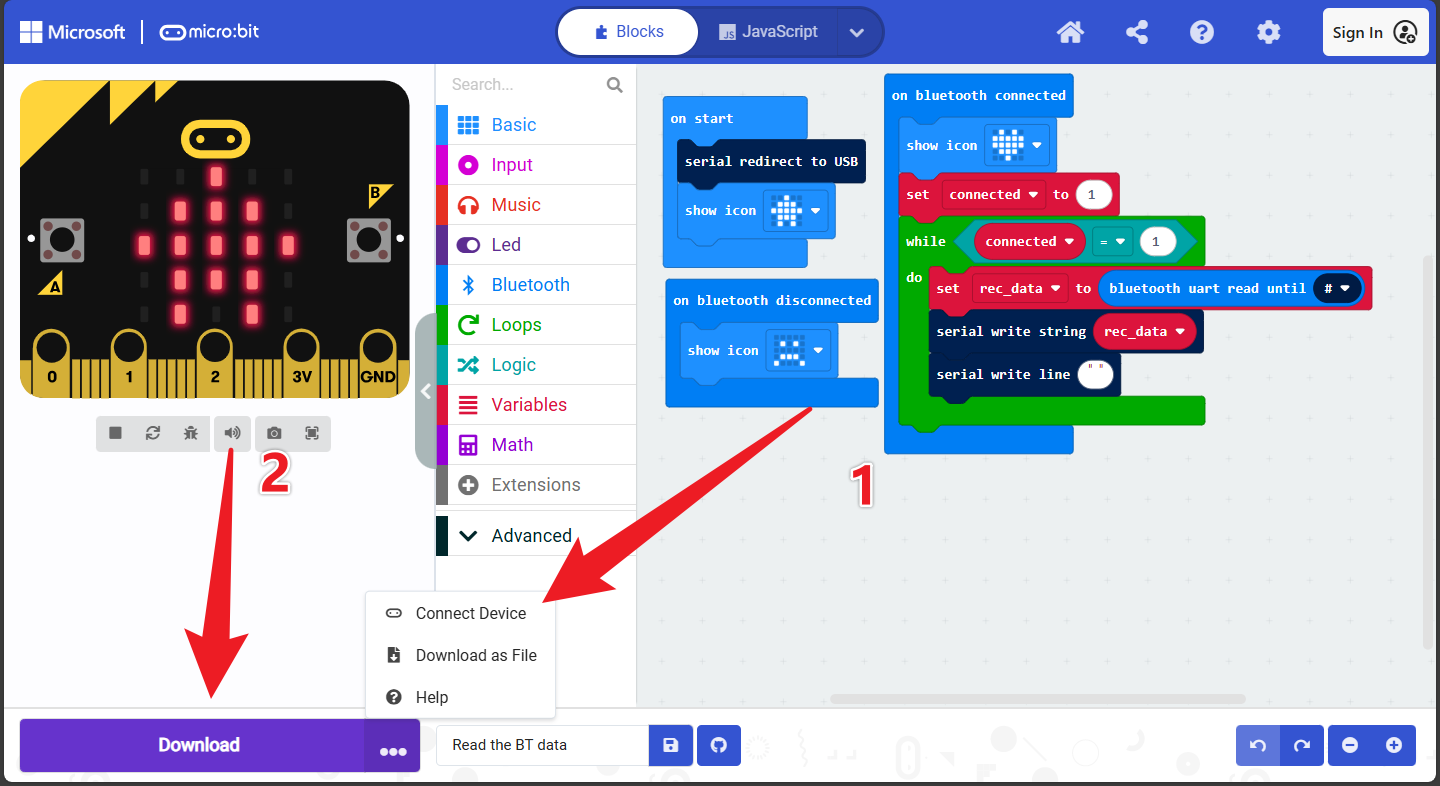
Click Download to flash the code to your Micro:bit.(Remember to connect the Micro:bit board to the computer before uploading the code.)
6. Data Reading
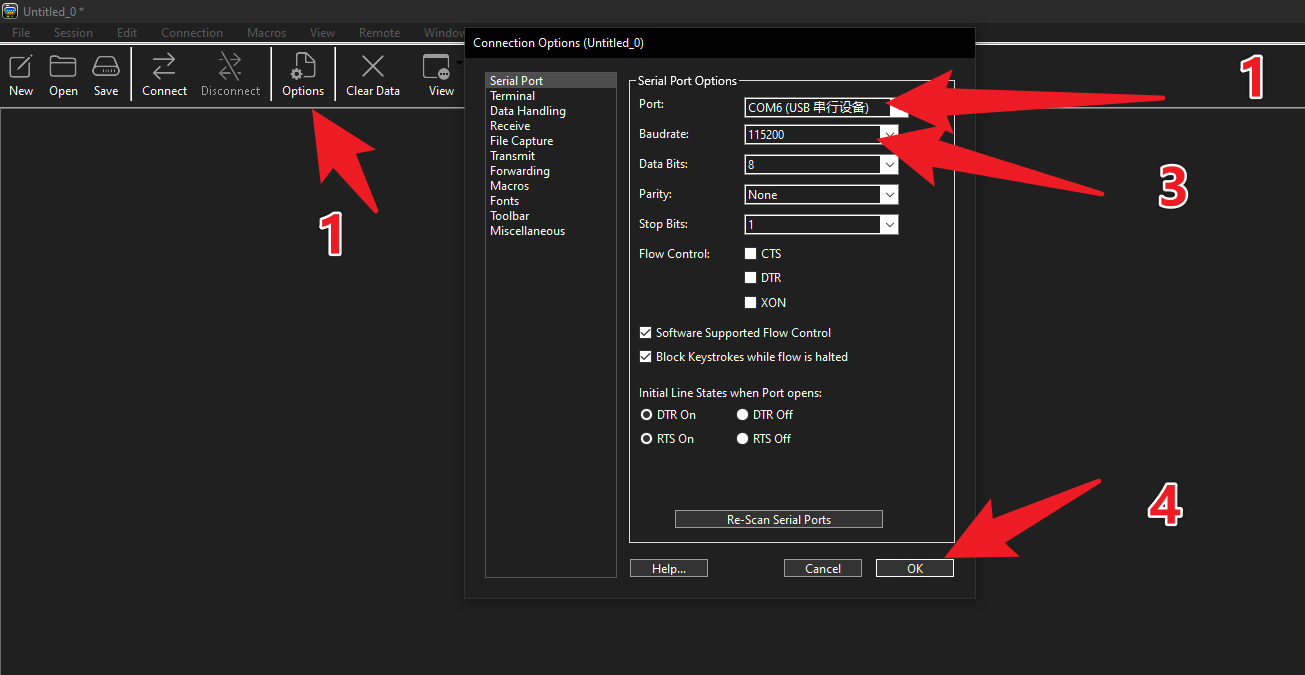
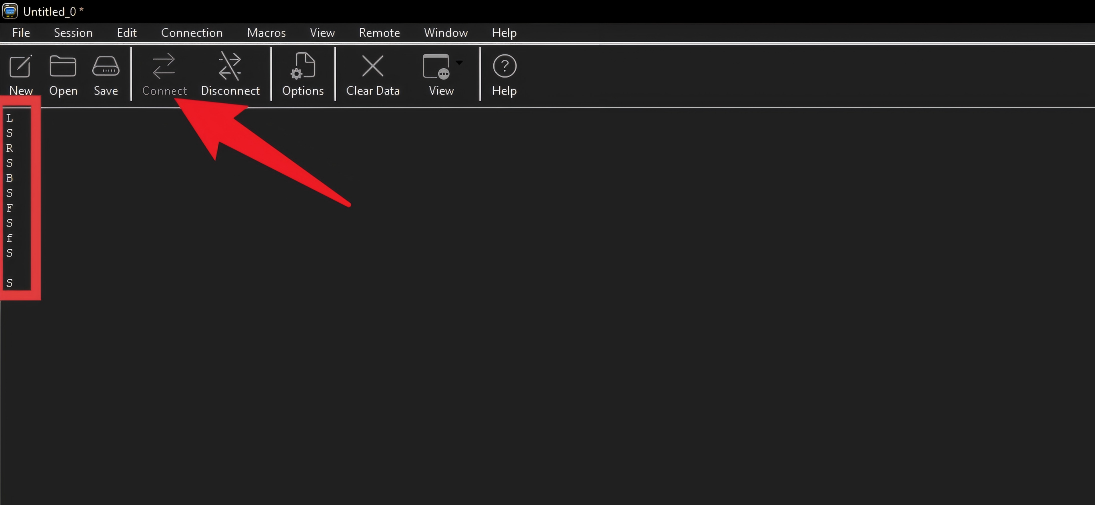
Open CoolTerm. As shown in the picture, select the Micro:bit’s COM port and set the Baud Rate to 115200. (Note: Please select the actual COM port number on your computer; it may not necessarily be COM6 as shown in the example image.)
Open the previously downloaded App and connect to the Micro:bit board.
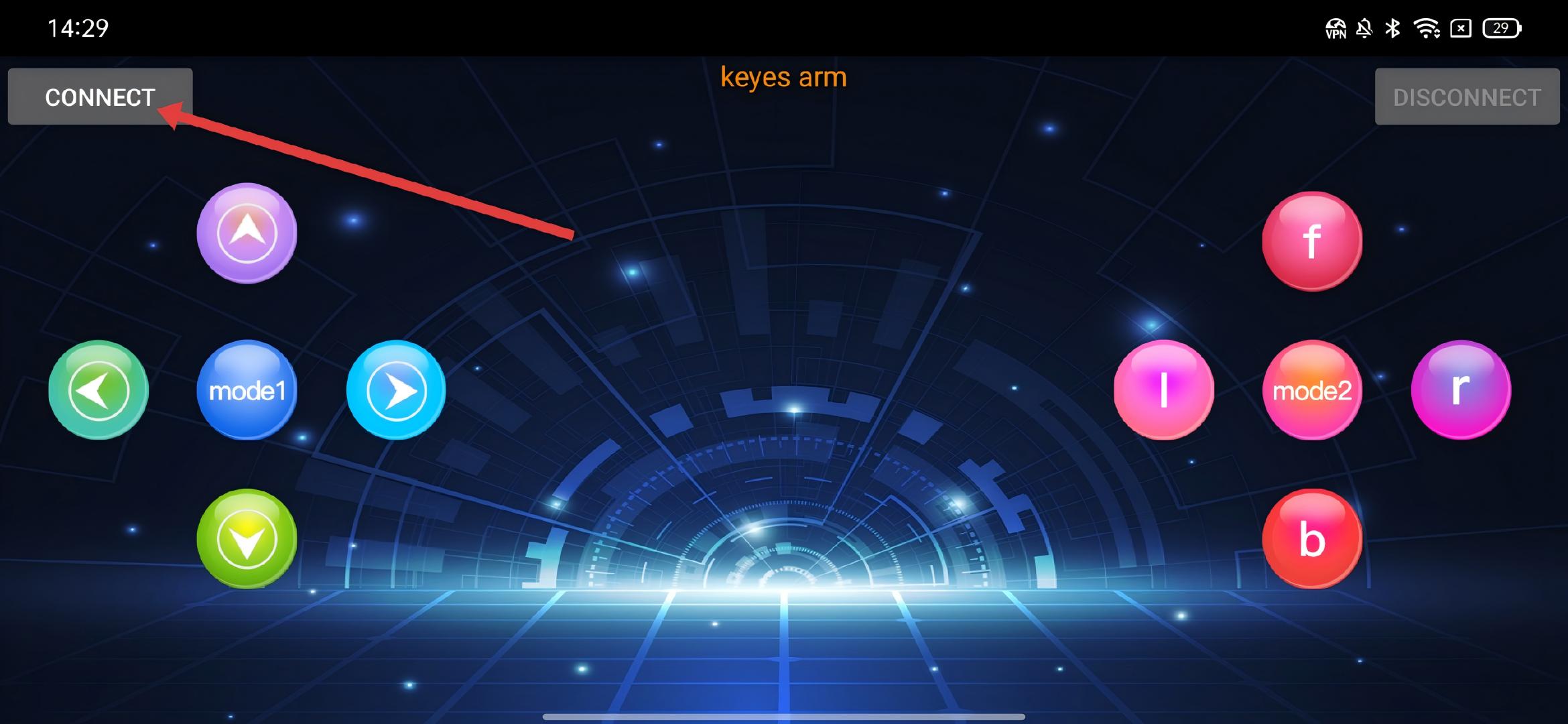
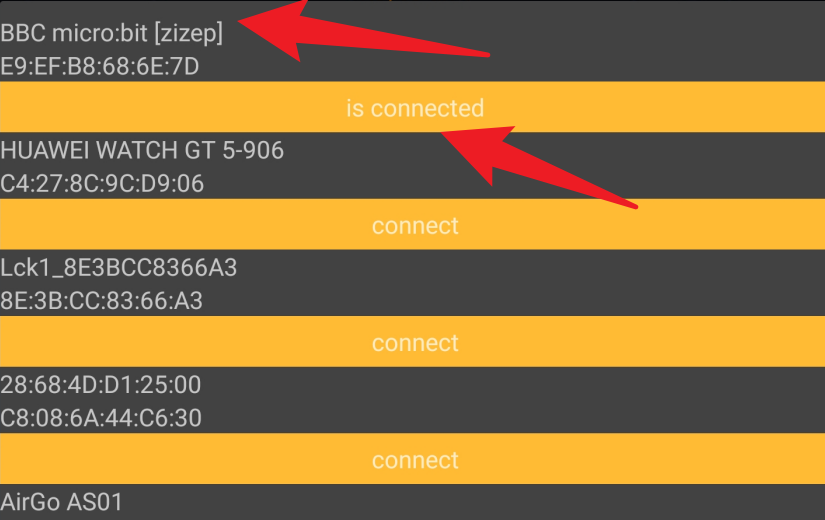
Click ‘Connect’. If the status displays ‘is Connected’, it indicates that the connection is successful.
Press the buttons on the App, and you will see CoolTerm display the characters corresponding to each button.
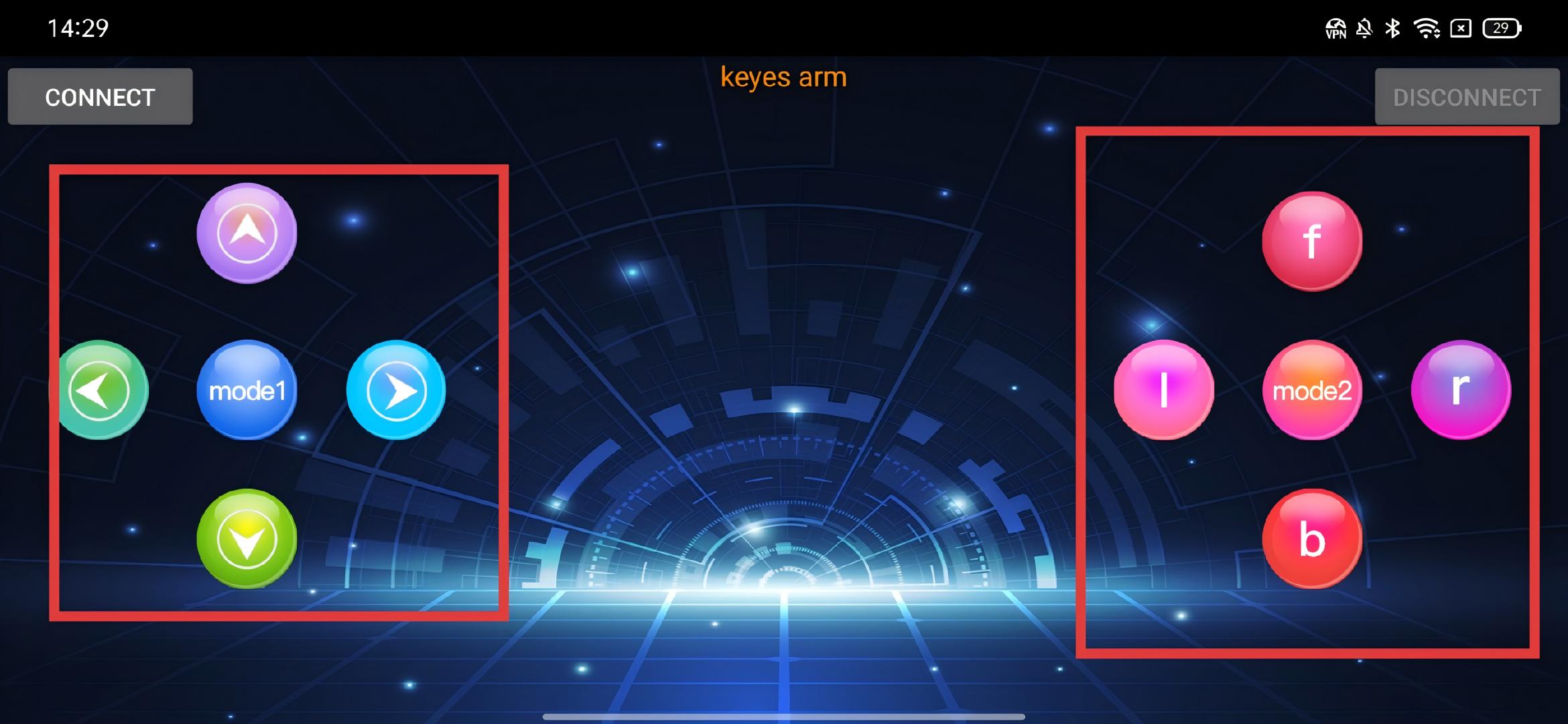
7. Functions of Buttons
|
Connect the APP to the Bluetooth of the microbit mainboard |
|
|---|---|---|
|
Disconnect the Bluetooth |
|
|
Press:“F” |
Release:“S” |
|
Press:“L” |
Release:“S” |
|
Mode: 1 |
|
|
Press:“R” |
Release:“S” |
|
Press:“B” |
Release:“S” |
|
Press:“f” |
Release:“S” |
|
Press:“l” |
Release:“S” |
|
Mode: 2 |
|
|
Press:“r” |
Release:“S” |
|
Press: “b” |
Release:“S” |




FAQ
1.If the App fails to connect to the Micro:bit board, please restart the App and try connecting again.