5.12 APP Control Smart Farm
Pay attention: Do not overflow water from plastic pools in experiments. Spilling water on other sensors may cause a short circuit or modules to be out of work. If batteries get wet,even explosion may occur. Do be extra careful! For younger users, please operate with your parents. Use batteries for power instead of just USB.
Open the 5.12.1APP-Smart-Farm code with Arduino IDE.
#include <Arduino.h>
#ifdef ESP32
#include <WiFi.h>
#elif defined(ESP8266)
#include <ESP8266WiFi.h>
#endif

#include <dht11.h>
#include <ESP32Servo.h>
#include <LiquidCrystal_I2C.h>

//To be displayed
#define DHT11PIN 17         //Temperature and humidity sensor pin
#define RAINWATERPIN 35     //Steam sensor pin
#define LIGHTPIN 34         //Photoresistor pin
#define WATERLEVELPIN 33    //Water level sensor pin
#define SOILHUMIDITYPIN 32  //Soil humidity sensor pin
//To be controlled
#define LEDPIN 27     //LED pin
#define RELAYPIN 25   //Relay pin (to control water pump)
#define SERVOPIN 26   //Servo pin
#define FANPIN1 19    //Fan IN+ pin
#define FANPIN2 18    //Fan IN- pin
#define BUZZERPIN 16  //Buzzer pin

const char* ssid = "your_SSID";
const char* pwd = "your_PASSWORD";

//Initialize LCD1602, 0x27 is I2C address
LiquidCrystal_I2C lcd(0x27, 16, 2);
WiFiServer server(80);  //Initialize wifi server
dht11 DHT11;            //Initialize temperature and humidity sensor
Servo myservo;          // create servo object to control a servo
                        // 16 servo objects can be created on the ESP32

//Define variable as detected values
String request;
String dataBuffer;
int Temperature;   //Temperature
int Humidity;      //Humidity
int SoilHumidity;  //Soil humidity
int Light;         //Brightness
int WaterLevel;    //Water level
int Rainwater;     //Rainfall

void setup() {
  Serial.begin(9600);
  //Connect to wifi
  WiFi.begin(ssid, pwd);
  //Determine whether connected
  Serial.println("Connecting to WiFi...");
  while (WiFi.status() != WL_CONNECTED) {
    delay(1000);
    Serial.print(".");
  }
  delay(1000);
  //Serial monitor prints wifi name and IP address
  Serial.println("Connected to WiFi");
  Serial.print("WiFi NAME:");
  Serial.println(ssid);
  Serial.print("IP:");
  Serial.println(WiFi.localIP());

  //Initialize LCD
  lcd.init();
  // Turn the (optional) backlight off/on
  lcd.backlight();
  //lcd.noBacklight();
  lcd.clear();
  //Set the position of cursor
  lcd.setCursor(0, 0);
  //LCD prints
  lcd.print("IP:");
  //Set the position of cursor
  lcd.setCursor(0, 1);
  //LCD prints
  lcd.print(WiFi.localIP());

  //set pins mode
  pinMode(LEDPIN, OUTPUT);
  pinMode(RAINWATERPIN, INPUT);
  pinMode(LIGHTPIN, INPUT);
  pinMode(SOILHUMIDITYPIN, INPUT);
  pinMode(WATERLEVELPIN, INPUT);
  pinMode(RELAYPIN, OUTPUT);
  pinMode(FANPIN1, OUTPUT);
  pinMode(FANPIN2, OUTPUT);
  pinMode(BUZZERPIN, OUTPUT);
  delay(1000);

  // attaches the servo on pin 26 to the servo object
  myservo.attach(SERVOPIN);
  myservo.write(160);

  //Start server
  server.begin();

  // Configure LEDC channel
  ledcAttachChannel(BUZZERPIN, 1000, 8, 4);
}

void loop() {
  //Check whether a client is connected to the web server
  //When the client is connected to server, "server.available()" returns a WiFiClient object for communication at client-side.
  WiFiClient client = server.available();
  if (client) {
    Serial.println("New client connected");
    while (client.connected()) {
      //Determine whether the server sends data
      if (client.available()) {
        request = client.readStringUntil('s');
        Serial.print("Received message: ");
        Serial.println(request);
      }
      //Acquire all senser data
      getSensorsData();
      //put all data into "dataBuffer"
      dataBuffer = "";
      dataBuffer += String(Temperature, HEX);
      dataBuffer += String(Humidity, HEX);
      dataBuffer += dataHandle(SoilHumidity);
      dataBuffer += dataHandle(Light);
      dataBuffer += dataHandle(WaterLevel);
      dataBuffer += dataHandle(Rainwater);
      //Send data to server, transmit to APP
      client.print(dataBuffer);
      delay(500);

      //LED
      if (request == "a") {
        digitalWrite(LEDPIN, HIGH);
      } else if (request == "A") {
        digitalWrite(LEDPIN, LOW);
      }
      //Irrigation
      else if (request == "b") {
        digitalWrite(RELAYPIN, HIGH);
        delay(400);  //Irrigation delay
        digitalWrite(RELAYPIN, LOW);
        delay(650);
      }
      //Fan
      else if (request == "c") {
        delay(800);
        digitalWrite(FANPIN1, HIGH);
        digitalWrite(FANPIN2, LOW);
        delay(200);
      } else if (request == "C") {
        digitalWrite(FANPIN1, LOW);
        digitalWrite(FANPIN2, LOW);
      }
      //Feeding box
      else if (request == "d") {
        //Servo rotates to 80°, open feeding box
        myservo.write(80);
        delay(500);
      } else if (request == "D") {
        //Servo rotates to 160°, close feeding box
        myservo.write(160);
      }
      //Buzzer
      else if (request == "e") {
        ledcWriteTone(BUZZERPIN, 262);
        delay(800);
        ledcWriteTone(BUZZERPIN, 0);
        delay(100);
      }
      request = "";
    }
    Serial.println("Client disconnected");
  }
}

void getSensorsData() {
  //Acquire data
  int chk = DHT11.read(DHT11PIN);
  //Steam sensor
  Rainwater = analogRead(RAINWATERPIN);
  //Photoresistor
  Light = analogRead(LIGHTPIN);
  //Soil humidity sensor
  SoilHumidity = analogRead(SOILHUMIDITYPIN) * 1.8;
  //Water level sensor
  WaterLevel = analogRead(WATERLEVELPIN) * 1.8;
  //Temperature
  Temperature = DHT11.temperature;
  //Humidity
  Humidity = DHT11.humidity;
}


//Convert data into percentage
String dataHandle(int data) {
  // Convert analog values into percentage
  int percentage = (data / 4095.0) * 100;
  // If the converted percentage is greater than 100, output 100.
  percentage = percentage > 100 ? 100 : percentage;
  // Six characters store hexadecimal strings, one character is as terminators
  char hexString[3];
  // Convert hexadecimal values to 6-digit hexadecimal strings, add leading zeros: 0 is 00, 1 is 01...
  sprintf(hexString, "%02X", percentage);

  return hexString;
}
Change your_SSID in the code to the name of your wifi, and your_PASSWORD to the wifi password. Then upload the code.
const char* ssid = "your_SSID";
const char* password = "your_PASSWORD";
Choose the ESP32 Dev Module board and COM port, and upload the code.

Download APP
For Android:
Method 1: Search “IOT Farm” in Google Play and download it.

For iOS:
Search IOT farm in APP Store and tap to download.
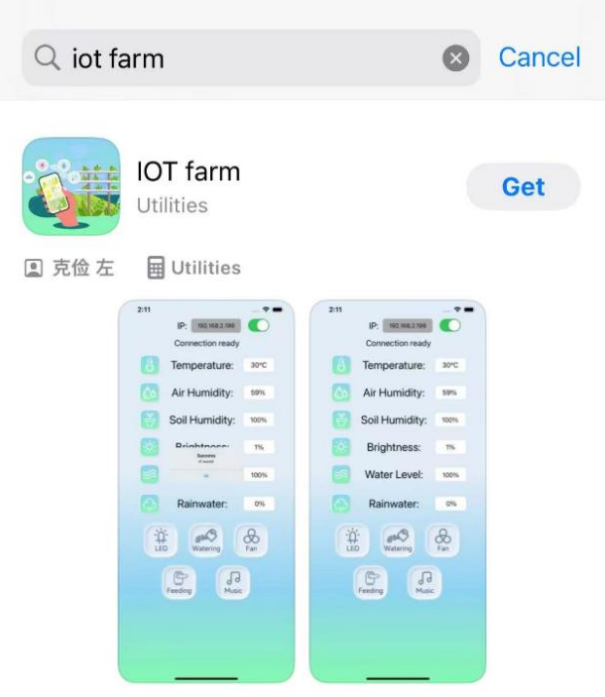
The home page of the APP

APP Function Description
After upload the code, connect the phone to the same WIFI as the ESP32, you only need to input IP address at upper-right conner to connect. Note: Requires 2.4 GHz WIFI, not 5G.

Displays the temperature value of the farm in real time.

Displays the air humidity value of the farm in real time.

Displays the soil humidity value of the farm in real time.

Displays the sun brightness value of the farm in real time.

Displays the water level of the farm in real time.

Displays the analog rainfall value of the farm in real time.

Control LED.

Control irrigation via water pump.

Control the fan to adjust temperature.

Control servo to open or close feeding box.

Control the buzzer to sound.
