Project 12: Bluetooth Wireless Communication
(1)Project Description:
Note: This lesson focuses on explaining how to upload code via Bluetooth using an app, so no code is provided. Please follow the steps in the animated gif.
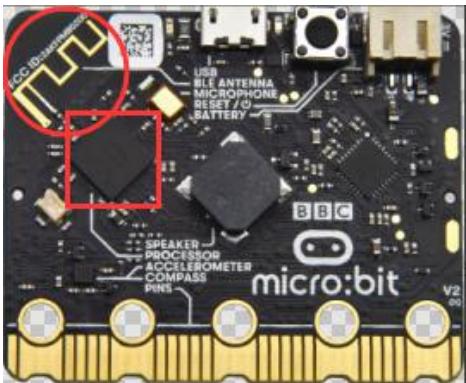
The Micro: Bit main board V2 comes with a nRF52833 processor (with a built- in BLE(Bluetooth Low Energy) device Bluetooth 5.1 ) and a 2.4GHz antenna for Bluetooth wireless communication and 2.4GHz wireless communication. With the help of them, the board is able to communicate with a variety of Bluetooth devices, including smart phones and tablets.
In this project, we mainly concentrate on the Bluetooth wireless communication function of this main board. Linked with Bluetooth, it can transmit code or signals. To this end, we should connect an Apple device (a phone or an iPad) to the board.
Since setting up Android phones to achieve wireless
transmission is similar to that of Apple devices, no need to illustrate again.
(2) Preparation
Attachment of Micro:bit main board V2 to your computer via the Micro USB cable.
An Apple device (a phone or an iPad) or an Android device;
(3) Install Micro:bit:
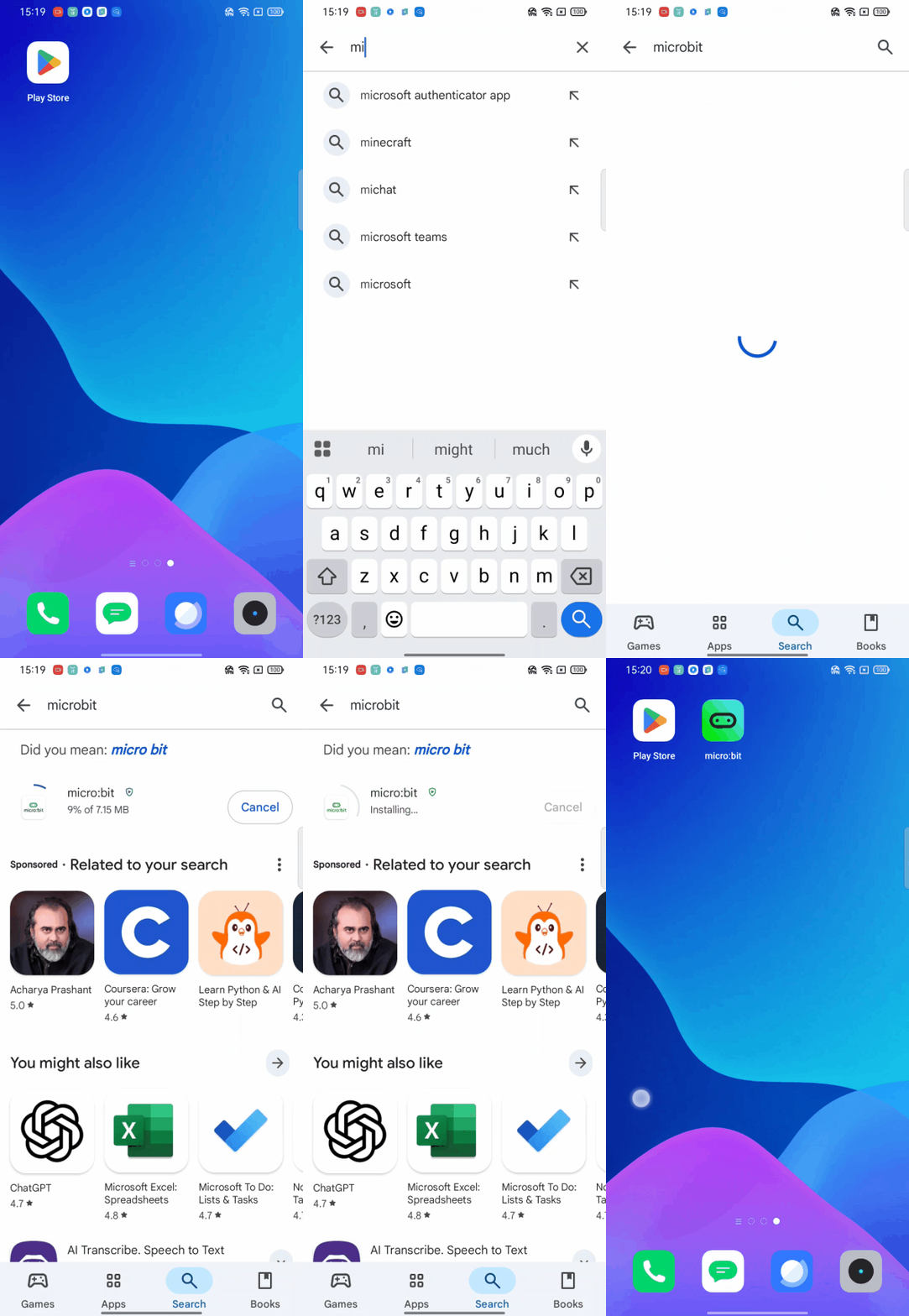
For Android
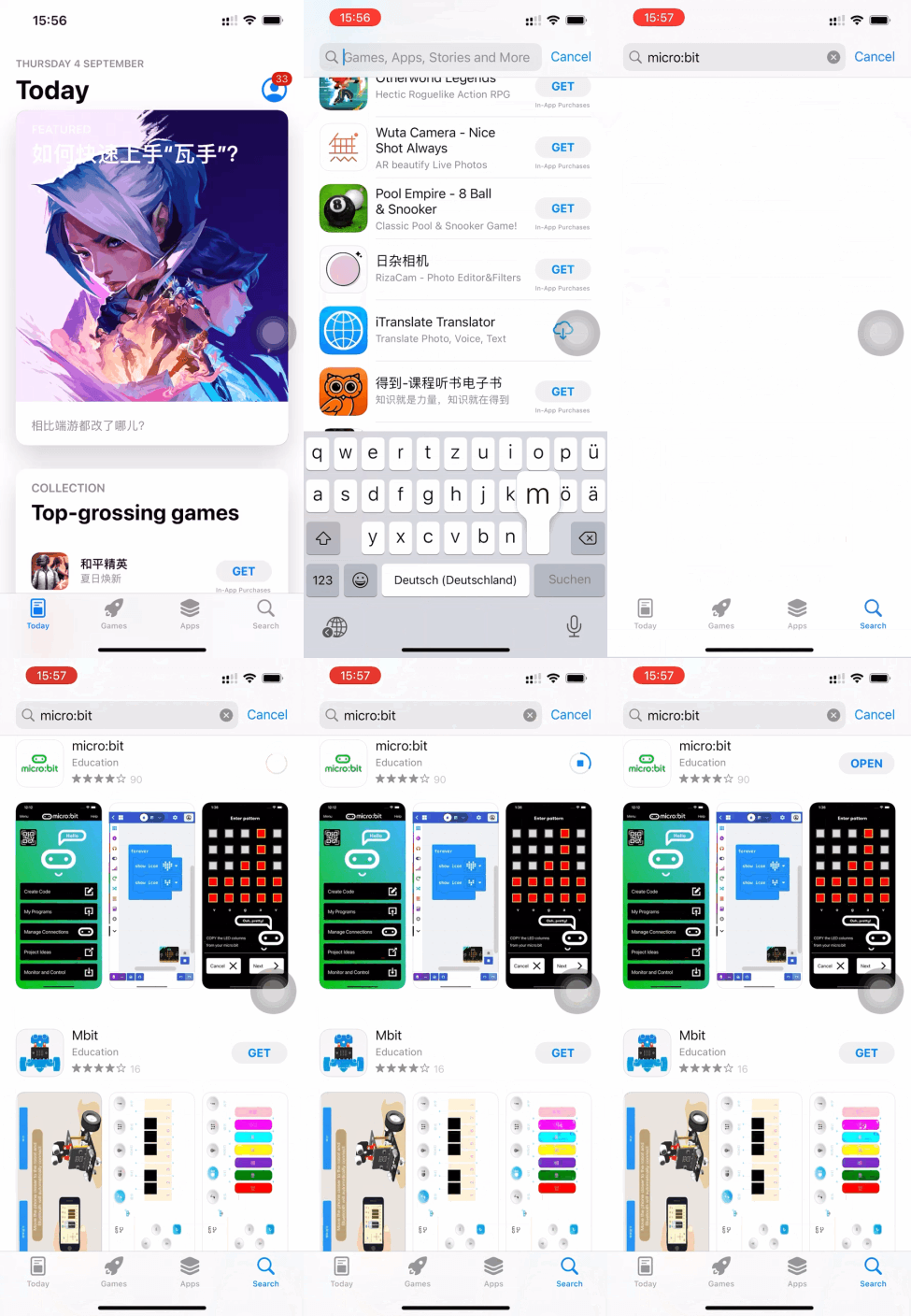
For ios
(4)Test Code :
Next, we’ll use our phones to write code and connect via Bluetooth (Note: The process is identical for both Android and iOS devices; this demonstration uses an Android phone).
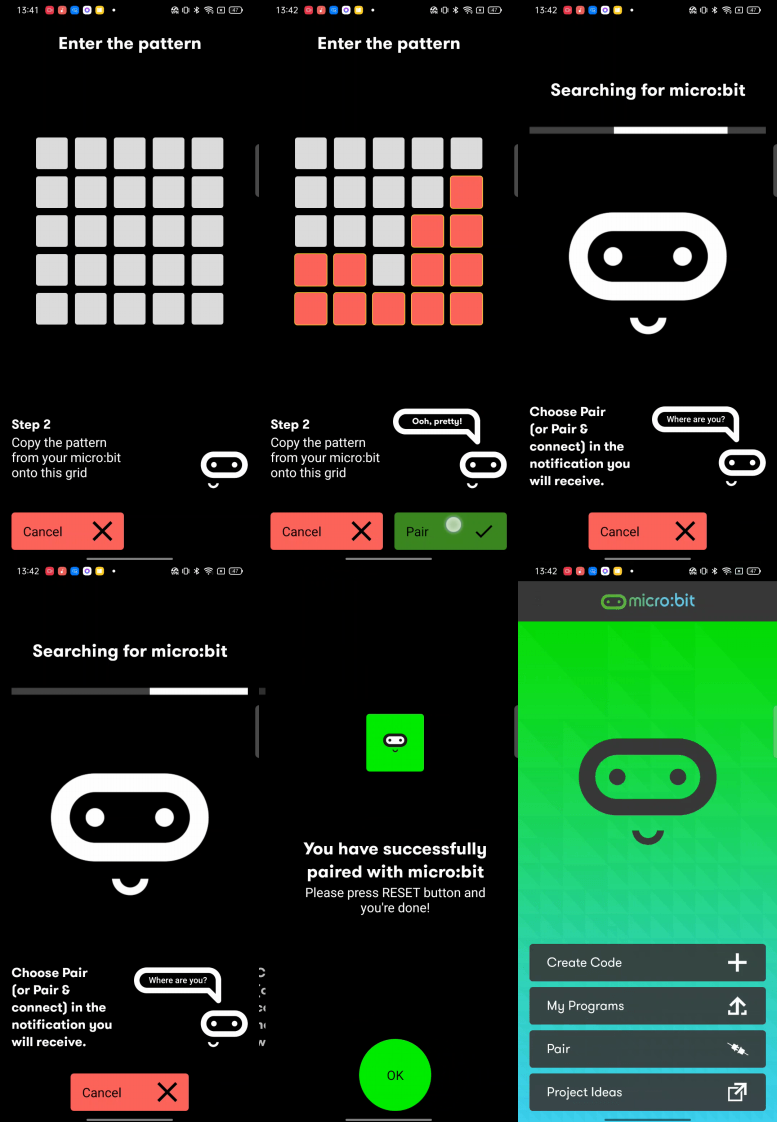
1、Open the software and connect to Bluetooth.
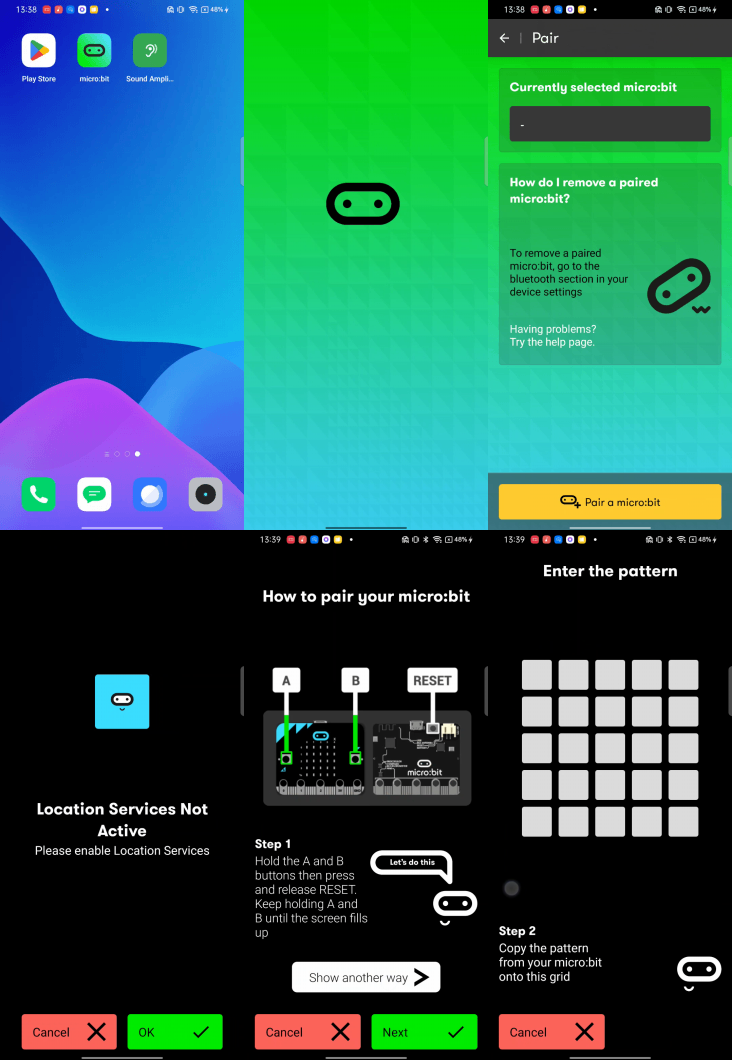
2、Press Microbit’s button A, button B, and the reset button on the back in sequence. The main board will then display an icon.
3、Enter the pattern displayed in step two into the phone interface.
Write code and upload
1、Enter the code programming interface and write a code.
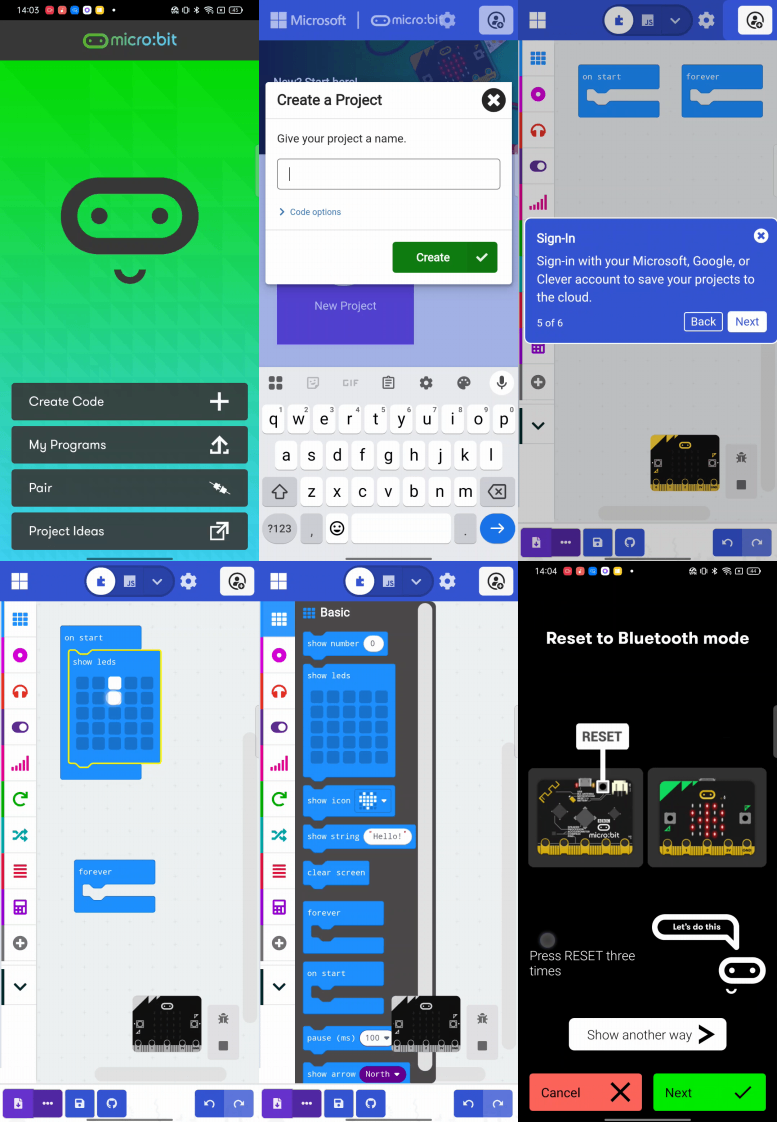
2、Press button A, button B, and the reset button in sequence. (Note: This procedure must be repeated each time code is uploaded via the app.)
3、After confirming that the Microbit icon matches the one displayed on your phone, simply click “Next.”
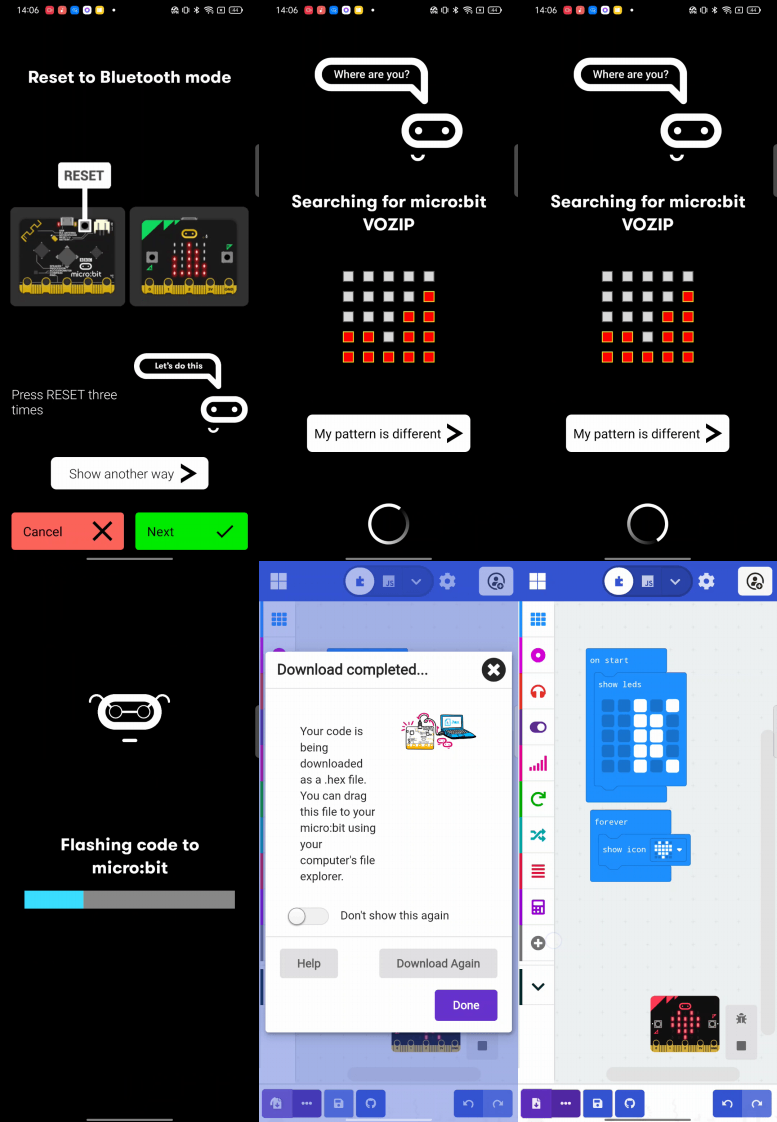
Finally, you can see the Microbit board displaying the pattern from the code.
Here, we have completed the process of uploading code to the phone. It is important to note:
To connect the phone to the Microbit board, press the A, B, and Reset buttons in sequence. The dot matrix display will then show a pattern, which should be entered into the phone.
The Microbit board can be powered via a USB cable or by supplying 3V to the board’s power input through a battery pack. Note: The voltage must not exceed 3V, as exceeding this limit will damage the board.