Project 15 Bluetooth Control Smart Car
1.Description
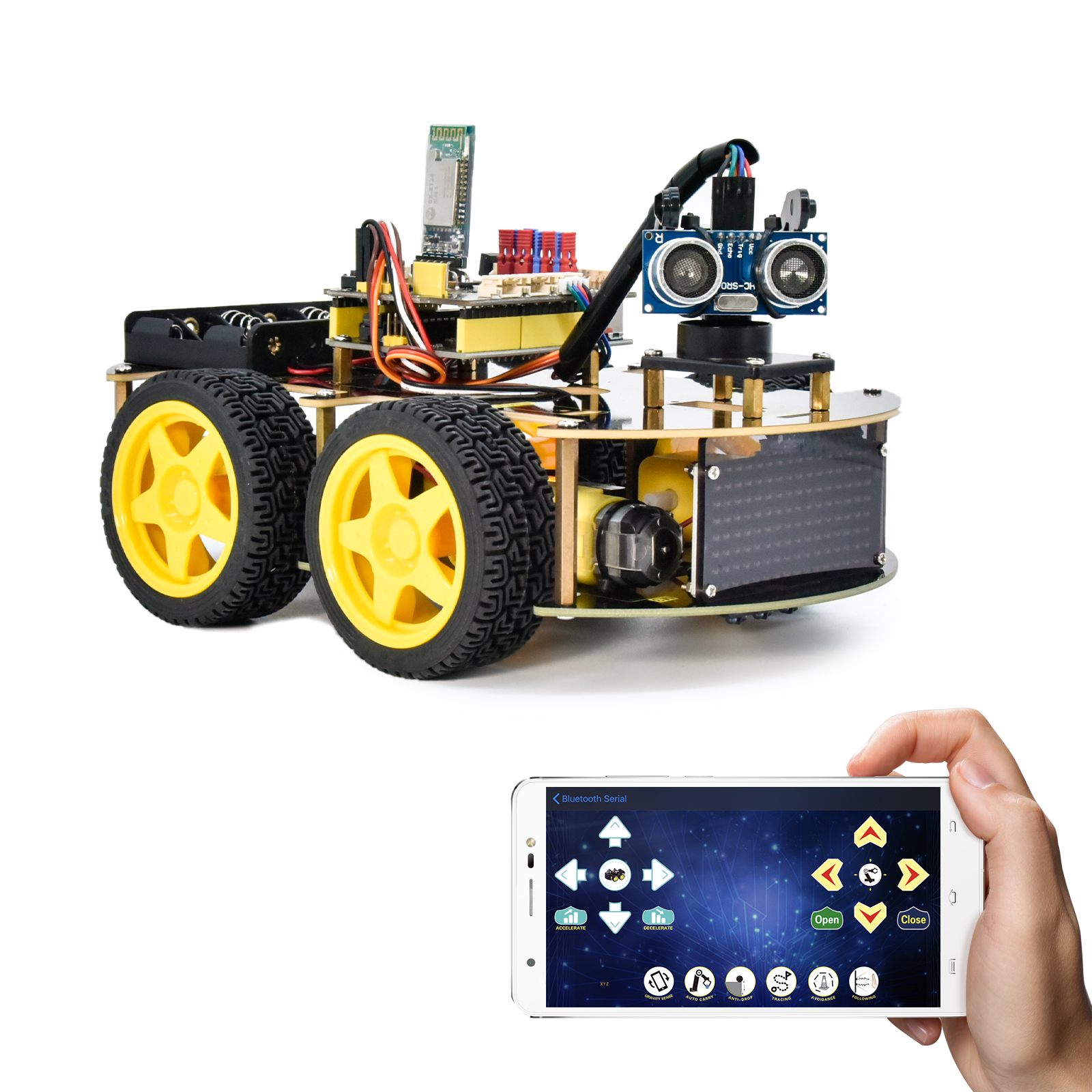
We’ve learned the basic knowledge of Bluetooth. And in this lesson, we will make a Bluetooth control smart car. In this project, we aim to regard the mobile phone as the transmitter (host), and the smart car connected to the BT24 Bluetooth module (slave) as the receiver and use the mobile APP to control the smart car via the Bluetooth.
2.APP Control Button
Key |
Function |
|---|---|
|
Pair DX-BT24 5.1 Bluetooth module |
|
Disconnect Bluetooth |


Control character |
Function |
|
|---|---|---|
|
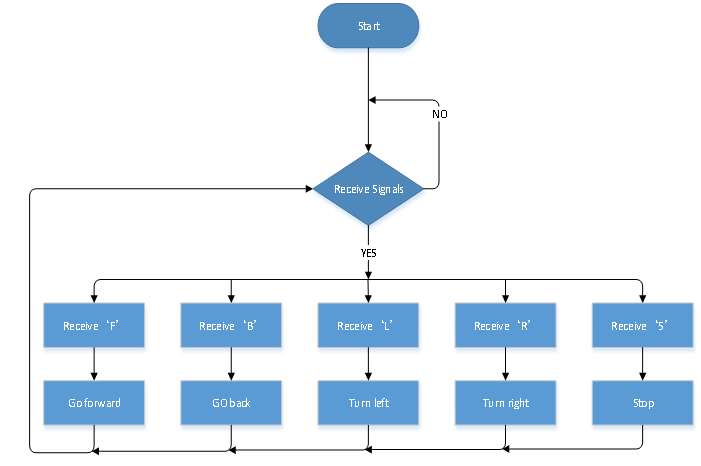
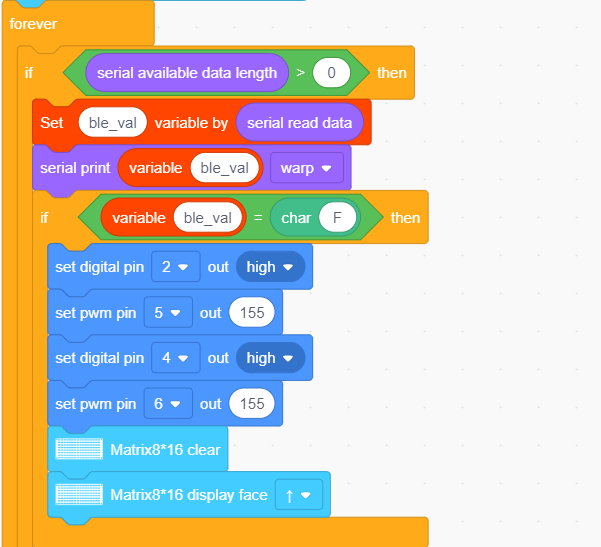
Press: F |
Press the button, the car goes front; |
|
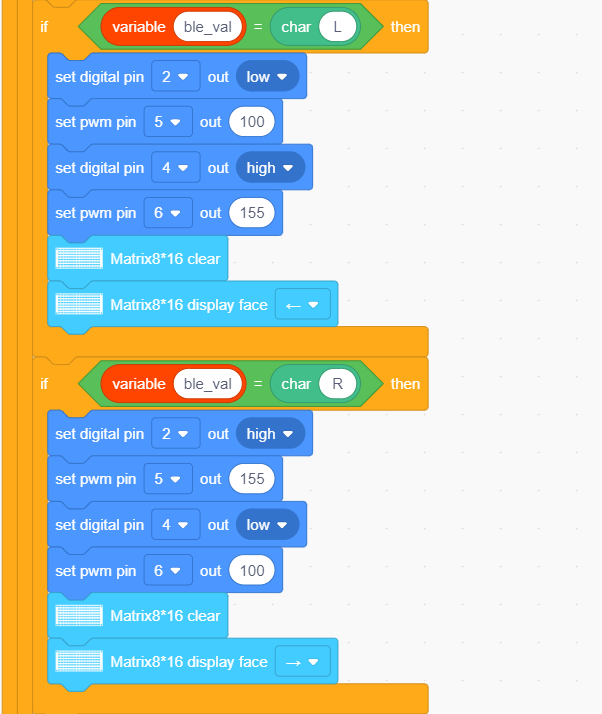
Press: L |
Press the button, the car turns left; |
|
Press: R |
Press the button, the car turns right; |
|
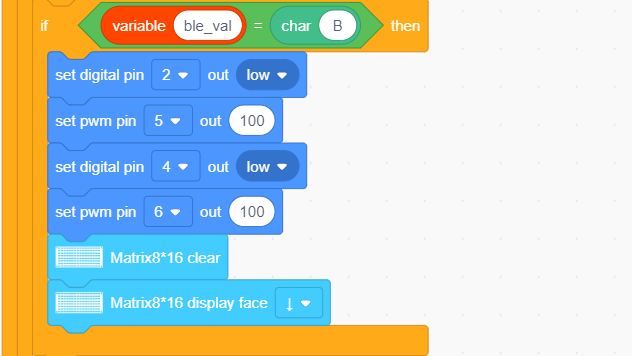
Press: B |
Press the button, the car goes back; |
|
Press: “a” |
Click to speed up(maximum:255) |
|
Press: “d” |
Click to slow down(minimum:0) |
|
Click to start the gravity |
|
|
Click to send“X”, |
Start line tracking function; |
|
Click to send“Y”, |
Start ultrasonic avoiding function; |
|
Click to send“U”, |
Start ultrasonic follow function; |
|
Click to send“G”, |
Start restricting function; |


3.Flow Chart
4.Wiring Diagram
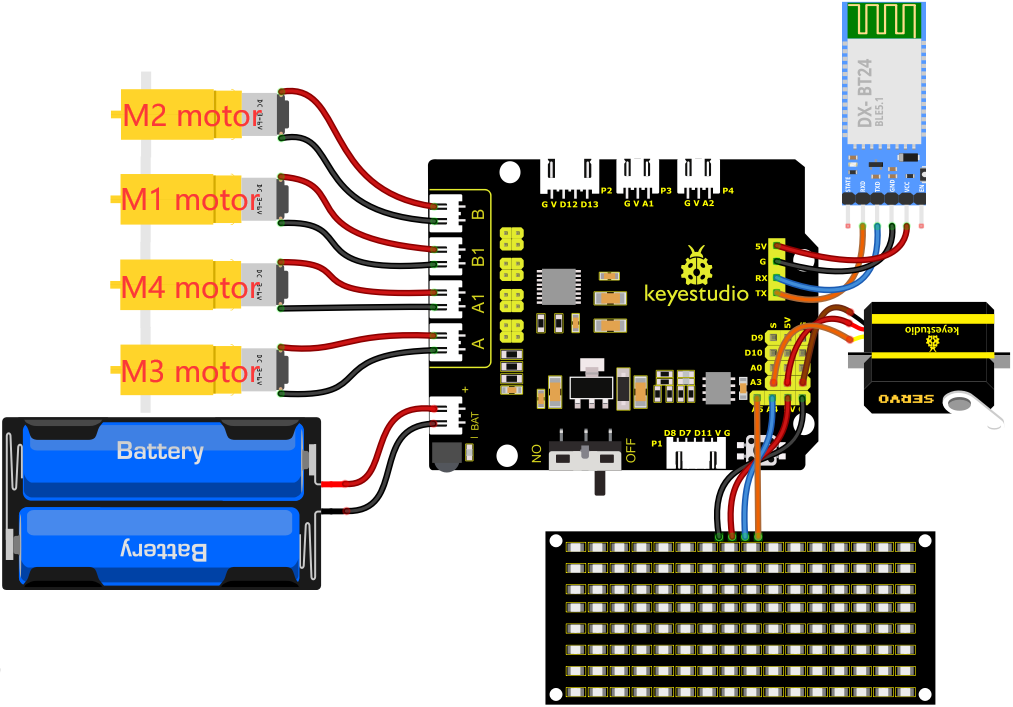
1). GND, VCC, SDA and SCL of the 8*8 LED board are connected to G(GND), V(VCC), A4 and A5 of the expansion board.
2). The RXD, TXD, GND and VCC of the Bluetooth module are respectively connected to TX, RX, G and 5V on the 8833 motor driver expansion board, while the STATE and BRK pins of the Bluetooth module do not need to be connected.
3). The servo is connected to G, V and A3. The brown wire is interfaced with Gnd(G), the red wire is interfaced with 5V(V) and the orange wire is interfaced with A3.
4). The power is connected to the BAT port
5.Test Code
Before writing the code, it is necessary to import the library files of the 8x16 LED board and the servo. The specific steps are as follows:
Click  to enter the extension library interface of sensors/modules/components, then search for“Matrix 8*16 Aip1640”module
 and click it. In this way, “Not loaded” changes to “loaded”, indicating that the“Matrix 8*16 Aip1640”module was added successfully.
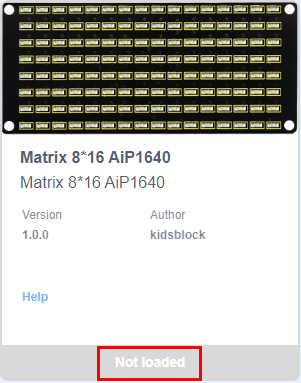
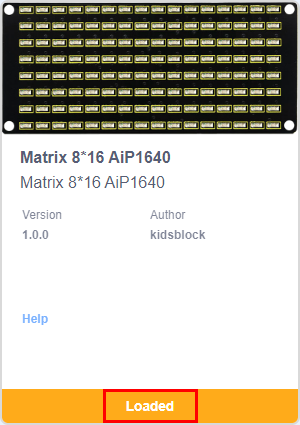
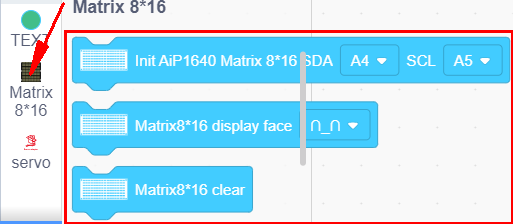
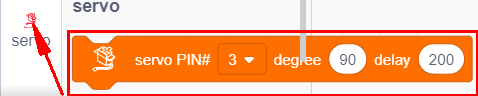
Click  to return to the code editor interface, the instruction block of the added“Matrix 8*16 Aip1640”module and “Servo”component can be seen in the module area.
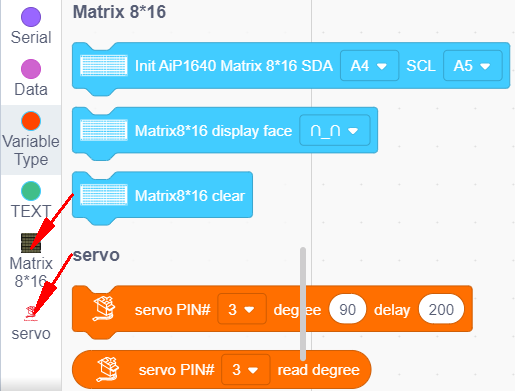
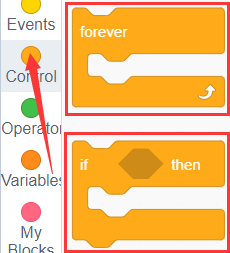
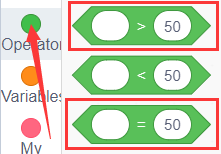
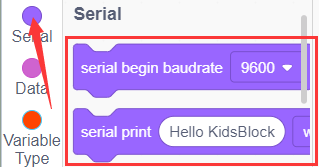
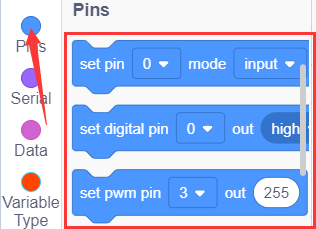
You can drag blocks to edit. Blocks listed below are for your reference.
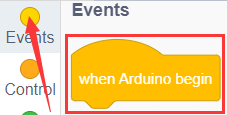
(1).
(2).
(3).
(4).
(5).
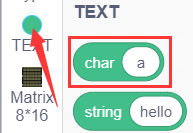
(6).
(7).
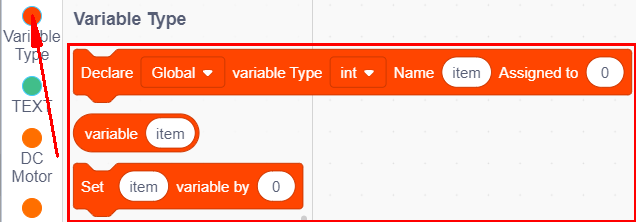
(8).
(9).
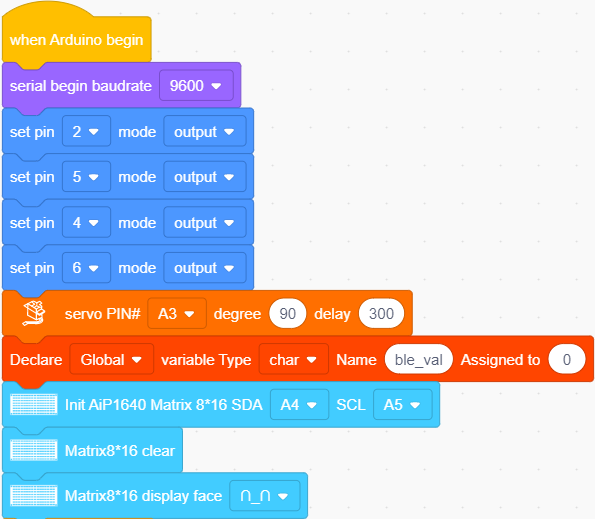
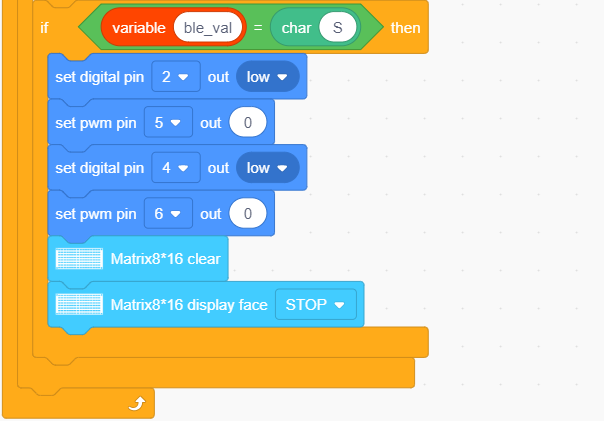
Complete Test Code
Note: Before uploading the test code, you need to remove the Bluetooth module, otherwise the code will fail to be uploaded.Connect the Bluetooth module after uploading the code successfully.
6.Test Result
After successfully uploading the code to the V4.0 board, connect the wirings according to the wiring diagram, power on the external power then turn the DIP switch to ON.
Inset the BT module and open your cellphone to connect the Bluetooth to control the smart car. The can will move forward, backward, turn left and right and stop. Also the 8*8 LED board will show the corresponding patterns.