Project 5:Temperature Detection
1. Description
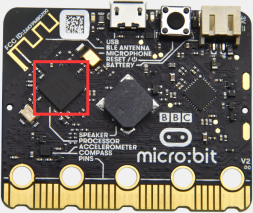
The Micro:bit main board is not equipped with a temperature sensor, but uses the built-in temperature sensor in NFR52833 chip for temperature detection. Therefore, the detected temperature is more closer to the temperature of the chip, and there maybe deviation from the ambient temperature.
In this project, we will seek to use the sensor to test the temperature in the current environment, and display the test results in the display data (device). And then control the LED dot matrix to display different patterns by setting the temperature range detected by the sensor.
Note: the temperature sensor of Micro:bit main board is shown below:
2. Preparation
A. Attach the micro:bit main board to your computer via the USB cable
B. Open the offline version of Mu.
3. Test Code1
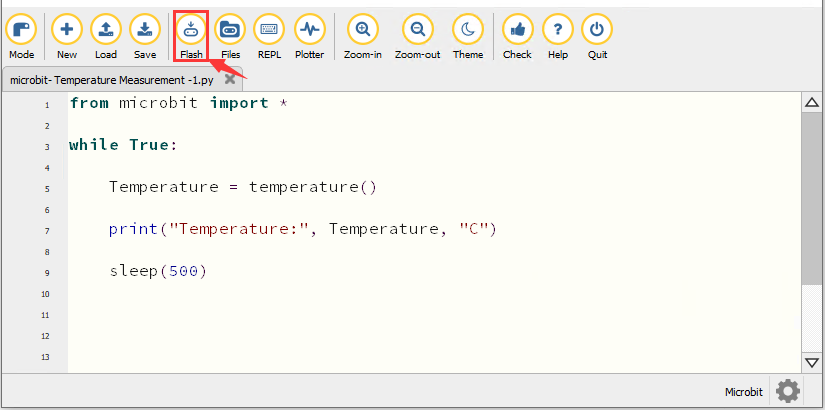
Enter Mu software and open the file“Temperature Measurement -1.py “ to import code. You can also input code in the editing window yourself.
(Note: All words and symbols must be written in English.)
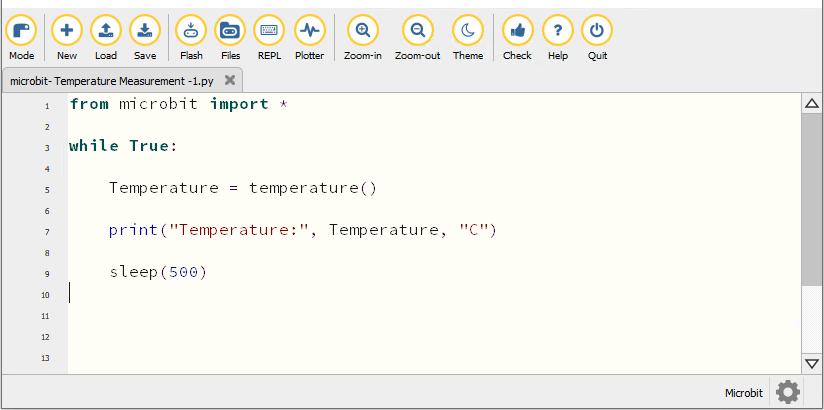
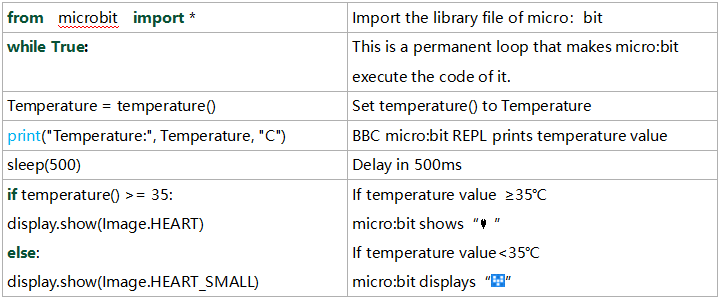
from microbit import *

while True:

    Temperature = temperature()

    print("Temperature:", Temperature, "C")

    sleep(500)
Click“Check”to examine error in the code. The program proves wrong if underlines and cursors are shown.
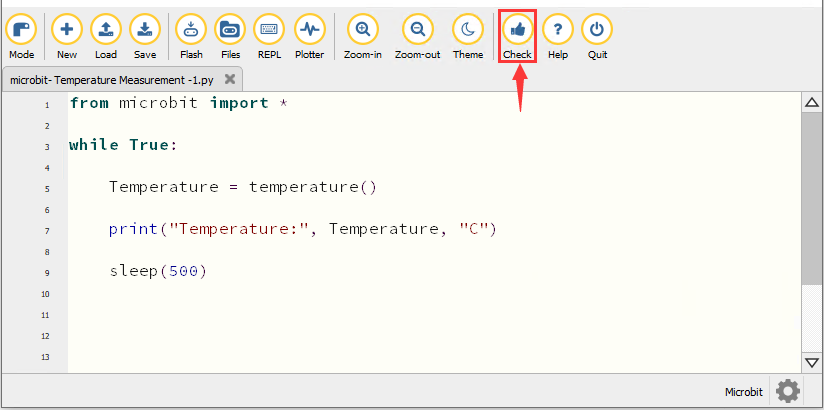
If the code is correct, connect micro:bit to computer and click“Flash”to download code to micro:bit board.
4. Test Result1
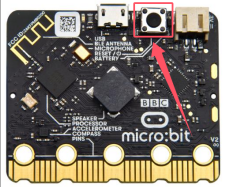
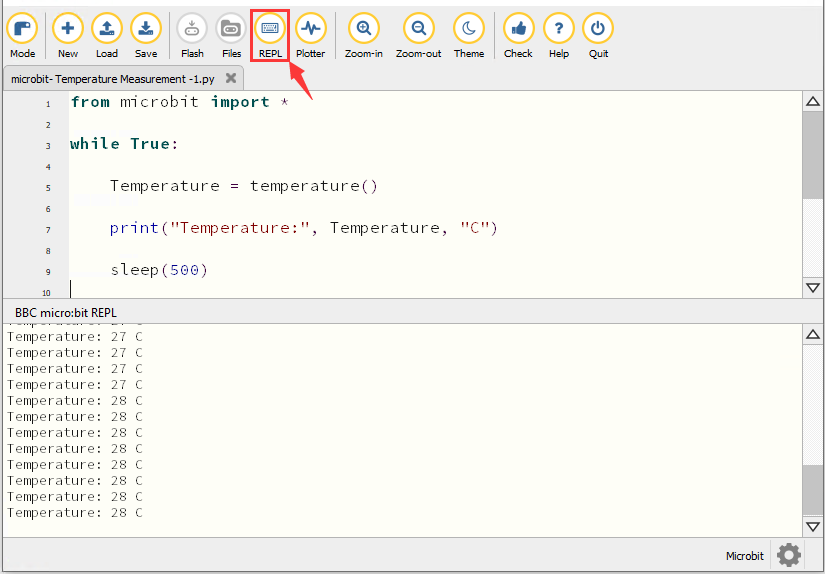
After downloading the code to the board successfully, power on via micro USB cable or external power supply(turn the DIP switch to ON). Click“REPL”and press the reset button on micro:bit.
Then REPL window will show the ambient temperature value, as shown below: (C stands for temperature unit)
5. Test Code2
Enter Mu software and open the file“Temperature Measurement -2.py “ to import code. You can also input code in the editing window yourself.
(Note: All words and symbols must be written in English.)
The temperature value can be set in compliance with the rea emperature.
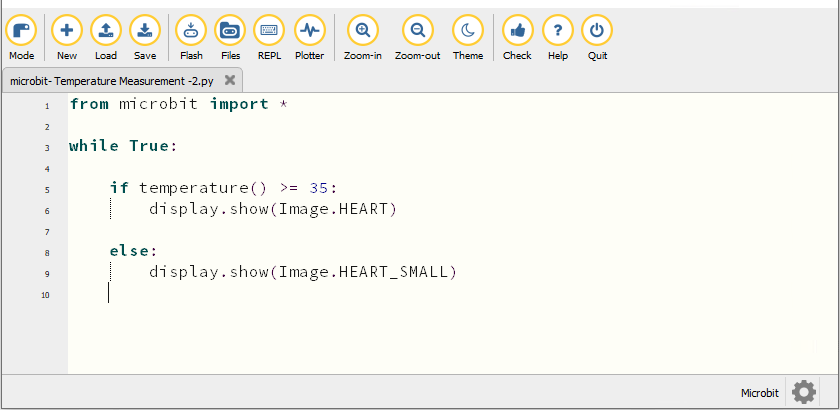
from microbit import *

while True:

    if temperature() >= 35:
        display.show(Image.HEART)

    else:
        display.show(Image.HEART_SMALL)
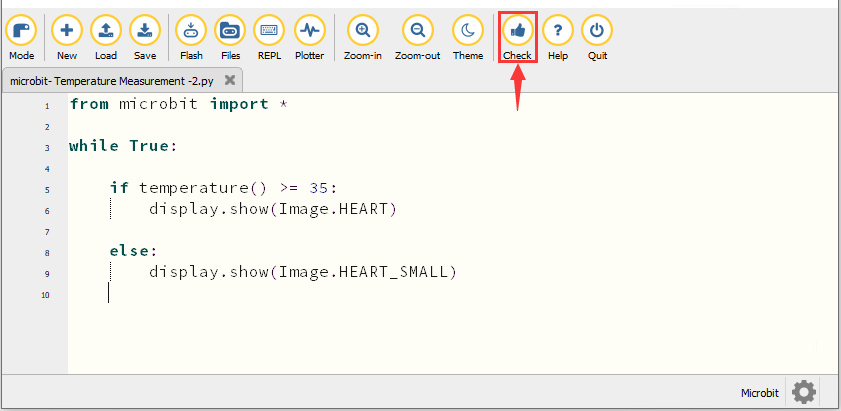
Click“Check”to examine error in the code. The program proves wrong if underlines and cursors are shown.
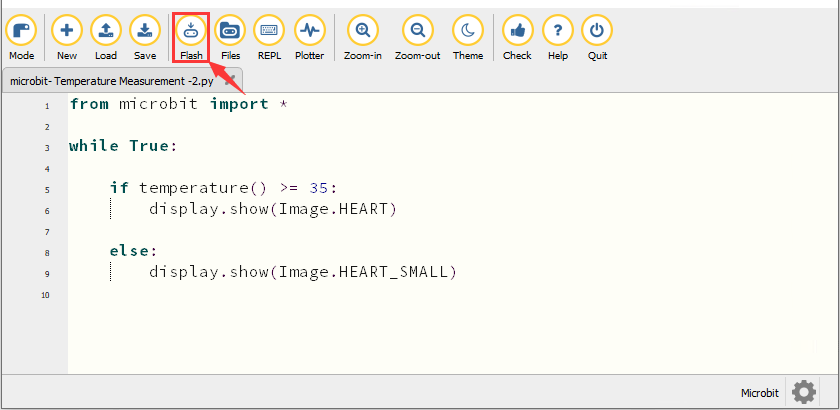
If the code is correct, connect the micro:bit to the computer and click“Flash”to download the code to the micro:bit board.
6. Test Result2
After downloading the code to the board successfully, power on via micro USB cable or external power supply(turn the DIP switch to ON), and press the reset button on micro:bit.
When the ambient temperature is less than 35℃, the 5*5 LED dot matrix shows 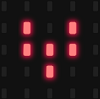 . When the temperature is equivalent to or greater than 35℃, the pattern
  appears.
7. Code Explanation