2. Scratch Tutorial
2.1 Data download
Scratch information contains project ,please click to download for follow-up study.
Data download: Data download
2.2 Software installation of Windows System
Download kidsblock: https://xiazai.keyesrobot.cn/KidsBlock.exe
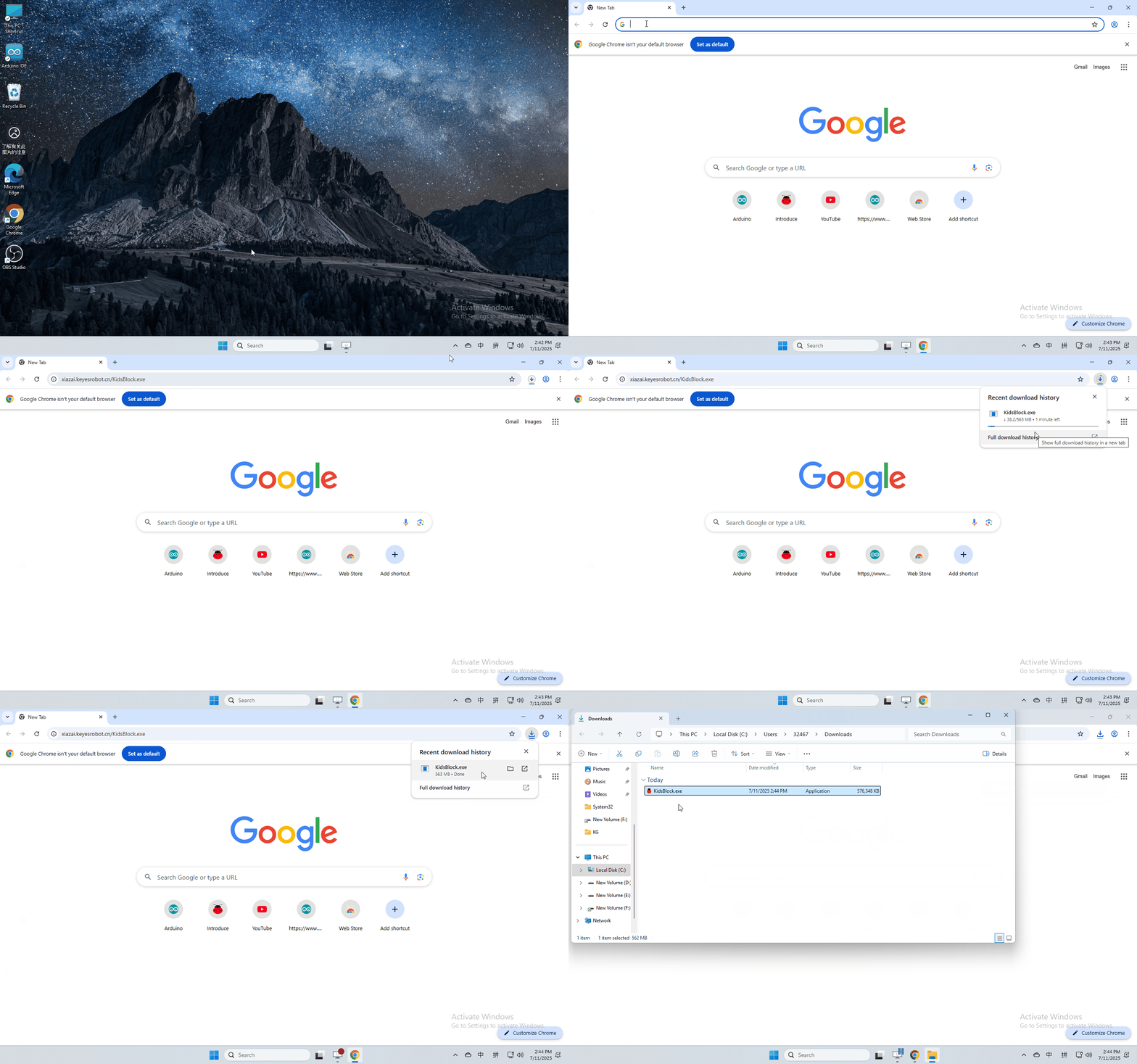
software installation
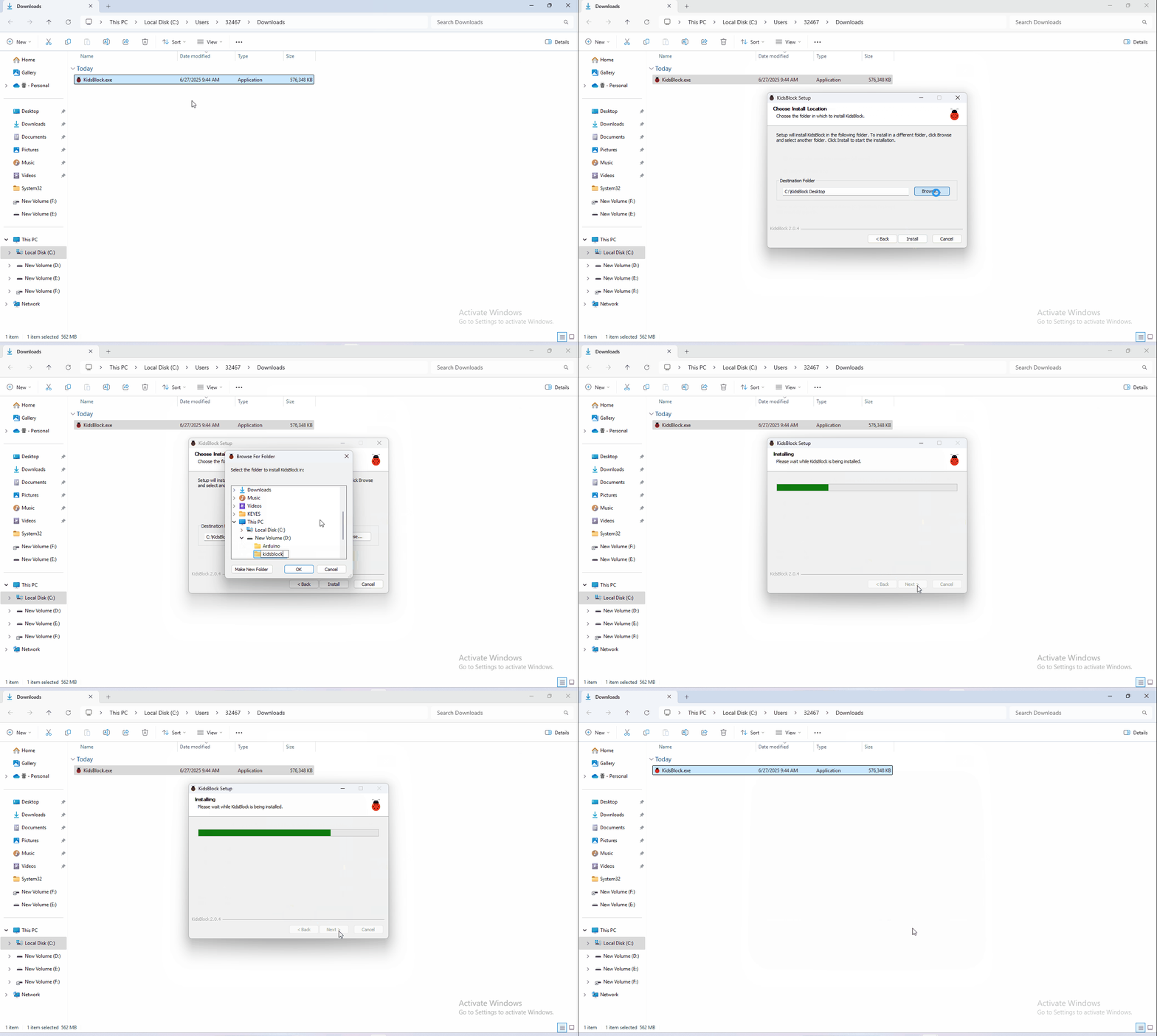
2.3 Software installation of Mac System
Download kidsblock: https://xiazai.keyesrobot.cn/KidsBlock.dmg
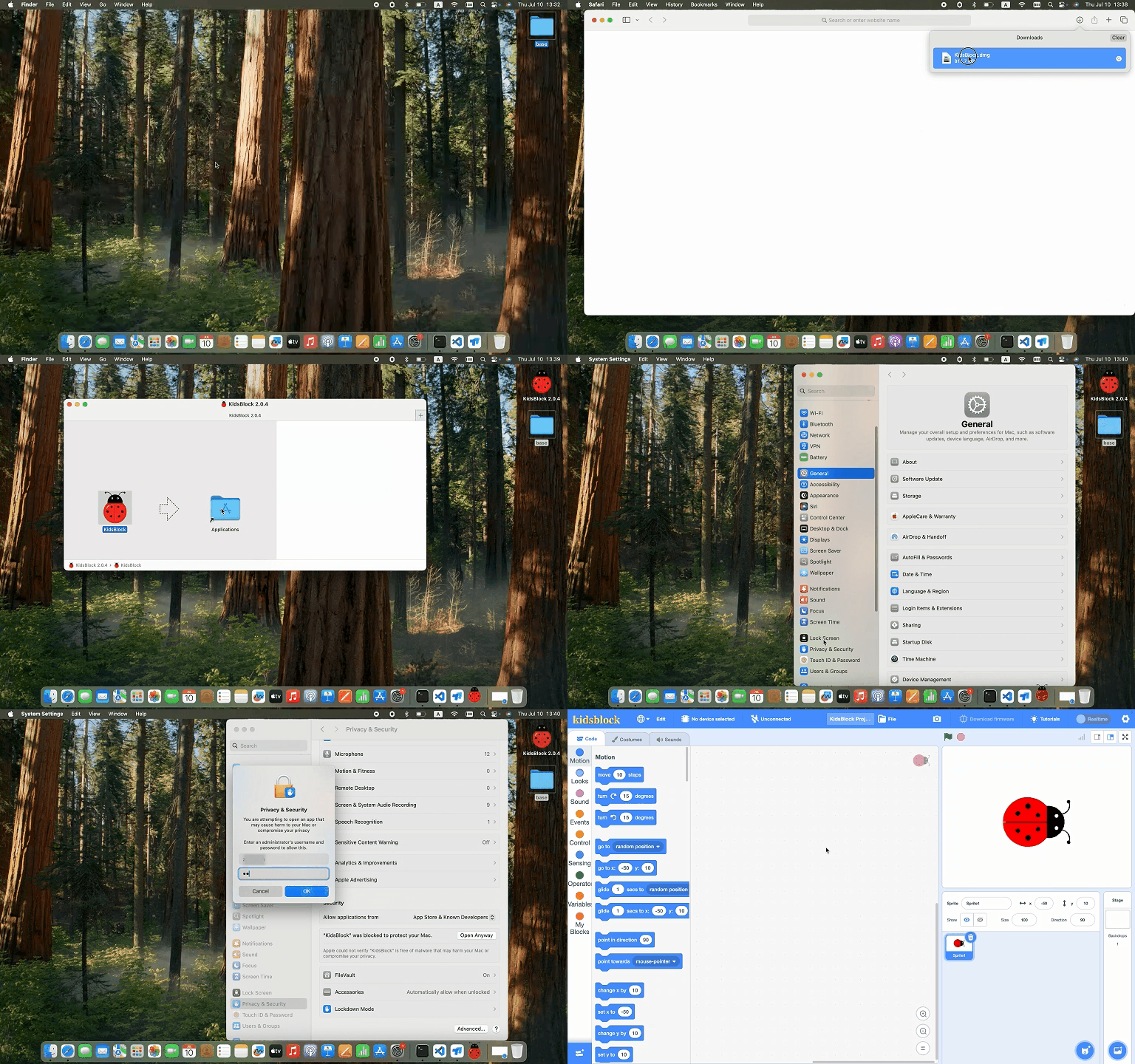
2.4 Use KidsBlock
1、operating software
First connect the development board to the computer,
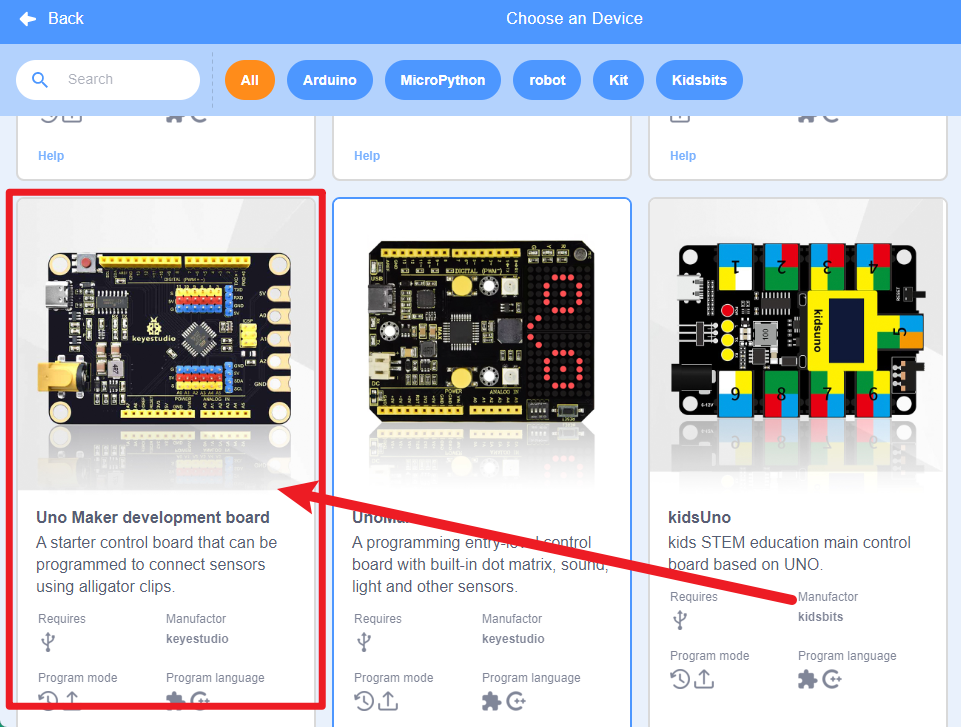
Click to enter the main page, select the control board
needed. In this project, we select the Maker mainboard and click
“Connect”.
to enter the main page, select the control board
needed. In this project, we select the Maker mainboard and click
“Connect”.
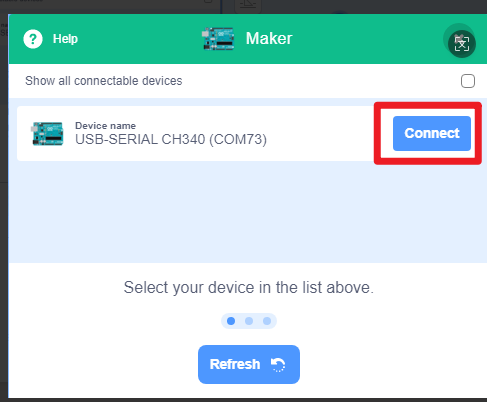
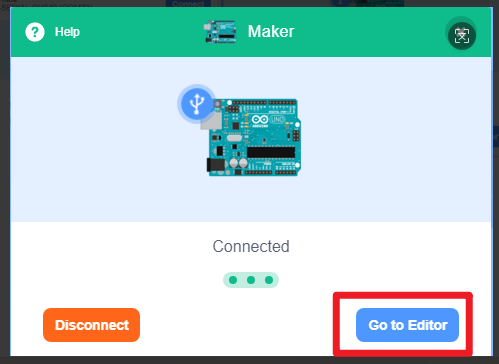
2、Click “Go to Editor” to return the code editor. Icon will
change into
will
change into and
and  will change into
  .This
means the Maker mainboard and ports(COM)are connected.
.This
means the Maker mainboard and ports(COM)are connected.
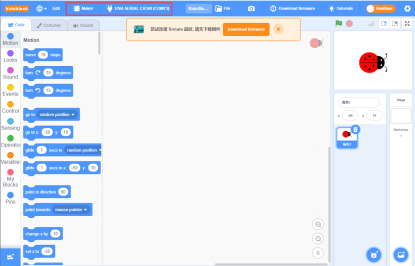
3、Click“Download fimware”to download the firmware
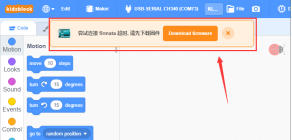
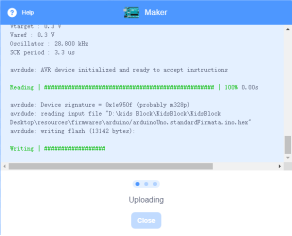
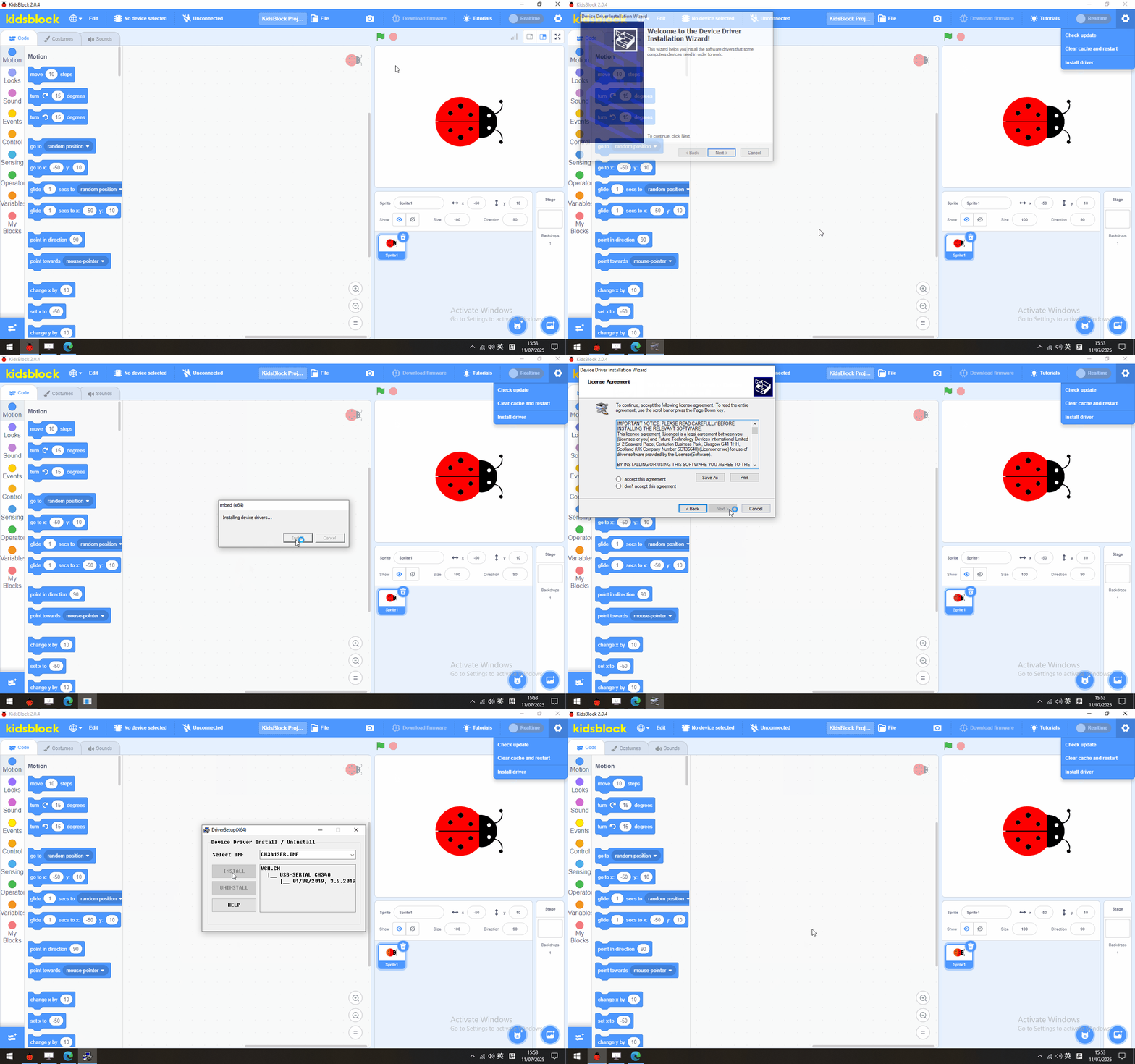
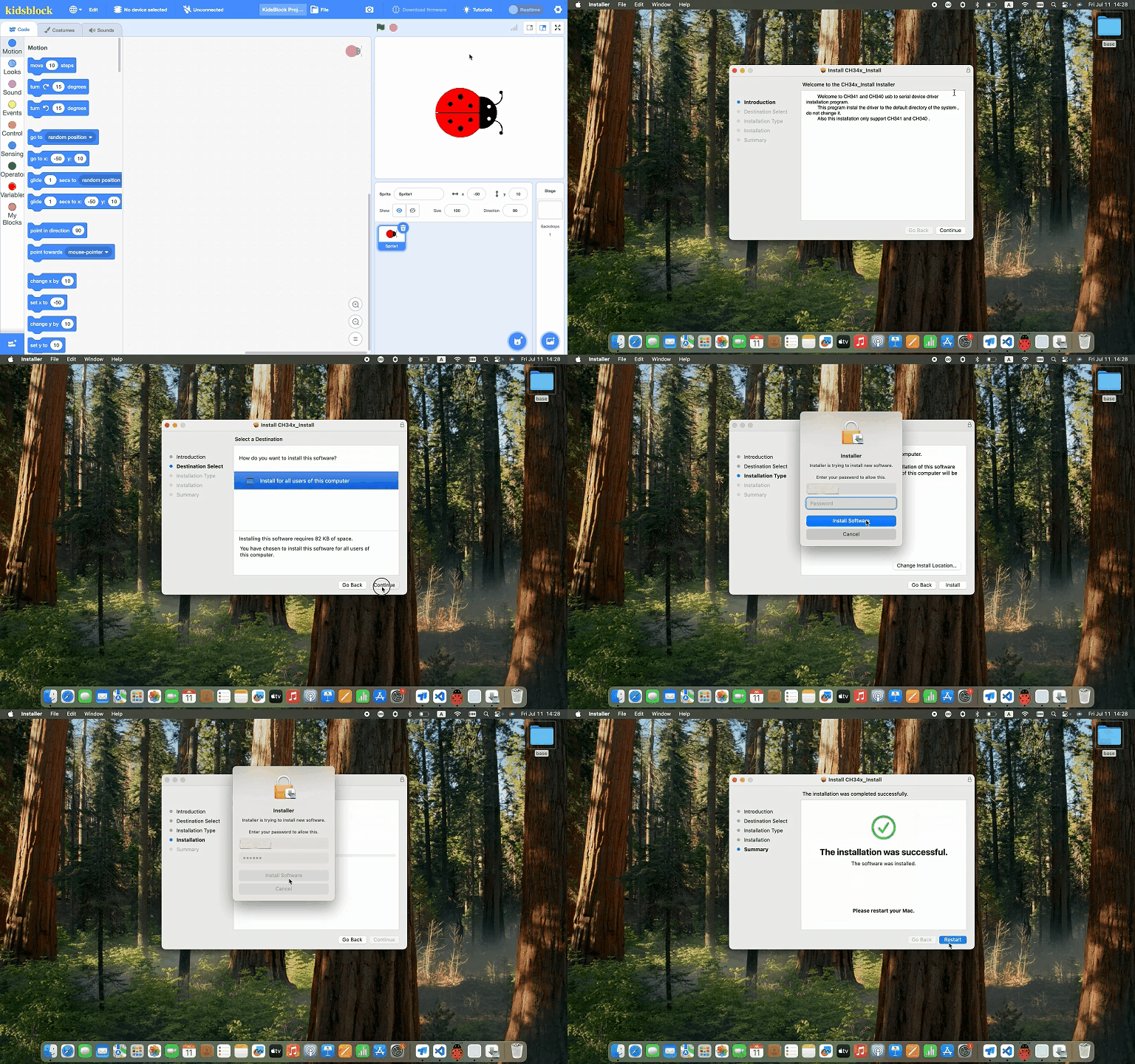
4、If you are unable to upload the code, please refer to the following tutorial to install the driver (optional reading)
Install driver(Windows)
Install driver(MAC)
Note: If your development board is not the driver of CH340, there will be a prompt of CH340 failure as shown in the picture, please close the interface directly and upload the code.
2.5 Project
- Project 1 Cat Lights Up LED
- Project 2 Change In A Dragon
- Project 3 Walk Along the Tightrope
- Project 4 Nano goes to school
- Project 5 Blow Windmills
- Project 6 Light Up Stars
- Project 7 A Frightened Butterfly
- Project 8 A Dimmable Table Lamp
- Project 9 Traffic Light
- Project 10 Intelligent Doorbell
- Project 11 Intelligent Corridor Light
- Project 12 A Flying Balloon
- Project 13 Soil Humidity Detection
- Project 14 Magnetic Field Generates Current
- Project 15 Catch Bananas