プロジェクト32 ESP32 WiFiでLEDを制御
1. 説明
次に、携帯電話やパソコンのWiFiを通じてLEDを制御する方法を学びます。
注意事項:
2.4GHz帯のWiFiを準備してください。5GHz帯は使用できません。モバイルホットスポットやルーターでも構いません。
ESP32ボードはネットワーク接続時に消費電力が増えるため、外部電源を接続する必要があります。本キットには6本の単三電池ホルダー(電池は含まれていません)を付属しており、ESP32統合ボードのDCポートに接続できます。
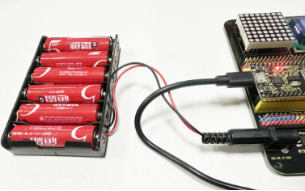

他のデバイスで本キットを制御する場合、ESP32ボードは制御デバイスと同じネットワークに接続されている必要があります。
WiFiのネットワーク名とパスワードを覚えておき、コードにアップロード前に入力してください。
const char* ssid = "your_SSID"; // WiFi名を入力してください。例: "KEYES"
const char* password = "your_password"; // WiFiパスワードを入力してください。例: "123456"
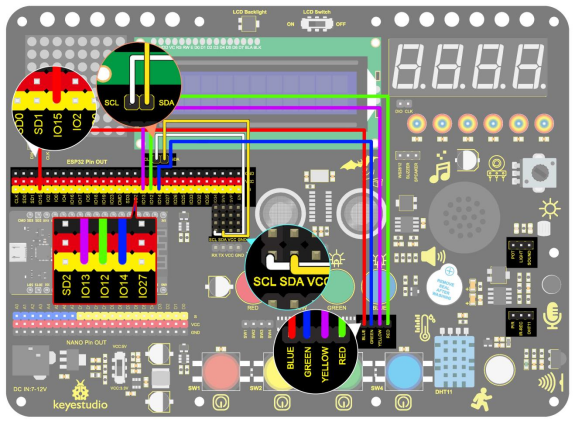
2. 配線図
3. コードのアップロード
#include <WiFi.h>
#include <ESPAsyncWebServer.h>
#include <LiquidCrystal_I2C.h>

LiquidCrystal_I2C lcd(0x27, 16, 2);

// WiFi設定
const char* ssid = "your-SSID";    // WiFi名
const char* password = "your-PASSWORD";  // WiFiパスワード

// Webサーバー作成
AsyncWebServer server(80);

// LEDピン設定
#define redLED 12
#define yellowLED 13
#define greenLED 14
#define blueLED 15

// LED状態
bool redLEDState = false;
bool yellowLEDState = false;
bool greenLEDState = false;
bool blueLEDState = false;
int i = 0;

// HTMLページ生成
String generateHTML()
{
  String html = "<html><head><style>";
  html += "button { font-size: 30px; padding: 15px; margin: 10px; border: none; cursor: pointer; width: 200px; height: 100px; }";
  html += "button.on { background-color: #4CAF50; color: white; }";   // LEDオンの色
  html += "button.off { background-color: #f44336; color: white; }";  // LEDオフの色
  html += "</style></head><body>";

  // 定数StringをStringオブジェクトに変換して連結
  html += "<button id='btn0' class='" + String(redLEDState ? "on" : "off") + "' onclick='toggleLed(0)'>red LED</button>";
  html += "<button id='btn1' class='" + String(yellowLEDState ? "on" : "off") + "' onclick='toggleLed(1)'>yellow LED</button>";
  html += "<button id='btn2' class='" + String(greenLEDState ? "on" : "off") + "' onclick='toggleLed(2)'>green LED</button>";
  html += "<button id='btn3' class='" + String(blueLEDState ? "on" : "off") + "' onclick='toggleLed(3)'>blue LED</button>";

  html += "<script>";
  html += "function toggleLed(led) {";
  html += "  var xhr = new XMLHttpRequest();";
  html += "  xhr.open('GET', '/toggle?led=' + led, true);";
  html += "  xhr.send();";
  html += "  var button = document.getElementById('btn' + led);";
  html += "  if (button.classList.contains('off')) {";
  html += "    button.classList.remove('off');";
  html += "    button.classList.add('on');";
  html += "  } else {";
  html += "    button.classList.remove('on');";
  html += "    button.classList.add('off');";
  html += "  }";
  html += "}";
  html += "</script></body></html>";
  return html;
}

void setup()
{
  // シリアルポート初期化
  Serial.begin(115200);

  // LEDピンを出力に設定
  pinMode(redLED, OUTPUT);
  pinMode(yellowLED, OUTPUT);
  pinMode(greenLED, OUTPUT);
  pinMode(blueLED, OUTPUT);
  digitalWrite(redLED, LOW);  // 初期状態は全LEDオフ
  digitalWrite(yellowLED, LOW);
  digitalWrite(greenLED, LOW);
  digitalWrite(blueLED, LOW);

  lcd.init();  // LCD初期化
  // WiFiネットワークに接続開始
  lcd.backlight();
  lcd.setCursor(0, 0);
  lcd.print("IP:");

  // WiFi接続
  WiFi.begin(ssid, password);
  while (WiFi.status() != WL_CONNECTED) {
    lcd.setCursor(i, 1);
    lcd.print(".");
    delay(500);
    i++;
    if (i > 15) {
      i = 0;
      lcd.setCursor(0, 1);
      lcd.print("                ");
    }
  }
  lcd.setCursor(0, 1);
  lcd.print("                ");
  lcd.setCursor(0, 1);
  lcd.print(WiFi.localIP());

  // クライアントリクエスト処理
  server.on("/", HTTP_GET, [](AsyncWebServerRequest* request) {
    request->send(200, "text/html", generateHTML());  // HTMLページを返す
  });

  // LED状態制御
  server.on("/toggle", HTTP_GET, [](AsyncWebServerRequest* request) {
    if (request->hasParam("led")) {
      int led = request->getParam("led")->value().toInt();
      if (led == 0) {
        redLEDState = !redLEDState;
        digitalWrite(redLED, redLEDState ? HIGH : LOW);
      } else if (led == 1) {
        yellowLEDState = !yellowLEDState;
        digitalWrite(yellowLED, yellowLEDState ? HIGH : LOW);
      } else if (led == 2) {
        greenLEDState = !greenLEDState;
        digitalWrite(greenLED, greenLEDState ? HIGH : LOW);
      } else if (led == 3) {
        blueLEDState = !blueLEDState;
        digitalWrite(blueLED, blueLEDState ? HIGH : LOW);
      }
    }
    request->send(200, "text/plain", "OK");  // 応答を返す
  });

  // Webサーバー開始
  server.begin();
}

void loop()
{
  // loop()内での処理は不要。すべて非同期Webサーバーが処理する
}
4. 動作確認
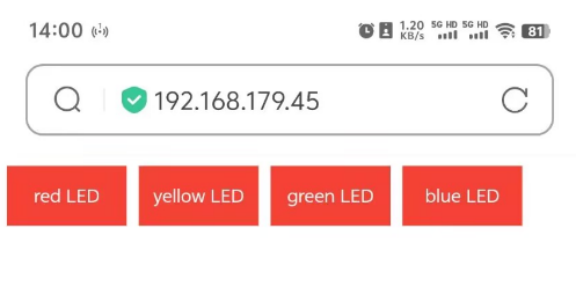
コードをアップロード後、LCD1602にWiFiのIPアドレスが表示されます。ESP32ボードと同じネットワークに接続されたパソコンや携帯電話でブラウザを開き、IPアドレスを入力すると制御ページが表示されます。