Project 14: RGB Flashes
1. Overview
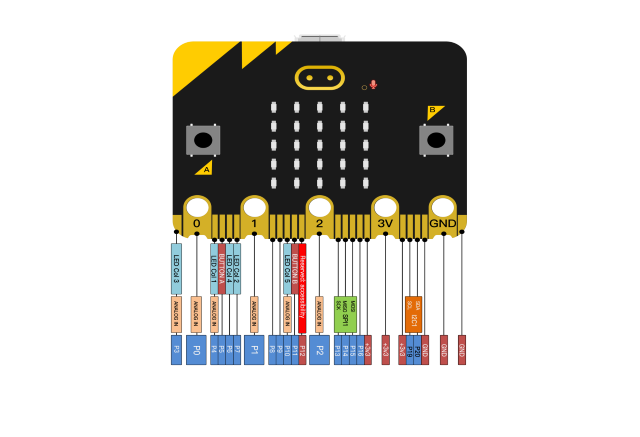
The light breath experiment is a little bit similar to the previous project. This time we connect the keyestudio LED module to the main board. Connect the Signal pin of LED module to P0 of micro:bit. From the Pinout diagram of micro:bit, you can get the P0 can be used as Analog Pin.
This lesson you will learn how to control the brightness of LED on the module, gradually becoming brighter and dimming, just like the LED is breathing.
2.Components Required:
Micro:bit main board*1
Keyestudio Micro bit Sensor V2 Shield*1
USB Cable*1
keyestudio Digital LED Module*1
Alligator Clip Cable*3
3.Component Introduction:
About Keyestudio Micro: bit Honeycomb Digital LED Module
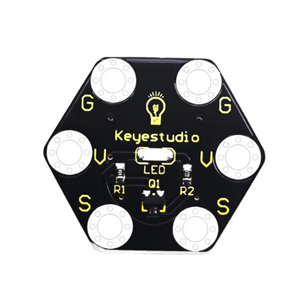
Keyestudio micro bit honeycomb digital LED module is fully compatible with the micro:bit.
In the experiment, we connect it with the micro: bit by a crocodile clip. This module contains 6 connectors: G, G, V, V, S and S.
G is GND, V is VCC, and S is the signal end of the module. Moreover, the red LED of the module can simulate breathing effect by controlling the PWM output of S end.
4.Technical Parameters
Working voltage: DC 3.0-5V
Working current: 60mA
Maximum power: 300mW
Working temperature: -25 ℃ ~-65 ℃
Size: 30mm * 27mm * 5mm
Weight: 2.0g
LED color: red
Environmental attributes: ROHS
5.Connection Diagram
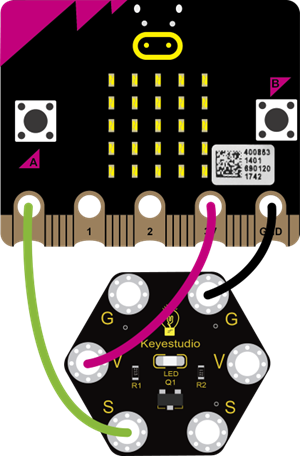
Connect the keyestudio Digital LED Module to micro:bit main board with 3 Alligator clip cables. Ring S to P0, V to 3V, G to GND. Connect the micro:bit to your computer with a micro USB cable.
5.Coding
So now let’s move to coding. Let us see how to code the RGB LED to flash. Below are some steps to follow.
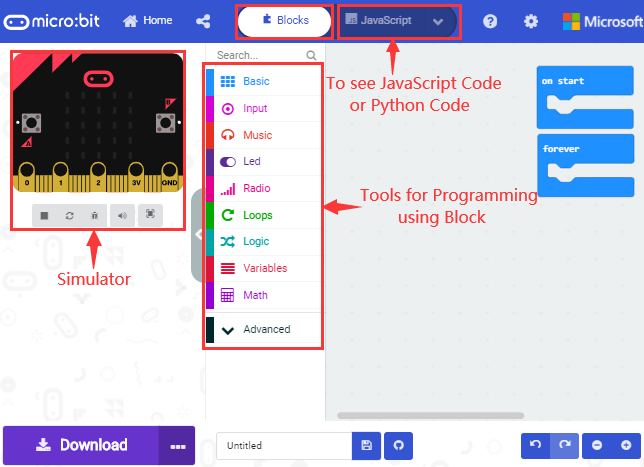
Open the https://makecode.micro:bit.org/#editor to write your code.
Microsoft MakeCode is actually a platform that allows us to code for a micro:bit, and also provides an interactive simulator where we can debug and run our code, and will be able to see what to expect out right there on the site.
Go to MakeCode and choose My Projects and click on New Projects.
If you want to see the codes behind, then you can click on JavaScript and it will display JavaScript code there in IDE.
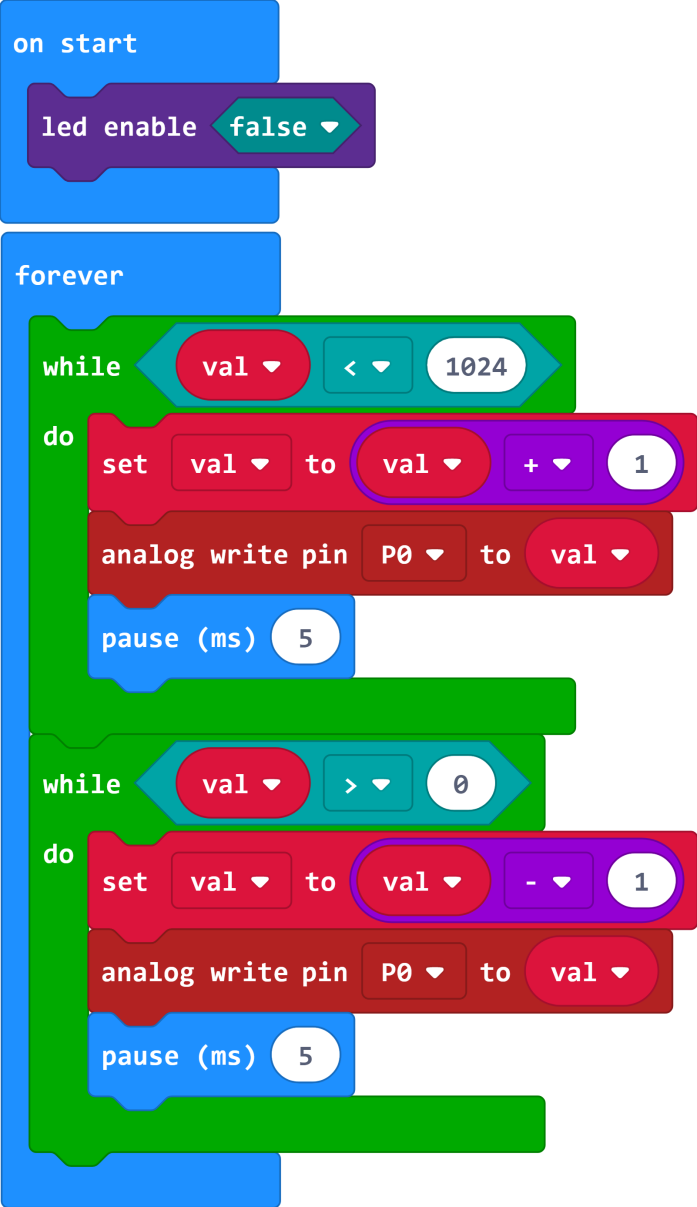
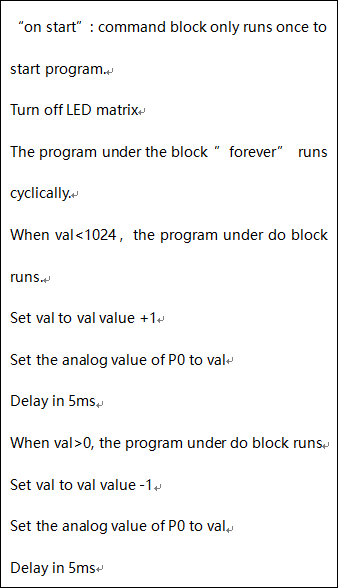
6.The following test code is for your reference:
7.Test Results
Done wiring and powered up, send the code to micro:bit, you should finally see an LED on the module gradually become brighter, then gradually dim, circularly just like the LED is breathing.