Project 18 Play Music
1.Overview
In this project, you will learn how to play music with keyestudio passive buzzer module. We are going to conduct two experiments.
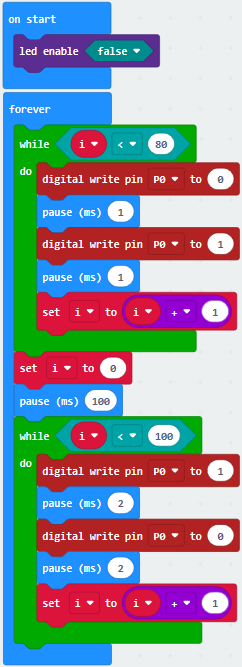
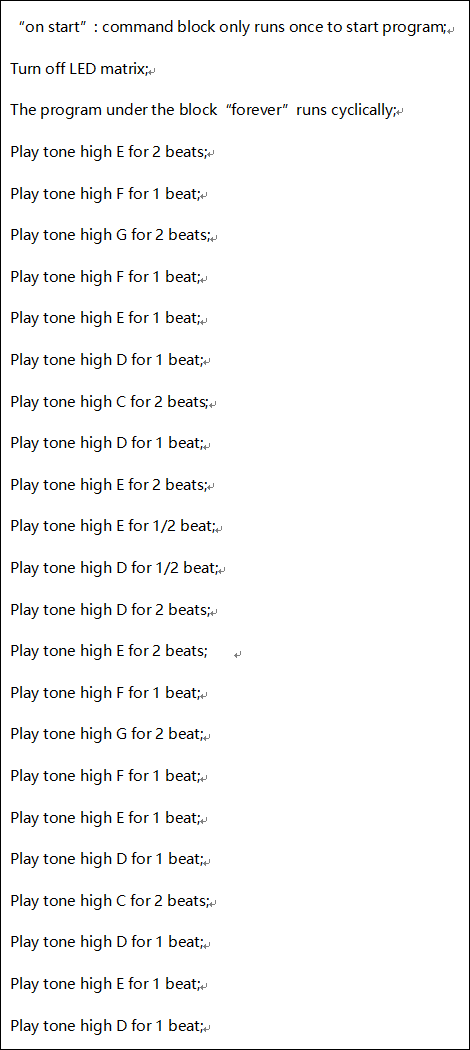
One is to directly control the High and Low level input of micro:bit P0 end through setting two square waves so as to control the sound of the buzzer. The other is to leverage the function of the software itself, inputting the square waves of different frequencies and different lengths on the P0 end. Finally make the buzzer module play the song “Ode to Joy”.
(The input PIO port can only be P0, can not be other interfaces).
2.Components Required
Micro:bit Main Board*1
USB Cable*1
keyestudio Passive Buzzer Module*1
Alligator Clip Cable*3
3.Component Introduction
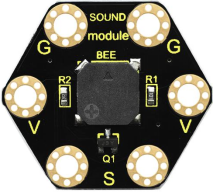
About Passive Buzzer Module:
This keyestudio passive buzzer is fully compatible with micro:bit control board. It is mainly composed of a passive buzzer without oscillation circuit. It cannot be actuated by itself, but by external pulse frequencies.
Different frequencies produce different sounds. Even can code the melody of a song.
There are total 6 rings on the module. Note that two G rings, two V rings and two S rings are connected. G for ground; V for 3V; S for signal pin(0 1 2).
When using, connect the module to micro:bit control board using alligator clip lines.
4.Technical Parameters
Working voltage: DC 3.0-3.3V
Output signal: Digital signal (square wave)
Dimensions: 31mm*27mm*4.5mm
Weight: 2.3g
Environmental attributes: ROHS
5.Connection Diagram
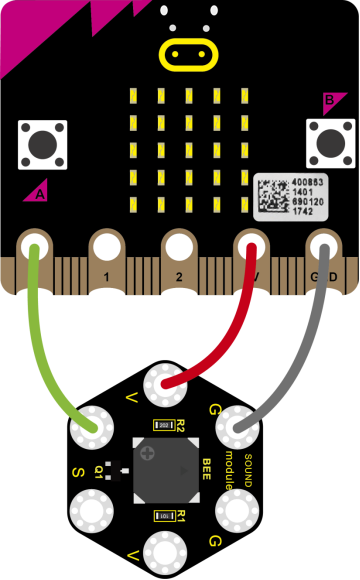
Connect the keyestudio Passive Buzzer Module to micro:bit main board with 4 alligator clip cables. Ring S to P0, V to 3V, G to GND. And then interface the board with your computer.
6.Coding
So now let’s move to coding. Below are some steps to follow.
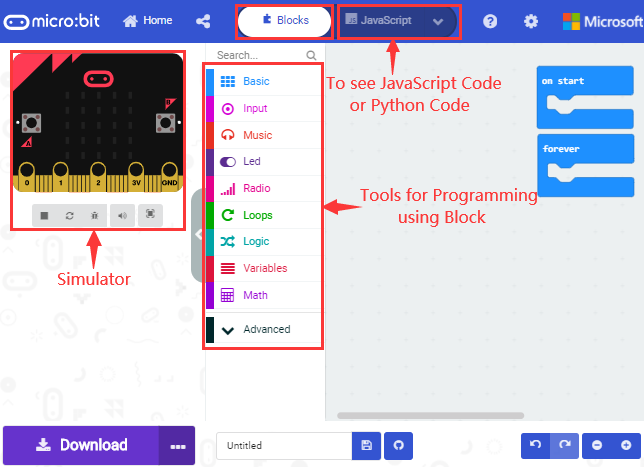
Open the https://makecode.micro:bit.org/#editor to write your code.
Microsoft MakeCode is actually a platform that allows us to code for a micro:bit, and also provides an interactive simulator where we can debug and run our code, and will be able to see what to expect out right there on the site.
Go to MakeCode and choose My Projects and click on New Projects.
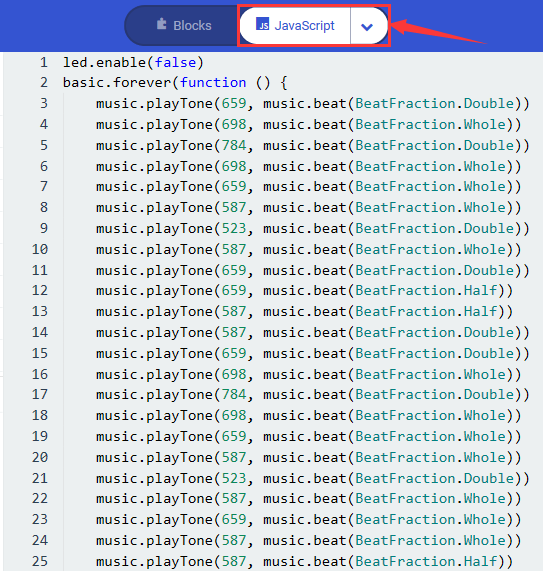
If you want to see the codes behind, then you can click on JavaScript and it will display JavaScript code there in IDE.
7.The following 2 sets of code are for your reference
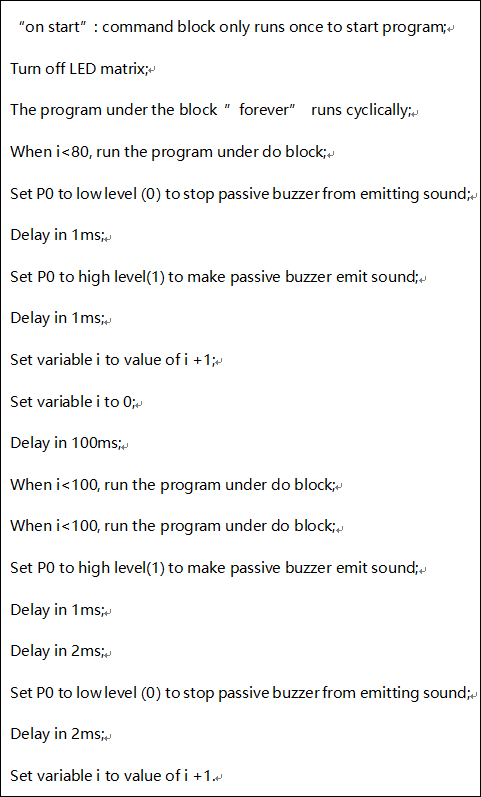
Code 1:
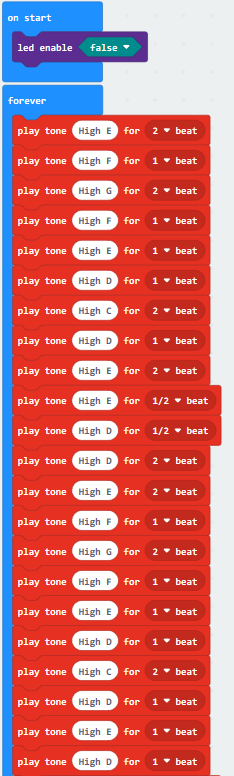
Code 2:
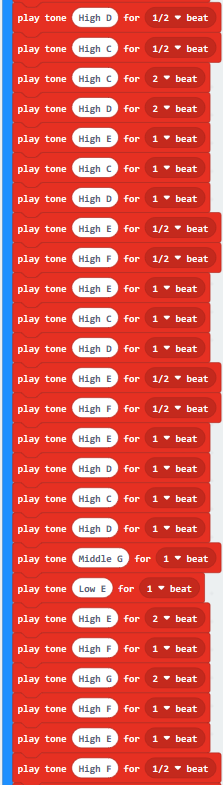
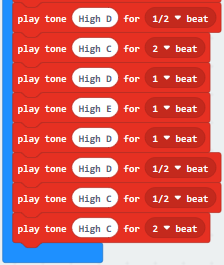
Note: on the MakeCode Block webpage, click the icon ,you can see the frequency of each tone as follows.
8.Test Results
Done wiring and powered up, send the code 1 to micro:bit, you should hear two sounds produced from passive buzzer circularly. If send the code 2 to micro:bit, the buzzer will play the song Ode To Joy! Really amazing. Right? You can try to change the tone to play other music.