Micro:bit Starter Kit

KS4011 Keyestudio Micro:bit Honeycomb Smart Wearable Programmable Ultimate Kit

  • 1. Product introduction
  • 2. Install Microbit Driver
  • 3. Getting Started with Micro:bit
    • 3.1 Resource download
    • 3.2 Write code and program
    • 3.3 Makecode
    • 3.4 Quick Download
    • 3.5 Input test code
    • 3.6 CoolTerm Installation
    • 3.7 Projects
      • Project 1 Heartbeat
      • Project 2 Light A Single LED
      • Project 3 LED Dot Matrix
      • Project 4 Programmable Buttons
      • Project 5 Temperature Detection
      • Project 6 Geomagnetic Sensor
      • Project 7 Accelerometer
      • Project 8: Light Detection
      • Project 9 Speaker
      • Project 10: Touch-sensitive Logo
      • Project 11 Microphone
      • Project 12 Bluetooth Wireless Communication
      • Project 13 LED Flashes
      • Project 14: RGB Flashes
      • Project 15 Blink and Breath
      • Project 16 Traffic Light
      • Project 17 RGB
      • Project 18 Play Music
      • Project 19 Use Button to Control LED
      • Project 20 Use Tilt Sensor to Control LED
      • Project 21 Magnetic Detection
      • Project 22 Capacitive Touch
      • Project 23 Someone Comes
      • Project 24 Light Brightness
      • Project 25 Hear Footsteps
      • Project 26 Ambient Light
      • Project 27 Rotary Potentiometer
      • Project 28 Joystick
      • Project 29 Self Watering System for Your Plants
      • Project 30: Color Sensor
      • Project 31 Use Button to Control Buzzer and RGB
      • Project 32 Make A Tone
  • 4. Troubleshooting
Micro:bit Starter Kit
  • 3. Getting Started with Micro:bit
  • Project 15 Blink and Breath
  • View page source

Project 15 Blink and Breath

1. Overview

In this project, we combine the project 13 and project 14. You will learn how to control the LED on the module blink for twice, then breath for twice, circularly.

2.Components Required

  • Micro:bit main board*1

  • Keyestudio Micro bit Sensor V2 Shield*1

  • USB Cable*1

  • Keyestudio Digital LED Module*1

  • Alligator Clip Cable*3

3.Connection Diagram

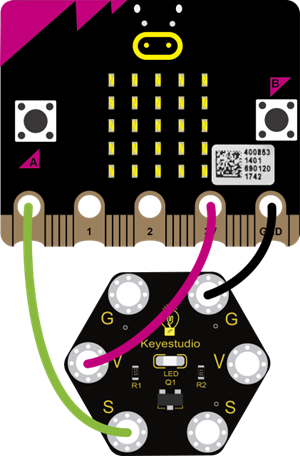
Connect the keyestudio Digital LED Module to micro:bit main board with 3 Alligator clip cables. Ring S to P0, V to 3V, G to GND. Connect the micro:bit to your computer with a micro USB cable.
4.Coding

So now let’s move to coding. Let us see how to code the LED to blink and breath. Below are some steps to follow.

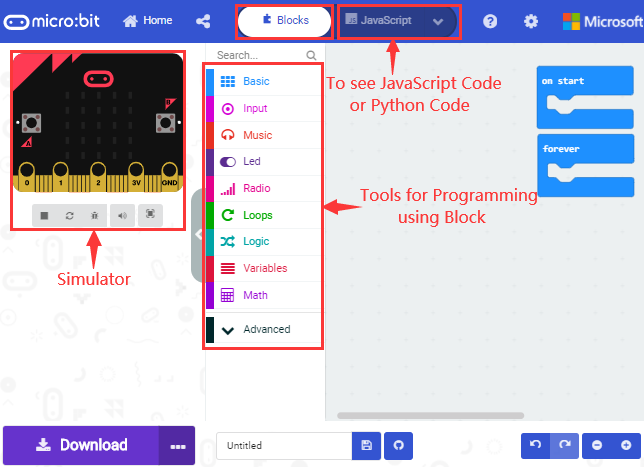
Open the https://makecode.micro:bit.org/#editor to write your code.

Microsoft MakeCode is actually a platform that allows us to code for a micro:bit, and also provides an interactive simulator where we can debug and run our code, and will be able to see what to expect out right there on the site.

Go to MakeCode and choose My Projects and click on New Projects.

If you want to see the codes behind, then you can click on JavaScript and it will display JavaScript code there in IDE.
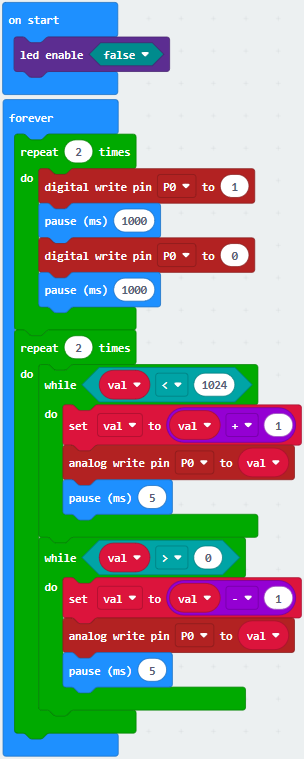
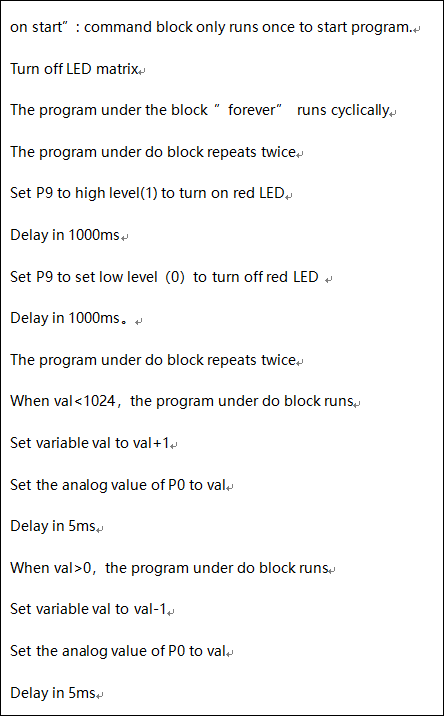
5.The following test code is for your reference
6.Test Results

Done wiring and powered up, send the code to micro:bit, you should see the LED on the module firstly blink twice, then breath twice, circularly.

Previous Next

© Copyright keyestudio.

Built with Sphinx using a theme provided by Read the Docs.