Project 28 Joystick
1.Overview
For some DIY projects, you perhaps use a component, that is, joystick module, such as game joysticks. How could they operate?
In this lesson, you will learn how to control a joystick module and micro:bit shield to display the data on serial monitor.
2.Components Required
Micro:bit main board*1
USB Cable*1
keyestudio Joystick Module*1
Alligator Clip Wire*5
3.Component Introduction
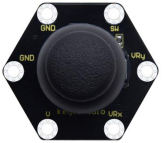
About Keyestudio micro bit honeycomb PS2 joystick module:
The keyestudio micro bit Honeycomb PS2 joystick module is fully compatible with micro bit control board. In the experiment, we connect the joystick module to the micro:bit control board using crocodile clip wire. There are 6 ports on the module, of which two are GND ports that are connected. When controlling it, we need to connect the VRx, VRy port to the analog port of the micro:bit control board, and the SW port to the digital port. We can judge the working state of the joystick on the module by reading the two analog values and the levels (be low or high) of a digital port.
Attention: When testing the SW port function, for some products, we need to connect a resistor to SW interface (connect to VCC port after connecting a resistor), the port function is valid; otherwise SW port is invalid.
2.Technical Parameters
Working voltage: DC 3.0-3.3V
Control port: analog port (VRx VRy) and digital port (SW)
Size: 40mm*45mm*31mm
Weight: 11.5g
Environmental attributes: ROHS
3.Connection Diagram
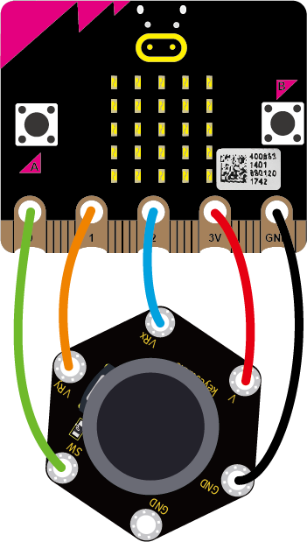
Connect the keyestudio micro bit honeycomb PS2 joystick to micro:bit main board with 5 Alligator clip cables. Ring VRy to P1, VRx to P2, V to 3V and G to GND.Connect the micro:bit to your computer with a micro USB cable.
So now let’s move to coding. Below are some steps to follow.
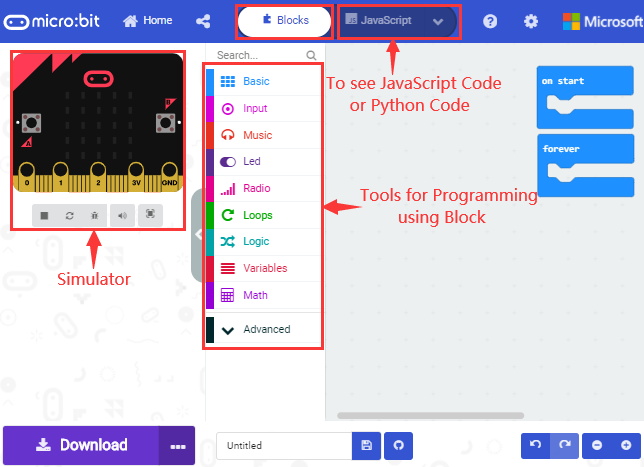
Open the https://makecode.micro:bit.org/#editor to write your code.
Microsoft MakeCode is actually a platform that allows us to code for a micro:bit, and also provides an interactive simulator where we can debug and run our code, and will be able to see what to expect out right there on the site.
Go to MakeCode and choose My Projects and click on New Projects.
If you want to see the codes behind, then you can click on JavaScript and it will display JavaScript code there in IDE.
4.The following test code is for your reference
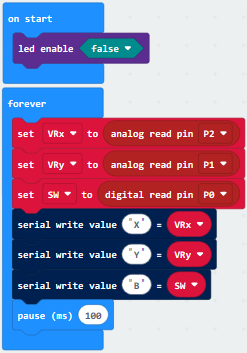
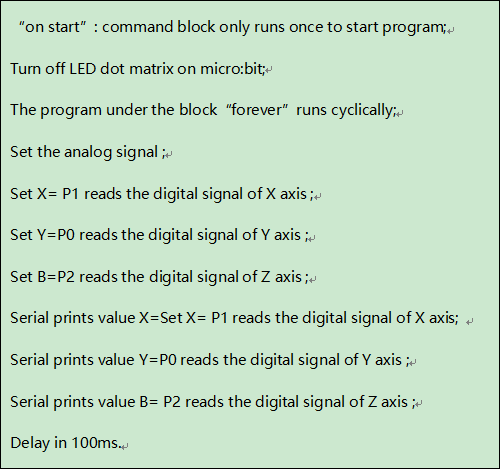
5.Test Results
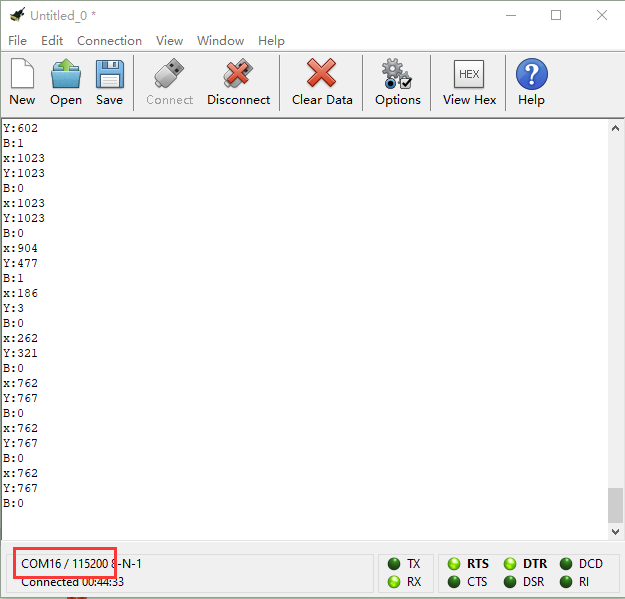
Wire up according to connection diagram. plug in external power and upload code to micro:bit. Open CoolTerm, click Options and select SerialPort, set COM port and baud rate(115200). Click OK and Connect.
If you operate the joystick, the analog value on X, Y and Z will change, as well as pin B, as shown below: