Project 22 Capacitive Touch
1.Overview
Are you tired of traditional buttons? Let’s have a try on capacitive touch ones. In this project, we are going to replace the button switch with a capacitive touch sensor. You will learn how to use Keyestudio touch sensor to control active buzzer and how to read the digital signal(1/0) of the sensor on the CoolTerm serial port monitor.
2.Components Required
Micro:bit Main Board*1
Keyestudio Micro bit Sensor V2 Shield*1
USB Cable*1
keyestudio Capacitive Touch Sensor*1
keyestudio Digital Buzzer Module*1
Alligator Clip Wire*6
3.Component Introduction
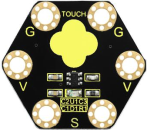
About Keyestudio micro bit honeycomb capacitive touch module:
This keyestudio capacitive touch module is fully compatible with micro:bit control board. When using, connect the module to micro:bit control board using Crocodile clip line.
It mainly uses touch detection IC, which is a digital signal output device.The touch detection IC is designed to replace the traditional button with a variable area key, featuring low power consumption and wide operating voltage.
When power on the module, it needs a stabilization time of about 0.5 sec. During this time period, do not touch the keypad. At this time, all functions are disabled, and self-calibration is always performed. No touching the key, the recalibration period is about 4.0sec.
Capacitive touch sensors are used in many devices such as laptop trackpads, digital audio players, computer displays, mobile phones, mobile devices, tablets and others.
There are total 6 rings on the module. Note that two G rings, two V rings and two S rings are separately connected. G for ground; V for 3V; S for signal pin(0 1 2).
When touch the sensing area, input HIGH level signal to micro:bit signal end, LED on the module will turn on; or else, turn off.
4.Technical Parameters
Working voltage: DC 3.0-3.3V
Output Signal: Digital
Dimensions: 31mm*27mm*2.5mm
Weight: 1.7g
Environmental attributes: ROHS
5.Connection Diagram
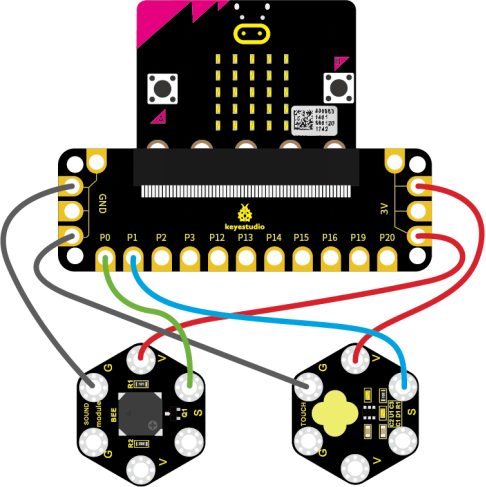
Attach the main board to Keyestudio Edge Connector IO Breakout Board for Micro:bit;
Connect the keyestudio micro bit honeycomb capacitive touch sensor to the shield with 3 Alligator clip cables;
Ring S to P1, V to 3V, and G to GND.
Connect the keyestudio micro bit passive buzzer module to the shield with 3 Alligator clip cables.
Ring S to P0, V to 3V, and G to GND.
Interface the micro:bit to your computer with a micro USB cable.
So now let’s move to coding. Below are some steps to follow.
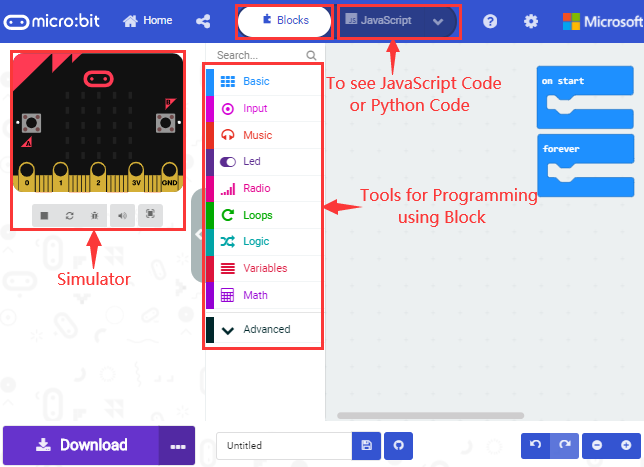
Open the https://makecode.micro:bit.org/#editor to write your code.
Microsoft MakeCode is actually a platform that allows us to code for a micro:bit, and also provides an interactive simulator where we can debug and run our code, and will be able to see what to expect out right there on the site.
Go to MakeCode and choose My Projects and click on New Projects.
If you want to see the codes behind, then you can click on JavaScript and it will display JavaScript code there in IDE.
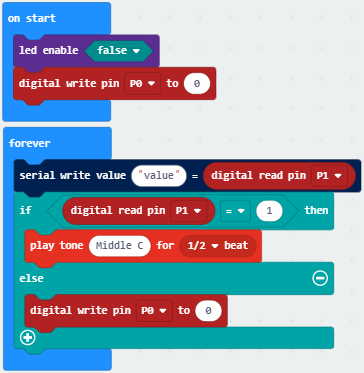
6.The following code is for your reference
7.Test Results
Wire according to connection diagram and upload the test code to the main board.
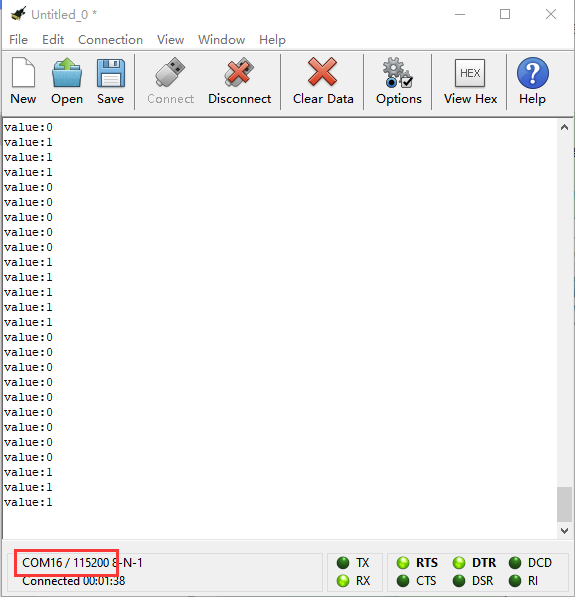
Open CoolTerm →click Options →click SerialPort to set COM port and baud rate(set it to 115200)→click OK→click Connect.
Touch the designated area of the capacitive touch sensor, the CoolTerm serial port monitor displays number 1 and the passive buzzer makes sounds. Without touching, the number on the monitor is 0 and the buzzer makes no sound.